
Introduction
This manual provides instructions for the StarTech.com ST121WHDLR Wireless HDMI Transmitter and Receiver Kit. This kit allows for the wireless transmission of HDMI audio/video signals from a source device to a remote display up to 656 feet (200 meters) away. It supports high-definition 1080p video and LPCM 5.1/7.1 audio, and includes an IR signal extension for remote control of your source device.
Package Contents
- HDMI over Wireless Transmitter (1)
- HDMI over Wireless Receiver (1)
- 3 ft [1 m] IR Blaster (1)
- 3 ft [1 m] IR Receiver (1)
- 5 ft [1.5 m] HDMI Cable (1)
- Universal Power Adapters (NA, EU, UK) (2)
- Mounting Hardware (2)
- Quick-Start Guide (1)
Product Overview
The StarTech.com ST121WHDLR kit consists of a transmitter unit and a receiver unit, designed for seamless wireless HDMI extension. Both units feature antennas for signal transmission and reception, along with various ports for connectivity.
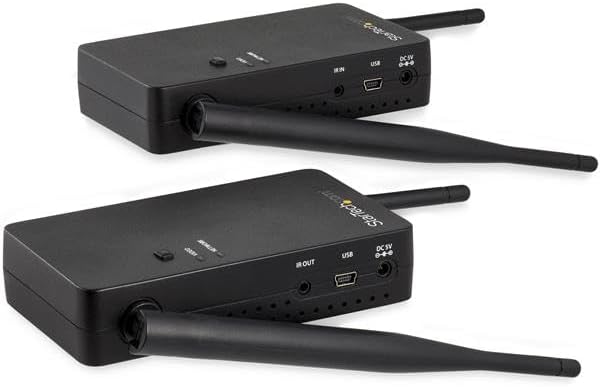
Image: Top view of the StarTech.com Wireless HDMI Transmitter and Receiver units, showing their antennas and general form factor.
Transmitter Unit
The transmitter unit connects to your HDMI source device. It features an HDMI input port and ports for power and IR signal transmission.
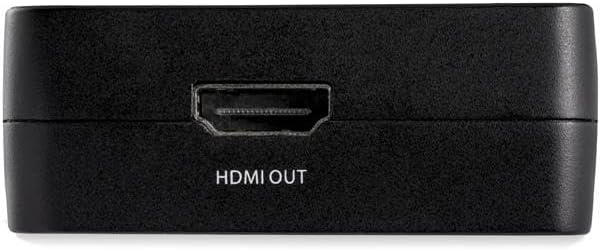
Image: Side view of the transmitter unit, highlighting the HDMI IN port for connecting to a source device.
Receiver Unit
The receiver unit connects to your HDMI display. It features an HDMI output port and ports for power and IR signal reception.

Image: Side view of the receiver unit, highlighting the HDMI OUT port for connecting to a display.
Common Ports (Transmitter & Receiver)
Both units share common ports for power and IR functionality.
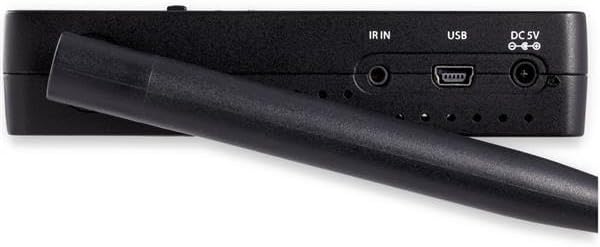
Image: Close-up view of the IR IN, USB, and DC 5V power input ports found on both the transmitter and receiver units.
- IR IN/OUT: For connecting the IR Blaster (transmitter) and IR Receiver (receiver) cables.
- USB: For firmware updates or service.
- DC 5V: Power input port.
Setup Instructions
- Connect the Transmitter: Connect one end of the provided HDMI cable to your HDMI source device (e.g., Blu-ray player, computer) and the other end to the HDMI IN port on the transmitter unit.
- Connect the Receiver: Connect one end of an HDMI cable (not necessarily provided, but one is included in the kit) to your HDMI display (e.g., TV, projector) and the other end to the HDMI OUT port on the receiver unit.
- Connect IR Cables (Optional):
- For remote control of your source device, connect the IR Blaster cable to the IR OUT port on the transmitter unit. Position the IR Blaster emitter near the IR sensor of your source device.
- Connect the IR Receiver cable to the IR IN port on the receiver unit. Position the IR Receiver in a location where it can receive signals from your remote control.
- Apply Power: Connect the universal power adapters to the DC 5V ports on both the transmitter and receiver units, then plug them into power outlets.
- Power On: Ensure both the source device and the display are powered on. The transmitter and receiver units will automatically power on when connected to power.
The units will begin the synchronization process. This may take a minute or more. Once synchronized, the video and audio from your source device will appear on the remote display.
Operating Instructions
- Initial Connection: After setup, the transmitter and receiver will automatically attempt to establish a wireless connection. Status indicators on the units will show connection progress.
- Using the IR Remote Extension: Point your remote control at the IR Receiver connected to the receiver unit. The signal will be transmitted wirelessly to the IR Blaster connected to the transmitter unit, allowing you to control your source device from the remote display location.
- Signal Stability: For optimal performance, ensure a clear line of sight between the transmitter and receiver units. Walls, furniture, and other obstructions can significantly reduce the effective wireless range and signal quality.
Maintenance
- Keep the devices clean by wiping them with a soft, dry cloth.
- Avoid exposing the units to excessive moisture, dust, or extreme temperatures.
- Do not attempt to open or service the units yourself. Refer to qualified personnel for any repairs.
Troubleshooting
If you encounter issues with your Wireless HDMI Transmitter Receiver Kit, refer to the following common solutions:
- No Signal or Poor Picture Quality:
- Ensure both transmitter and receiver units are powered on and their status indicators show a stable connection.
- Verify all HDMI cables are securely connected to both the source and display devices.
- Reduce the distance between the transmitter and receiver. While rated for 656ft (200m), physical obstructions like walls can significantly reduce effective range.
- Minimize wireless interference from other devices (e.g., Wi-Fi routers, cordless phones) by repositioning the units or other devices.
- If experiencing screen tearing or artifacts, try reducing the resolution of the source device if possible, or ensure the display supports the output resolution.
- Audio Issues (No Sound or Incorrect Format):
- Confirm that the audio output settings on your source device are correctly configured.
- While the product supports LPCM 5.1/7.1 audio, some setups may require the source to be set to stereo (2-channel LPCM) for compatibility.
- Check the volume levels on both your source device and display.
- IR Remote Not Working:
- Ensure the IR Blaster is positioned directly in front of the IR sensor on your source device.
- Verify the IR Receiver is positioned to receive signals from your remote control.
- Check that the IR cables are securely plugged into the correct ports (IR OUT on transmitter, IR IN on receiver).
- Units Not Starting Up or Synchronizing:
- Ensure both units are receiving power from their respective adapters.
- Initial synchronization can take a minute or more. Allow sufficient time for the connection to establish.
- If the input source changes between different 1080p frequencies (e.g., 50Hz to 60Hz), the units may require a restart. Power cycle both the transmitter and receiver units by disconnecting and reconnecting their power adapters.
Specifications
| Feature | Specification |
|---|---|
| Model Number | ST121WHDLR |
| Wireless Type | Infrared |
| Max. Resolution | 1080p (1920x1080) |
| Max. Distance | 656 ft (200 m) |
| Audio Support | LPCM 5.1/7.1 |
| Item Weight | 8.3 ounces |
| Product Dimensions (LxWxH) | 4.49 x 2.52 x 0.98 inches |
| Color | Black |
| Manufacturer | StarTech.com |
Warranty Information
The StarTech.com ST121WHDLR Wireless HDMI Transmitter Receiver Kit is backed by a 2-year StarTech.com warranty. Please retain your proof of purchase for warranty claims.
Technical Support
StarTech.com offers free lifetime technical support for this product. For assistance, please visit the official StarTech.com website or contact their customer support directly.

