
Introduction
The NETGEAR Nighthawk Cable Modem CM1200 is designed to provide high-speed internet connectivity for your home or office. This DOCSIS 3.1 cable modem supports link aggregation to deliver true Multi-Gig Internet speeds, enhancing your online streaming, gaming, and overall internet experience. It is compatible with major cable internet providers such as Xfinity by Comcast, Spectrum, and Cox, and is built to support cable plans up to 2 Gigabits, ensuring readiness for current and future internet demands.
Setup
What's in the Box
- Nighthawk Multi-Gig Speed Cable Modem—DOCSIS 3.1 (CM1200)
- Ethernet cable
- Quick install guide
- Power adapter
Connecting Your Modem
Follow these steps to connect your NETGEAR Nighthawk CM1200 cable modem:
- Position the Modem: Place the modem in a central location in your home, away from obstructions and heat sources, to ensure optimal performance.
- Connect Coaxial Cable: Connect a coaxial cable from your cable wall outlet to the Cable port on the back of the modem. Ensure the connection is finger-tight.
- Connect Ethernet Cable: Connect one end of the provided Ethernet cable to one of the 1G Ethernet ports on the modem and the other end to the WAN or Internet port on your WiFi router.
- Connect Power Adapter: Plug the power adapter into the modem's power port and then into a power outlet. The Power LED on the front of the modem should light up.
- Wait for Online LED: Wait for the Online LED (internet icon) on the front of the modem to light solid white, indicating a successful internet connection. This may take several minutes.

The NETGEAR Nighthawk CM1200 Cable Modem, a high-performance device designed for reliable internet connectivity.
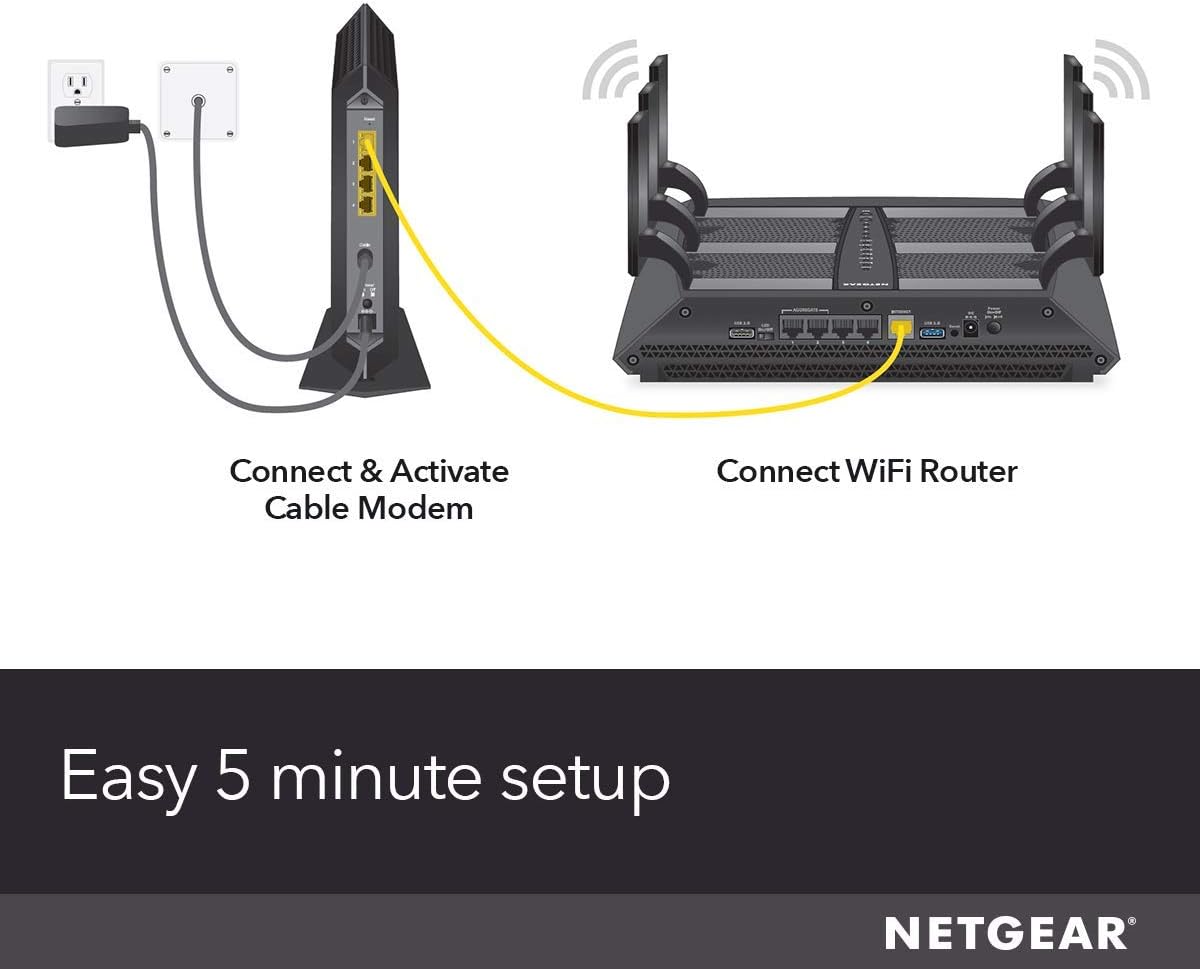
A visual guide demonstrating the simple 5-minute setup process for the CM1200, showing connections to the wall outlet and a WiFi router.
Activating Your Internet Service
After connecting your modem, you will need to activate your internet service with your Internet Service Provider (ISP). This typically involves:
- Contacting Your ISP: Call your ISP's customer support line. Have your account information and the modem's MAC address (found on the label on the bottom or back of the modem) ready.
- Online Activation: Some ISPs offer an online activation portal. Open a web browser on a connected device (computer, tablet, or smartphone) and follow the on-screen instructions to activate your service.
- Self-Activation App: Certain ISPs provide a mobile app for self-activation. Download and use their app to complete the setup.
Operating Your Modem
Understanding the LED Indicators
The front panel of your CM1200 modem features several LED indicators that provide information about its status:
| LED Indicator | Status | Description |
|---|---|---|
| Power | Solid White | Modem is powered on. |
| Downstream | Solid White | One or more downstream channels are locked. |
| Solid Blue | One or more downstream DOCSIS 3.1 channels are locked. | |
| Upstream | Solid White | One or more upstream channels are locked. |
| Solid Blue | One or more upstream DOCSIS 3.1 channels are locked. | |
| Online | Solid White | Modem is connected to the internet. |
| Ethernet 1-4 | Solid White | Device connected to the corresponding Ethernet port. |
| Blinking White | Activity on the corresponding Ethernet port. |
Internet Speed Considerations
Choosing the right internet speed plan and modem is crucial for optimal performance. The Nighthawk CM1200 is designed to support high-speed plans. Consider the following:
- For basic browsing and YouTube streaming, a plan that includes 100 Megabits per second (Mbps) should be sufficient.
- For HD movie streaming and households with multiple devices like smartphones, thermostats, and security cameras, a plan that includes 500 Mbps is ideal.
- For 4K movie streaming, online gaming, video calls, and households with numerous smart devices, a plan that includes at least one Gigabit per second (Gbps) is the best choice.

The NETGEAR Cable Modem (left) connects to a WiFi Router (right, sold separately) to provide internet access throughout your home.

The CM1200 is 100% certified compatible with major cable internet providers including Cox (up to 1Gbps), Spectrum (up to 1Gbps), and Xfinity (up to 800Mbps).

The CM1200 supports cable internet plans with speeds up to 2Gbps, suitable for various internet speed options from 100Mbps to 2Gbps.

Owning your modem, like the CM1200, offers maximum flexibility to connect the WiFi router that best meets your needs and can save up to $168/year in equipment rental fees.
Maintenance
General Care
To ensure the longevity and optimal performance of your NETGEAR Nighthawk CM1200 cable modem, follow these general care guidelines:
- Keep it Ventilated: Ensure the modem is placed in an area with good airflow. Avoid covering ventilation openings or placing it in enclosed spaces.
- Clean Regularly: Gently wipe the exterior of the modem with a soft, dry cloth to remove dust. Do not use liquid cleaners or abrasive materials.
- Protect from Spills: Keep liquids away from the modem to prevent damage from accidental spills.
- Avoid Extreme Temperatures: Operate the modem within its recommended temperature range. Avoid placing it in direct sunlight or near heat sources.
Firmware Updates
Your NETGEAR Nighthawk CM1200 modem is designed to receive automatic firmware updates. These updates are crucial for maintaining security, improving performance, and adding new features. Ensure your modem remains connected to the internet and powered on to receive these updates seamlessly.
Troubleshooting
Common Issues
If you encounter issues with your CM1200 modem, try the following troubleshooting steps:
No Internet Connection
- Check Cables: Ensure all cables (coaxial, Ethernet, power) are securely connected to the modem and wall outlets.
- Check LED Indicators: Verify that the Power, Downstream, Upstream, and Online LEDs are solid white (or blue for DOCSIS 3.1 channels). If any are off or blinking, refer to the LED indicator table.
- Restart Modem and Router: Unplug the power adapter from both your modem and router. Wait 30 seconds, then plug the modem back in. Once the modem is fully online (Online LED is solid), plug in your router.
- Contact ISP: If the issue persists after checking connections and restarting, contact your Internet Service Provider to confirm service status in your area.
Slow Internet Speed
- Check Your Plan: Confirm your internet speed plan with your ISP and ensure it meets your usage needs.
- Test Directly: Connect a computer directly to the modem with an Ethernet cable (bypassing the router) and perform a speed test to determine if the modem is receiving the expected speeds.
- Reduce Network Congestion: Disconnect unused devices from your network.
- Optimize Router Placement: If using a separate router, ensure it is centrally located and free from interference.
Factory Reset
A factory reset can resolve persistent issues by restoring the modem to its default settings. Warning: This will erase any custom configurations.
- Locate the Reset button on the back of the modem. It is usually a small, recessed button.
- Using a paperclip or similar pointed object, press and hold the Reset button for about 7-10 seconds.
- Release the button when the modem's LEDs begin to flash.
- The modem will restart with factory default settings. You may need to reconfigure your settings or reactivate with your ISP.
Specifications
Key technical specifications for the NETGEAR Nighthawk Cable Modem CM1200:
| Feature | Detail |
|---|---|
| Model Number | CM1200-100NAS |
| DOCSIS Standard | DOCSIS 3.1 |
| Ethernet Ports | 4 x 1G Ethernet ports (supports port aggregation) |
| USB Port | 1 x USB 3.0 port |
| Dimensions (LxWxH) | 6.1 x 3.4 x 10.3 inches |
| Item Weight | 1.22 pounds |
| Color | Black |
| Compatible ISPs | Cox, Spectrum, Xfinity |
| Wireless Type | 802.11ad (Note: This refers to the modem's internal wireless capability, not its primary function as a cable modem for wired internet access) |
Warranty and Support
Warranty Information
The NETGEAR Nighthawk CM1200 includes a 90-day subscription for NETGEAR Armor software, which provides an automatic shield of security for your WiFi and connected devices, offering real-time protection against hackers and added privacy with VPN. For detailed warranty terms and conditions for the hardware, please refer to the documentation included with your product or visit the official NETGEAR website.
Technical Support
For further assistance, technical support, or to access the complete user manual, please visit the official NETGEAR support website or refer to the downloadable PDF manual.