
Introduction
The Maegoo Wireless Controller (Model B07Q3L6LPS) is designed to enhance your gaming experience on Nintendo Switch, PC, and Android devices. Featuring Bluetooth connectivity, a built-in gyro and gravity sensor, dual vibration motors, and a convenient screenshot function, this controller offers precise control and immersive feedback. Please read this manual carefully to ensure proper use and optimal performance.
Setup
1. Pairing with Nintendo Switch
Follow these steps to connect your Maegoo Wireless Controller to your Nintendo Switch console:
- Ensure your Nintendo Switch console is powered on and updated to the latest system version.
- From the HOME Menu, select Controllers > Change Grip/Order.
- On the Maegoo Wireless Controller, press and hold the SYNC Button (small button on the top edge) for at least one second. The player LED(s) on the bottom of the controller will begin to flash.
- Once the controller is successfully paired, the player LED(s) corresponding to the controller number will remain steadily lit.
2. Connecting to PC/Android Devices
The controller supports connection to PC and Android devices.
- PC Connection (USB): Connect the controller to your PC using the provided USB cable. The controller should be recognized automatically (compatible with Windows 7 and above).
- PC/Android Connection (Bluetooth): Enable Bluetooth on your PC or Android device. Put the controller into pairing mode (usually by holding the SYNC button or a specific combination of buttons, refer to the included quick start guide for exact details). Select the controller from the list of available Bluetooth devices to pair.

Figure 1: High Compatibility with Nintendo Switch, PC, and Android.
This diagram visually confirms the controller's broad compatibility, showing it can connect wirelessly via Bluetooth to Nintendo Switch and Android, and via USB to PC.
Operation
1. Button Layout and Basic Controls
Familiarize yourself with the controller's button layout for optimal gameplay.
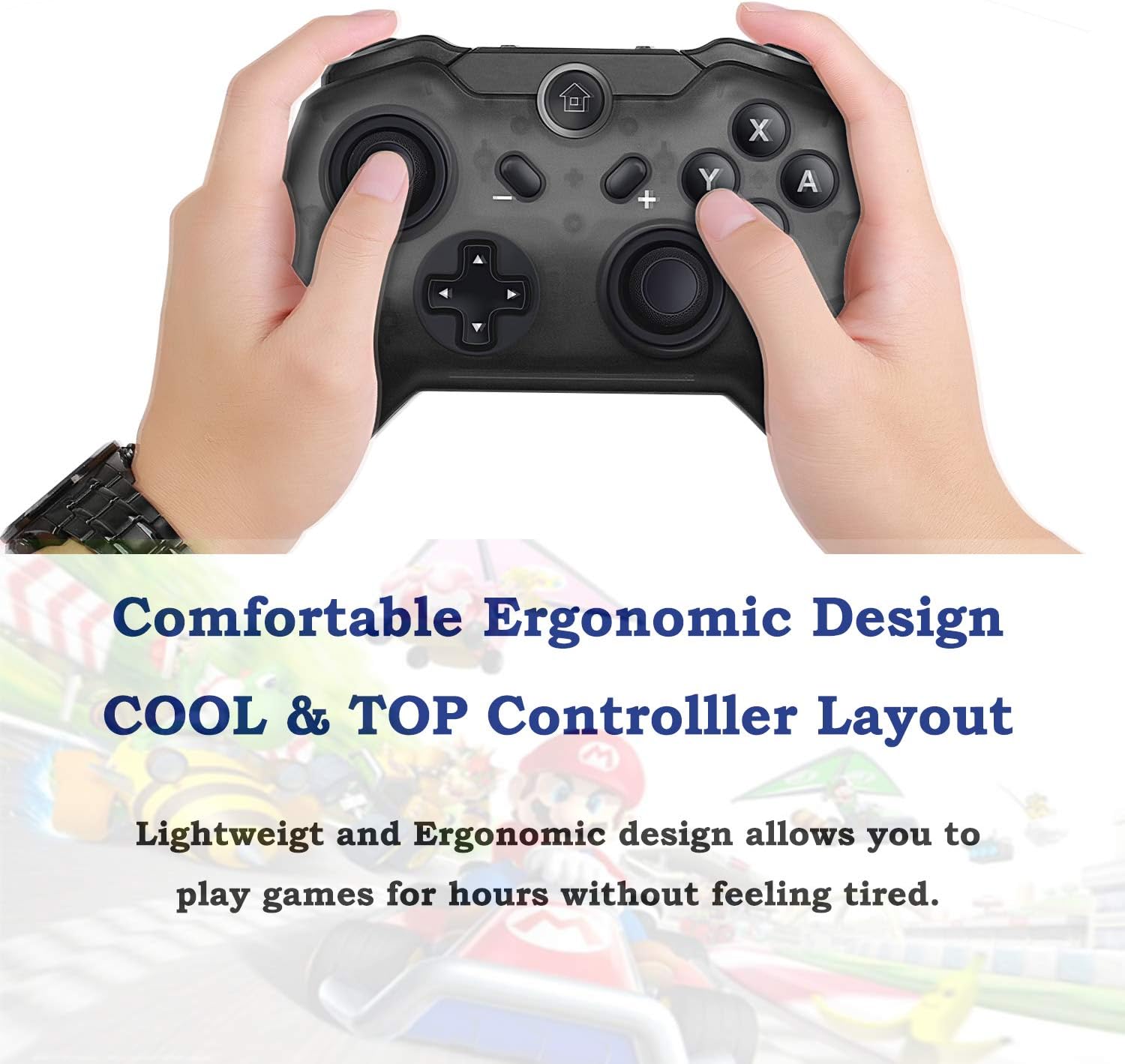
Figure 2: Ergonomic Design and Button Layout.
This image displays the Maegoo Wireless Controller from a top-down perspective, held by a user, highlighting its ergonomic design and the placement of its buttons and joysticks for comfortable gameplay.
- A/B/X/Y Buttons: Standard action buttons.
- D-Pad: Directional input.
- Left/Right Joysticks: Provide 360-degree movement control.
- L/R/ZL/ZR Buttons: Shoulder and trigger buttons.
- Home Button: Returns to the console's HOME Menu.
- Plus (+) / Minus (-) Buttons: Used for in-game menus and options.
2. Special Features
- Screenshot Function: Press the dedicated Screenshot Button (located on the top edge, near the USB port) to capture in-game moments. These images can then be shared with friends.
- Dual Vibration: The controller features built-in dual motors that provide adjustable vibration feedback, enhancing immersion during gameplay.

Figure 3: Dual Motor Vibration Function.
The image features the controller with visual cues (blue waves) emanating from it, emphasizing its built-in dual motor vibration function for an immersive gaming experience.
- Motion Controls (Gyro & Gravity Sensor): The integrated gyro and gravity sensors allow for precise motion control in supported games, offering a more dynamic gaming experience.
Maintenance
1. Charging the Controller
The controller is powered by a built-in rechargeable battery.
- Connect the provided USB cable to the controller's USB charging interface and plug the other end into a USB power source (e.g., console, PC, USB wall adapter).
- A full charge typically takes approximately 2 to 3 hours.
- The controller's battery life can last up to 5 hours of continuous gameplay and up to 5 days in standby mode.

Figure 4: USB Charging Interface.
A detailed view of the controller, illustrating the Home key with its LED effect, the 360-degree rotatable joysticks (rockers), and the conveniently located USB charging port.
2. Cleaning and Storage
- Wipe the controller with a soft, dry cloth. Avoid using harsh chemicals or abrasive materials.
- Store the controller in a cool, dry place away from direct sunlight and extreme temperatures.
Troubleshooting
1. Controller Not Connecting/Pairing
- Ensure the controller is fully charged.
- Verify that the console's system software is up to date.
- Try re-pairing the controller by following the