Introduction
This manual provides detailed instructions for the installation, operation, and maintenance of your Sonew 4-Channel WiFi Security Camera System. This wireless surveillance system includes a 7-inch LCD monitor and infrared (IR) cameras designed for both indoor and outdoor use. Please read this manual thoroughly before using the product to ensure proper functionality and safety.
Package Contents
Verify that all items listed below are included in your package. If any items are missing or damaged, please contact customer support.
- 1 x Infrared Camera
- 1 x Display Monitor (7-inch LCD)
- 2 x Power Adapters
- 2 x Antennas
- 1 x Screw Pack for Mounting
- 1 x USB Cable
- 1 x 8G TF Card
Specifications
Display Monitor (Model: 602D11)
- LED Size: 7 inches
- LED Resolution: 800 * 480
- Image Resolution: 640 * 480
- Main Features: Monitoring, Video Recording, Motion Detection
- Extended Memory: Supports up to 32G TF card (8G TF card included)
- Recording Format: ASF
- Single Screen Status: 640 * 480 @ 25FPS
- Four-Image Status: 320 * 240 @ 25FPS
- Photo Format: 640 * 480 JPG
- Power Input: 100-240V 50/60Hz
- Power Output: 5V / 1A
- Working Current: ≤400MA
- Working Frequency: 2.4G ISM Digital Public Frequency Band
- Receiver Size: Approx. 200 x 117 x 20mm (7.9 x 4.6 x 0.8 inches)
Camera
- Lens: 3.6mm
- Resolution: 800,000 pixels
- Viewing Angle: 92 degrees
- Night Vision Distance: 2-4 meters
- Main Function: Infrared Night Vision Monitoring
- Working Frequency: 2.4G ISM Digital Public Frequency Band
- Working Current (Day): 250mA
- Working Current (Night): 450mA MAX
- Power Input: 100-240V 50/60Hz
- Power Output: 5V / 1A
General
- Voltage: 110-220V
- Weight: Approx. 980g
- Connectivity: Wired, Wireless
- Operating System: Linux
Setup Instructions
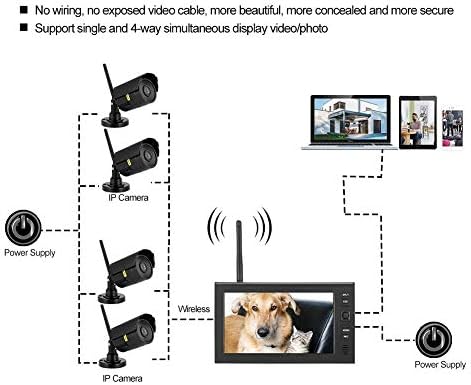
The Sonew security system is designed for easy, wireless installation. No complex wiring is required between the monitor and the cameras.
- Unpack Components: Carefully remove all items from the packaging and verify against the package contents list.
- Connect Antennas: Screw the antennas securely onto the designated ports on both the camera(s) and the monitor.
- Power the Cameras: Connect each camera to its respective power adapter and plug the adapter into a power outlet.
- Power the Monitor: Connect the monitor to its power adapter and plug it into a power outlet. The monitor will power on automatically.
- Automatic Pairing: The cameras and monitor are pre-paired at the factory. Once both are powered on, the camera feeds should automatically appear on the monitor. If not, refer to the troubleshooting section for manual pairing instructions.
- Mount Cameras: Choose suitable outdoor locations for your cameras, ensuring a clear line of sight and optimal coverage. Use the provided screw pack to securely mount the cameras. The cameras are waterproof and suitable for outdoor use.
Operating Instructions
The system offers various monitoring and recording functionalities.
Monitor Display Modes
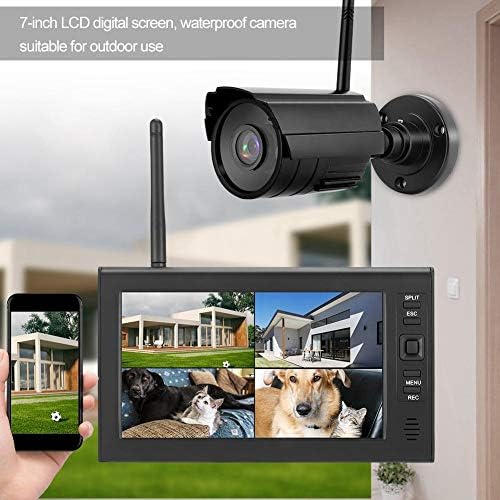
The 7-inch LCD monitor supports simultaneous display of up to four camera feeds. Use the 'SPLIT' button on the monitor to cycle through different display layouts (e.g., single camera view, four-camera split view).
Recording and Motion Detection
- Manual Recording: Press the 'REC' button on the monitor to start or stop recording manually.
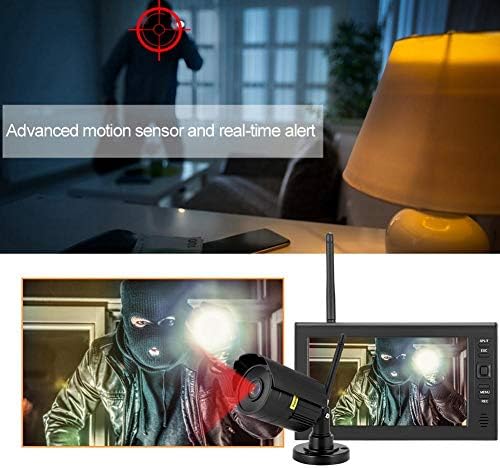
- Motion Detection Recording: The system can be configured to automatically record or capture photos when motion is detected. Access the menu settings to enable and adjust motion detection sensitivity.
- Night Vision: Each camera is equipped with infrared night vision, allowing clear visibility in completely dark environments up to 2-4 meters. This feature activates automatically in low light conditions.
Playback
Recorded footage is stored on the included 8G TF card. You can access and play back recordings directly from the monitor's menu. The ASF format allows direct playback on the monitor; for computer playback, specific software may be required.
Maintenance
Regular maintenance ensures optimal performance and longevity of your security system.
- Cleaning: Use a soft, dry cloth to clean the monitor screen and camera lenses. For stubborn dirt, a slightly damp cloth can be used, but avoid harsh chemicals or abrasive materials.
- Outdoor Cameras: The cameras are waterproof. Periodically check for any debris or obstructions on the lens or housing that might affect image quality.
- Power Connections: Ensure all power adapters and cables are securely connected and free from damage.
- TF Card Management: Regularly back up important recordings from the TF card. If the card becomes full, older recordings may be overwritten, or new recordings may not be saved.

Troubleshooting
If you encounter issues with your Sonew security system, refer to the following common problems and solutions.
| Problem | Possible Cause | Solution |
|---|---|---|
| No image on monitor | Power issue, camera not paired, signal interference | Check power connections for both monitor and cameras. Ensure antennas are securely attached. Try re-pairing the camera (refer to manual for specific steps if automatic pairing fails). Reduce distance between camera and monitor or remove obstructions. |
| Poor image quality | Dirty lens, low light, signal interference | Clean camera lens. Ensure adequate lighting for non-night vision modes. Optimize camera placement to minimize interference. |
| Recording not working | TF card full or faulty, recording settings incorrect | Check TF card status; format or replace if necessary. Verify recording settings in the monitor menu (manual, motion detection). |
| Motion detection not triggering | Sensitivity too low, incorrect zone setup | Adjust motion detection sensitivity in the menu. Ensure detection zones are correctly configured. |
| Monitor not turning on | Power adapter issue, internal fault | Ensure the power adapter is correctly connected and functioning. Try a different power outlet. If the issue persists, contact customer support. |
Warranty and Support
Sonew is committed to providing reliable products and customer satisfaction. While specific warranty details are not provided in this document, we offer technical assistance for any issues you may encounter during installation or operation.
If you experience any difficulties or have questions not covered in this manual, please contact Sonew customer support through the retailer where you purchased the product or via the official Sonew website for assistance.