
ORICO 6518US3-BK
ORICO 6518US3-BK 2.5/3.5-inch HDD/SSD Docking Station User Manual
1. Introduction
Thank you for choosing the ORICO 6518US3-BK 2.5/3.5-inch HDD/SSD Docking Station. This device provides a convenient and efficient solution for connecting 2.5-inch and 3.5-inch SATA hard drives or solid-state drives to your computer via USB 3.0. Its tool-free, open design ensures easy installation and excellent heat dissipation. Please read this manual carefully to ensure proper setup and operation.

Figure 1: ORICO 6518US3-BK Docking Station with a 3.5-inch HDD
2. Package Contents
Please check the package contents upon opening. If any items are missing or damaged, contact your retailer.

Figure 2: Package Contents
- 1x ORICO 6518US3-BK HDD/SSD Docking Station
- 1x User Manual
- 1x 12V Power Adapter
- 1x Power Converter (if applicable for region)
- 1x 1-meter USB 3.0 Data Cable
- 1x Product Box
3. Product Features
- Tool-Free Open Design: Easily swap 2.5-inch and 3.5-inch SATA HDDs/SSDs without tools. The open design promotes excellent heat dissipation, keeping your drives cool during operation.

Figure 3: Open Design for Heat Dissipation
- Wide Compatibility: Supports both 2.5-inch and 3.5-inch SATA I/II/III HDDs and SSDs. Compatible with capacities up to 16TB (some visuals may show higher capacities, but 16TB is officially supported).

Figure 4: 2.5/3.5-inch Drive Compatibility
- High-Speed Data Transfer: Equipped with USB 3.0, offering data transfer speeds up to 5Gbps. UASP (USB Attached SCSI Protocol) support further enhances transfer performance, especially for large files.

Figure 5: High-Speed USB 3.0 Transfer
- Stable Power Supply: Includes a 12V2A power adapter to ensure stable and sufficient power for your hard drives, preventing data corruption due to power fluctuations. The bottom features an anti-slip mat for stability.
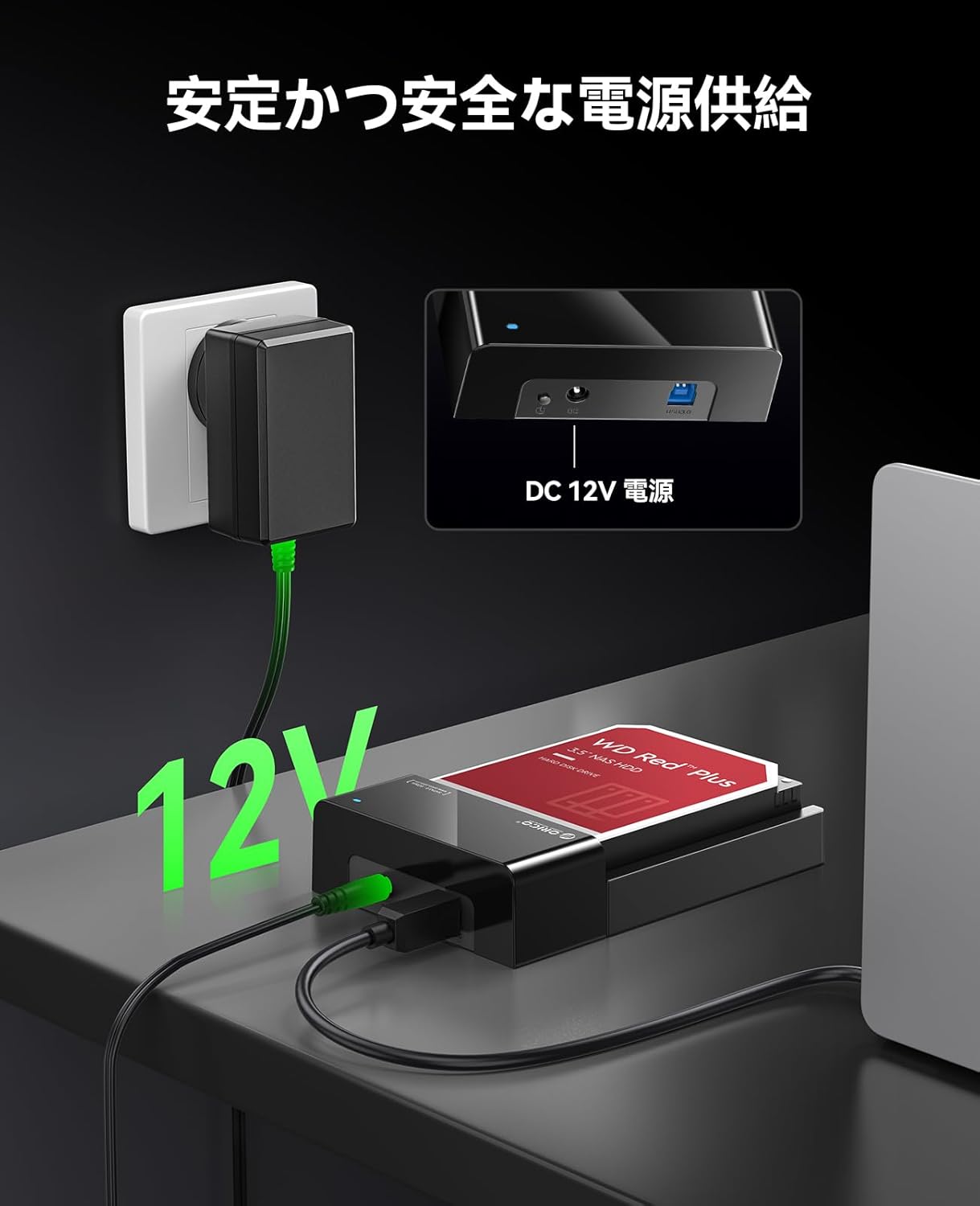
Figure 6: Stable 12V Power Supply

Figure 7: Anti-slip Base
- Multiple Data Protection Features: Supports UASP, TRIM, and S.M.A.R.T. functions to optimize performance, extend drive lifespan, and monitor drive health.

Figure 8: Data Protection Features
- Broad System Compatibility: Compatible with Windows, Mac OS, and Linux operating systems.
4. Setup Instructions
Follow these steps to set up your ORICO 6518US3-BK docking station:

Figure 9: Operation Steps
- Insert Hard Drive: Gently slide your 2.5-inch or 3.5-inch SATA HDD/SSD into the drive slot of the docking station until it is firmly seated. Ensure the SATA connector aligns correctly.
- Connect Power: Connect the provided 12V power adapter to the DC power input port on the docking station. Plug the power adapter into a wall outlet. Press the ON/OFF button to power on the device. The power indicator light will illuminate.
- Connect to Computer: Use the supplied USB 3.0 data cable to connect the docking station's USB 3.0 port to an available USB port on your computer.
- Drive Recognition: Your computer should automatically detect the hard drive. For new drives, you may need to initialize and format them through Disk Management (Windows) or Disk Utility (Mac OS) before use.
5. Operating Instructions
5.1. Connecting and Disconnecting Drives
- To connect a drive, simply slide it into the slot as described in the setup section.
- To disconnect a drive, always safely eject it from your operating system first (e.g., "Safely Remove Hardware" in Windows, or drag the drive icon to the Trash in Mac OS). Once safely ejected, power off the docking station using the ON/OFF button, then gently pull the drive out of the slot.
5.2. Data Transfer
Once the drive is recognized by your computer, you can drag and drop files to and from the drive as you would with any other storage device. The USB 3.0 interface ensures fast data transfer for efficient backups and file management.
6. Maintenance
- Cleaning: Use a soft, dry cloth to clean the exterior of the docking station. Do not use liquid cleaners or solvents.
- Storage: When not in use, store the docking station in a cool, dry place away from direct sunlight and extreme temperatures.
- Handling: Avoid dropping or subjecting the device to strong impacts.
- Ventilation: Ensure the docking station's open design is not obstructed to maintain optimal heat dissipation.
7. Troubleshooting
| Problem | Possible Cause | Solution |
|---|---|---|
| Drive not recognized by computer |
|
|
| Slow data transfer speeds |
|
|
| Docking station powers off unexpectedly |
|
|
8. Specifications

Figure 10: Universal Compatibility Overview

Figure 11: Product Interface Details
| Feature | Detail |
|---|---|
| Model | 6518US3-BK |
| Brand | ORICO |
| Compatible Drives | 2.5-inch / 3.5-inch SATA I/II/III HDD & SSD |
| Max Capacity | Up to 16TB |
| Output Interface | USB 3.0 Type-B |
| Transfer Rate | Up to 5Gbps (USB 3.0) |
| Power Supply | 12V2A Power Adapter |
| Supported Systems | Windows, Mac OS, Linux |
| Product Dimensions | 18 x 12.2 x 4.2 cm |
| Product Weight | 440 g |
| Features | Tool-free, Open Design, UASP, TRIM, S.M.A.R.T., Anti-slip base |
9. Warranty and Support
9.1. Warranty Information
This ORICO product comes with a 12-month warranty from the date of purchase. This warranty covers manufacturing defects and malfunctions under normal use. It does not cover damage caused by misuse, accidents, unauthorized modifications, or natural disasters.
9.2. Technical Support
If you encounter any issues or have questions regarding the ORICO 6518US3-BK docking station, please refer to the troubleshooting section of this manual first. If the problem persists, please contact ORICO customer support through the retailer where you purchased the product or visit the official ORICO website for support resources.
Related documents6518US3-BK


Ask a question about this manual
Ask about setup, troubleshooting, compatibility, parts, safety, or missing instructions. Manuals+ will review the question and use this page’s manual context to help answer it.