1. Introduction
This user manual provides detailed instructions for the safe and efficient operation of your Veidoo 10-inch Android Tablet PC. Please read this manual thoroughly before using the device and retain it for future reference. This tablet is designed for various uses, including communication, entertainment, and productivity.

This image shows the Veidoo 10-inch Android Tablet PC. The front of the tablet displays the home screen with the current time, date, and various application icons such as Camera, Gallery, Settings, and Music. The rear of the tablet, visible behind the front, is black with a subtle textured design and features the rear camera module.
2. Safety Information
- Do not expose the device to extreme temperatures, direct sunlight, or high humidity.
- Avoid dropping or subjecting the device to strong impacts.
- Use only manufacturer-approved chargers and accessories.
- Do not attempt to disassemble or repair the device yourself. Refer to qualified service personnel.
- Keep the device away from children and pets.
- Dispose of the device and its battery responsibly according to local regulations.
3. Product Overview
3.1 Physical Features
Familiarize yourself with the various ports and buttons on your Veidoo Tablet PC:

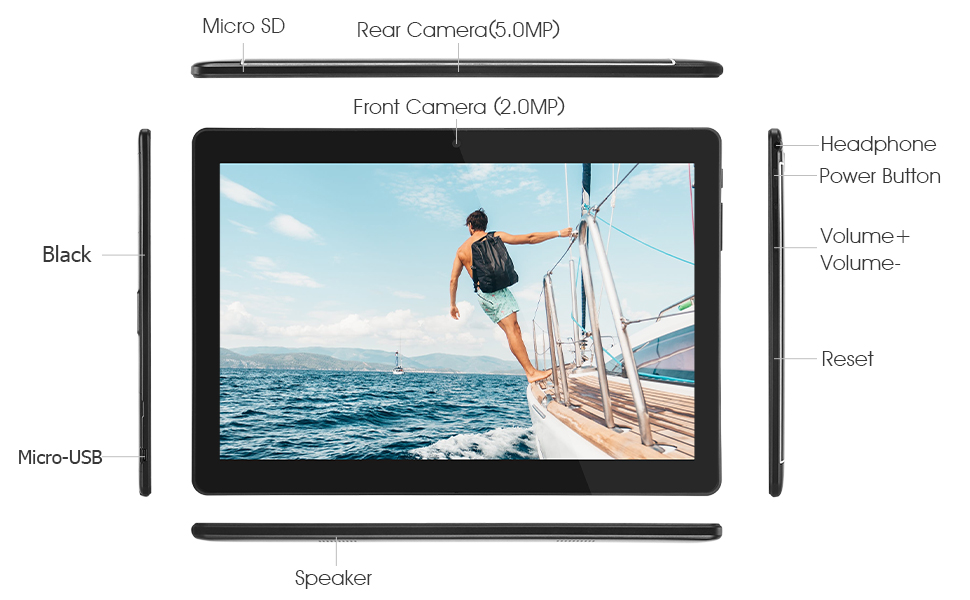
This diagram illustrates the various physical components and ports of the Veidoo 10-inch Android Tablet PC. It clearly labels the Micro SD card slot, the 5.0MP rear camera, the 2.0MP front camera, the headphone jack, the power button, the volume up and down buttons, the reset pinhole, the Micro-USB charging port, and the speaker.
- Micro SD Slot: For expandable storage.
- Rear Camera (5.0MP): For taking photos and videos.
- Front Camera (2.0MP): For video calls and selfies.
- Headphone Jack: Connect 3.5mm headphones.
- Power Button: Press and hold to power on/off, short press to sleep/wake.
- Volume Buttons: Adjust audio volume.
- Reset Pinhole: Use a thin object to reset the device if unresponsive.
- Micro-USB Port: For charging and data transfer.
- Speaker: Audio output.
3.2 Package Contents
Ensure all items are present in your product box:

This image displays the items typically found inside the Veidoo 10-inch Android Tablet PC product box. It includes the tablet itself, a black protective case, a power adapter (wall charger), a USB charging and data cable, a service warranty card, and a leaflet containing frequently asked questions and support information.
- Veidoo 10-inch Android Tablet PC
- Power Adapter
- USB Cable
- Protective Case (optional, may vary by package)
- User Manual (this document)
- Service Warranty Card
- FAQ Leaflet
4. Setup
4.1 Charging the Battery
Before first use, fully charge the tablet. Connect the USB cable to the tablet's Micro-USB port and the other end to the power adapter. Plug the adapter into a wall outlet. The charging indicator will show the charging status. A full charge typically takes 3-4 hours.

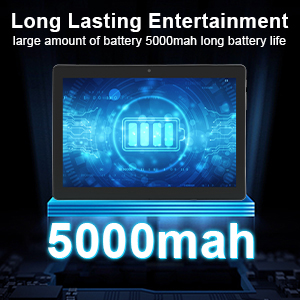
This image focuses on the Veidoo 10-inch Android Tablet PC's battery capacity, prominently displaying a battery icon and '5000mAh'. This signifies the tablet's 5000mAh battery, designed to provide extended usage time for entertainment and productivity.
4.2 Powering On/Off
- To Power On: Press and hold the Power button until the Veidoo logo appears on the screen.
- To Power Off: Press and hold the Power button until a menu appears. Select "Power off" and confirm.
- Sleep/Wake: Briefly press the Power button to put the tablet to sleep or wake it up.
4.3 Inserting SIM and Micro SD Cards
The tablet supports dual SIM cards for 3G phone calls and a Micro SD card for expandable storage.
- Locate the SIM/SD card slot on the side of the tablet.
- Carefully open the slot cover.
- Insert the SIM card(s) and/or Micro SD card into the designated slots with the gold contacts facing down. Ensure they are correctly seated.
- Close the slot cover securely.
This image demonstrates the storage capabilities of the Veidoo 10-inch Android Tablet PC, showing multiple applications and content open. It highlights the device's 16GB internal storage (ROM) and its ability to expand storage up to 32GB via a Micro SD card, allowing for ample space for apps, photos, and videos.
4.4 Initial Setup
Upon first power-on, the tablet will guide you through the initial setup process:
- Select your preferred language.
- Connect to a Wi-Fi network.
- Sign in with your Google account or create a new one. This is necessary to download apps from the Google Play Store.
- Set up screen lock (PIN, pattern, password).
- Review and accept terms and conditions.
5. Operating the Tablet
5.1 Basic Navigation
- Tap: Select an item or open an app.
- Tap & Hold: Access context menus or move icons.
- Swipe: Scroll through screens or lists.
- Pinch-to-Zoom: Zoom in or out on images and web pages.
5.2 Connectivity (Wi-Fi & Bluetooth)
- Wi-Fi: Go to Settings > Network & internet > Wi-Fi. Turn Wi-Fi on, select your network, and enter the password.
- Bluetooth: Go to Settings > Connected devices > Bluetooth. Turn Bluetooth on, scan for devices, and pair with your desired accessory.
5.3 Making Phone Calls (3G)
With a valid SIM card inserted, you can make and receive 3G phone calls:

This image shows a group of four individuals participating in a video call using the Veidoo 10-inch Android Tablet PC. This illustrates the tablet's capability for video conferencing and its 3G phone call functionality, allowing users to connect with others remotely.
- Open the Phone app.
- Dial the number using the keypad or select a contact.
- Tap the call button to initiate the call.
5.4 Using the Cameras
The tablet is equipped with a front and rear camera for photos and videos.
- Open the Camera app.
- Switch between front and rear cameras using the camera icon.
- Tap the shutter button to take a photo or start/stop video recording.
5.5 Managing Storage
You can view and manage your tablet's internal and external storage:
- Go to Settings > Storage.
- Here you can see storage usage and free up space by deleting unnecessary files or uninstalling apps.
5.6 Installing and Uninstalling Apps
This image features the Veidoo 10-inch Android Tablet PC showcasing its Android 10 operating system with a multitude of application icons. This highlights that the device is GMS (Google Mobile Services) certified, ensuring access to Google Play Store and other Google services.
- Install: Open the Google Play Store app, search for your desired app, and tap Install.
- Uninstall: Go to Settings > Apps & notifications > See all apps. Select the app you wish to uninstall and tap Uninstall.
6. Maintenance
- Cleaning: Use a soft, lint-free cloth to clean the screen and body. Avoid abrasive cleaners or solvents.
- Software Updates: Regularly check for system updates in Settings > System > System update to ensure optimal performance and security.
- Battery Care: To prolong battery life, avoid fully discharging the battery frequently. Store the tablet in a cool, dry place when not in use for extended periods.
- Data Backup: Regularly back up important data to a cloud service or external storage device to prevent data loss.
7. Troubleshooting
| Problem | Possible Solution |
|---|---|
| Tablet does not turn on | Ensure the battery is charged. Connect the charger and wait a few minutes before attempting to power on. If unresponsive, try pressing the reset pinhole. |
| Screen is unresponsive | Restart the tablet by holding the Power button. If that doesn't work, use the reset pinhole. Ensure the screen is clean and dry. |
| Cannot connect to Wi-Fi | Check if Wi-Fi is enabled in settings. Ensure the Wi-Fi password is correct. Restart your router and the tablet. |
| Apps are crashing or freezing | Close and reopen the app. Clear the app's cache in Settings > Apps & notifications. Update the app or uninstall and reinstall it. Ensure sufficient storage space. |
| Poor battery life | Reduce screen brightness. Close unused apps running in the background. Turn off Wi-Fi, Bluetooth, and GPS when not in use. Limit background data usage. |
8. Specifications
Key technical specifications for the Veidoo 10-inch Android Tablet PC (Model T10):

This image provides a visual summary of the Veidoo Tablet PC's key specifications. It highlights features such as 1GB RAM, a 2MP front and 5MP rear camera setup, a 10.1-inch IPS HD display with 1280x800 resolution, 16GB of internal storage, Android 10 operating system, Wi-Fi connectivity, a Quad-Core CPU, and dual SIM card support.
| Feature | Detail |
|---|---|
| Model Name | Touch (T10) |
| Standing Screen Display Size | 10.1 Inches |
| Screen Resolution | 800 x 1280 (IPS) |
| RAM | 1 GB (DDR3 SDRAM) |
| Hard Drive / Flash Memory Size | 16 GB (expandable up to 32GB via Micro SD) |
| Wireless Type | 802.11b, 802.11b/g (Wi-Fi), Bluetooth |
| Average Battery Life | 6 Hours (5000mAh Lithium Polymer) |
| Hardware Platform | Android |
| Operating System | Android 6.0 Marshmallow (GMS Certified) |
| Item Weight | 2.86 pounds |
| Product Dimensions | 9.49 x 6.69 x 0.37 inches |
| Rear Webcam Resolution | 5 MP |
| Front Webcam Resolution | 2 MP |
| Number of Processors | 4 (Quad-Core) |
| Power Source | Battery Powered, Corded Electric |
9. Warranty and Support
Your Veidoo Tablet PC comes with a service warranty. Please refer to the included Service Warranty Card for specific terms and conditions, including warranty period and coverage details.
For technical support, troubleshooting assistance, or warranty claims, please contact Veidoo customer service. Contact information can typically be found on the warranty card or the official Veidoo website. When contacting support, please have your model number (T10) and purchase information ready.
You can also visit the official Veidoo store on Amazon for more information and support resources: Veidoo Store


