
ASUS XG49VQ
Contents
ASUS ROG Strix XG49VQ 49-inch Curved Gaming Monitor User Manual
1. Introduction
The ASUS ROG Strix XG49VQ is a super ultra-wide 49-inch Dual Full HD (3840 x 1080) 1800R curved gaming monitor designed to provide an immersive and smooth gaming experience. It features a 144Hz refresh rate, Radeon FreeSync 2 HDR technology, DCI-P3 90% professional color gamut coverage, and DisplayHDR 400 certification. This manual provides essential information for setting up, operating, maintaining, and troubleshooting your monitor.
2. What's in the Box
Verify that all the following items are included in your package:
- ASUS ROG Strix XG49VQ Monitor
- DisplayPort cable
- HDMI cable
- Power adapter
- Quick start guide
- VESA mount kit
3. Setup
3.1 Monitor Assembly
Carefully remove the monitor and its components from the packaging. Attach the stand base to the monitor arm, then secure the assembled stand to the monitor. Ensure all connections are firm.
3.2 Connecting Cables
Connect the power adapter to the monitor and a power outlet. Use the provided DisplayPort or HDMI cable to connect your computer or gaming console to the monitor. The monitor features multiple input ports for versatile connectivity.
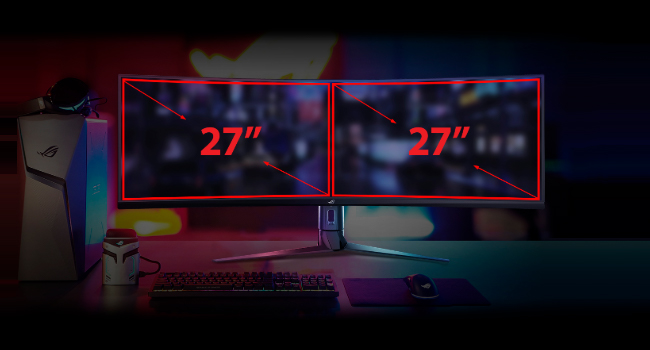
Image: Rear view of the monitor highlighting accessible I/O ports and smart cable management for a tidy setup.
3.3 Physical Adjustments
The monitor offers ergonomic adjustments for optimal viewing comfort:
- Tilt: Adjust the screen angle from +20° to -5°.
- Swivel: Rotate the screen horizontally from +16° to -16°.
- Height Adjustment: Adjust the screen height up to 120mm.

Image: The monitor showcasing its ergonomic design with arrows indicating available tilt, swivel, and height adjustment ranges.
4. Operating the Monitor
4.1 Power On/Off
Press the power button located on the monitor to turn it on or off.
4.2 Display Features
- Super Ultra-wide Display: The 49-inch curved screen provides an expansive view, equivalent to two 27-inch monitors side-by-side.
- 144Hz Refresh Rate: Experience smooth, lag-free visuals, crucial for fast-paced gaming.
- Radeon FreeSync 2 HDR: Synchronizes the monitor's refresh rate with your GPU's frame rate to eliminate screen tearing and stuttering, especially with HDR content.
- DisplayHDR 400 & DCI-P3 90%: Ensures high color contrast and cinematic color performance for vibrant and realistic visuals.

Image: Visual representation of the 49-inch super ultra-wide display, showing its equivalence to two 27-inch monitors for an expansive workspace.

Image: A split-screen comparison demonstrating the enhanced visual quality with High Dynamic Range (HDR) enabled, highlighting DCI-P3 90% and DisplayHDR 400 certification.

Image: A split-screen comparison illustrating the difference in gameplay smoothness with Radeon FreeSync 2 HDR turned 'On' versus 'Off'.
4.3 ASUS Eye Care Technology
ASUS Eye Care technology is integrated to minimize eye fatigue during extended use. This includes flicker-free backlighting and blue light filters, certified by TÜV Rheinland, to protect your eyes.
4.4 GamePlus and GameVisual
Utilize exclusive GamePlus and GameVisual overlays and color modes to optimize your gaming experience. These features provide in-game enhancements and display adjustments tailored for various game genres.
4.5 Picture-by-Picture (PBP) Functionality
The ultra-wide display supports Picture-by-Picture (PBP) mode, allowing you to view content from multiple input sources simultaneously, effectively acting as multiple monitors on a single screen.
Video: Official ASUS ROG Strix XG49VQ product overview, demonstrating key features like the ultra-wide display, high refresh rate, HDR, and various gaming enhancements.
Video: A merchant's overview of the ASUS ROG Strix XG49VQ, highlighting its curved design, FreeSync technology, and eye care features.
5. Maintenance
5.1 Cleaning the Monitor
To clean the monitor screen, gently wipe it with a soft, lint-free cloth. For stubborn marks, lightly dampen the cloth with water or a mild, non-abrasive screen cleaner. Avoid using harsh chemicals or abrasive materials that could damage the screen surface.
5.2 General Care
Keep the monitor in a well-ventilated area. Avoid exposing it to direct sunlight, high humidity, or extreme temperatures. Do not block the ventilation openings on the monitor casing.
6. Troubleshooting
6.1 No Display / Black Screen
- Ensure the power cable is securely connected to both the monitor and the power outlet.
- Verify that the video cable (DisplayPort/HDMI) is firmly connected to both the monitor and your computer/console.
- Check if the correct input source is selected on the monitor's OSD (On-Screen Display) menu.
6.2 Image Quality Issues (e.g., Washed Out, Red Dot)
- If the display appears washed out or has unusual artifacts (like a red dot), try performing a "Reset All" from the monitor's OSD menu.
- Consider disabling HDR in your operating system or monitor settings if you experience poor image quality, as some content or system configurations may not fully support HDR effectively.
- Adjust brightness, contrast, and color settings via the OSD menu to suit your preferences.
6.3 Flickering or Stuttering
- Ensure your graphics card drivers are up to date.
- Verify that Radeon FreeSync 2 HDR is enabled in both your monitor settings and graphics card control panel.
- Check the video cable for damage or loose connections.
7. Specifications
| Feature | Specification |
|---|---|
| Standing Screen Display Size | 49 Inches |
| Screen Resolution | 3840x1080 |
| Max Screen Resolution | 3840 x 1080 Pixels |
| Brand | ASUS |
| Series | XG49VQ |
| Item Model Number | XG49VQ |
| Item Weight | 21.4 pounds |
| Product Dimensions | 46.98 x 20.83 x 13.57 inches |
| Color | Black |
| Voltage | 100-240 Volts |
| Number of USB 2.0 Ports | 1 |
| Number of USB 3.0 Ports | 2 |
| Aspect Ratio | 32:9 |
| Screen Surface Description | Matte |
8. Warranty and Support
For detailed warranty information and technical support, please refer to the official ASUS website or the warranty card included with your product. Keep your purchase receipt for warranty claims.
Ask a question about this manual
Ask about setup, troubleshooting, compatibility, parts, safety, or missing instructions. Manuals+ will review the question and use this page’s manual context to help answer it.