
HUAWEI MAR-LX3A
Huawei P30 Lite User Manual
Model: MAR-LX3A
Introduction
This user manual provides comprehensive instructions for the Huawei P30 Lite smartphone. It covers essential information regarding device setup, operation, maintenance, and troubleshooting to ensure optimal performance and user experience. The Huawei P30 Lite features an exceptional display, an AI Triple Camera system, and robust performance for daily use.
Safety Information
Please read all safety information before using your device to ensure safe and proper operation and to learn how to dispose of the product properly.
- Do not use the device in extremely hot or cold environments.
- Avoid exposing the device to direct sunlight or heat sources.
- Keep the device dry. Do not expose it to water or moisture.
- Use only approved chargers and accessories to prevent damage to the device and potential hazards.
- Do not attempt to disassemble or repair the device yourself. Refer to authorized service personnel.
Getting Started
1. Unboxing and Initial Charge
Upon unboxing your Huawei P30 Lite, ensure all standard accessories are present. These typically include a USB-C charging cable, a charging brick, a screen protector, and a protective rubberized case. It is recommended to fully charge the device before first use.
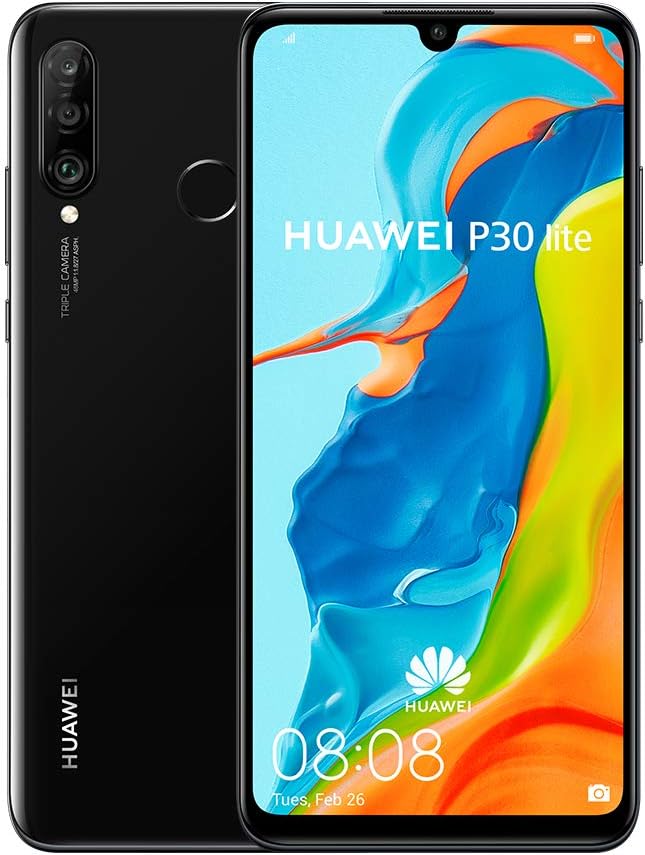
Figure 1: Huawei P30 Lite, showcasing its sleek design and triple camera setup on the rear, with the display showing the Huawei logo and time.
2. SIM Card and SD Card Installation
The Huawei P30 Lite supports dual SIM cards and an expandable memory card. Locate the SIM card tray on the side of the device. Use the provided SIM ejector tool to open the tray. Carefully place your Nano-SIM cards and/or microSD card into the designated slots, ensuring correct orientation. Gently push the tray back into the device until it clicks into place.
3. Powering On and Initial Setup
Press and hold the Power button located on the side of the device until the Huawei logo appears. Follow the on-screen prompts to complete the initial setup, including language selection, Wi-Fi connection, Google account setup, and security settings (fingerprint, facial recognition, or PIN/pattern).
Operating the Device
1. Device Components
Familiarize yourself with the physical layout of your Huawei P30 Lite:
- Display: 6.15-inch Dewdrop IPS LCD capacitive touchscreen.
- Rear Camera: AI Triple Camera system (24MP+8MP+2MP or 48MP depending on version) with flash and fingerprint sensor below.
- Front Camera: 32MP Selfie camera, located in the dewdrop notch.
- Buttons: Power button and Volume rocker on the right side.
- Ports: USB-C port for charging and data transfer, 3.5mm headphone jack.

Figure 2: Key features of the Huawei P30 Lite, highlighting its 6.15" Dewdrop Display, AI Triple Camera, Kirin 710 processor, 4GB RAM, 128GB ROM, and 3340 mAh battery.
2. Software and Navigation
The Huawei P30 Lite runs on Android 9.0 with Huawei's EMUI 9.0.1 interface. Navigation is intuitive, utilizing on-screen buttons or gesture controls. You can customize your home screen, manage applications, and access settings through the EMUI interface.

Figure 3: Detailed view of the Huawei P30 Lite's AI Triple Camera setup, emphasizing its advanced photographic capabilities.
Connectivity
- Mobile Network: Supports Global 4G LTE GSM networks. Ensure your network provider's bands are compatible with the device's specifications (2G GSM 850/900/1800/1900, 3G WCDMA 850/900/1700/1900/2100, 4G LTE 800/900/1700/1800/2100/2600).
- Wi-Fi: Connect to available Wi-Fi networks for internet access. The device primarily supports 2.4 GHz Wi-Fi bands.
- Bluetooth: Pair with Bluetooth-enabled devices such as headphones or speakers.
Maintenance
Battery Care
The Huawei P30 Lite is equipped with a 3340mAh battery. To prolong battery life and maintain its health:
- Avoid overcharging; do not leave the phone constantly charging for extended periods after it reaches 100%.
- Use the original charger and cable provided with the device.
- Keep the device within optimal temperature ranges.
- Close background applications when not in use to conserve power.

Figure 4: Side profile of the Huawei P30 Lite, illustrating its slim form factor and the placement of the power and volume buttons.
Troubleshooting
This section addresses common issues you might encounter with your Huawei P30 Lite.
- Screen Obstruction/Unwanted Overlay: If an unexpected overlay or "screensaver" appears that cannot be dismissed, try restarting the device. If the issue persists, check your display settings for any active screen overlays or accessibility features. A factory reset may be necessary as a last resort, but back up your data first.
- Device Sluggishness: If the phone feels slow or unresponsive, try clearing cache from apps, uninstalling unused applications, or performing a soft reset (restarting the phone). Ensure your device software is up to date.
- Connectivity Issues: For Wi-Fi or mobile data problems, toggle airplane mode on and off, restart your router (for Wi-Fi), or contact your network provider.
- Front Camera Not Working: If the front-facing camera stops functioning, try clearing the camera app's cache and data, or restarting the device. If the problem continues, it may indicate a hardware issue requiring professional service.
Specifications
| Feature | Detail |
|---|---|
| Brand | HUAWEI |
| Model Name | Huawei P30 Lite (MAR-LX3A) |
| Operating System | Android 9.0 |
| Screen Size | 6.15 Inches (Dewdrop IPS LCD) |
| Resolution | 720 x 1520 pixels |
| RAM Memory | 4 GB |
| Storage Capacity | 128 GB |
| Battery Capacity | 3340 mAh |
| CPU Model | Kirin 710 (Octa-core) |
| Dimensions | 2.6 x 1.65 x 0.59 inches |
| Item Weight | 1.1 pounds (approx. 500 grams) |
| Wireless Carrier | Unlocked (GSM Networks) |
Warranty and Support
For warranty information and technical support, please refer to the official HUAWEI website or contact their customer service. Keep your proof of purchase for warranty claims. HUAWEI provides support resources including FAQs, software updates, and service center locations.
Related documentsMAR-LX3A


Ask a question about this manual
Ask about setup, troubleshooting, compatibility, parts, safety, or missing instructions. Manuals+ will review the question and use this page’s manual context to help answer it.