
1. Introduction
The Autel MaxiDiag MD806 is a powerful diagnostic scan tool designed to provide comprehensive system diagnostics and service functions for a wide range of vehicles. This manual provides detailed instructions for setting up, operating, maintaining, and troubleshooting your device.
Important Compatibility Note: The Autel MD806 diagnostic scan tool primarily supports vehicles manufactured between 2002 and 2014. Limited support is available for some 2015-2017 models. It is not compatible with 2018 or newer models. Specific functions may vary by vehicle. For compatibility inquiries, please contact Autel support with your vehicle's make, model, year, and 17-digit VIN.
2. Setup and Getting Started
2.1 Package Contents
Your Autel MaxiDiag MD806 package includes the following items:
- MaxiDiag MD806 Main Unit
- OBDII Cable
- USB Cable
- User Manual
- Hard Carry Case

Figure 2.1: Autel MaxiDiag MD806 Scanner, OBDII cable, and hard carry case.
2.2 Physical Connection
- Locate the vehicle's 16-pin Data Link Connector (DLC). This is usually located under the dashboard on the driver's side.
- Connect the OBDII cable to the MD806 main unit.
- Plug the other end of the OBDII cable into the vehicle's DLC.
- The MD806 unit will power on automatically once connected to the vehicle.

Figure 2.2: Connecting the MD806 to the vehicle's OBDII port.
2.3 Initial Power On and Main Menu
Upon successful connection, the device will power on and display the main menu. The main menu provides access to various functions:
- AutoVIN: Automatically identifies vehicle information.
- OBDII: Standard OBDII diagnostic functions.
- Diagnostic: Advanced system diagnostics and service functions.
- Settings: Configure device settings.
- Data Manager: Review saved data.
- Update: Software update function.
Figure 2.3: Main menu of the Autel MD806.
3. Operating Instructions
3.1 AutoVIN Function
The AutoVIN function allows the scanner to automatically identify the vehicle's VIN (Vehicle Identification Number) and decode it to retrieve vehicle-specific information. This streamlines the diagnostic process.
- From the main menu, select AutoVIN.
- The device will attempt to automatically acquire the VIN.
- Confirm the displayed VIN is correct.
- The device will then load vehicle-specific data for diagnostics.
3.2 OBDII Functions
The OBDII function provides access to standard On-Board Diagnostics features applicable to all OBDII-compliant vehicles.
- From the main menu, select OBDII.
- Choose from options such as:
- Read Codes: Retrieves Diagnostic Trouble Codes (DTCs).
- Erase Codes: Clears DTCs and turns off the Malfunction Indicator Lamp (MIL).
- Live Data: Displays real-time data stream from the vehicle's sensors.
- Freeze Frame: Displays a snapshot of sensor data when a DTC was set.
- I/M Readiness: Checks the readiness of emission-related monitors.
- O2 Monitor Test: Retrieves O2 sensor monitoring test results.
- On-Board Monitor Test: Retrieves results for on-board diagnostic monitoring tests.
- Component Test: Allows testing of specific components.
- Vehicle Info: Displays vehicle information such as VIN, CID, and CVN.
- Modules Present: Shows communication protocols.
- DTC Lookup: Provides definitions for generic DTCs.

Figure 3.1: OBDII Diagnostic Menu.
3.3 4-System Diagnostics
The MD806 can perform in-depth diagnostics on four key vehicle systems: Engine, Transmission, ABS (Anti-lock Braking System), and SRS (Supplemental Restraint System/Airbag).
- From the main menu, select Diagnostic.
- Choose the appropriate vehicle region (e.g., America, Europe).
- Select the vehicle make, model, and year.
- Choose Quick Scan to scan all supported systems or select specific control modules (e.g., Engine, Transmission, ABS, SRS) for targeted diagnostics.
- Within each system, you can:
- Read and clear fault codes.
- View live data streams from various sensors.
- Access ECU information.

Figure 3.2: 4-System Diagnostics Overview.
3.4 7 Hot Service Functions
The MD806 offers 7 commonly used service reset functions to assist with vehicle maintenance. Note that service functions are vehicle-specific and may not be available for all models. This tool does NOT support TPMS Service or ABS Bleed functions.
- Oil Reset: Resets the engine oil life system after an oil change.
- EPB (Electronic Parking Brake): Resets the electronic parking brake system after brake pad replacement.
- SAS (Steering Angle Sensor): Performs steering angle sensor calibration.
- D-P.F (Diesel Particulate Filter): Initiates DPF regeneration.
- BMS (Battery Management System): Registers new battery replacements.
- Throttle: Performs electronic throttle body relearn.
- A/F (Air/Fuel Ratio): Adjusts air/fuel ratio parameters.
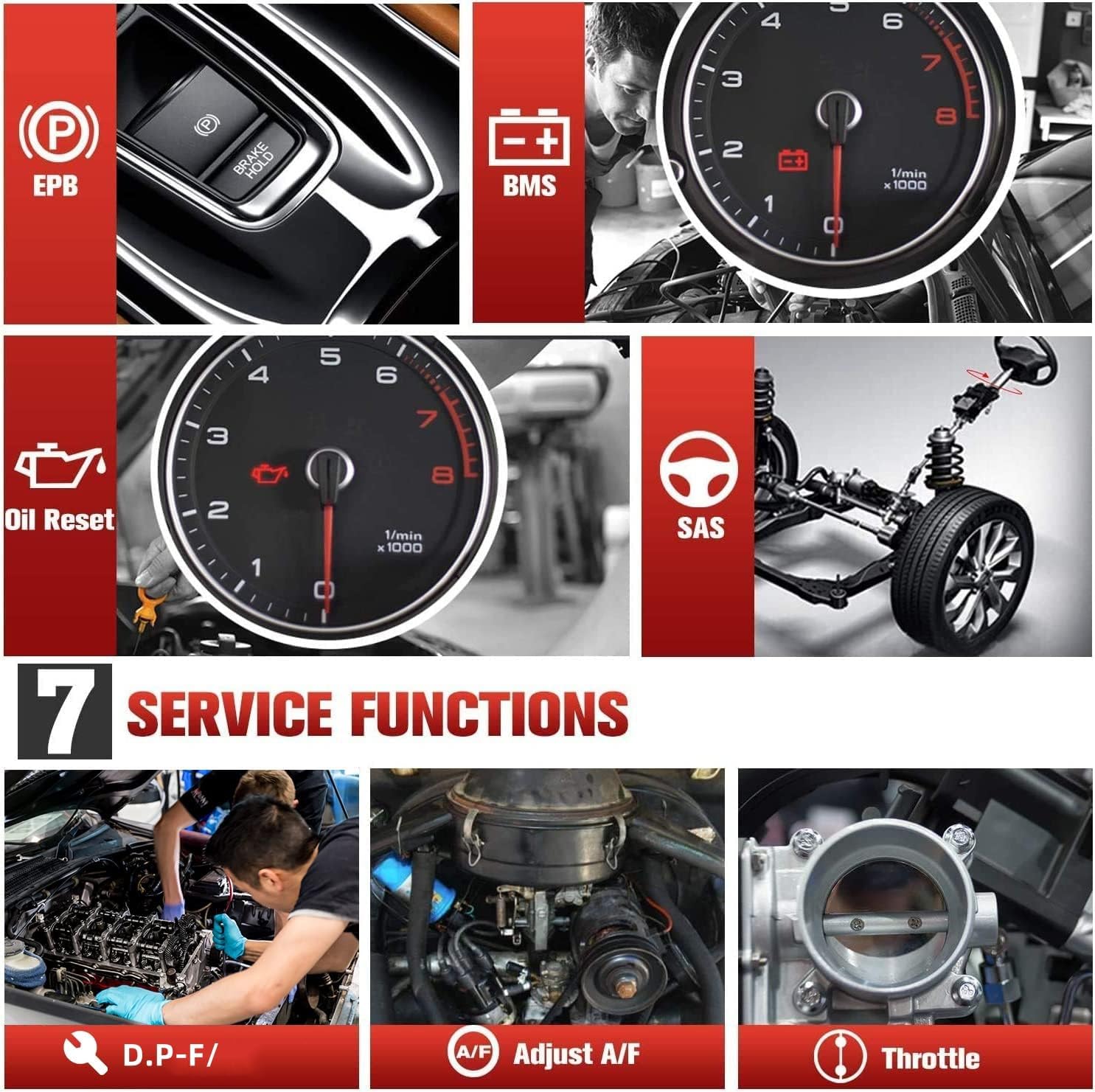
Figure 3.3: Overview of 7 Service Functions.
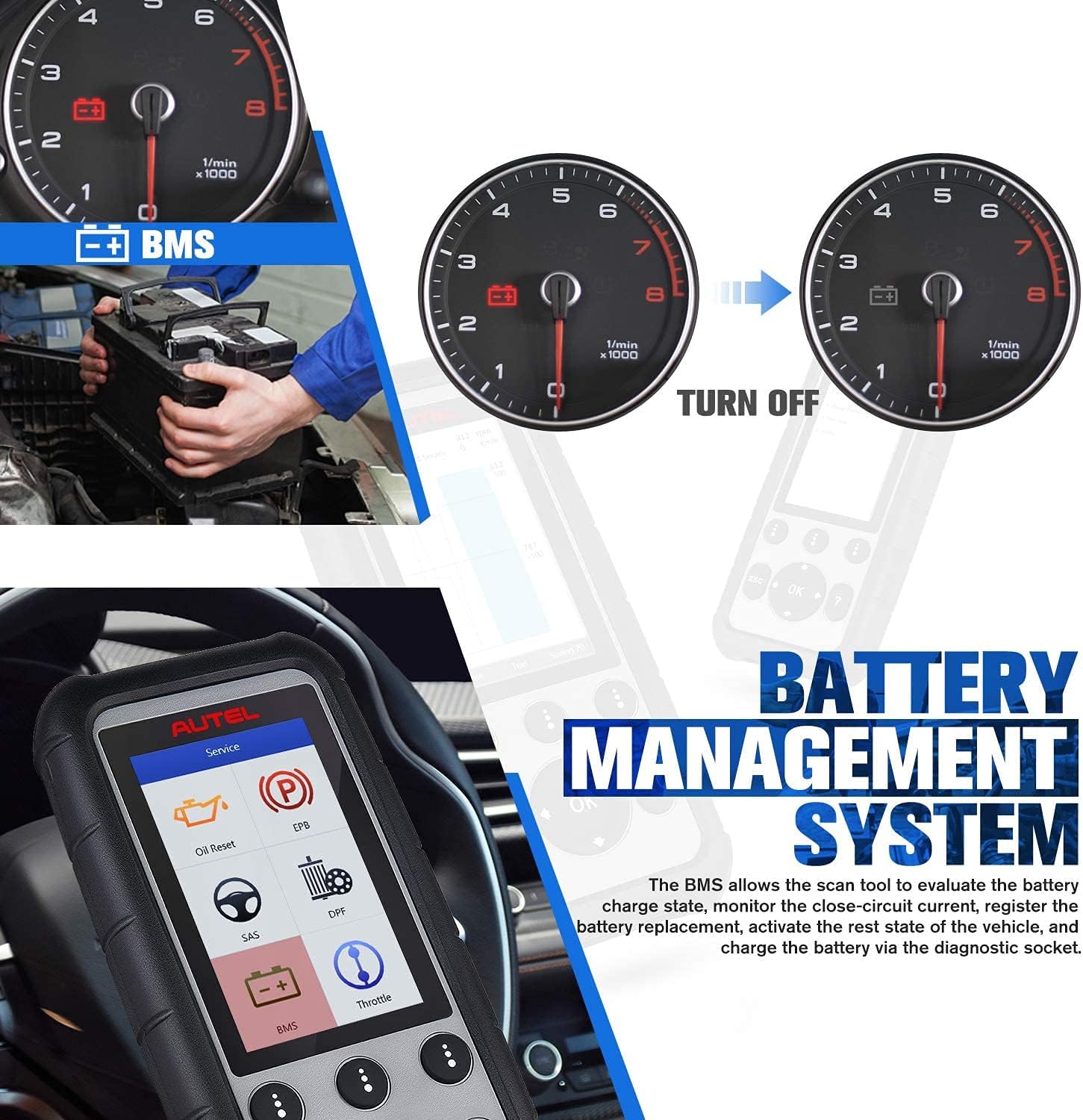
Figure 3.4: Battery Management System (BMS) function in action.
4. Maintenance
4.1 Software Update Procedure
The Autel MD806 offers lifetime free software updates. To ensure optimal performance and compatibility, it is recommended to keep your device's software updated. Updates are supported only on Windows computers; macOS is not compatible.
- Register your MD806 on the official Autel website before attempting any updates.
- Remove the SD card from the MD806 unit.
- Insert the SD card into a card reader and connect it to your Windows computer. Format the SD card to FAT32.
- Download and install the Maxi PC Suite from the official Autel website onto your computer.
- Run the Maxi PC Suite, log in with your Autel ID, and install all available software programs onto the SD card.
- Safely eject the SD card from your computer and insert it back into the MD806 unit.
- Turn on the MD806 device. The updated software will now be available.
Figure 4.1: Software Update Procedure outlined on the device screen.
5. Troubleshooting
5.1 Compatibility Issues
- If the scanner does not work on your vehicle, verify its model year (primarily 2002-2014 supported).
- Some 2015-2017 models have limited support. Vehicles from 2018 onwards are generally not supported.
- Specific service functions (e.g., TPMS, ABS Bleed) are not supported by the MD806.
- Contact Autel support with your VIN and desired functions for compatibility checks.
5.2 Update Problems
- Ensure the SD card is correctly formatted to FAT32.
- Verify that Maxi PC Suite is installed and running on a Windows computer. macOS is not supported for updates.
- Confirm your MD806 is registered with Autel.
- Do not connect the scanner directly via USB for updates; use the SD card method.
5.3 OBDII Module Codes Not Clearing
- Some vehicles equipped with a Secure Gateway (SGW) / FCA AutoAuth security system may prevent the tool from clearing OBDII module codes. This is a vehicle security feature and not a tool malfunction.
6. Specifications
- Brand: Autel
- Model: MD806
- Product Dimensions: 3.62"L x 1.4"W x 8.35"H
- Item Weight: 0.01 ounces
- Operating System: Android 4.4
- Language: Multilingual (13 languages supported)
- Connectivity: Wired (OBDII cable), USB (for PC connection)
- Display: Color LCD

Figure 6.1: MD806 Multilingual Support.
7. Warranty and Support
The Autel MaxiDiag MD806 comes with a 1-year quality backup warranty and lifetime free software updates via the internet. Autel offers 24/7 technical support.
For technical assistance or warranty claims, please contact Autel support directly. You can find contact information on the official Autel website or through the Maxi PC Suite application.
Video 7.1: Official Autel MD806 Diagnostic Tool overview by Autelonline.
Video 7.2: Autel MaxiDiag MD806 OBD2 Scanner Unboxing by Struggleville.