
Mobility Lab ML310442
Mobility Lab USB-C to HDMI Adapter ML310442 User Manual
Model: ML310442
1. Introduction
Welcome to the user manual for your Mobility Lab USB-C to HDMI Adapter ML310442. This guide provides essential information for the proper setup, operation, and maintenance of your adapter. Please read these instructions carefully before use to ensure optimal performance and longevity of your device.
2. Product Overview
2.1. Features
- Connects USB-C enabled devices to HDMI displays.
- Supports Ultra High Definition (UHD) 4K resolution at 3840x2160p @ 30 Hz.
- Plug and Play functionality, requiring no additional drivers.
- Compact and portable design for easy transport.
- Durable aluminum finish.
- Integrated 15 cm cable.
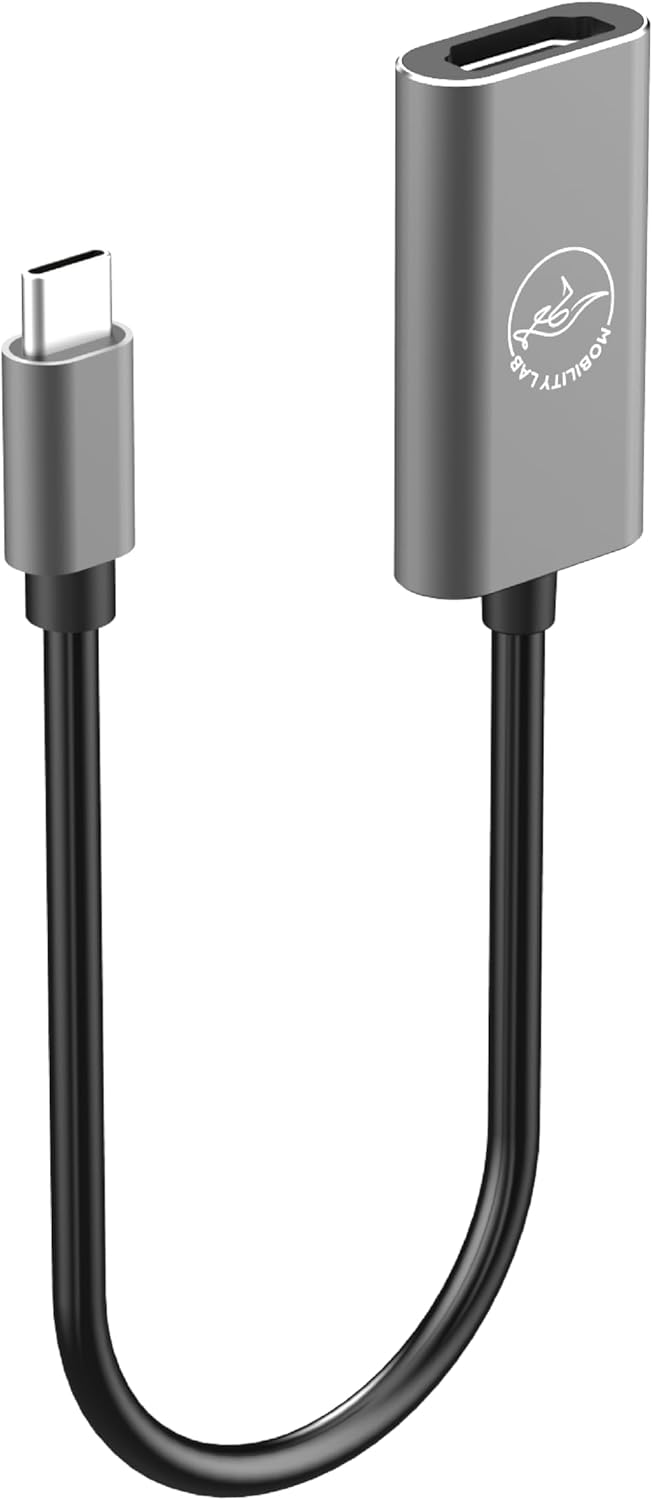
A close-up view of the Mobility Lab USB-C to HDMI adapter, showcasing its compact design with a USB-C connector on one end and an HDMI port on the other, connected by a short cable. The adapter body is silver-grey with the Mobility Lab logo.

An image highlighting the HDMI port of the adapter and its capability to support 4K resolution at 30Hz (UHD).
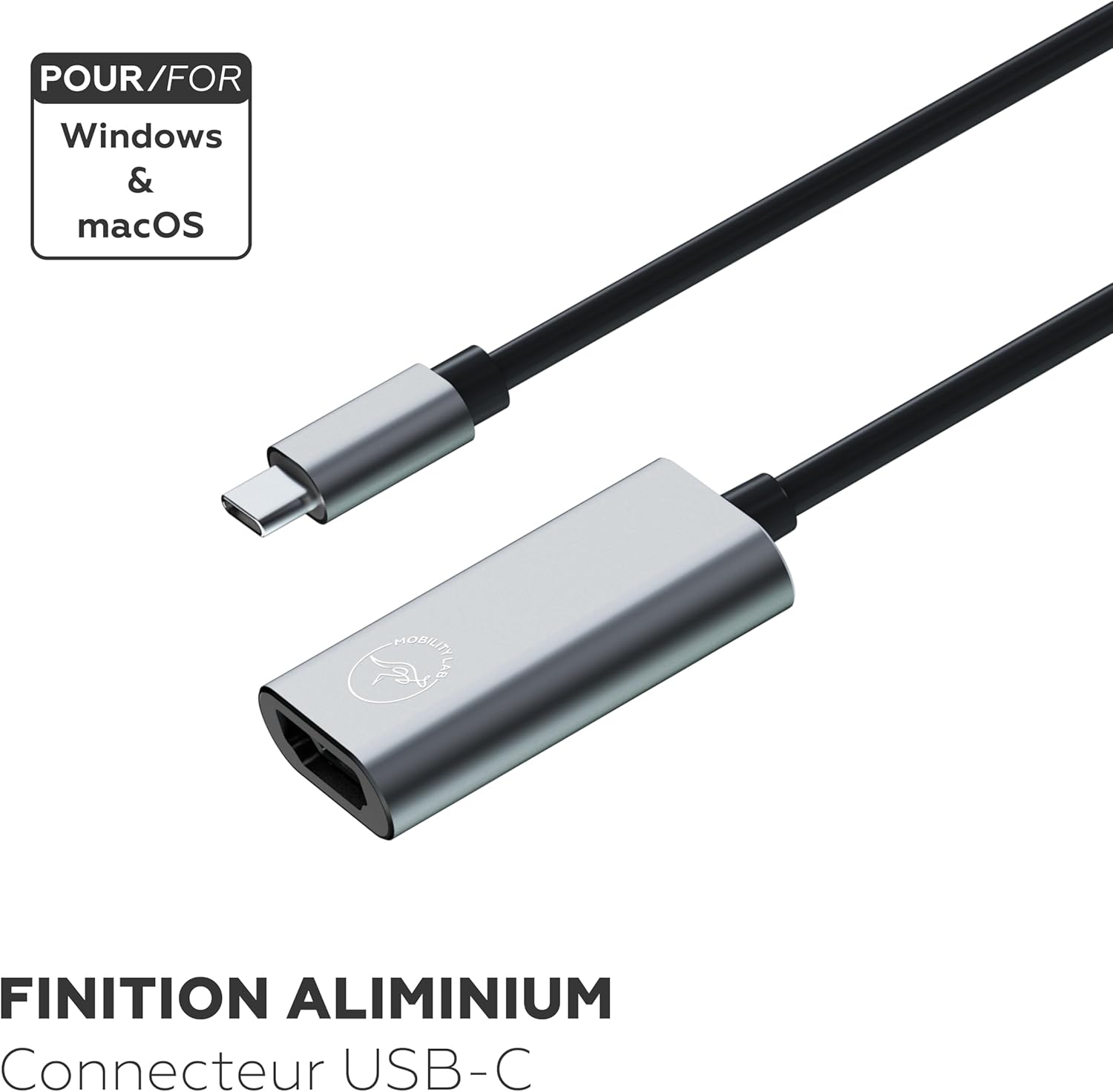
The adapter shown with text indicating compatibility with Windows and macOS, and its aluminum finish with a USB-C connector.
2.2. Package Contents
- 1 x Mobility Lab USB-C to HDMI Adapter ML310442
3. Setup Instructions
3.1. Connecting Your Adapter
- Locate an available USB-C port on your source device (e.g., laptop, tablet, smartphone). Ensure the USB-C port supports video output (DisplayPort Alternate Mode).
- Insert the USB-C connector of the Mobility Lab adapter firmly into the USB-C port of your source device.
- Connect one end of an HDMI cable (not included) to the HDMI port on the Mobility Lab adapter.
- Connect the other end of the HDMI cable to the HDMI input port on your display device (e.g., monitor, TV, projector).
- Your device should automatically detect the adapter and display the content. No additional drivers are typically required for Windows or macOS.

The Mobility Lab USB-C to HDMI adapter is shown connected to the side of a silver laptop, with an HDMI cable plugged into the adapter's HDMI port, ready to connect to a display.
4. Operating Instructions
4.1. Display Configuration
Once connected, your operating system (Windows, macOS, Android) will typically extend or mirror your display automatically.
To adjust display settings (e.g., mirror, extend, primary display, resolution), navigate to your device's display settings:
- Windows: Right-click on the desktop and select "Display settings."
- macOS: Go to "System Preferences" > "Displays."
- Android: Settings > Connected devices > Connection preferences > Cast (or similar, depending on device).
4.2. Supported Resolution
The adapter supports resolutions up to 4K (3840x2160p) at 30 Hz. Ensure your source device and display also support this resolution for optimal output. If the display is not showing 4K, check your device's display settings and the capabilities of your HDMI cable and display.
5. Maintenance
5.1. Cleaning and Storage
- To clean the adapter, gently wipe it with a soft, dry cloth. Do not use liquid cleaners or abrasive materials.
- Store the adapter in a cool, dry place away from direct sunlight and extreme temperatures.
- Avoid bending or twisting the cable excessively to prevent internal damage.
6. Troubleshooting
6.1. Common Issues and Solutions
- No Display Output:
- Ensure both the USB-C and HDMI connections are secure.
- Verify that your source device's USB-C port supports video output (DisplayPort Alternate Mode). Not all USB-C ports support this feature.
- Try a different HDMI cable.
- Test the adapter with another compatible source device or display, if available.
- Check your display's input source settings to ensure the correct HDMI input is selected.
- Flickering or Intermittent Display:
- Ensure all cables are securely connected.
- Reduce the display resolution to see if the issue persists.
- Try a different HDMI cable, especially a high-speed HDMI cable for 4K resolutions.
- Incorrect Resolution or Aspect Ratio:
- Adjust the display settings on your source device (Windows Display Settings, macOS System Preferences > Displays) to select the desired resolution and refresh rate.
- Ensure your display device supports the selected resolution.
7. Specifications
7.1. Technical Specifications
| Brand | Mobility Lab |
| Model Number | ML310442 |
| Input | USB-C |
| Output | HDMI |
| Resolution | UHD 4K (3840x2160p) @ 30 Hz |
| Cable Length | 150 mm (15 cm) |
| Dimensions (L x W x H) | 45 x 24 x 9 mm |
| Compatibility | Devices with USB-C port supporting DisplayPort Alternate Mode, Monitors, Projectors (Windows, macOS, Android) |
| Number of Ports | 1 (HDMI) |

A technical diagram illustrating the dimensions of the Mobility Lab USB-C to HDMI adapter, showing its length (45mm), width (24mm), and height (9mm) for the main adapter body.
8. Warranty and Support
8.1. Warranty Information
For specific warranty details, please refer to the warranty card included with your purchase or visit the official Mobility Lab website. Keep your proof of purchase for warranty claims.
8.2. Customer Support
If you encounter any issues not covered in this manual, please contact Mobility Lab customer support through their official website or the retailer where you purchased the product.
Related documentsML310442


Ask a question about this manual
Ask about setup, troubleshooting, compatibility, parts, safety, or missing instructions. Manuals+ will review the question and use this page’s manual context to help answer it.