1. Introduction
This manual provides essential information for the proper use and maintenance of your UGREEN USB-C to Lightning Cable (Model 60759). This MFi certified cable is designed for fast charging and efficient data transfer between your USB-C enabled devices and Apple Lightning devices.
2. Product Features
- Official True MFi Certification: Equipped with an original C94 connector and MFi chip, ensuring safe and fast charging for iOS devices without compatibility warnings.
- PD Fast Charge and Data Transfer: Supports Power Delivery (PD) fast charging, capable of charging an iPhone 14 from 0% to 60% in approximately 30 minutes. Achieves data transfer speeds of up to 480 Mbps, allowing 1GB transfer in about 30 seconds.
- Universal Compatibility: Compatible with a wide range of Apple devices including iPhone 14/14 Pro/14 Pro Max, iPhone 13/12/11/X/XR/XS/8 series, iPad 9, and AirPods Pro.
- Ultimate Durability: Engineered to withstand over 15,000 bending tests and 10,000 plug/unplug cycles. Features a durable nylon braided exterior for enhanced protection and longevity.
- Optimal Length: The 3-foot (1-meter) length provides flexibility for various charging and data transfer scenarios at home, in the car, or in the office.
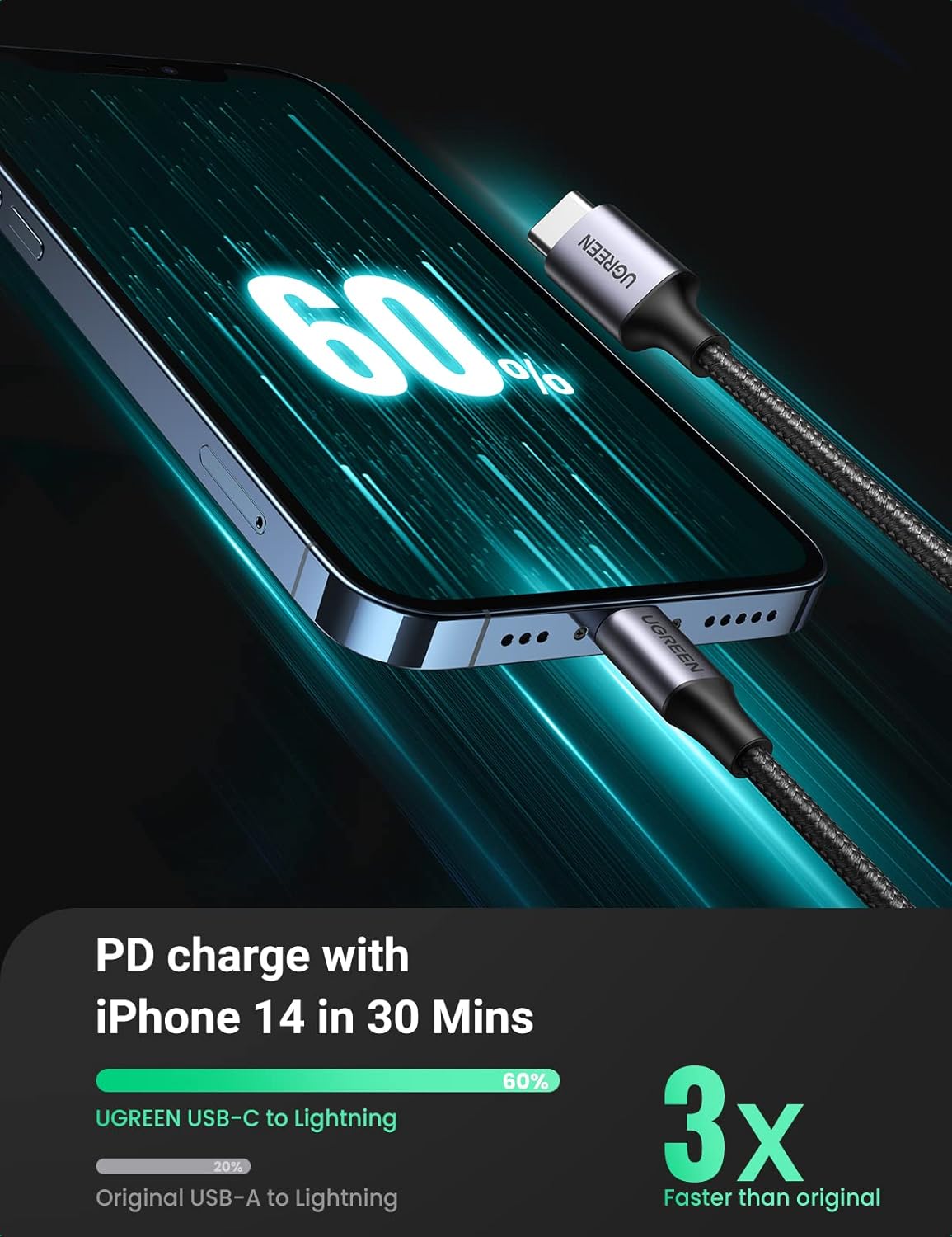
Image: UGREEN USB-C to Lightning Cable demonstrating fast charging capabilities on an iPhone 14.
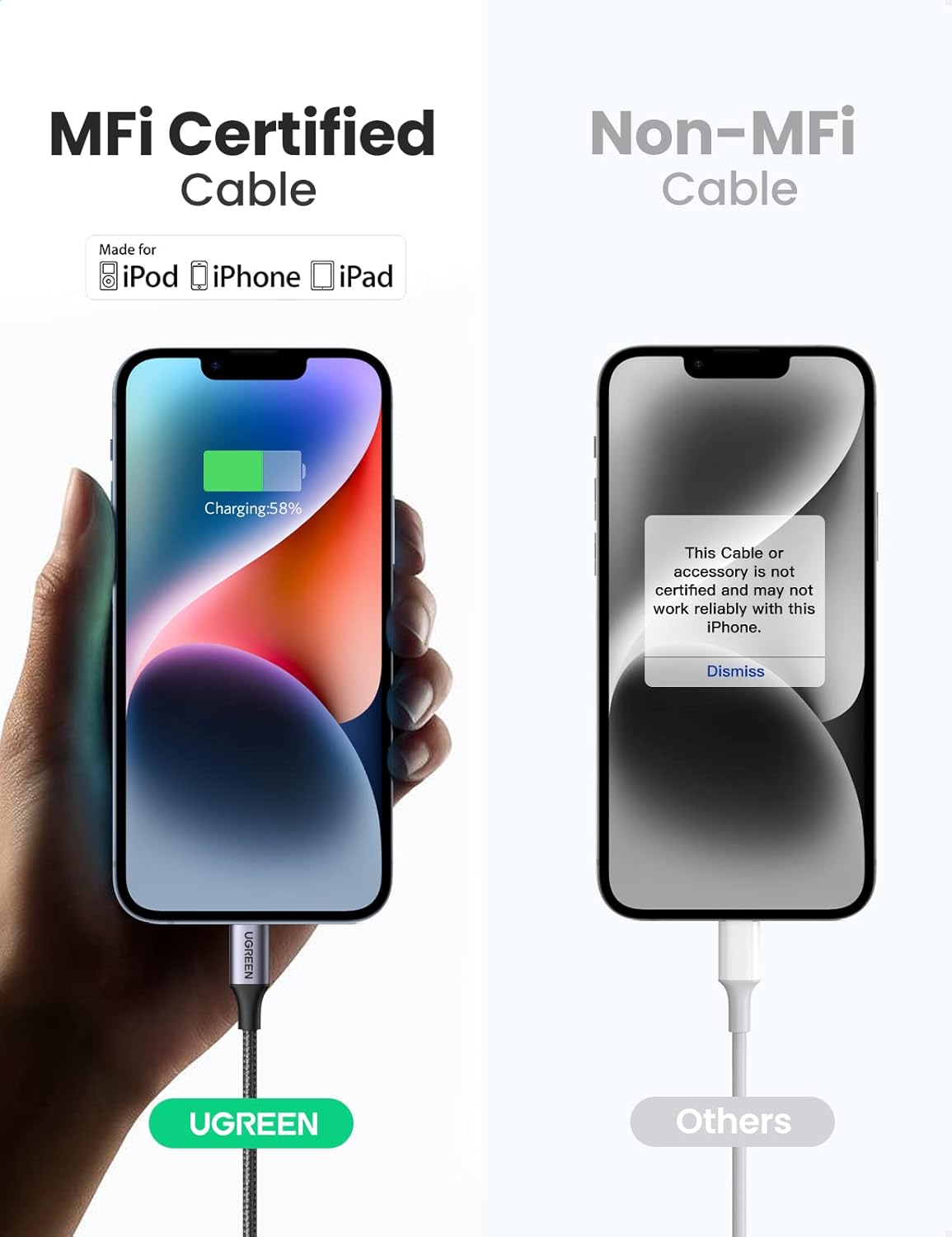
Image: Visual comparison highlighting the reliability of an MFi certified UGREEN cable against a non-MFi cable.
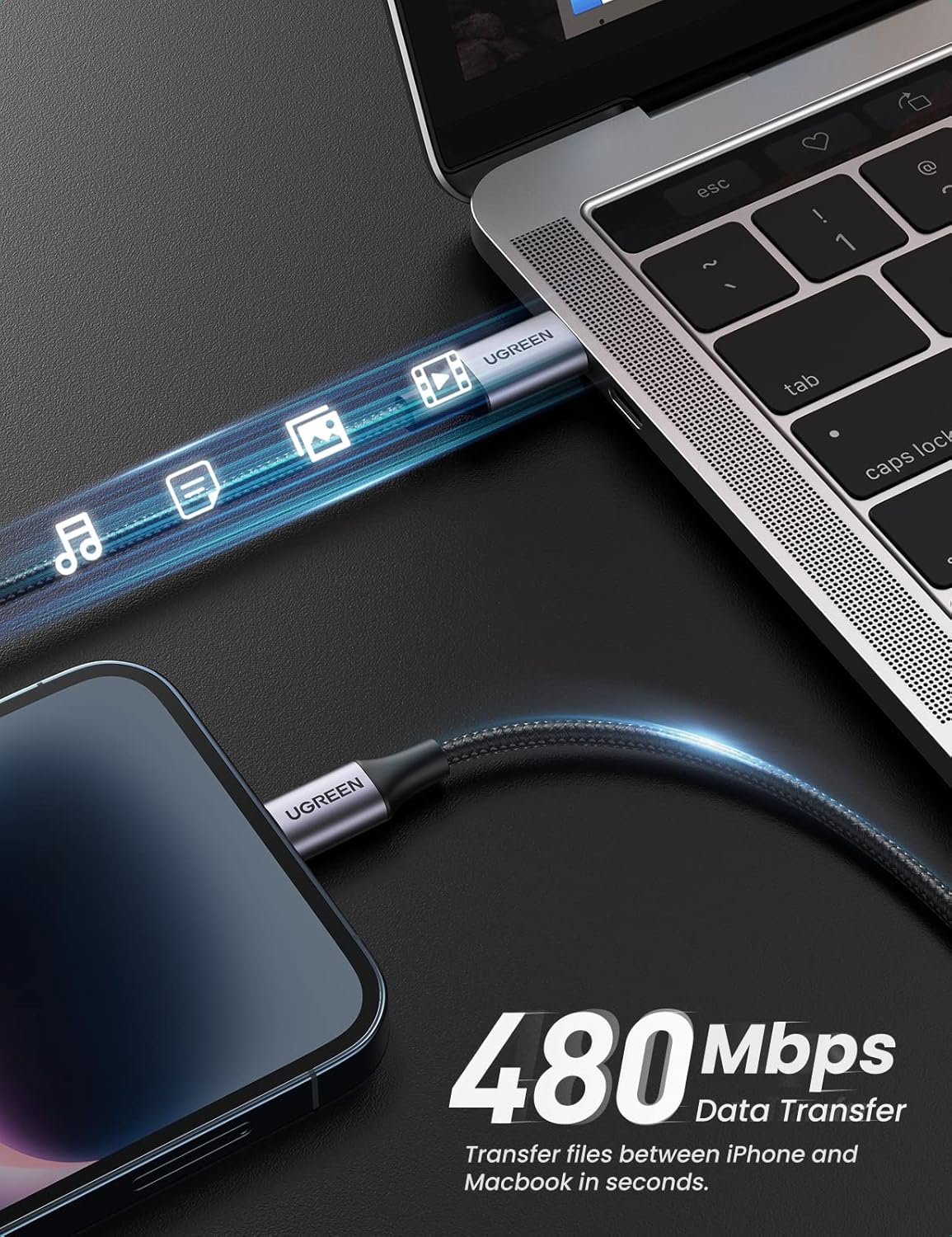
Image: UGREEN USB-C to Lightning Cable facilitating high-speed data transfer.
3. Package Contents
- 1 x UGREEN USB-C to Lightning Cable (3FT)
4. Setup
To begin using your UGREEN USB-C to Lightning Cable:
- Connect the USB-C end of the cable to a compatible power adapter (e.g., a USB-C Power Delivery charger) or a device with a USB-C port (e.g., a laptop).
- Connect the Lightning end of the cable to your Apple iOS device (iPhone, iPad, or AirPods).
- Ensure both connections are secure for optimal performance.
Video: Demonstrates the physical cable and its connectors, showing how to connect it to a device.
5. Operating Instructions
5.1. Charging Your Device
For fast charging, connect the USB-C end of the cable to a USB-C Power Delivery (PD) compatible wall charger or power bank. Then, connect the Lightning end to your iPhone, iPad, or AirPods. The device will begin charging automatically.
5.2. Data Transfer
To transfer data, connect the USB-C end of the cable to a computer with a USB-C port. Connect the Lightning end to your iOS device. Your computer should recognize the device, allowing you to transfer files, sync data, or perform software updates.
6. Compatibility
The UGREEN USB-C to Lightning Cable is compatible with the following devices:
- iPhones: iPhone 14/14 Pro/14 Pro Max, iPhone 13/13 Pro/13 Pro Max/13 Mini, iPhone 12/12 Pro/12 Pro Max/12 Mini, iPhone 11/11 Pro/11 Pro Max/11 Mini, iPhone X/XR/XS/SE, iPhone 8/7/6 series.
- iPads: iPad, iPad Air 2/3, iPad Mini 2/3/4/5, iPad Pro 9.7"/10.5"/12.9".
- AirPods: AirPods 1/2/3/Pro.

Image: Visual representation of the cable's broad compatibility with Apple devices.
7. Maintenance
To ensure the longevity and optimal performance of your cable:
- Keep the cable clean and dry. Avoid exposure to liquids or excessive moisture.
- Avoid sharp bends or excessive pulling at the connector ends, as this can damage the internal wires.
- Store the cable in a cool, dry place when not in use.
- Do not use the cable if you notice any signs of damage, such as fraying, exposed wires, or bent connectors.
8. Troubleshooting
8.1. Cable Not Charging or Charging Slowly
- Check Connections: Ensure both the USB-C and Lightning connectors are fully and securely plugged into their respective ports.
- Power Adapter: Verify that your USB-C power adapter is functioning correctly and provides sufficient wattage for fast charging (e.g., 20W or higher for iPhones).
- Try Different Ports/Devices: Test the cable with a different USB-C port or a different Apple device to isolate the issue.
- MFi Certification: As an MFi certified cable, it should work seamlessly. If you encounter an "Accessory not supported" message, ensure the cable is genuine and undamaged.
8.2. Data Transfer Issues
- Secure Connection: Confirm that the cable is firmly connected to both your computer and iOS device.
- Device Settings: On your iOS device, you may need to confirm trust for the connected computer.
- Computer Port: Try connecting the USB-C end to a different USB-C port on your computer.
- Restart Devices: Sometimes, restarting both your computer and iOS device can resolve connectivity issues.
9. Specifications
| Feature | Detail |
|---|---|
| Brand | UGREEN |
| Model Name | 60759 |
| Connector Type | USB-C to Lightning |
| Cable Type | USB |
| Length | 3 Feet (0.91 meters) |
| Data Transfer Rate | 480 Megabits Per Second |
| Max Wattage | 20 Watts |
| AC Adapter Current | 3 Amps |
| Special Feature | MFi Certified Lightning Cable |
| Item Weight | 1.41 ounces (40 grams) |
| Product Dimensions | 0.39 x 0.39 x 39.37 inches |
10. Warranty and Support
UGREEN products are designed for reliability and performance. For warranty information, technical support, or any inquiries regarding your USB-C to Lightning Cable, please refer to the official UGREEN website or contact their customer service directly. Keep your purchase receipt for warranty claims.


