
1. Introduction
Thank you for choosing the Qoltec 50378 USB 3.1 Type C to RJ-45 Adapter. This device allows you to connect your USB Type C enabled laptop or computer to a wired Ethernet network, providing a stable and fast internet connection. This manual provides essential information for the proper setup, operation, and maintenance of your adapter.
2. Product Overview
The Qoltec 50378 adapter features a USB 3.1 Type C male connector on one end and an RJ-45 Ethernet port on the other. It is designed for plug-and-play functionality with most operating systems, eliminating the need for external drivers.

Image 2.1: Illustration of the adapter's USB 3.1 Type C and RJ-45 interfaces.
The adapter is compact and lightweight, making it ideal for travel and use with modern ultrabooks and tablets that lack a built-in Ethernet port. The RJ-45 port includes LED indicators for network activity and link status.

Image 2.2: Detailed view of the RJ-45 Ethernet port.
3. Setup Instructions
Follow these steps to set up your Qoltec 50378 adapter:
- Connect to Device: Plug the USB 3.1 Type C male connector of the adapter into an available USB Type C port on your laptop, tablet, or computer.
- Connect Ethernet Cable: Insert a standard RJ-45 Ethernet cable (not included) from your router, modem, or network switch into the RJ-45 port on the adapter. Ensure the cable clicks securely into place.
- Driver Installation: Most modern operating systems (Windows 10/11, macOS, Linux) will automatically detect and install the necessary drivers. If prompted, allow the system to install the drivers. No manual driver installation is typically required.
- Verify Connection: Once connected, check the LED indicators on the RJ-45 port. A solid light usually indicates a link, and a blinking light indicates data activity. Your device should now have a wired network connection.

Image 3.1: Adapter connected to a laptop.
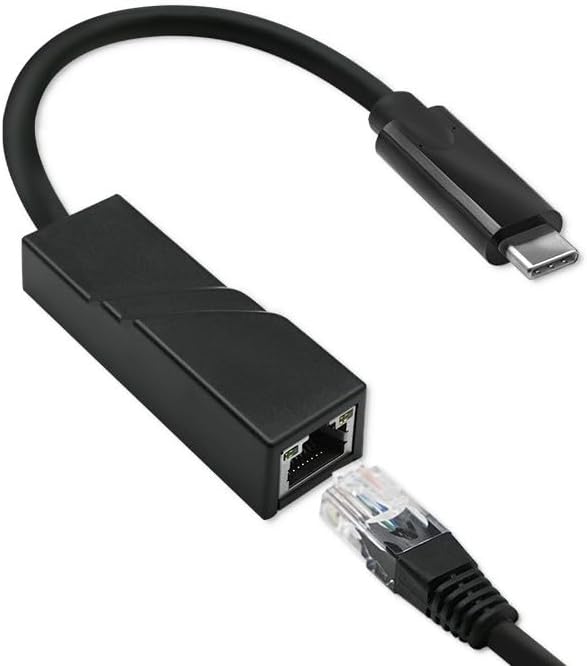
Image 3.2: Connecting an Ethernet cable to the adapter.
4. Operating Instructions
Once the adapter is set up, it operates automatically. Your operating system will prioritize the wired Ethernet connection over Wi-Fi if both are available. You can manage your network settings through your device's operating system.
- Windows: Go to Settings > Network & Internet > Ethernet to view connection status and configure settings.
- macOS: Go to System Settings > Network to view and manage your Ethernet connection.
- Linux: Network settings can typically be found in your desktop environment's system settings or configured via command line.
To disconnect, simply unplug the Ethernet cable from the adapter, and then unplug the adapter from your device. It is recommended to safely eject the device if your operating system provides such an option, though for network adapters, this is rarely necessary.
5. Maintenance
The Qoltec 50378 adapter requires minimal maintenance:
- Cleaning: Use a soft, dry cloth to wipe the adapter. Avoid using liquid cleaners or solvents.
- Storage: Store the adapter in a cool, dry place away from direct sunlight and extreme temperatures when not in use.
- Handling: Avoid bending or twisting the cable excessively. Do not force connectors into ports.
6. Troubleshooting
If you encounter issues with your adapter, refer to the following common troubleshooting steps:
- No Network Connection:
- Ensure both the USB-C connector and the Ethernet cable are securely plugged in.
- Check the LED indicators on the RJ-45 port. If they are off, try a different USB-C port or Ethernet cable.
- Restart your computer and network router/modem.
- Verify that your operating system's network settings are configured correctly for Ethernet.
- Test with a different Ethernet cable or a different network port on your router/switch.
- Slow Connection Speed:
- Ensure you are using a high-quality Ethernet cable (e.g., Cat5e or Cat6).
- Check your internet service provider's speed.
- Ensure your router/modem is functioning correctly.
- Close any bandwidth-intensive applications running in the background.
- Adapter Not Recognized:
- Try plugging the adapter into a different USB Type C port on your device.
- Restart your computer.
- Check your device's Device Manager (Windows) or System Information (macOS) to see if the adapter is listed. If there's a yellow exclamation mark, it might indicate a driver issue.
- Ensure your operating system is up to date.
7. Specifications
Below are the technical specifications for the Qoltec 50378 USB 3.1 Type C to RJ-45 Adapter:
| Feature | Detail |
|---|---|
| Model Number | 50378 |
| Brand | Qoltec |
| Connector Type (Input) | USB Type C (Male) |
| Connector Type (Output) | RJ45 (Female) |
| Interface | USB 3.1 (backward compatible with USB 3.0/2.0) |
| Ethernet Standard | Supports 10/100/1000 Mbps (Gigabit Ethernet) |
| Compatibility | Windows, macOS, Linux (driverless for most modern OS) |
| Color | Black |
| Quantity per package | 1 |
8. Warranty and Support
For warranty information and technical support, please refer to the documentation provided with your purchase or visit the official Qoltec website. Keep your proof of purchase for warranty claims.
Qoltec Official Website: www.qoltec.com