
Nexxt Solutions AEIEL905U1
NEXXT Wi-Fi Range Extender - 1200Mbps User Manual
Model: AEIEL905U1 | Brand: Nexxt Solutions
Introduction
The NEXXT Wi-Fi Range Extender is designed to expand your existing Wi-Fi network coverage, eliminating dead zones and providing a stronger, more reliable internet connection throughout your home or office. This device supports dual-band frequencies (2.4GHz and 5.0GHz) and offers speeds up to 1200Mbps, ensuring seamless streaming, gaming, and browsing.

Image: The Nexxt Solutions Kronos 1200-AC Wi-Fi Range Extender, a white device with two external antennas and a wall plug, showing its indicator lights.
Key Features
- WI-FI RANGE EXTENDER: Boosts internet connection to previously unreachable spaces, retransmitting an existing 802.11b/g/n signal across a larger area.
- WALL PLUG DESIGN: Cordless plug-in design allows flexible placement anywhere in your home or office.
- EASY CONNECT BUTTON: WPS button for instant connection and integration into the current network.
- WAN AND LAN PORTS: Includes a 10/100M Wan and Lan port for wired connections to devices like computers, gaming consoles, and TVs.
- WI-FI TOOLS FOR HOME: Transmits up to 556 feet, eliminating dead zones with universal repeater, internet router, and access point functionalities.

Image: The Nexxt Wi-Fi Extender in a home office environment, highlighting its key features such as universal repeater functionality, wall-mounted design, and push-and-connect setup.
Package Contents
- NEXXT Wi-Fi Range Extender
- Instruction Manual
Product Overview
Familiarize yourself with the components of your NEXXT Wi-Fi Range Extender.
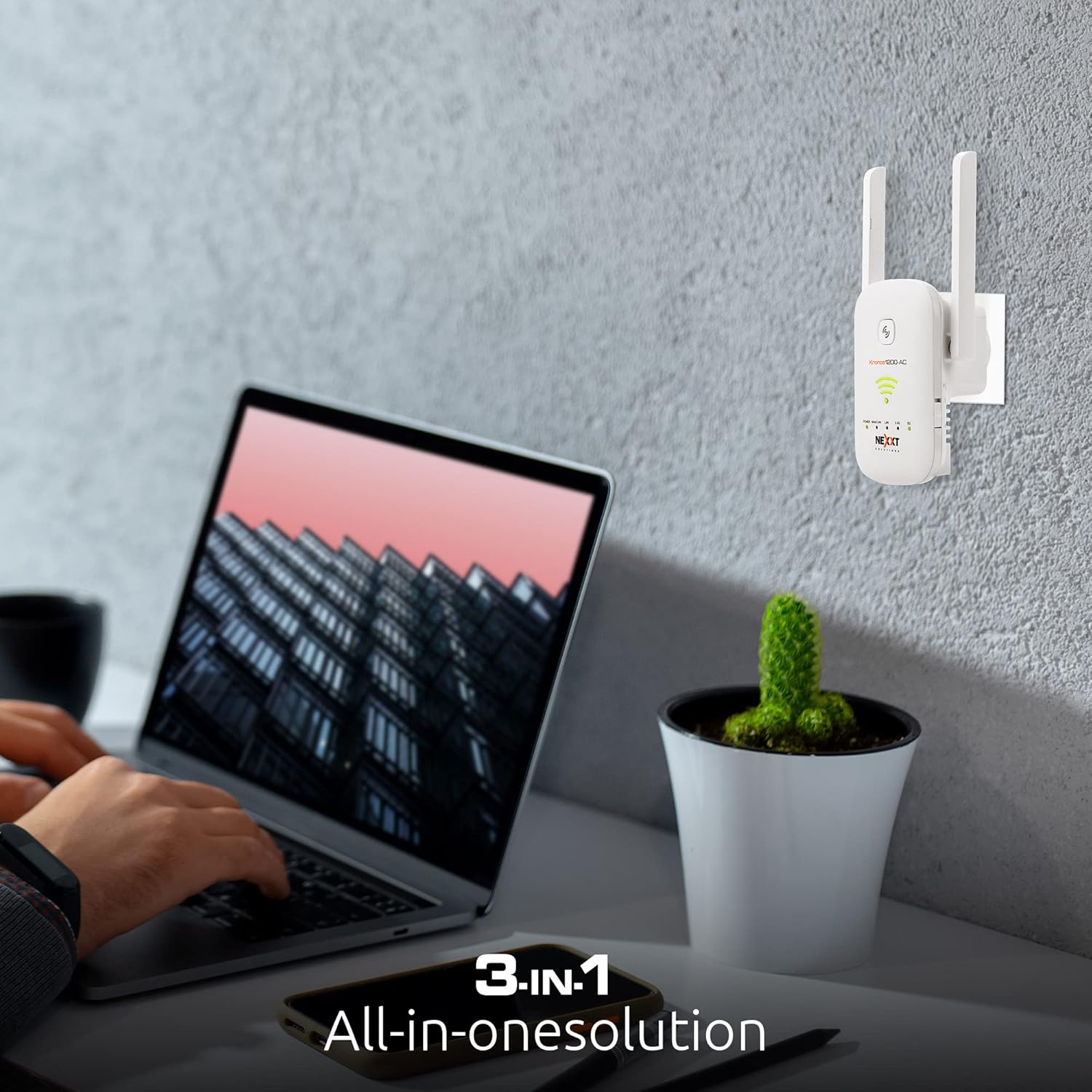
Image: A close-up view of the Nexxt Wi-Fi Extender, detailing the LED indicators for Power, WAN/LAN, 2.4GHz, and 5GHz, along with the WPS button.
- Power LED: Indicates power status.
- WAN/LAN LED: Indicates connection status for WAN/LAN port.
- 2.4G LED: Indicates 2.4GHz Wi-Fi band activity.
- 5G LED: Indicates 5GHz Wi-Fi band activity.
- WPS Button: For quick and secure connection to your router.
- Reset Button: Used to restore factory default settings (usually a small pinhole button).
- Ethernet Port (LAN/WAN): For wired connections to devices or your main router.
Setup Guide
Initial Placement
For optimal performance, place the extender in a location that is roughly halfway between your router and the area where you need improved Wi-Fi coverage. Avoid placing it near large metal objects, concrete walls, or other devices that emit radio frequency interference.
Powering On
Plug the NEXXT Wi-Fi Range Extender into a standard electrical outlet. Wait for the Power LED to light up, indicating the device is ready.
Connection Methods
Method 1: WPS (Wi-Fi Protected Setup)
- Plug the extender into an electrical outlet near your main router.
- Wait for the Power LED to stabilize.
- Press the WPS button on your main router. The WPS LED on your router may start blinking.
- Within two minutes, press the WPS button on the NEXXT Wi-Fi Range Extender. The WPS LED on the extender will start blinking.
- Wait for the WPS LED on both devices to become solid, indicating a successful connection. You can now unplug the extender and move it to your desired location.
Method 2: Web Browser Setup
- Plug the extender into an electrical outlet.
- On your computer or mobile device, connect to the extender's default Wi-Fi network (e.g., 'NEXXT_Extender' or similar, check the label on the device). No password is required initially.
- Open a web browser and enter the default IP address (e.g.,
192.168.10.1ornexxtwifi.com, check the manual or device label) in the address bar. - Follow the on-screen instructions to log in (default username/password is usually
admin/admin). - Select 'Repeater Mode' or 'Extender Mode' and choose your existing Wi-Fi network from the list. Enter your main Wi-Fi password.
- Configure the extender's Wi-Fi name (SSID) and password. You can choose to keep the same as your main network or create a new one.
- Save the settings and wait for the extender to restart. Your devices should now be able to connect to the extended network.

Image: A user interacting with a laptop, with the Nexxt Wi-Fi Extender plugged into a wall outlet in the background, illustrating the setup process.
Operating Modes
The NEXXT Wi-Fi Range Extender supports multiple operating modes to suit various networking needs.
Repeater Mode (Default)
In this mode, the extender wirelessly connects to your existing router and amplifies its signal, extending the Wi-Fi coverage to areas with weak or no signal. It uses the same SSID and password as your main network or a new one you define.
Access Point (AP) Mode
In AP mode, the extender connects to your router via an Ethernet cable and broadcasts a new Wi-Fi network. This is ideal for converting a wired network connection into a wireless one, providing Wi-Fi access in a specific area.
Router Mode
When configured as a router, the device can act as a primary internet gateway, connecting directly to your modem and creating a new Wi-Fi network for your home or office. This mode is suitable for small networks or as a temporary router solution.

Image: The Nexxt Wi-Fi Extender box, highlighting its 3-in-1 functionality as a universal repeater, router, and access point.
Maintenance
- Firmware Updates: Regularly check the Nexxt Solutions website for firmware updates to ensure optimal performance and security. Follow the instructions provided with the update carefully.
- Cleaning: Keep the device clean and free from dust. Use a soft, dry cloth to wipe the exterior. Do not use liquid cleaners or aerosols.
- Optimal Placement: Periodically review the extender's placement to ensure it remains in an optimal location for signal strength, especially if your network layout changes.
- Restarting: If you experience connectivity issues, try restarting the extender by unplugging it from the power outlet for 10 seconds and then plugging it back in.
Troubleshooting
| Issue | Possible Cause | Solution |
|---|---|---|
| Extender not powering on | No power from outlet; faulty power adapter. | Ensure the power outlet is functional. Try a different outlet. Contact support if the issue persists. |
| No internet access after connecting to extender | Incorrect setup; extender not connected to main router; IP conflict. | Re-run the setup process (WPS or web browser). Ensure the extender is within range of your main router. Check your router's DHCP settings. |
| Weak signal from extender | Poor placement; interference. | Relocate the extender closer to your main router, ensuring it's still halfway to the dead zone. Avoid obstacles and interference sources. |
| Cannot access extender's web management page | Incorrect IP address; not connected to extender's Wi-Fi. | Ensure your device is connected to the extender's Wi-Fi network. Verify the correct IP address or domain name (e.g., 192.168.10.1 or nexxtwifi.com). Try clearing browser cache. |
| WPS connection fails | Router WPS issue; timing out. | Ensure WPS is enabled on your router. Press the WPS buttons within the specified time frame (usually 2 minutes). Try the web browser setup method. |
Technical Specifications
| Feature | Detail |
|---|---|
| Model Number | AEIEL905U1 |
| Wireless Type | 802.11bgn |
| Data Transfer Rate | 1200 Megabits Per Second |
| Frequency Band Class | Dual-Band (2.4GHz and 5.0GHz) |
| Ports | 10/100M WAN/LAN Port |
| Dimensions (LxWxH) | 6 x 4 x 4 inches |
| Item Weight | 3.2 ounces |
| Manufacturer | Nexxt Solutions |
Support and Warranty
For technical support, frequently asked questions, and additional resources, please visit the official Nexxt Solutions website or contact their customer service.
This product comes with a 1-year limited warranty. Please refer to the warranty card included in your package or the official Nexxt Solutions website for detailed terms and conditions.
Related documentsAEIEL905U1


Ask a question about this manual
Ask about setup, troubleshooting, compatibility, parts, safety, or missing instructions. Manuals+ will review the question and use this page’s manual context to help answer it.