
1. Introduction
The Phomemo M02 Mini Sticker Printer is a portable thermal printer designed for creating labels, notes, and various creative prints without the need for ink. It connects wirelessly via Bluetooth to your smartphone, offering a convenient solution for personal and organizational printing tasks.
2. What's in the Box
Upon unboxing, please verify that all the following components are included:
- Phomemo M02 Pocket Printer
- USB Charging Cable
- Thermal Printing Paper Roll (pre-installed or separate)
- User Manual (this document)
- Packing Box

Image: The Phomemo M02 Mini Sticker Printer, a USB cable, a roll of thermal paper, and the user manual, all neatly arranged.
3. Setup Guide
3.1. Charging the Printer
Before first use, fully charge the printer. Connect the provided USB cable to the printer's charging port and a power source. The indicator light will show charging status. When the printer's indicator light is red during operation, please charge it immediately to extend battery life. If storing the printer for an extended period, remember to charge it regularly to prevent battery degradation.
3.2. Loading Thermal Paper
- Gently open the printer cover.
- Insert the thermal paper roll into the compartment. Ensure the printing side of the paper faces the thermal print head.
- Pull a small length of paper out beyond the cutting edge.
- Close the printer cover firmly until it clicks into place.

Image: A Phomemo M02 printer with its cover open, showing a thermal paper roll being inserted into the paper compartment.
3.3. App Installation and Bluetooth Connection
- Download the "Phomemo" app from your device's app store. The app is compatible with Android 7.0 or above and iOS 13.0 or above.
- Ensure your smartphone's Bluetooth is enabled.
- Open the Phomemo app. The app will guide you through connecting to your M02 printer. Select your printer from the list of available Bluetooth devices within the app.
- Once connected, the app will indicate a successful pairing.

Image: A Phomemo M02 printer wirelessly connected to a smartphone and tablet via Bluetooth, demonstrating the app interface.
4. Operating Instructions
4.1. Printing Photos and Text
The Phomemo app allows for instant printing of various content:
- Open the Phomemo app and select the "Print Images" or "Notes" option.
- Choose the photo or text you wish to print from your device or create new content within the app.
- Adjust settings such as density or size as needed.
- Tap the print button to initiate printing.

Image: A smartphone and tablet displaying the Phomemo app interface, highlighting options for wireless printing and content creation.
4.2. Utilizing Templates and Features
The Phomemo app provides extensive creative tools:
- Templates: Access over 1,000 fonts, patterns, templates, and themes within the app to customize your prints for various purposes like labels, study notes, or diary entries.
- Scan Feature: Use the integrated 'scan' feature to capture and print study graphics or other visual information clearly.
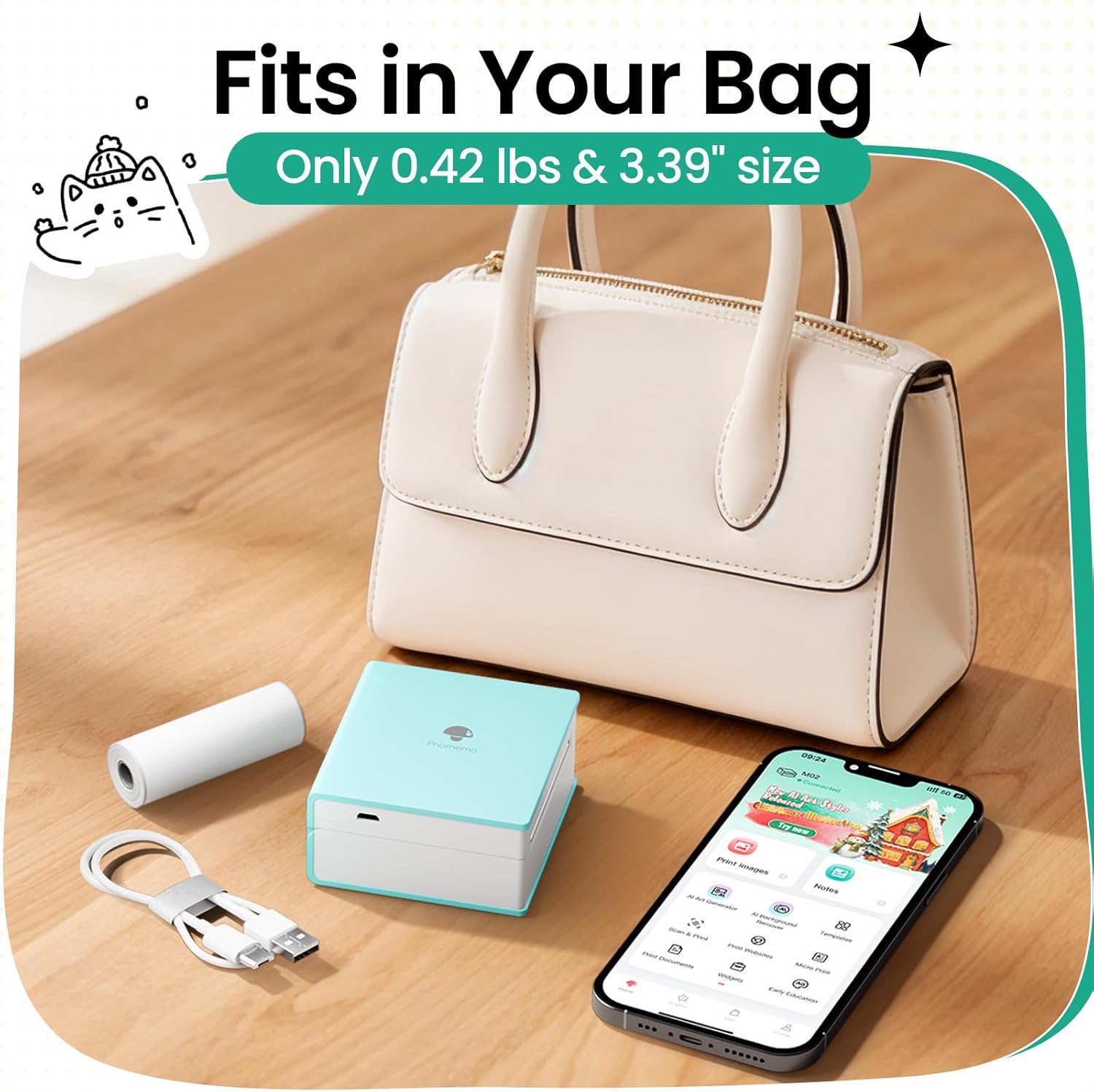
Image: Multiple screenshots of the Phomemo app interface, showcasing a wide variety of templates, fonts, and graphic options available for printing.
5. Maintenance
5.1. Battery Care
To ensure optimal battery performance and longevity:
- Charge the printer promptly when the indicator light turns red.
- If the printer will not be used for an extended period, charge it regularly (e.g., once every 1-2 months) to prevent deep discharge.
5.2. Cleaning the Printer
Regular cleaning helps maintain print quality:
- Ensure the printer is powered off and disconnected from any power source.
- Gently open the paper compartment.
- Using a soft, lint-free cloth lightly dampened with isopropyl alcohol, carefully wipe the thermal print head. Avoid abrasive materials.
- Allow the print head to dry completely before closing the cover and resuming use.
6. Troubleshooting
6.1. Common Issues and Solutions
- No Print or Blank Strip:
Check if the thermal paper is loaded correctly with the printing side facing the thermal print head. Ensure the paper roll is not jammed or depleted. If a specific strip consistently fails to print, it might indicate a minor issue with the print head; try cleaning it as described in Section 5.2.
- Poor Print Quality (Faint/Blurry):
Ensure the printer is fully charged. Adjust the print density settings within the Phomemo app. Thermal printers are best suited for black and white text, QR codes, and simple graphics; highly detailed images may not render with high fidelity. Ensure you are using genuine Phomemo thermal paper.
- Printer Not Connecting via Bluetooth:
Verify that Bluetooth is enabled on your smartphone and that the Phomemo app has Bluetooth permissions. Ensure the printer is powered on and sufficiently charged. Try restarting both the printer and your smartphone, then attempt to reconnect through the app.
- Paper Jam:
Power off the printer immediately. Gently open the cover and carefully remove any jammed paper. Ensure the new paper roll is inserted correctly and is within the specified dimensions (2.08 x 1.18 inches).
7. Specifications
| Feature | Detail |
|---|---|
| Model Name | M02 |
| Connectivity Technology | Bluetooth 4.0 |
| Printing Technology | Thermal |
| Maximum Black and White Print Resolution | 203dpi |
| Maximum Color Print Resolution | 304dpi (Note: Printer output is Monochrome) |
| Maximum Media Size | 2.08 x 1.18 inches (53mm x 30mm) |
| Compatible Devices | Smartphones (iOS 13.0+, Android 7.0+) |
| Battery | 1000mAh (1 C battery included) |
| Product Dimensions | 3.2"D x 3.3"W x 1.6"H (approx. 3.94 x 3.15 x 1.97 inches) |
| Item Weight | 10.2 ounces |
| Ink Type | Inkless |
8. Warranty and Support
The Phomemo M02 Mini Sticker Printer comes with a Limited or Full Warranty. For specific warranty details and claims, please refer to the official Phomemo website or contact customer support.
For additional support and detailed information, you may refer to the official User Guide PDF:


