
1. Overview
The Apple iPad Mini (2019) is a compact and powerful tablet designed for portability and performance. It features a 7.9-inch Retina Display with True Tone technology, providing vibrant colors and comfortable viewing. Powered by the A12 Bionic chip, it offers fast and efficient performance for various tasks, from browsing to gaming.
Key features include:
- 7.9-inch Retina Display with True Tone and wide Color
- A12 Bionic chip with Neural Engine
- Touch ID fingerprint sensor for secure authentication
- 8MP back camera and 7MP FaceTime HD front camera
- Stereo speakers for immersive audio
- 802.11ac Wi-Fi connectivity
- Up to 10 hours of battery life
- Lightning connector for charging and accessories
- Support for Apple Pencil (1st Generation)
- iPadOS 14 for enhanced tablet experience

Image 1.1: The Apple iPad Mini (2019) in Space Gray, showcasing its compact design and display.
2. What's in the Box
Upon opening your iPad Mini package, ensure all the following items are present:
- iPad mini (2019)
- Lightning to USB Cable
- USB Power Adapter
3. Setup
3.1. Initial Charge
Before first use, it is recommended to fully charge your iPad Mini. Connect the Lightning to USB Cable to the iPad's Lightning port and the USB Power Adapter, then plug the adapter into a power outlet.
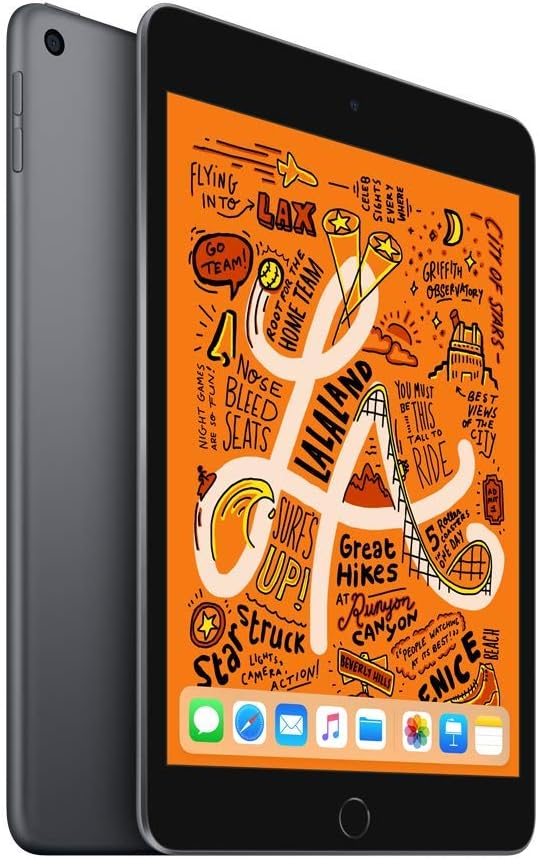
Image 3.1: Front view of the iPad Mini, ready for initial setup.
3.2. Power On and Basic Configuration
- Press and hold the Top button until the Apple logo appears.
- Follow the on-screen instructions to select your language and region.
- Connect to a Wi-Fi network.
- Set up Touch ID by following the prompts to register your fingerprint.
- Create a passcode.
- Restore from an iCloud or computer backup, or set up as a new iPad.
- Sign in with your Apple ID or create a new one.
- Enable or disable location services, Siri, and other features as desired.
4. Operating Your iPad Mini
4.1. Basic Navigation
- Home Button: Press once to return to the Home screen. Double-press to open the App Switcher. Press and hold to activate Siri.
- Gestures: Swipe down from the top-right corner for Control Center. Swipe down from the middle of the screen for Search. Swipe up from the bottom to go home (if using gestures instead of Home button).

Image 4.1: The iPad Mini display showing a vibrant interface.
4.2. Connecting to Wi-Fi
- Go to Settings > Wi-Fi.
- Turn on Wi-Fi.
- Select your desired network from the list.
- Enter the password if prompted, then tap Join.
4.3. Using the Camera
Open the Camera app from the Home screen. Tap the shutter button to take a photo. Swipe left or right to switch between photo, video, panorama, and other modes. Tap the camera icon to switch between the front and back cameras.

Image 4.2: Rear view of the iPad Mini, highlighting the back camera.
4.4. Apple Pencil (1st Generation)
The iPad Mini (2019) supports the first-generation Apple Pencil. To pair, remove the cap from your Apple Pencil and plug it into the Lightning connector on your iPad. Tap Pair when the Bluetooth Pairing Request appears. Once paired, you can use it for drawing, note-taking, and more.
5. Maintenance
5.1. Cleaning Your iPad Mini
To clean your iPad Mini, use a soft, lint-free cloth. Avoid abrasive cloths, towels, paper towels, or similar items that could scratch the screen. Do not use aerosol sprays, solvents, or abrasives. Unplug all cables and power off the device before cleaning.
5.2. Software Updates
Keep your iPad Mini's software up to date to ensure optimal performance and security. Go to Settings > General > Software Update. If an update is available, follow the on-screen instructions to download and install it.
5.3. Battery Care
To maximize battery lifespan, avoid exposing your iPad to extreme temperatures. For long-term storage, charge the device to about 50% and power it off. Recharge it to 50% every six months.
5.4. Storage Management
To check and manage your storage, go to Settings > General > iPad Storage. You can offload unused apps, delete large files, or move photos and videos to iCloud to free up space.
6. Troubleshooting
6.1. Device Not Responding
If your iPad Mini is unresponsive, try a force restart:
- Press and hold both the Top button and the Home button simultaneously.
- Continue holding until you see the Apple logo.
- Release both buttons and allow the iPad to restart.
6.2. Wi-Fi Connection Issues
If you are experiencing Wi-Fi connectivity problems:
- Ensure Wi-Fi is enabled in Settings > Wi-Fi.
- Restart your Wi-Fi router.
- Forget the network and reconnect: Go to Settings > Wi-Fi, tap the information icon next to your network, then tap Forget This Network. Rejoin the network.
- Reset Network Settings: Go to Settings > General > Transfer or Reset iPad > Reset > Reset Network Settings. This will reset all network settings, including Wi-Fi passwords.
6.3. App Crashing or Freezing
If an app is not working correctly:
- Force quit the app: Double-press the Home button to open the App Switcher, then swipe up on the app's preview to close it. Reopen the app.
- Update the app: Check the App Store for updates to the problematic app.
- Reinstall the app: Delete the app from your iPad and then download it again from the App Store.
7. Specifications
| Model Name | iPad mini |
| Item Model Number | MUQW2LL/A |
| Display | 7.9-inch Retina display with True Tone |
| Display Resolution | 2048 x 1536 Pixels |
| Chip | A12 Bionic chip with Neural Engine |
| Storage Capacity | 64GB |
| Back Camera | 8MP with HDR and 1080p HD video |
| Front Camera | 7MP FaceTime HD with Auto HDR |
| Battery Life | Up to 10 hours (Wi-Fi browsing) |
| Connector | Lightning |
| Dimensions (H x W x D) | 8 x 5.3 x 0.24 inches (203.2 x 134.8 x 6.1 mm) |
| Weight | 0.66 pound (300.5 grams) Wi-Fi model |
| Release Date | March 18, 2019 |
8. Warranty and Support
8.1. Warranty Information
Your Apple iPad Mini (2019) is covered by Apple's standard limited warranty, which typically covers manufacturing defects for one year from the original purchase date. For detailed warranty terms and conditions, please refer to the official Apple warranty documentation included with your product or visit the Apple website.
8.2. Customer Support
For further assistance, technical support, or service, please visit the official Apple Support website:
You can find articles, troubleshooting guides, and contact options for Apple support specialists on their website.


