
OneDer V6
Contents
OneDer V6 Wireless Portable Bluetooth Speaker User Manual
Model: V6 | Brand: OneDer
Introduction
This manual provides comprehensive instructions for the safe and efficient operation of your OneDer V6 Wireless Portable Bluetooth Speaker. The OneDer V6 is a versatile audio device featuring Bluetooth connectivity, an integrated microphone for hands-free calls, and support for various media inputs including TF card, USB drive, AUX, and FM radio. It also includes clock and alarm functions, powered by a rechargeable Li-ion battery.
Please read this manual thoroughly before using the product to ensure proper usage and to maximize its lifespan.
Product Overview

Figure 1: Front angled view of the OneDer V6 Bluetooth Speaker, showcasing its vintage design and front grille.
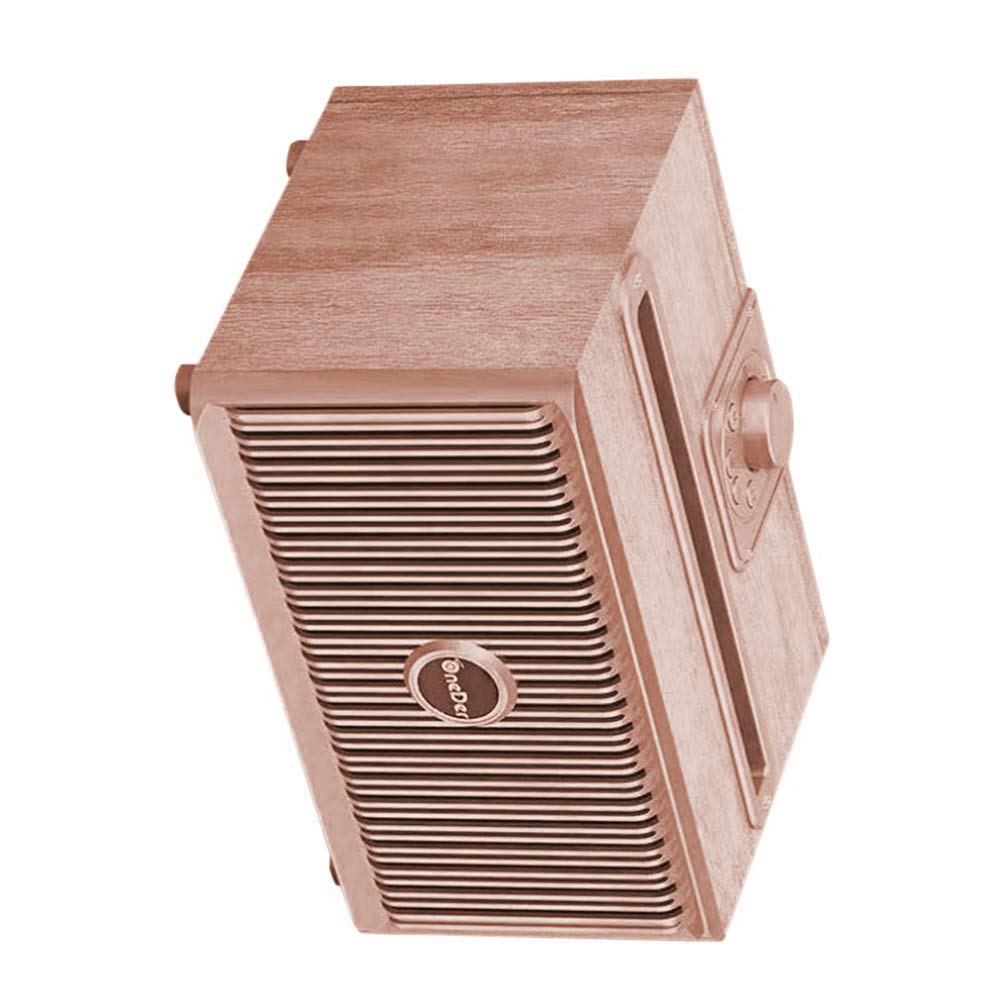
Figure 2: Top-down angled view of the OneDer V6 Bluetooth Speaker, highlighting the control knob and top slot.
Key Features:
- Wireless Bluetooth Connectivity: Seamlessly connect to your devices.
- Integrated Microphone: Enables hands-free calling.
- Multi-Input Support: Play audio from TF Card, USB drive, AUX input, and FM radio.
- Clock and Alarm Functions: Added utility for daily use.
- Rechargeable Battery: Built-in Li-ion battery for portable use.
- Micro USB Charging: Convenient charging port.
- Extended Playtime: Provides 4-8 hours of audio playback on a single charge.
- Vintage Collection Design: Aesthetically pleasing design.
Package Contents
Upon opening the package, verify that all items are present and in good condition. The standard package for the OneDer V6 speaker typically includes:
- OneDer V6 Wireless Portable Bluetooth Speaker
- Micro USB Charging Cable
- User Manual (this document)
- (Optional: AUX cable, depending on specific package variant)

Figure 3: The OneDer V6 speaker alongside its retail packaging, demonstrating the product's presentation.
Setup
1. Charging the Speaker
Before first use, fully charge the speaker. Connect the provided Micro USB charging cable to the speaker's charging port and the other end to a USB power adapter (not included) or a computer's USB port. The charging indicator light will illuminate during charging and turn off or change color when fully charged.
Charging Port: Micro USB
Charging Time: Approximately 2-3 hours (may vary).
2. Powering On/Off
To power on the speaker, press and hold the Power button (location typically on the back or top panel) for a few seconds until you hear an audible prompt or see an indicator light. To power off, repeat the same action.
3. Bluetooth Pairing
- Ensure the speaker is powered on and in Bluetooth pairing mode. The Bluetooth indicator light will typically flash rapidly.
- On your mobile device (smartphone, tablet, etc.), enable Bluetooth and search for available devices.
- Select "OneDer V6" from the list of found devices.
- Once paired, the speaker will provide an audible confirmation, and the Bluetooth indicator light will become solid.
- If prompted for a password, enter "0000" (four zeros).
The speaker will automatically attempt to reconnect to the last paired device when powered on, if that device is within range and has Bluetooth enabled.
Operating Instructions
1. Bluetooth Mode
After successful pairing, you can play audio from your connected device. Use your device's controls for playback (play/pause, next/previous track) and volume adjustment. The speaker may also have physical buttons for these functions.
Hands-Free Calling: When a call comes in, press the Play/Pause button to answer. Press again to end the call. Press and hold to reject a call.
2. TF Card / USB Drive Mode
Insert a TF (MicroSD) card or USB flash drive into the corresponding slot on the speaker. The speaker will automatically switch to the appropriate mode and begin playing audio files (MP3, WAV, etc.) stored on the media.
- Use the Next/Previous buttons to navigate tracks.
- Use the Play/Pause button to control playback.
3. AUX Mode
Connect an external audio device (e.g., MP3 player, laptop) to the speaker's AUX input port using a 3.5mm audio cable (not included). The speaker will automatically switch to AUX mode. Control playback and volume from the connected device.
4. FM Radio Mode
Switch the speaker to FM radio mode (often by pressing a "Mode" button). For best reception, extend the antenna if available, or ensure the charging cable is connected as it can act as an antenna.
- Auto-Scan: Press and hold the Play/Pause button to initiate an automatic scan for available FM stations. The speaker will save detected stations.
- Tune: Use the Next/Previous buttons to switch between saved stations.
5. Clock and Alarm Functions
Refer to the specific button layout on your speaker for setting the clock and alarm. Typically, there will be dedicated buttons or a combination of existing buttons used for these functions. Consult the quick start guide often included with the product for precise instructions on setting time and alarms.
Maintenance
- Cleaning: Use a soft, dry cloth to clean the speaker's surface. Do not use abrasive cleaners, alcohol, or chemical solvents, as these may damage the finish.
- Storage: When not in use for extended periods, store the speaker in a cool, dry place, away from direct sunlight and extreme temperatures.
- Battery Care: To prolong battery life, avoid fully discharging the battery frequently. Charge the speaker regularly, even if not in use, to maintain battery health.
- Water Resistance: The product is listed as "Is Waterproof: TRUE" in specifications. However, this typically refers to splash resistance (e.g., IPX4) and not full submersion. Avoid exposing the speaker to heavy rain or submerging it in water. Always ensure charging port covers are securely closed if present.
Troubleshooting
| Problem | Possible Cause | Solution |
|---|---|---|
| Speaker does not power on. | Low battery. | Charge the speaker fully. |
| Cannot pair via Bluetooth. | Speaker not in pairing mode; device Bluetooth off; too far apart. | Ensure speaker is in pairing mode. Turn Bluetooth on/off on your device. Move devices closer. |
| No sound. | Volume too low; incorrect mode; media issue. | Increase volume on speaker and device. Ensure correct mode (BT, AUX, TF, USB). Check media files. |
| FM radio reception is poor. | Weak signal; no antenna. | Relocate the speaker. Ensure charging cable is connected (acts as antenna). Perform auto-scan again. |
| Speaker freezes or becomes unresponsive. | Software glitch. | Press and hold the Power button for 10-15 seconds to force a restart. If issue persists, allow battery to fully drain then recharge. |
Specifications
| Model Name | OneDer V6 |
| Brand | OneDer |
| Speaker Type | Subwoofer |
| Special Feature | Radio, Subwoofer |
| Recommended Uses | Outdoor |
| Compatible Devices | Smartphone, Tablet |
| Colour | Bronze |
| Battery Life | 8 Hours |
| Waterproof | TRUE (Note: Typically splash resistant, not submersible) |
| Connectivity Technology | Auxiliary, Bluetooth, USB, Wireless |
| Audio Output Mode | Stereo |
| Mounting Type | Tabletop Mount |
| Item Weight | 1 kg 60 g |
| Package Dimensions | 21.4 x 15.6 x 12.9 cm |
Warranty and Support
Specific warranty information for the OneDer V6 Wireless Portable Bluetooth Speaker is not provided within this manual. For details regarding warranty coverage, return policies, or technical support, please refer to the product packaging, the retailer's website where the product was purchased, or contact OneDer customer service directly.
It is recommended to retain your purchase receipt as proof of purchase for any warranty claims.
Documents and downloads
Ask a question about this manual
Ask about setup, troubleshooting, compatibility, parts, safety, or missing instructions. Manuals+ will review the question and use this page’s manual context to help answer it.