
1. Introduction
This manual provides comprehensive instructions for the setup, operation, and maintenance of your NETGEAR Nighthawk WiFi 6 Router (RAX200) AX11000. This tri-band AX12 Wi-Fi 6 router utilizes the 802.11ax standard, offering increased data capacity for modern home networks. It features combined Wi-Fi speeds up to 10.8 Gbps, powered by an optimized 64-bit 1.8GHz quad-core processor, supporting applications such as 4K/8K streaming and low-latency gaming. The Wi-Fi 6 technology incorporates Orthogonal Frequency-Division Multiple Access (OFDMA) to enhance network capacity. Eight high-performance antennas extend Wi-Fi signals for broad coverage, and a 2.5G Multi-Gig port provides versatile wired connections.

Image 1.1: The NETGEAR Nighthawk RAX200 WiFi 6 Router, showcasing its distinctive design.
2. Product Overview
2.1 Package Contents
Verify that your package contains the following items:
- NETGEAR Nighthawk Tri-Band AX12 12-Stream AX11000 Wi-Fi 6 Router (RAX200)
- Ethernet cable
- Quick start guide
- Power adapter
2.2 Router Features and Ports
The RAX200 router is equipped with various ports and indicators for network connectivity and management.

Image 2.1: Rear view of the RAX200 router, illustrating the various ports and connections.
- Internet (WAN) Port: Connects to your modem for internet access.
- 4 Gigabit Ethernet LAN Ports: For wired connections to computers, game consoles, and other network devices.
- 2.5G Multi-Gig Ethernet Port: Provides a high-speed wired connection for devices requiring faster data transfer.
- 2 USB 3.0 Ports: For connecting storage drives to share files across your network or create personal cloud storage.
- Aggregate 2 LAN Ports: Allows combining two LAN ports for increased wired throughput.
- Power On/Off Button: Controls the router's power.
- Reset Button: Used to restore factory default settings.
- LED Indicators: Provide status information for power, internet, Wi-Fi bands, and connected ports.
The router features eight high-performance internal antennas designed to amplify Wi-Fi signals, ensuring extended range and reliable coverage up to 2500 sq. ft.

Image 2.2: Illustration of the internal antenna array within the RAX200 router, designed for optimal signal coverage.
3. Setup Instructions
Follow these steps to set up your NETGEAR Nighthawk RAX200 router.
3.1 Initial Hardware Connection
- Power Off Modem: Disconnect power from your existing modem. If your modem has a backup battery, remove it.
- Connect Router: Connect one end of the provided Ethernet cable to the Internet (WAN) port on your RAX200 router and the other end to your modem's Ethernet port.
- Power On Modem: Reconnect power to your modem. Wait for the modem's online LED to stabilize (usually solid green or blue).
- Power On Router: Connect the power adapter to the router and plug it into a power outlet. Press the Power On/Off button if necessary. Wait for the router's power LED to turn solid white.
3.2 Network Configuration using the Nighthawk App
The recommended method for setting up and managing your router is through the NETGEAR Nighthawk app.
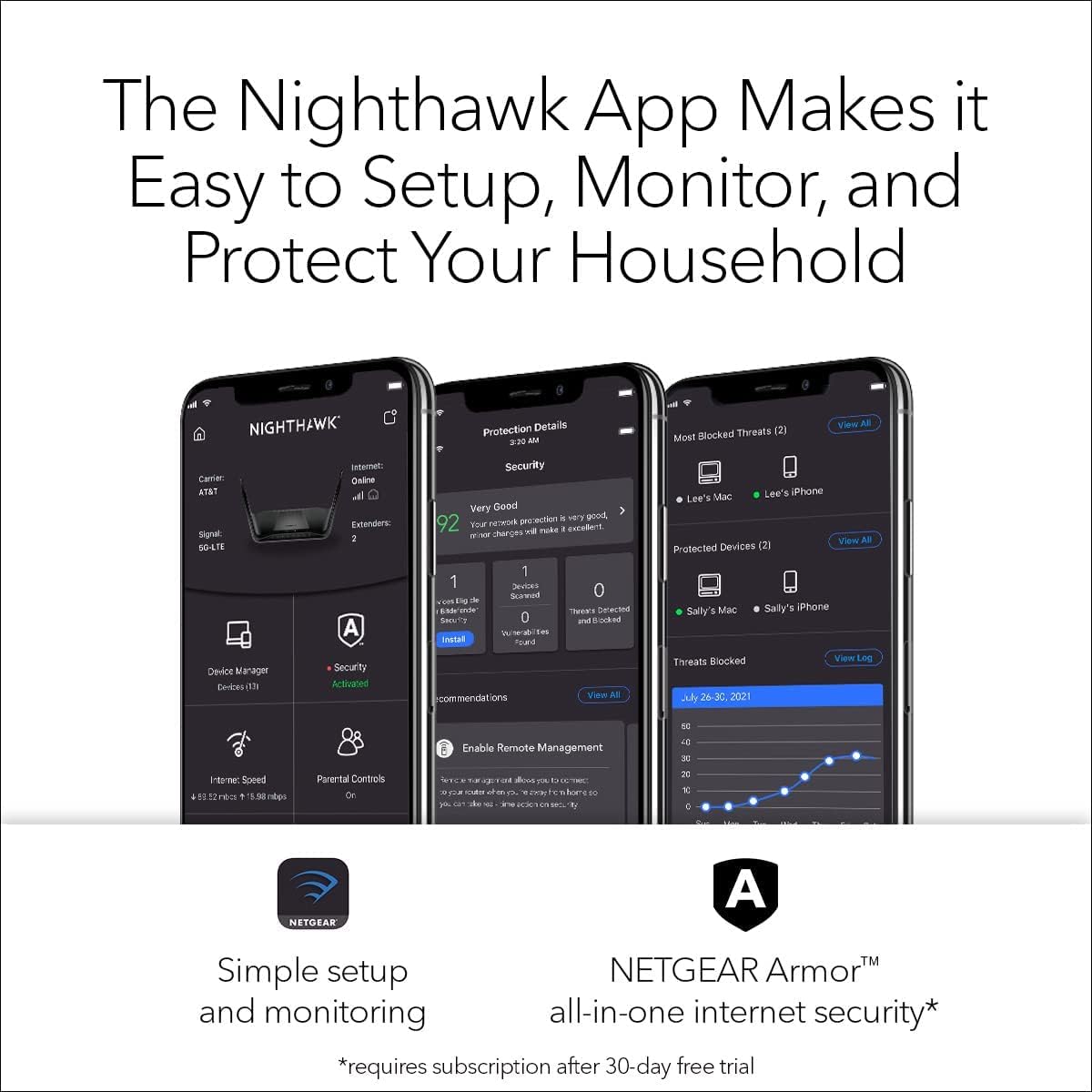
Image 3.1: Screenshots of the Nighthawk app interface, demonstrating setup, monitoring, and security features.
- Download App: Download the Nighthawk app from the Apple App Store or Google Play Store on your mobile device.
- Connect to Router's WiFi: On your mobile device, connect to the default Wi-Fi network name (SSID) and password printed on the label of your router.
- Launch App: Open the Nighthawk app and follow the on-screen prompts to detect and configure your router. This process typically involves creating a NETGEAR account, setting up new Wi-Fi network names and passwords, and updating firmware.
- Complete Setup: Once the app indicates successful setup, your router is ready for use.
3.3 Manual Setup (Web Interface)
Alternatively, you can set up the router using a web browser.
- Connect Device: Connect a computer directly to one of the router's LAN ports using an Ethernet cable, or connect wirelessly to the default Wi-Fi network.
- Access Router Login: Open a web browser and navigate to www.routerlogin.net or www.routerlogin.com.
- Login: Enter the default username (admin) and password (password) when prompted. You will then be guided through the setup wizard to configure your internet connection and Wi-Fi settings.
4. Operating Instructions
4.1 Managing Your Network
You can manage your router settings and monitor your network using the Nighthawk app or the web interface.
- Nighthawk App: Provides a user-friendly interface for managing Wi-Fi settings, monitoring connected devices, running speed tests, and accessing security features.
- Web Interface: Offers advanced configuration options accessible via www.routerlogin.net.
4.2 Key Features
- Tri-Band WiFi: The router operates on three distinct Wi-Fi bands (one 2.4GHz and two 5GHz) to optimize performance and reduce interference, supporting up to 12 simultaneous Wi-Fi streams.
- Guest WiFi: Create a separate Wi-Fi network for guests to provide internet access without sharing your main network password. This can be enabled and managed via the Nighthawk app.
- Parental Controls: Manage internet access for devices on your network, including scheduling internet pauses and blocking inappropriate content.
- USB Storage Sharing: Connect USB storage devices to the router's USB 3.0 ports to share files across your network or create a personal cloud for remote access.
- NETGEAR Armor™: This security feature protects all connected devices from online threats. A 30-day free trial is typically included, with subscription required thereafter.
- Smart Connect: Automatically assigns devices to the most efficient Wi-Fi band, ensuring optimal performance.
- Beamforming: Focuses Wi-Fi signals directly towards connected devices for improved range and speed.
- OFDMA and MU-MIMO: These technologies enhance network efficiency, allowing the router to communicate with multiple devices simultaneously and improve overall capacity.
5. Maintenance
5.1 Firmware Updates
Regularly updating your router's firmware is crucial for security, performance, and access to new features.
- Automatic Updates: The Nighthawk app or web interface may notify you of available firmware updates. Follow the prompts to install them.
- Manual Check: You can manually check for updates through the router's web interface (usually under "Advanced" > "Administration" > "Firmware Update").
- Important: Do not power off the router during a firmware update.
5.2 Cleaning and Placement
- Cleaning: Use a soft, dry cloth to clean the router's exterior. Avoid liquid cleaners.
- Placement: Place the router in a central location, away from obstructions, large metal objects, and devices that emit radio frequency interference (e.g., cordless phones, microwaves) to maximize Wi-Fi coverage.
6. Troubleshooting
This section addresses common issues you might encounter with your RAX200 router.
6.1 No Internet Connection
- Check Cables: Ensure the Ethernet cable from your modem is securely connected to the router's Internet (WAN) port.
- Modem Status: Verify that your modem is powered on and its internet indicator is stable.
- Reboot Sequence: Power off your modem, then your router. Wait 30 seconds, then power on the modem. Once the modem is fully online, power on the router.
- ISP Check: Contact your Internet Service Provider (ISP) to confirm there are no service outages in your area.
6.2 Slow Wi-Fi Speed or Drops
- Router Placement: Ensure the router is centrally located and free from obstructions.
- Interference: Move the router away from other electronic devices that might cause interference.
- Channel Optimization: Use the Nighthawk app or web interface to check for Wi-Fi channel congestion and switch to a less crowded channel.
- Firmware: Ensure your router's firmware is up to date.
- Device Compatibility: Confirm your devices support Wi-Fi 6 (802.11ax) to fully utilize the router's capabilities.
6.3 Cannot Access Router Settings
- Verify Connection: Ensure your device is connected to the router's Wi-Fi network or via an Ethernet cable.
- Correct Address: Double-check that you are using the correct address (www.routerlogin.net or www.routerlogin.com).
- Default Credentials: If you forgot your custom password, try the default username (admin) and password (password). If that fails, you may need to perform a factory reset.
- Factory Reset: With the router powered on, use a paperclip to press and hold the Reset button for about 7-10 seconds until the power LED blinks. This will restore all settings to factory defaults, requiring re-setup.
7. Specifications
Detailed technical specifications for the NETGEAR Nighthawk RAX200 router.
| Feature | Detail |
|---|---|
| Model Name | Nighthawk RAX200 |
| Wireless Type | 802.11a, 802.11ac, 802.11ax (WiFi 6), 802.11b, 802.11g, 802.11n |
| Frequency Band Class | Tri-Band |
| WiFi Speed | Up to 10.8 Gbps (AX11000) |
| WiFi Coverage | Up to 2500 sq. ft. and 50 devices |
| Processor | 1.8GHz Quad-Core |
| Ethernet Ports | 1x 2.5G Multi-Gig Ethernet, 4x Gigabit Ethernet LAN |
| USB Ports | 2x USB 3.0 |
| Memory | 1GB DDR3 RAM, 512MB Flash Memory |
| Security | WPA2/WPA3, Guest WiFi, DoS, Firewall, VPN, NETGEAR Armor |
| Dimensions (LxWxH) | 11.7 x 3.07 x 8.3 inches |
| Weight | 3.2 pounds |
| Operating System | Linux |
| Included Components | Router (RAX200), Ethernet cable, Quick start guide, Power adapter |

Image 7.1: The Nighthawk RAX200 router highlighting its 12 simultaneous WiFi streams, 4x device capacity, and 10.8 Gbps WiFi speed.

Image 7.2: Visual representation of the RAX200's tri-band capability covering numerous smart home devices.

Image 7.3: A bar chart comparing the 10.8 Gbps WiFi speed of the RAX200 AX11000 Tri-Band router with other Nighthawk models.
8. Warranty and Support
NETGEAR provides support and warranty services for its products.
- Warranty Information: Refer to the warranty card included in your product package or visit the official NETGEAR website for detailed warranty terms and conditions.
- Technical Support: For technical assistance, product registration, or to access support resources, visit the NETGEAR support website. You can typically find FAQs, troubleshooting guides, and contact information for customer service.
- NETGEAR Armor: Your router includes a 30-day free trial of NETGEAR Armor, which provides comprehensive cybersecurity for all connected devices. After the trial, a subscription is required to continue using this service.