
MOES BHT-002-GBLWW
Contents
MOES Smart WiFi Thermostat User Manual
Model: BHT-002-GBLWW
Brand: MOES
1. Introduction
This user manual provides comprehensive instructions for the installation, setup, operation, and maintenance of your MOES Smart WiFi Thermostat (Model: BHT-002-GBLWW). Please read this manual thoroughly before installation and use to ensure proper functionality and safety. This thermostat is designed for electric heating systems and offers smart control via WiFi, compatible with Tuya Smart Life APP, Amazon Alexa, and Google Home.
2. Safety Information
Important Safety Precautions:
- Professional Installation Recommended: Installation should be performed by a qualified electrician to prevent electric shock or damage to the device.
- Power Disconnection: Always ensure the power supply is turned off at the circuit breaker before installing, removing, or performing any maintenance on the thermostat.
- Neutral Wire Required: This thermostat requires a neutral wire for proper operation. Verify your electrical wiring includes a neutral wire before installation.
- 2.4GHz WiFi Network Only: The thermostat connects only to 2.4GHz WiFi networks. It is not compatible with 5GHz networks.
- Indoor Use Only: This device is intended for indoor use in dry environments.
- Voltage Compatibility: Ensure your heating system's voltage is compatible with the thermostat's operating voltage (95-240V).
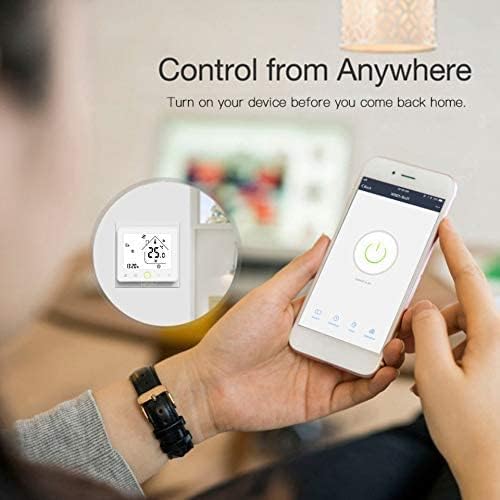
Image: Key attention points for installation, including 2.4GHz WiFi, neutral wire requirement, and installation without power.
3. Product Overview
The MOES Smart WiFi Thermostat is designed to provide precise and convenient control over your electric heating system. It features a modern design with an LCD touch button display and offers both manual and smart control options.

Image: Front view of the MOES Smart WiFi Thermostat, showing its display and touch buttons.
Key Features:
- Dual Modes: Supports fully automatic programming or manual control.
- Smart Connectivity: Connects to 2.4GHz WiFi for remote control via smartphone APP (Tuya Smart Life).
- Voice Control: Compatible with Amazon Alexa and Google Home for hands-free operation.
- Programmable Schedules: Offers 5+1+1 (weekday + Saturday + Sunday) programmable periods for optimized comfort and energy saving.
- High Accuracy: Temperature accuracy of 0.5°C with a settable range of 5°C to 35°C.
- Power-off Memory: Retains settings and date/time even after power interruption.
- Device Sharing: Allows multiple users to control the thermostat.
- Multifunctionality: Includes power-off protection, data memory, and language synchronization.
4. Specifications
| Specification | Value |
|---|---|
| Brand | MOES |
| Model Number | BHT-002-GBLWW |
| Color | White |
| Voltage | 95-240V AC, 50/60Hz |
| Current | 16A Max |
| Power Source | Electric Cable |
| Connectivity Technology | Wi-Fi (2.4GHz only) |
| Temperature Control Type | Programmable, Smart/Remote |
| Temperature Accuracy | 0.5°C |
| Settable Temperature Range | 5°C to 35°C |
| Weight | 270 g |
| Special Feature | Programmable |
| Controller Type | IFTTT, Amazon Alexa, Google Home |
| Specific Uses | Domestic and business electric heating systems |

Image: Detailed dimensions of the MOES Smart Thermostat for installation planning.
5. Installation
Before You Begin: Ensure the main power supply to your heating system is turned off at the circuit breaker. This is crucial for your safety.
Wiring Diagram:
The thermostat is designed for electric floor heating systems. Follow the diagram carefully for correct wiring. A neutral wire (N) is required.

Image: Wiring diagram for the MOES Smart Thermostat, showing connections for electric floor heating (L, N, Load, NTC sensor).
Wiring Steps:
- Connect the Live (L) and Neutral (N) wires from your power supply to the corresponding terminals on the thermostat.
- Connect the Load wires (L1, N1) from your electric heating system to the designated load terminals on the thermostat.
- If applicable, connect the NTC sensor wires to terminals 5 and 6. This sensor measures floor temperature.
- Secure all connections firmly.
- Mount the thermostat securely into the wall box.
- Restore power to the circuit.
6. Setup and App Pairing
To unlock the full smart features of your MOES thermostat, you need to connect it to your home WiFi network and pair it with the Tuya Smart Life APP.
Downloading the App:
- Search for "Tuya Smart" or "Smart Life" in your smartphone's app store (Google Play for Android, App Store for iOS).
- Download and install the app.
- Register a new account or log in if you already have one.
Pairing the Thermostat:
- Ensure your smartphone is connected to a 2.4GHz WiFi network. The thermostat does not support 5GHz networks.
- On the thermostat, enter pairing mode (refer to the thermostat's on-screen instructions or quick start guide for specific button presses, usually holding a button for a few seconds until a WiFi icon flashes).
- Open the Tuya Smart Life app, tap "+" to add a device.
- Select "Thermostat" or "Heater" from the device list.
- Follow the in-app instructions to connect the thermostat to your WiFi network. This typically involves confirming the WiFi network and entering the password.
- Once connected, you can rename the thermostat and assign it to a room.

Image: Illustration of controlling the MOES Smart Thermostat remotely using a smartphone application.
7. Operating Instructions
Manual Control:
You can manually adjust the temperature directly on the thermostat's touch screen. Use the up/down arrows to set your desired temperature. The thermostat will maintain this temperature until changed or a programmed schedule takes over.
Programmable Mode:
The thermostat supports 5+1+1 (weekday + Saturday + Sunday) programmable periods, allowing you to set different temperatures for various times of the day to optimize comfort and energy savings.

Image: Screenshot of the smartphone app showing programmable schedule settings for the thermostat.
Setting Schedules via App:
- Open the Tuya Smart Life app and select your thermostat.
- Navigate to the "Schedule" or "Program" section.
- Set desired temperatures and times for each period (e.g., morning, day, evening, night) for weekdays, Saturday, and Sunday.
- Save your settings. The thermostat will automatically follow these schedules.
Voice Control:
Integrate your MOES thermostat with Amazon Alexa or Google Home for convenient voice commands.

Image: The MOES Smart Thermostat shown with Amazon Alexa and Google Home devices, indicating voice control compatibility.
Setup with Voice Assistants:
- Ensure your thermostat is successfully paired with the Tuya Smart Life app.
- Open the Alexa or Google Home app.
- Enable the "Tuya Smart" or "Smart Life" skill/service.
- Link your Tuya Smart Life account.
- Discover devices. Your thermostat should appear.
- You can now use voice commands like "Alexa, set thermostat to 22 degrees" or "Hey Google, what's the temperature in the living room?".
Device Sharing:
Share control of your thermostat with family members or other authorized users through the Tuya Smart Life app.

Image: Illustration of the device sharing feature within the smartphone app, allowing multiple users to control the thermostat.
How to Share:
- In the Tuya Smart Life app, select your thermostat.
- Go to the device settings (usually represented by a pencil icon or three dots).
- Select "Share Device" or "Device Sharing".
- Add family members by their Tuya Smart Life account (email or phone number).
- They will receive an invitation to control the device.
8. Maintenance
The MOES Smart WiFi Thermostat requires minimal maintenance. Follow these guidelines to ensure its longevity and optimal performance:
- Cleaning: Gently wipe the screen and body with a soft, dry, or slightly damp cloth. Do not use abrasive cleaners, solvents, or chemical sprays, as these can damage the surface.
- Avoid Liquids: Do not expose the thermostat to excessive moisture or liquids.
- Dust Removal: Periodically dust the vents (if any) to ensure proper airflow and temperature sensing.
- Power Cycle: If the thermostat becomes unresponsive, try turning off the power at the circuit breaker for a few minutes, then restore it.
9. Troubleshooting
| Problem | Possible Cause | Solution |
|---|---|---|
| Thermostat not powering on. | No power supply; incorrect wiring; neutral wire missing. | Check circuit breaker. Verify wiring according to diagram, ensuring neutral wire is connected. Consult a qualified electrician if unsure. |
| Cannot connect to WiFi. | Incorrect WiFi password; 5GHz network used; thermostat too far from router; router issues. | Ensure you are connecting to a 2.4GHz WiFi network. Double-check password. Move thermostat closer to router. Restart router. |
| Thermostat not responding to app/voice commands. | No internet connection; app not linked correctly; thermostat offline. | Check home internet connection. Verify Tuya Smart Life app is linked to Alexa/Google Home. Ensure thermostat is online in the app. |
| Temperature reading seems inaccurate. | Sensor obstruction; thermostat placed near heat source/draft. | Ensure nothing is blocking the thermostat's sensor. Relocate thermostat if it's near a window, door, or direct heat source. |
| Heating system not turning on/off. | Incorrect wiring; heating system fault; thermostat in wrong mode. | Verify wiring. Check your heating system for any faults. Ensure thermostat is not in an "Off" or "Fan Only" mode if applicable. |
If you encounter issues not listed here or require further assistance, please contact MOES customer support.
10. Warranty and Support
MOES products are designed and manufactured to the highest quality standards. For warranty information, please refer to the warranty card included with your product or visit the official MOES website. For technical support, troubleshooting, or any inquiries, please contact MOES customer service through their official channels or the retailer from whom you purchased the product.
Manufacturer: WENZHOU NOVA NEW ENERGY CO., LTD
Ask a question about this manual
Ask about setup, troubleshooting, compatibility, parts, safety, or missing instructions. Manuals+ will review the question and use this page’s manual context to help answer it.