
Concord QV5700
Concord 8 Channel 4K NVR Package - 4x4K Cameras User Manual
Model: QV5700
Introduction
This manual provides comprehensive instructions for the setup, operation, and maintenance of your Concord 8 Channel 4K NVR Package with 4x4K Cameras. This system is designed for robust surveillance, offering high-resolution video recording and advanced monitoring features.

Figure 1: Concord 8 Channel 4K NVR with four 4K bullet cameras.
Key Components
- Network Video Recorder (NVR): 8-channel unit with 2TB internal storage.
- 4K UHD Bullet Cameras: Four weatherproof cameras with built-in infrared LEDs for night vision up to 30m and Thermal Detect Technology.
- Power-over-Ethernet (PoE): Simplifies wiring by carrying video, audio, and power over a single Ethernet cable.
- USB Mouse: For navigating on-screen menus.

Figure 2: Front view of the Concord 8 Channel UHD Network Video Recorder.
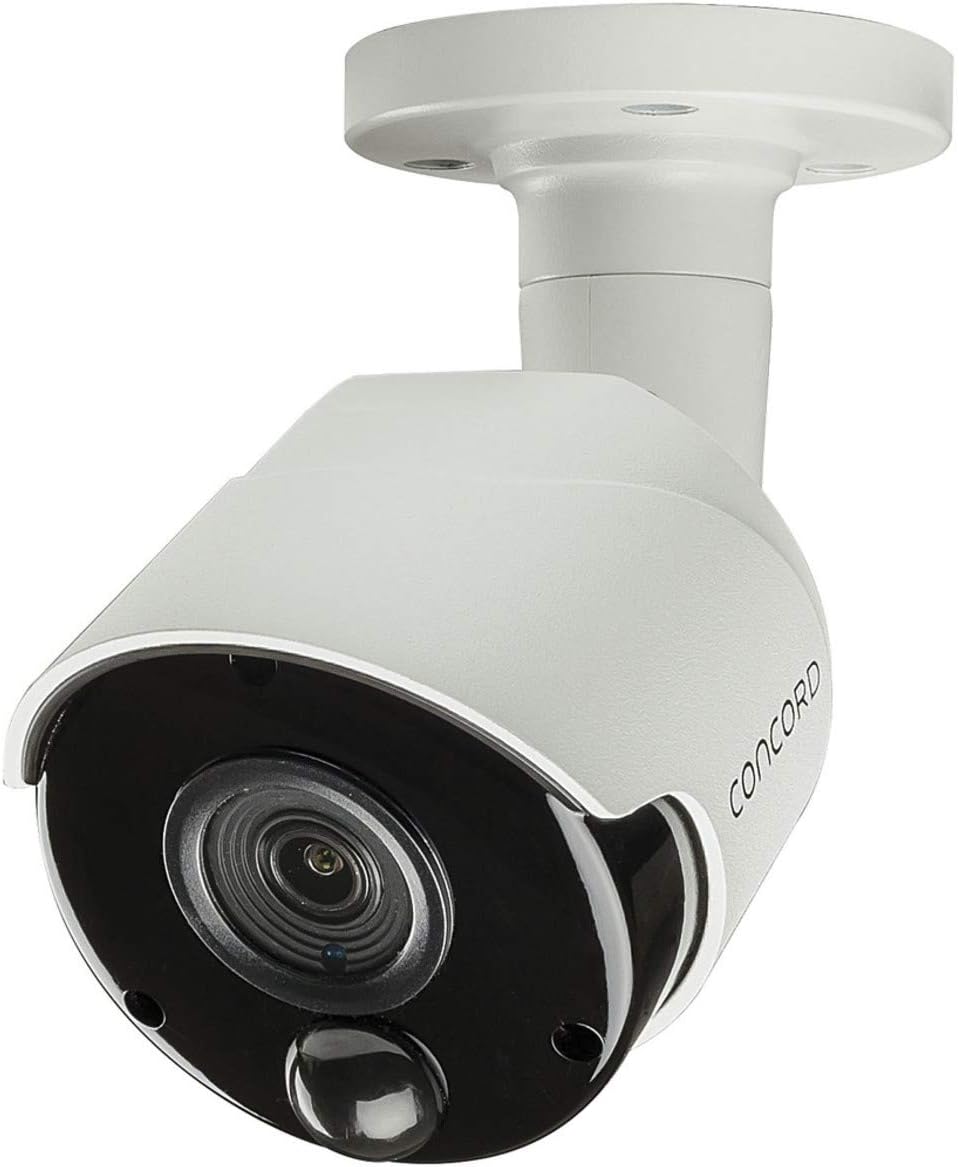
Figure 3: Side view of a Concord 4K UHD bullet camera.
Setup Instructions
- Unpack Components: Carefully remove all items from the packaging.
- Connect Cameras: Connect each 4K UHD bullet camera to the NVR using Ethernet cables. The NVR provides Power-over-Ethernet (PoE), eliminating the need for separate power supplies for the cameras.
- Connect to Display: Connect the NVR to an HDTV or LCD monitor using an HDMI or VGA cable for local viewing.
- Connect to Network: Connect the NVR to your wired network using an Ethernet cable for remote viewing capabilities.
- Power On: Connect the NVR to a power source and power it on.
- Initial Setup: Follow the on-screen prompts to complete the initial system setup, including setting date/time and network configurations.

Figure 4: Rear view of the Concord NVR, illustrating connectivity ports.
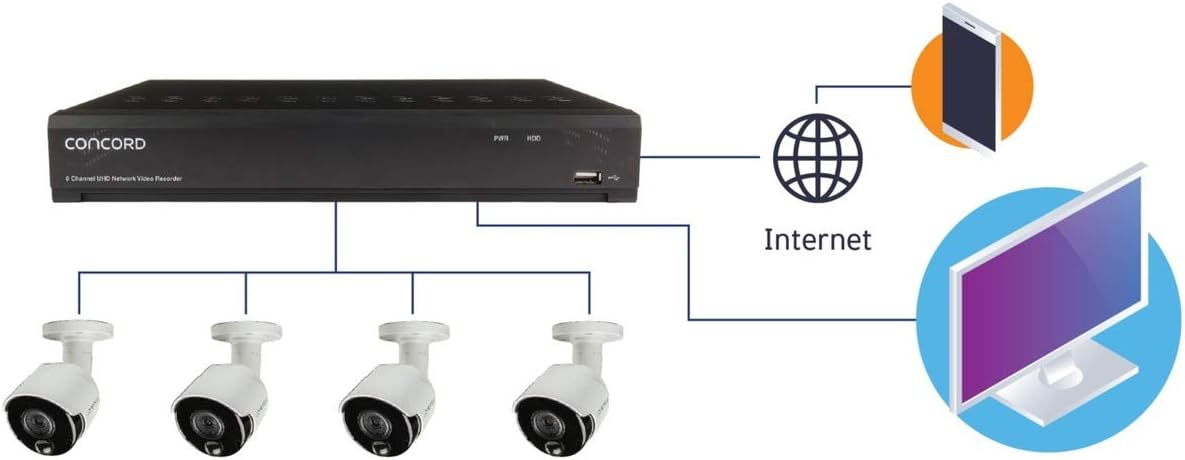
Figure 5: System connection diagram for the Concord NVR surveillance system.
Operating Instructions
Local Viewing and Playback
Use the included USB mouse to navigate the on-screen menus. You can watch live video feeds from all connected cameras or playback recorded footage stored on the 2TB internal hard drive.
Remote Viewing via Smartphone/Tablet
Download the free Concord app on your Apple or Android compatible smartphone or tablet. Utilize Peer-to-Peer (P2P) technology by scanning the QR code provided by the NVR to easily connect and view your system remotely. The app also supports push notifications for alerts.
Intelligent Analysis Features
The NVR includes advanced intelligent analysis features to enhance monitoring and search efficiency:
- Perimeter Intrusion Detection: Detects when an object crosses a predefined virtual perimeter.
- Line Crossing Detection: Triggers an alert when an object crosses a specified line.
- Stationary Object Detection: Identifies objects that remain in a specific area for an unusual duration.
- Pedestrian Detection: Specifically identifies human figures.
- Face Detection: Detects human faces within the camera's view.
- Cross Counting: Counts objects crossing a virtual line in a specified direction.
Recording and Data Management
Recordings are stored on the NVR's built-in 2TB HDD. For data safeguarding, the system supports FTP storage or Dropbox™ Cloud Storage. You can also save recordings to a USB thumb drive using the second USB 2.0 port for sharing or viewing on other devices.
Maintenance
- Regular Cleaning: Periodically clean the camera lenses and NVR vents to ensure optimal performance. Use a soft, dry cloth.
- Firmware Updates: Check the manufacturer's website for available firmware updates to ensure your system has the latest features and security enhancements. Firmware can be uploaded via the USB 2.0 port.
- Data Backup: Regularly back up important recordings to external storage (USB drive, FTP, or Dropbox™) to prevent data loss.
Troubleshooting
- No Video Signal:
- Ensure all camera Ethernet cables are securely connected to the NVR.
- Verify the NVR is powered on and connected to the display monitor.
- Check the HDMI/VGA cable connection to the monitor.
- Remote Viewing Issues:
- Ensure the NVR is connected to the internet.
- Verify your smartphone/tablet has a stable internet connection.
- Re-scan the QR code in the app if connection issues persist.
- Recording Problems:
- Check the NVR's storage status to ensure the 2TB HDD is not full.
- Verify recording schedules and motion detection settings.
Specifications
| Feature | Detail |
|---|---|
| Brand | Concord |
| Model Number | QV5700 |
| Connectivity Technology | Wired (Ethernet) |
| Number of Channels | 8 |
| Memory Storage Capacity | 2 TB (Internal HDD) |
| Camera Resolution | 4K UHD |
| Night Vision Range | Up to 30m (Infrared LEDs) |
| Power Source | Corded Electric |
| Intelligent Analysis | Perimeter Intrusion, Line Crossing, Stationary Object, Pedestrian, Face Detection, Cross Counting |
| Remote Access | Smartphone/Tablet App (P2P, QR Code) |
| Data Safeguarding | FTP Storage, Dropbox™ Cloud Storage |
Warranty Information
This Concord 8 Channel 4K NVR Package comes with a 2 Year Warranty from the date of purchase. Please retain your proof of purchase for warranty claims. The warranty covers manufacturing defects and malfunctions under normal use conditions. It does not cover damage caused by misuse, accidents, unauthorized modifications, or natural disasters.
Customer Support
For technical assistance, troubleshooting, or warranty inquiries, please refer to the contact information provided with your product packaging or visit the official Concord support website. The free mobile application is available for download on your device's app store for remote viewing and notifications.
Ask a question about this manual
Ask about setup, troubleshooting, compatibility, parts, safety, or missing instructions. Manuals+ will review the question and use this page’s manual context to help answer it.