1. Introduction
The SONOFF 4CH PRO R3 is a 4-gang Wi-Fi smart switch designed to integrate your traditional home appliances into a smart home system. It allows you to remotely control up to four connected devices independently via the eWeLink app on your iOS or Android device. This smart switch supports various working modes including self-locking, interlock, and inching, providing flexible control options for different applications. It is also compatible with voice assistants like Amazon Alexa and Google Home for convenient voice control.
This manual provides essential information for the safe and effective use of your SONOFF 4CH PRO R3 smart switch, covering product overview, specifications, installation, operation, maintenance, and troubleshooting.
2. Safety Information
Please read and understand all safety instructions before installing or operating the device. Failure to follow these instructions may result in electric shock, fire, or other serious injury or damage.
- Electrical Safety: Installation should only be performed by a qualified electrician or professional. Ensure the main power supply is turned off at the circuit breaker before any wiring work.
- Voltage and Load: Do not exceed the maximum load ratings of 10A/2200W per gang or 40A/8800W total. The device operates on 100-240V AC (50/60Hz) or 9-23V DC.
- Environment: Do not expose the device to moisture, extreme temperatures, or direct sunlight. Use indoors only.
- Wiring: Ensure all wire connections are secure and correctly terminated according to the wiring diagrams provided. The recommended wire diameter is ̘ 0.5-1.5mm (24-14AWG).
- Disassembly: Do not attempt to disassemble or modify the device. There are no user-serviceable parts inside.
3. Product Overview
The SONOFF 4CH PRO R3 is a versatile smart switch designed for various applications. It features four independent channels, allowing you to control multiple devices from a single unit. The device supports both AC and DC power inputs and can be mounted on a DIN rail for easy integration into electrical boxes.

Figure 3.1: Front view of the SONOFF 4CH PRO R3 Smart Switch, showing the four gang buttons, LED indicators, and input/output terminals. The model number and electrical specifications are also visible on the label.
Key Features:
- 4-Channel Control: Independently control up to four connected devices.
- Multiple Working Modes: Supports self-locking, interlock, and inching modes configurable via the eWeLink app.
- Voice Control: Compatible with Amazon Alexa and Google Home for hands-free operation.
- Remote Control: Control devices from anywhere using the eWeLink app on your smartphone.
- DIN Rail Mountable: Designed for easy installation in electrical distribution boxes.
- Enhanced Safety: Durable flame-retardant PC shell provides maximum safety.
- Dry Contact Support: Offers dry contact output for specific applications.
4. Specifications
| Parameter | Value |
|---|---|
| Brand | SONOFF |
| Model | 4CH PRO R3 |
| Material | PC V0 (Flame-retardant) |
| Input Voltage | 100-240V AC, 50/60Hz (DC: 9-23V) |
| Max. Load (per Gang) | 10A / 2200W |
| Max. Load (Total) | 40A / 8800W |
| Wireless Frequency | WiFi 2.4G |
| Wireless Standard | IEEE802.11 b/g/n, 2.4G (2400M-2483.5M) |
| Security Mode | WPA/WPA2 |
| Compatibility | Android 4.1 or later, iOS 9.0 or later |
| Wiring Way | N (Neutral) and L (Live) |
| Wire Diameter | ̘ 0.5-1.5mm (24-14AWG) |
| Gangs | 4 |
| 433MHz Remote Control | Yes |
| Dry Contact | Yes |
| AC Input | Yes |
| DC Input | Yes |
| Operation Records | 3-Month (via App) |
| Interlock Mode | App Configurable |
| Inching Mode | App Configurable |
| Item Size | 14.5 x 9 x 3.4 cm (5.7 x 3.54 x 1.33 in) |
| Item Weight | 202g (7.12oz) |
| Part Number | CXQ4994757908399EM |
| UPC | 755431189069 |
Figure 4.1: Comparison of features across different SONOFF 4CH models, including 4CH PRO R3, highlighting differences in remote control, dry contact, AC/DC input, operation records, and control modes.
5. Setup and Installation
Before beginning installation, ensure the main power supply is disconnected at the circuit breaker to prevent electric shock.
5.1 Wiring Instructions
The SONOFF 4CH PRO R3 supports both AC and DC input. Refer to the wiring diagram on the device and below for correct connections. Ensure all wires are securely fastened in their respective terminals.
- Input Terminals (Left Side): Connect your main power supply (Live 'L' and Neutral 'N') to the input terminals.
- Output Terminals (Right Side): Connect your appliances or lights to the output terminals (L1, L2, L3, L4 for Live outputs, and N for Neutral output). Each output corresponds to a specific channel.
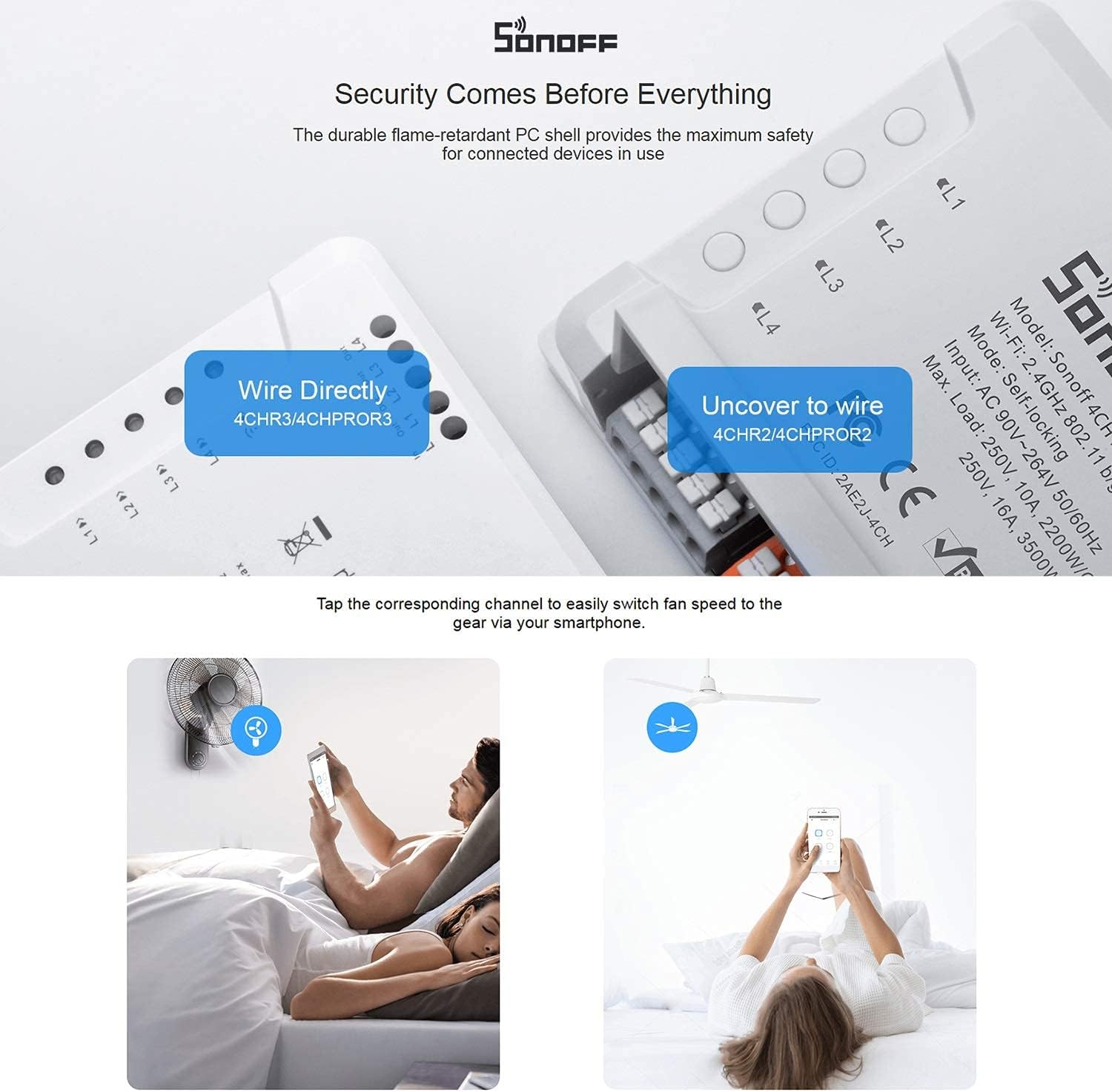
Figure 5.1: Illustration of wiring the SONOFF 4CH PRO R3. The image shows the direct wiring method for the 4CHR3/4CHPROR3 models, where wires are inserted directly into the terminals.
5.2 DIN Rail Mounting
The 4CH PRO R3 is designed for easy installation on a standard DIN rail, commonly found in electrical distribution boxes.
- Install the switch: Align the switch with the DIN rail.
- Slide into place: Gently slide the switch onto the rail until it clicks into position.
- Secure: Press the mounting brackets until they click, ensuring the switch is firmly secured on the rail.

Figure 5.2: Step-by-step guide for mounting the SONOFF 4CH PRO R3 onto a DIN rail, showing the process of installing, sliding, and securing the device.
5.3 App Pairing
To control the switch via your smartphone, you need to pair it with the eWeLink app.
- Download eWeLink App: Download the eWeLink app from the App Store (iOS) or Google Play Store (Android).
- Register/Login: Create an account or log in to your existing eWeLink account.
- Add Device: Follow the in-app instructions to add a new device. This typically involves putting the switch into pairing mode (refer to the device's LED indicator for status) and connecting to your 2.4GHz Wi-Fi network.
6. Operating the Device
The SONOFF 4CH PRO R3 offers multiple ways to control your connected devices.
6.1 App Control (eWeLink)
Once paired, you can control each of the four channels independently through the eWeLink app. The app also allows you to configure different working modes:
- Self-locking Mode: Each channel operates independently. Turning one channel ON/OFF does not affect others.
- Interlock Mode: Only one channel can be ON at a time. Turning one channel ON will automatically turn OFF any other currently ON channels. This is useful for controlling devices like garage doors or blinds where only one state should be active.
- Inching Mode: A channel will automatically turn OFF after a set duration (e.g., 0.5-3600s) once it's turned ON. This is ideal for momentary actions.

Figure 6.1: Screenshots of the eWeLink app demonstrating the configuration and control of self-locking, interlock, and inching modes for the SONOFF 4CH PRO R3.

Figure 6.2: Examples of interlock mode application, showing how it can be used to control a garage door (open/close) or blinds (up/down) ensuring only one action is active at a time.
6.2 Voice Control (Alexa & Google Home)
The SONOFF 4CH PRO R3 can be integrated with Amazon Alexa and Google Home for convenient voice control. Ensure your eWeLink account is linked to your Alexa or Google Home app.
- Amazon Alexa: Enable the 'eWeLink Smart Home' skill in the Alexa app. Discover devices, and then you can use commands like "Alexa, turn on [device name]" or "Alexa, turn off [device name]".
- Google Home: Link your eWeLink account in the Google Home app. Use commands such as "Hey Google, turn on [device name]" or "Hey Google, turn off [device name]".

Figure 6.3: Illustration of using voice commands with Amazon Alexa to control the smart switch, demonstrating the ease of integrating with popular voice assistants.
6.3 Other Control Methods
- Physical Buttons: Each channel has a physical button on the device for manual ON/OFF control.
- 433MHz RF Remote Control: The 4CH PRO R3 supports 433MHz RF remote control for local operation (remote sold separately).
- Scheduling & Timers: Set schedules and timers within the eWeLink app to automate your devices.
- Smart Scenes: Create custom smart scenes to trigger actions based on various conditions (e.g., turn on lights when motion is detected).
7. Maintenance
Proper maintenance ensures the longevity and optimal performance of your SONOFF 4CH PRO R3 smart switch.
- Cleaning: Use a soft, dry cloth to clean the device. Do not use abrasive cleaners, solvents, or wet cloths, as these can damage the device or cause electrical hazards.
- Environment: Keep the device in a dry environment, away from direct sunlight, high temperatures, and humidity.
- Firmware Updates: Regularly check for and install firmware updates via the eWeLink app to ensure the device has the latest features and security patches.
- Inspection: Periodically inspect the wiring connections to ensure they remain secure.
8. Troubleshooting
If you encounter issues with your SONOFF 4CH PRO R3, refer to the following common problems and solutions:
- Device Offline in App:
- Check if the device is powered on.
- Ensure your Wi-Fi network is active and stable.
- Verify the device is within Wi-Fi range.
- Restart the device and your Wi-Fi router.
- If the issue persists, try re-pairing the device with the app.
- Cannot Pair Device:
- Ensure your Wi-Fi network is 2.4GHz. The device does not support 5GHz Wi-Fi.
- Check your Wi-Fi password for accuracy.
- Make sure the device is in pairing mode (refer to the LED indicator status).
- Reduce the distance between the device and your Wi-Fi router during pairing.
- Device Not Responding to Voice Commands:
- Verify that your eWeLink account is correctly linked to your Alexa or Google Home app.
- Ensure the device name in the eWeLink app is recognized by your voice assistant. Try renaming it to something simpler.
- Check your internet connection.
- Physical Buttons Not Working:
- Ensure the device has power.
- If the device is in a specific mode (e.g., interlock), button behavior might be affected.
For further assistance, please refer to the official SONOFF support resources or contact customer service.
9. Warranty and Support
For warranty information, please refer to the warranty card included with your product or visit the official SONOFF website. Warranty terms and conditions may vary by region and retailer.
Customer Support:
- For technical support, FAQs, and product updates, please visit the official SONOFF website: https://sonoff.tech
- You can also contact SONOFF customer service through the contact information provided on their website or within the eWeLink app.


