
FOREVER KW-300
FOREVER KW-300 Smartwatch User Manual
Model: KW-300 (GSM036547)
Introduction
This manual provides comprehensive instructions for the operation, maintenance, and troubleshooting of your FOREVER KW-300 Smartwatch. Please read this manual carefully before using the device to ensure proper functionality and to maximize its lifespan.

Figure 1: FOREVER KW-300 Smartwatch - Front View
The image displays the pink FOREVER KW-300 Smartwatch, highlighting its square display and the two-tone pink and red strap design. A button is visible on the right side of the watch face.
Package Contents
Upon opening the package, verify that all components are present and in good condition:
- FOREVER KW-300 Smartwatch
- USB Charging Cable
- Small Screwdriver (for SIM card tray access, if applicable)
- User Manual (this document)

Figure 2: Smartwatch and Included Accessories
This image shows the pink FOREVER KW-300 Smartwatch alongside its USB charging cable and a small screwdriver, which are typically included for setup and maintenance.
Setup
1. Charging the Device
Before initial use, fully charge the smartwatch. Connect the magnetic charging cable to the charging pins on the back of the watch and plug the USB end into a compatible USB power adapter (not included) or a computer's USB port.
- A full charge typically takes approximately 2-3 hours.
- The screen will indicate charging status.
2. Powering On/Off
To power on the smartwatch, press and hold the power button (located on the side) for a few seconds until the screen illuminates. To power off, press and hold the power button until the power-off option appears on the screen, then confirm.
3. Initial Configuration and App Pairing
The KW-300 Smartwatch requires pairing with a smartphone application for full functionality, including GPS tracking, communication, and settings management. Refer to the quick start guide included in the box for specific app download instructions (e.g., "Seeme" app).
- Download the official companion application from your smartphone's app store.
- Create an account and follow the on-screen prompts to register your device.
- Scan the QR code displayed on the smartwatch screen or enter the device ID manually to pair.
- Configure essential settings such as time zone, emergency contacts, and GPS tracking frequency within the app.
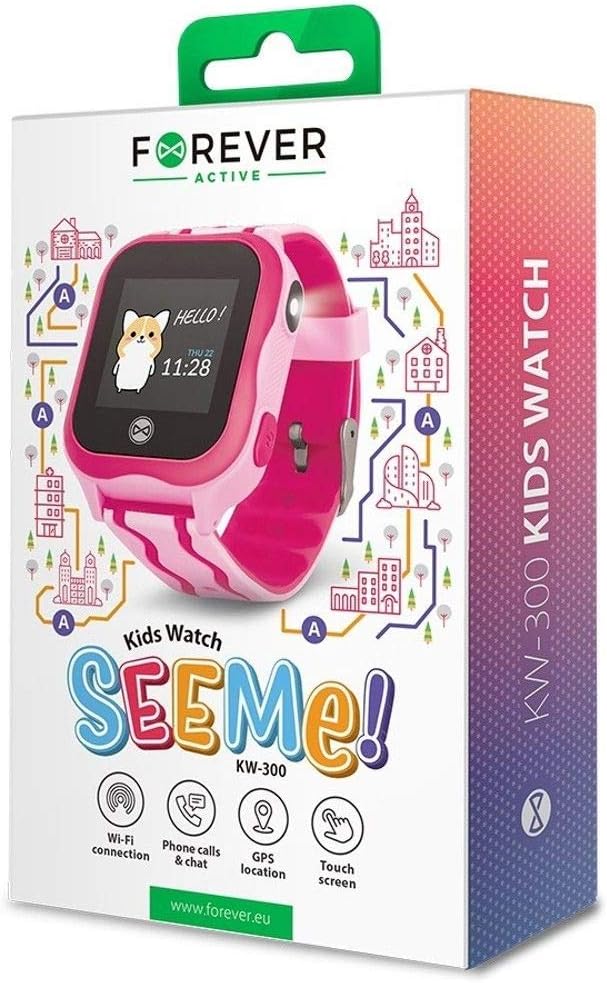
Figure 3: Product Packaging Highlighting Key Features
The product box for the FOREVER KW-300 Kids Watch "SEEMe!" displays icons for Wi-Fi connection, Phone calls & chat, GPS location, and Touch screen, indicating the smartwatch's primary functionalities.
Operating Instructions
Navigating the Interface
The KW-300 features a touch screen display. Swipe left/right or up/down to navigate through menus and applications. Tap to select an option.
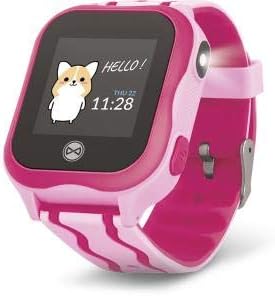
Figure 4: Smartwatch Display Example
This image shows the smartwatch display with a friendly "Hello!" message, a cartoon character, and the current time and date (Thursday, 11:28).
Making and Receiving Calls
Once a SIM card is properly installed (if applicable) and contacts are synced via the app, the smartwatch can make and receive calls to pre-approved numbers.
- Making a Call: Navigate to the "Contacts" or "Dialer" app on the watch, select a contact, and tap to call.
- Receiving a Call: When a call comes in, the watch will ring and display the caller ID. Tap the green icon to answer or the red icon to decline.
GPS Tracking
The integrated GPS module allows for real-time location tracking. This feature is primarily managed through the companion smartphone application.
- View the watch's current location on a map within the app.
- Set up geofences (safe zones) and receive alerts when the watch enters or exits these areas.
- Review location history.
SOS Function
The smartwatch is equipped with an SOS button for emergencies. When pressed and held, it will automatically dial pre-set emergency contacts and send location alerts.
- Configure SOS contacts in the companion application.
- Ensure the watch has network connectivity for the SOS function to work.
Maintenance
Cleaning
Regularly clean your smartwatch to maintain its appearance and functionality.
- Wipe the screen and body with a soft, lint-free cloth.
- For stubborn smudges, slightly dampen the cloth with water. Avoid harsh chemicals or abrasive materials.
- Ensure the charging pins are clean and free of debris.
Storage
When not in use for extended periods, store the smartwatch in a cool, dry place away from direct sunlight and extreme temperatures. It is recommended to charge the device to about 50% before long-term storage to preserve battery health.
Troubleshooting
| Problem | Possible Cause | Solution |
|---|---|---|
| Watch does not power on. | Low battery; device frozen. | Charge the watch for at least 30 minutes. If still unresponsive, perform a forced restart (refer to specific model instructions or hold power button for 10-15 seconds). |
| Cannot make/receive calls. | No SIM card; SIM card not active; poor network signal; contacts not synced. | Ensure SIM card is correctly inserted and active. Check network signal strength. Verify contacts are synced via the companion app. |
| GPS location is inaccurate. | Poor GPS signal (indoors/dense areas); device not connected to network. | Move to an open outdoor area. Ensure the watch has a stable network connection. |
| Cannot pair with smartphone app. | Bluetooth/Wi-Fi off; incorrect pairing code; app issues. | Ensure Bluetooth/Wi-Fi is enabled on both devices. Re-enter pairing code. Restart both devices and try again. Reinstall the app if necessary. |
Specifications
| Feature | Detail |
|---|---|
| Model Name | KW-300 |
| Model Number | GSM036547 |
| Brand | FOREVER |
| Connectivity Technology | GPS, Bluetooth |
| Special Features | GPS |
| Compatible Devices | Smartphone |
| Shape | Round |
| Item Dimensions (L x W x H) | 13 x 4 x 8 centimeters |
Warranty and Support
Information regarding the specific warranty period and terms for your FOREVER KW-300 Smartwatch is typically provided with the product packaging or available on the manufacturer's official website. Please retain your proof of purchase for warranty claims.
Customer Support
For technical assistance, troubleshooting beyond this manual, or warranty inquiries, please contact FOREVER customer support through their official channels. Visit the FOREVER website for contact information and frequently asked questions.
Note: Specific contact details are not provided in this manual.
Related documentsKW-300


Ask a question about this manual
Ask about setup, troubleshooting, compatibility, parts, safety, or missing instructions. Manuals+ will review the question and use this page’s manual context to help answer it.