Introduction
Thank you for purchasing the Ciglow Cloud-Shaped Digital Alarm Clock. This manual provides detailed instructions for setting up, operating, and maintaining your new clock. Please read this manual thoroughly before use to ensure proper function and longevity of the product.
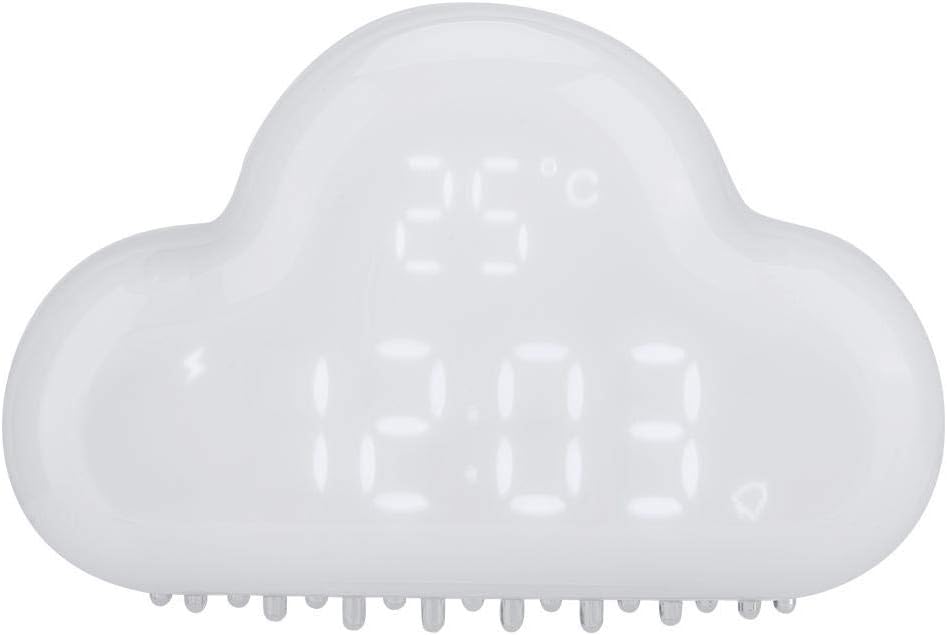
Figure 1: Front view of the Ciglow Cloud-Shaped Digital Alarm Clock displaying time and temperature.
Package Contents
- 1 x Ciglow Cloud Clock Alarm
- 1 x USB Charging Cable
- 1 x User Manual (this document)

Figure 2: The included USB charging cable for the clock.
Setup
1. Initial Charging
Before first use, fully charge the clock. Connect the provided USB charging cable to the DC5V input port on the back of the clock and the other end to a standard USB power adapter (not included) or a computer USB port. The charging indicator will blink when the battery is low (20% energy left) and will stop blinking when fully charged.
2. Power On/Off
Locate the ON/OFF switch on the back of the clock. Slide it to the "ON" position to power on the device.
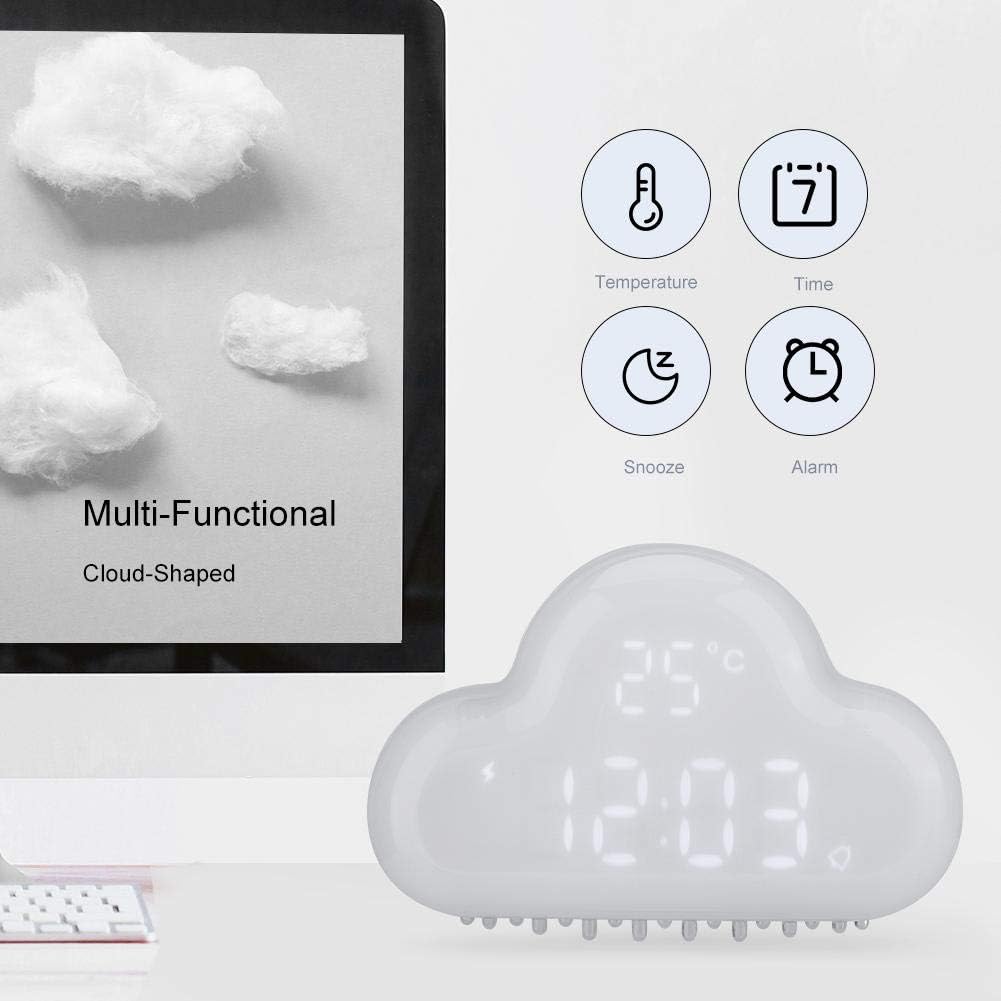
Figure 3: Rear view of the clock, highlighting the power switch and charging port.
3. Setting Time and Date
Press the SET button (often represented by a gear or clock icon) on the back of the clock to enter time setting mode. Use the + and - buttons to adjust the hour, then press SET again to move to minutes, and so on for year, month, and day. The clock supports a 24-hour display format.
Operating Instructions
Display Activation
The clock display is designed to conserve power. It will show LED time, date, temperature, alarm, and snooze information by turn. To activate the display, you may need to make a sound (voice activation) or gently shake the clock. The display does not remain constantly on.

Figure 4: Icons representing the clock's multi-functional display capabilities.
Setting the Alarm
Press the ALARM button (often represented by a bell icon) to enter alarm setting mode. Use the + and - buttons to set the desired alarm time. Press ALARM again to confirm and activate the alarm. An alarm icon will appear on the display when the alarm is set.
Snooze Function
When the alarm sounds, you can activate the snooze function by gently shaking the clock. This will provide a 5-minute snooze period. If no action is taken, the alarm will ring for 3 minutes and then automatically shut off for the day.

Figure 5: The clock on a bedside table, illustrating its alarm and snooze capabilities.
Temperature Display
The clock displays the real-time temperature, ranging from -30℃ to 50℃. This feature is integrated into the rotating display cycle.
Magnetic Mounting
The clock features a strong magnet on its back, allowing it to be absorbed onto a refrigerator or other magnetic surfaces. This provides flexible placement options.

Figure 6: Demonstrating the strong magnet on the back of the clock for mounting on magnetic surfaces.
Time Memory Function
The built-in battery ensures that you do not need to reset the time when the power is off or when the clock is recharged, preserving your settings.
Product Video
Video 1: A short demonstration of the Digital Clock Alarm's features and operation.
Maintenance
Cleaning
To clean the clock, gently wipe the surface with a soft, dry cloth. Do not use abrasive cleaners, solvents, or immerse the clock in water. Keep the charging port free of dust and debris.
Battery Care
The clock is equipped with a built-in 900mAh polymer lithium battery. For optimal battery life, avoid fully discharging the battery frequently. Recharge the clock when the charging indicator blinks, signaling low battery.
Troubleshooting
| Problem | Possible Cause | Solution |
|---|---|---|
| Display is off or not visible. | Power saving mode is active. | Make a sound or gently shake the clock to activate the display. |
| Alarm does not sound. | Alarm not set or volume too low. | Ensure the alarm is set correctly and the alarm icon is visible. Check if there's a volume setting (if applicable, though not specified for this model). |
| Snooze function not working. | Clock not shaken correctly or too gently. | Ensure a clear, gentle shake is applied when the alarm is sounding. |
| Clock not charging. | Cable or power adapter issue; charging port obstructed. | Check the USB cable and power adapter. Ensure the charging port is clean and free of debris. |
| Incorrect temperature reading. | Environmental factors. | Ensure the clock is placed in a stable environment away from direct heat sources or drafts. |
Specifications
| Feature | Detail |
|---|---|
| Type | Cloud Alarm Clock |
| Brand | Ciglow |
| Model Number | Ciglow0718pm9ik3-01 |
| Material | ABS, PC (Acrylonitrile Butadiene Styrene) |
| Input Voltage | DC5V / 1A |
| Power Source | Built-in 900mAh polymer lithium battery |
| Item Weight | 173g (approx. 6 ounces) |
| Item Size | Approx. 12.2 x 7.9 x 3.5 cm (4.8 x 3.1 x 1.4 inches) |
| Color | White |
| Display Type | Digital |
| Special Features | Alarm, Calendar Display, Snooze, Temperature, Voice Activation, Magnetic Back |
| Mounting Type | Tabletop |
| UPC | 736342900684 |

Figure 7: Product dimensions of the Cloud-Shaped Digital Alarm Clock.
Warranty and Support
Specific warranty information for the Ciglow Cloud-Shaped Digital Alarm Clock is not provided in this manual. Please refer to the product packaging or contact your retailer for details regarding warranty coverage.
For technical support or further assistance, please contact the manufacturer or your point of purchase. Keep your purchase receipt as proof of purchase.


