
1. Introduction
This manual provides detailed instructions for the installation, operation, and maintenance of your EINCAR 7-inch IPS Android 7.1 Quad-Core Car Stereo. Please read this manual thoroughly before using the product to ensure proper functionality and to prevent damage.
2. Safety Information
- Professional Installation Recommended: Due to the complexity of car electrical systems, professional installation is highly recommended.
- Avoid Distractions: Do not operate the device or view videos while driving. Always prioritize road safety.
- Power Supply: Ensure the device is connected to a 12V DC power supply with negative grounding.
- Temperature: Avoid exposing the device to extreme temperatures or direct sunlight for extended periods.
- Moisture: Keep the device away from water and excessive moisture.
3. Package Contents
Verify that all items listed below are included in your package:
- EINCAR 7-inch Car Stereo Unit
- ISO Cable
- AV Cable
- GPS Antenna
- 2 x Installation Brackets (with 4 screws)
- USB Cable
- User Manual
- Warranty Card

Image: Included accessories for the EINCAR Car Stereo, showing ISO cable, AV cable, GPS antenna, installation brackets, USB cable, user manual, and warranty card.
4. Product Overview
4.1 Front Panel
The front panel features a 7-inch IPS capacitive touch screen, along with essential control buttons and indicators for easy operation.

Image: EINCAR 7-inch IPS Android 7.1 Car Stereo front view with main features highlighted, including the display and various icons.
4.2 Rear Panel Connections
The rear panel provides all necessary ports for power, audio/video input/output, GPS antenna, and other accessories.
- 1. ISO Cable: Main power and speaker connections.
- 2. Fuse: Overcurrent protection.
- 3. RCA Out Socket: Audio and video output connections.
- 4. GPS: GPS antenna input.
- 5. Radio Antenna Socket: For connecting the car's radio antenna.
Image: Rear panel connections of the EINCAR Car Stereo, indicating ports for ISO cable, fuse, RCA out, GPS, and radio antenna.
5. Setup and Installation
Proper installation is crucial for the performance and safety of your car stereo. It is highly recommended to have this unit installed by a qualified professional.
5.1 Pre-Installation Checks
- Ensure the vehicle's battery is disconnected before starting installation.
- Check the dimensions of the unit against your car's dashboard opening.
Image: Dimensions of the EINCAR 7-inch Car Stereo, showing measurements for width, height, and depth.
5.2 Wiring Connections
Refer to the wiring diagram provided with your unit and the rear panel overview in Section 4.2. Connect the ISO cable for power and speakers, AV cables for external devices, and the GPS antenna. Ensure all connections are secure to prevent malfunctions.
5.3 Mounting the Unit
Use the provided installation brackets to secure the unit into your car's dashboard. Ensure the unit is firmly in place and does not obstruct any vehicle controls.
6. Operating Instructions
6.1 Power On/Off
Press the power button on the front panel to turn the unit on or off. The unit will typically power on automatically when the vehicle's ignition is turned on.
6.2 Android 7.1 Operating System
The unit runs on Android 7.1, providing access to a wide range of applications and features. The interface is designed for intuitive use.
- App Store: Access the built-in Google Play Store to download and install various applications.
- Built-in WiFi: Connect to a WiFi network to access online content, download apps, and browse the internet.
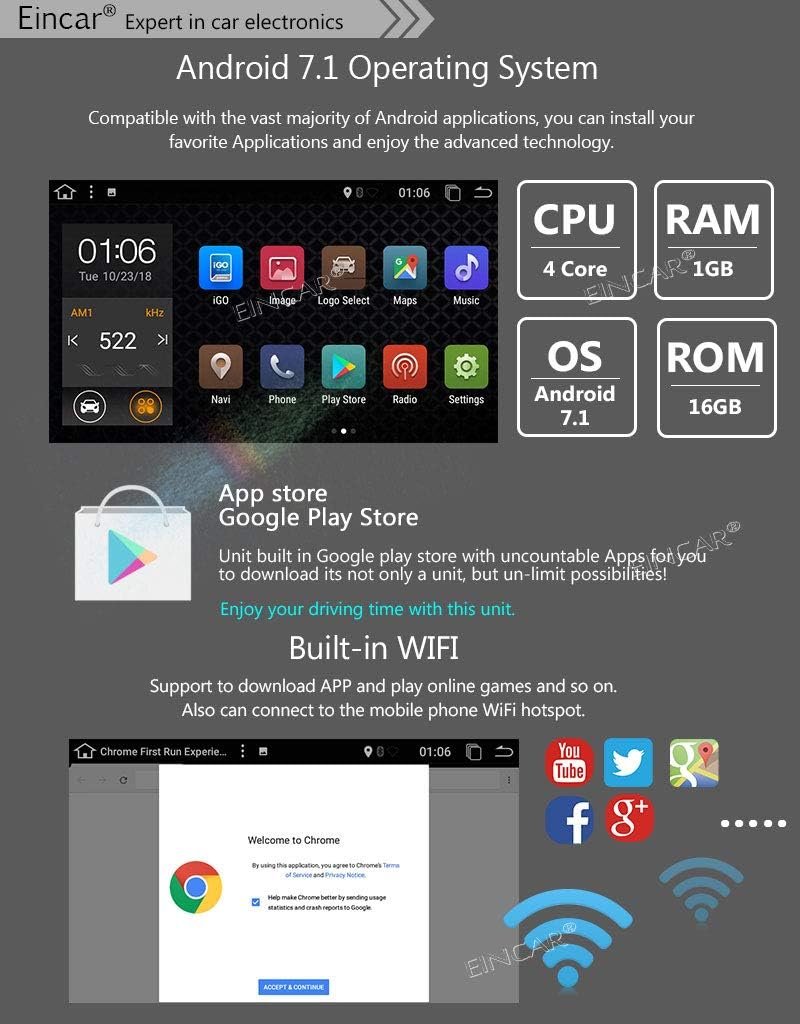
Image: EINCAR Car Stereo displaying Android 7.1 operating system interface with CPU, RAM, OS, and ROM specifications, along with the Google Play Store icon and WiFi connectivity.
6.3 7-inch Capacitive Touch Screen
The high-resolution 1024*600 IPS screen offers clear visuals and responsive multi-touch control. You can also customize the color of the physical buttons.

Image: EINCAR Car Stereo 7-inch capacitive touch screen demonstrating multi-touch functionality and multi-color button options, highlighting the display quality.
6.4 GPS Navigation
The unit features a high-precision GPS module. It supports both online and offline navigation applications, including 3D maps and voice guidance. A free offline GPS map card is typically included.

Image: EINCAR Car Stereo displaying GPS navigation map with options for 'Show Map', 'Destination', 'Route Options', and 'More'.
6.5 Bluetooth Function
Connect your smartphone via Bluetooth for hands-free calling and wireless audio streaming. The unit supports phonebook synchronization and quick contact search.

Image: EINCAR Car Stereo displaying Bluetooth phone call interface, showing a dial pad and call history.
6.6 Radio/RDS Function
The built-in AM/FM tuner with RDS (Radio Data System) allows you to listen to your favorite radio stations. The frequency ranges are AM: 520-1700KHz and FM: 87.5-108MHz.
Image: EINCAR Car Stereo displaying the AM/FM radio interface with station frequencies and RDS information.
6.7 Screen Mirror Function
Connect your smartphone to the head unit via USB cable or WiFi to mirror its screen. This supports two-way interaction for Android phones and one-way display for iPhones (via AirPlay).

Image: EINCAR Car Stereo demonstrating screen mirror function for Android and iPhone devices, showing phone content displayed on the car stereo screen.
6.8 Steering Wheel Control (SWC)
The unit is compatible with original car steering wheel control buttons that use resistance-based analog signal input. This allows for convenient control of track changes and volume adjustment.

Image: EINCAR Car Stereo showing the interface for programming steering wheel controls, with a hand pressing a button on a car's steering wheel.
6.9 Rear View Camera Support
The unit supports RCA type rear view camera input. When the car is in reverse, the display will automatically switch to the camera view. (Camera not included).
Image: EINCAR Car Stereo displaying a rear view camera feed with parking guidelines, and a separate image of a small car camera.
6.10 OBD2 Diagnostic Support
Connect an external Bluetooth OBD2 scanner (sold separately) to the unit to access real-time vehicle data and diagnostic trouble codes. Compatible with apps like Torque.
Image: EINCAR Car Stereo displaying an OBD2 diagnostic screen with various vehicle parameters, alongside an image of an OBD2 scanner device.
6.11 Multimedia Playback
Enjoy lossless music and full HD 1080P and 4K videos. The unit supports USB and SD card inputs for media storage.
6.12 Car Logo Customization
You can choose from a variety of pre-installed car logos or customize your own to match your vehicle's brand.
Image: EINCAR Car Stereo displaying a menu for selecting various car logos to customize the unit's startup screen.
6.13 3D User Interface with Live Wallpaper
The unit features a 3D user interface and supports live wallpapers for a personalized visual experience.
Image: EINCAR Car Stereo displaying a selection of live wallpapers for customizing the user interface background.
7. Maintenance
- Screen Cleaning: Use a soft, lint-free cloth to gently wipe the screen. Avoid abrasive cleaners or solvents.
- Software Updates: Periodically check for available software updates to ensure optimal performance and access to new features. Follow the instructions provided with the update package.
- General Care: Keep the unit free from dust and debris. Ensure proper ventilation around the unit to prevent overheating.
8. Troubleshooting
If you encounter issues with your EINCAR Car Stereo, refer to the following common problems and solutions:
- No Power:
- Check the power connections and ensure the ISO cable is properly connected.
- Verify the vehicle's fuse and the unit's fuse (refer to Section 4.2).
- Ensure the vehicle's ignition is on.
- No Sound:
- Check speaker connections.
- Ensure the volume is not muted or set too low.
- Verify audio settings in the system menu.
- GPS Signal Loss:
- Ensure the GPS antenna is properly connected and placed in an area with a clear view of the sky.
- Check GPS settings in the system menu.
- Bluetooth Not Connecting:
- Ensure Bluetooth is enabled on both the car stereo and your mobile device.
- Delete previous pairings and try pairing again.
- Move your mobile device closer to the car stereo.
- Touch Screen Unresponsive:
- Restart the unit.
- Ensure the screen is clean and free from debris.
9. Specifications
| Feature | Specification |
|---|---|
| Operating System | Android 7.1 |
| CPU | Quad-Core |
| RAM | 1 GB |
| ROM | 16 GB |
| Screen Size | 7 Inches |
| Screen Resolution | 1024 * 600 |
| Screen Type | IPS Capacitive Touch |
| Screen Brightness | 500 cd/m2 |
| Max Power Output | 4 * 45W |
| Connectivity | Bluetooth, WiFi, GPS, USB, SD |
| Radio Tuner | AM/FM with RDS |
| AM Frequency Range | 520-1700KHz |
| FM Frequency Range | 87.5-108MHz |
| Weight | 3 Kilograms |
| Model Number | aTT.AN7024GNN1 |
| UPC | 749235183583 |
10. Warranty and Support
Your EINCAR Car Stereo comes with a warranty as specified on the included warranty card. Please retain your proof of purchase for warranty claims.
For technical support, troubleshooting assistance beyond this manual, or warranty inquiries, please refer to the contact information provided on your warranty card or the official EINCAR website.