
1. Introduction
This manual provides comprehensive instructions for the setup, operation, and maintenance of your Epson Expression Premium XP-6100 Wireless Color Photo Printer. The XP-6100 is a versatile all-in-one device designed for printing, scanning, and copying, offering high-quality output for both documents and photos.

Figure 1.1: The Epson Expression Premium XP-6100 Wireless Color Photo Printer. This image shows the printer from the front, with a family photo being printed from the output tray and another photo visible on the scanner bed.
2. What's in the Box
Verify that all components listed below are present in the packaging:
- Epson Expression Premium XP-6100 color inkjet printer
- Setup and instruction manuals
- CD-ROM containing software and drivers (for Windows and Mac operating systems)
- Power cord
- 5 Claria Premium Ink cartridges: 1 Black ink cartridge (302 series); 3 Color ink cartridges (Cyan, Magenta, Yellow, 302 series); 1 Photo Black ink cartridge (302 series)
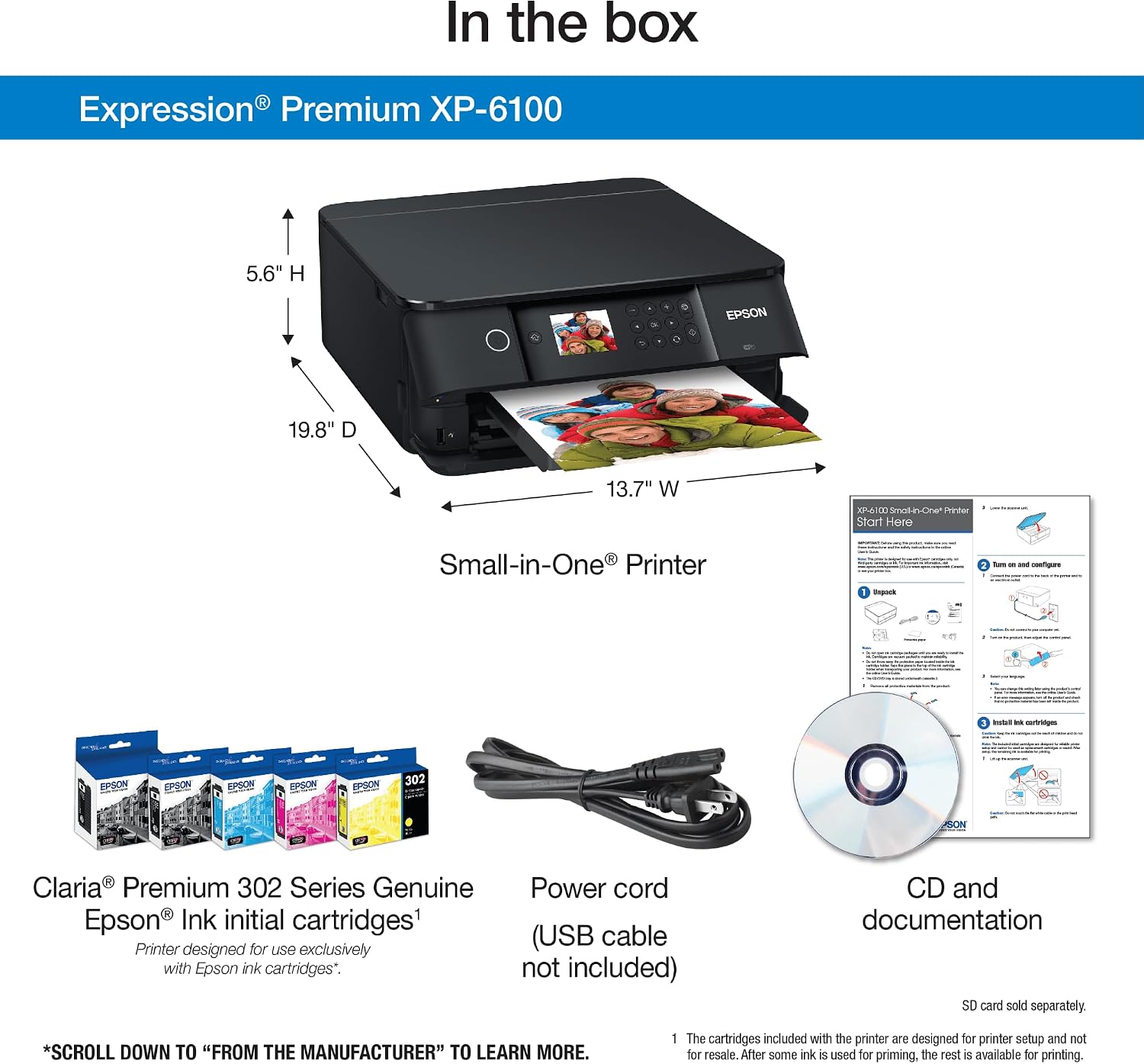
Figure 2.1: Included items. This image displays the Epson Expression Premium XP-6100 printer along with its accessories: a set of Claria Premium 302 Series ink cartridges, a power cord (USB cable not included), and a CD-ROM with setup and documentation.
3. Setup
3.1 Unpacking and Placement
- Remove all protective tapes and packaging materials from the printer.
- Place the printer on a stable, flat surface with adequate space for paper loading and output.
3.2 Power Connection
- Connect the supplied power cord to the printer's power input.
- Plug the other end of the power cord into a standard electrical outlet.
- Press the power button to turn on the printer.
3.3 Ink Cartridge Installation
Install the five Claria Premium Ink cartridges into their respective slots. Ensure each cartridge clicks into place. The printer is designed to operate exclusively with genuine Epson-brand cartridges.
3.4 Software and Driver Installation
Insert the included CD-ROM into your computer's drive and follow the on-screen instructions to install the necessary software and drivers. Alternatively, visit the official Epson support website to download the latest drivers for your operating system.
3.5 Network Connection
Follow the instructions on the printer's 2.4" color LCD screen to connect the printer to your wireless network. This enables wireless printing from various devices.
4. Operating Instructions
4.1 Loading Paper
The printer features two paper trays. Load plain paper into the main tray and photo paper into the dedicated photo tray. Supported paper sizes include 3.5" x 5", 4" x 6", 5" x 7", 8" x 10", 8.5" x 11", A4, B5, A5, A6, half letter, and executive. The maximum input sheet capacity is 100 sheets.

Figure 4.1: Loading paper into the printer. This image shows a hand loading sheets of paper into the front paper tray of the Epson Expression Premium XP-6100 printer.
4.2 Printing Documents and Photos
The XP-6100 offers high-resolution printing up to 5760 x 1440 dpi for both color and black and white. It supports automatic two-sided (duplex) printing.
- Photo Printing: Print 4" x 6" photos in approximately 15 seconds. The 5-color ink system ensures vibrant and detailed photo output.
- Document Printing: Achieve print speeds of 15.8 ISO ppm for black and white documents and 11.3 ISO ppm for color documents.

Figure 4.2: Quick photo printing. This image shows a woman sitting at a desk, printing photos from her laptop to the Epson Expression Premium XP-6100 printer.
4.3 Scanning Documents and Photos
The integrated photo scanner allows you to digitize documents and images. Place the item face down on the scanner glass and use the printer's control panel or computer software to initiate a scan.
4.4 Copying Documents
Use the copier function to duplicate documents. Place the original on the scanner glass, select the copy option from the printer's LCD, and adjust settings as needed. The maximum copy speed for black and white is 15.8 ppm, with a resolution of 5760 x 1440 dpi for color copies.
4.5 Wireless and Mobile Printing
The XP-6100 supports wireless connectivity, including Wi-Fi Direct, allowing printing directly from compatible devices without a router.
- Epson Connect: Utilize Epson Connect services for printing from iPad, iPhone, Android tablets, and smartphones.
- Wi-Fi Direct: Establish a direct connection between your mobile device and the printer for network-free printing.

Figure 4.3: Easy mobile printing. This image shows a smartphone screen displaying a print menu, with the Epson Expression Premium XP-6100 printer visible in the background, indicating mobile printing capabilities.
4.6 Voice-Activated Printing
The printer supports voice-activated printing through compatible smart home devices like Amazon Alexa. This feature allows for hands-free printing of various documents and creative projects.

Figure 4.4: Voice-activated printing. This image shows a woman placing paper into the Epson Expression Premium XP-6100 printer while an Amazon Echo device sits nearby, illustrating the voice-activated printing feature.
5. Maintenance
5.1 Replacing Ink Cartridges
The XP-6100 uses individual ink cartridges, allowing you to replace only the color that runs out. When an ink cartridge is low or empty, a notification will appear on the printer's LCD screen.
- Open the printer cover to access the ink cartridge area.
- Press the tab on the empty cartridge to release it, then remove it from the slot.
- Unpack a new genuine Epson 302 series ink cartridge.
- Insert the new cartridge into the correct slot until it clicks into place.
- Close the printer cover. The printer will automatically begin ink charging.
Important: Use only genuine Epson-brand cartridges. Non-genuine ink cartridges may not function properly and could potentially cause damage not covered under the printer's limited warranty.
5.2 Cleaning the Printer
Regularly clean the exterior of the printer with a soft, damp cloth. Refer to the on-screen manual or Epson support website for instructions on cleaning the print head or paper rollers if print quality issues arise.
6. Troubleshooting
This section addresses common issues you might encounter with your Epson XP-6100 printer.
- Printer Not Responding: Ensure the printer is powered on and properly connected to your computer or network. Check for any error messages on the LCD screen.
- Poor Print Quality: Perform a nozzle check and head cleaning through the printer's maintenance menu. Ensure genuine Epson ink cartridges are installed and not expired.
- Paper Jams: Follow the on-screen instructions to clear any jammed paper. Remove all paper from the input and output trays before attempting to clear the jam.
- Wireless Connection Issues: Verify your Wi-Fi network is active and the printer is within range. Reconfigure the wireless settings via the printer's control panel if necessary.
For more detailed troubleshooting steps, consult the full user manual available on the Epson support website or the included CD-ROM.
7. Specifications
| Feature | Specification |
|---|---|
| Model Number | XP-6100 |
| Product Dimensions (D x W x H) | 5.39" x 7.8" x 2.2" |
| Item Weight | 14.6 pounds |
| Printing Technology | Inkjet |
| Printer Output | Color |
| Maximum Color Print Resolution | 5760 x 1440 dpi |
| Maximum Black and White Print Resolution | 5760 x 1440 dpi |
| Max Print Speed (Monochrome) | 15.8 ppm (ISO) |
| Maximum Print Speed (Color) | 11.3 ppm (ISO) |
| Dual-sided Printing (Duplex) | Automatic |
| Scanner Type | Photo |
| Max Copy Speed (Black & White) | 15.8 ppm |
| Max Copy Resolution (Color) | 5760 x 1440 dpi |
| Max Input Sheet Capacity | 100 sheets |
| Number of Trays | 2 (main and photo) |
| Connectivity Technology | Wireless, USB |
| Compatible Devices | Camera, PC, Smartphones, Tablets |
| Control Method | Voice, LCD Screen |
| Power Consumption | 13 watts (On-mode) |
| Ink Type | Claria Premium Ink (5-color) |
8. Warranty and Support
8.1 Limited Warranty Information
The Epson Expression Premium XP-6100 printer comes with a limited warranty. For detailed terms and conditions, including coverage duration and exclusions, please refer to the warranty documentation included with your product or visit the official Epson support website.
8.2 Contacting Support
If you require technical assistance or have questions not covered in this manual, please contact Epson customer support. Support contact information can typically be found on the Epson website or in the documentation provided with your printer.


