
1. Introduction
This manual provides detailed instructions for the operation and maintenance of your FEELWORLD S55 5.5-inch Camera DSLR Field Monitor. Please read this manual thoroughly before using the device to ensure proper functionality and to prevent damage. Keep this manual for future reference.
2. Product Overview
2.1 Key Features
- Display: 5.5-inch IPS LCD with 1280x720 resolution.
- Video Input/Output: 4K HDMI Input and Loop-out.
- Power Output: 8.4V DC output for powering cameras.
- Battery Compatibility: Dual-purpose battery plate supports Sony F970 and Canon LP-E6 batteries.
- Advanced Monitoring Tools: Histogram, Embedded Audio, Peaking Focus Assist, False Colors, Zebra Exposure, Nine Grid, Scan Mode, Zoom, Anamorphic Mode, Pixel to Pixel, Center Marker, Safe Area, Ratio Marker, Marker Color, Check Field, Image Flip, Image Freeze, Zoom All, U/D & L/R Zoom, Color Temperature Adjustment.
- Mounting: 360° rotation Tilt Arm with an additional shoe mount for accessories.
- Lightweight Design: Weighs approximately 175g.
2.2 Package Contents
Verify that all items listed below are included in your package:
- FEELWORLD S55 Monitor
- Micro HDMI Cable
- Sun Shade
- Tilt Arm
- User Manual

Image 2.2.1: Contents included in the FEELWORLD S55 monitor package.
2.3 Monitor Components

Image 2.3.1: Rear view of the FEELWORLD S55 monitor, highlighting HDMI input/output ports, DC input/output, USB upgrade port, 3.5mm headphone slot, and the flexible dual-purpose battery plate.
3. Setup
3.1 Mounting the Monitor
- Attach the provided Tilt Arm to the monitor's mounting point.
- Secure the Tilt Arm to your camera's hot shoe or a compatible mounting accessory.
- Adjust the monitor's angle using the Tilt Arm for optimal viewing. The Tilt Arm allows for 360° rotation.
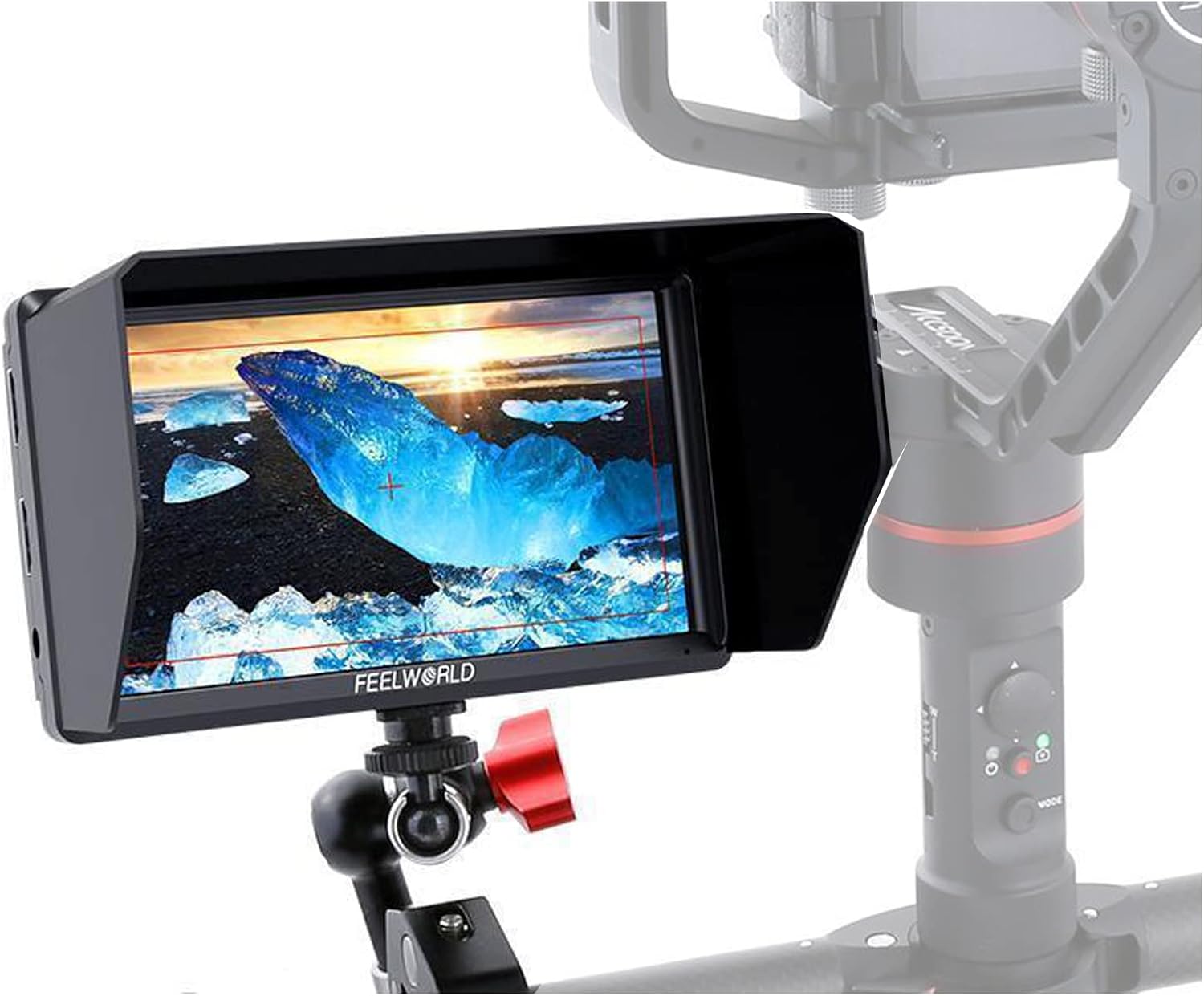
Image 3.1.1: The FEELWORLD S55 monitor mounted on a camera gimbal, demonstrating its compact size and integration into a professional setup.
3.2 Attaching the Sun Shade
The sun shade can be attached to the monitor to reduce glare in bright outdoor conditions. Align the sun shade with the monitor's frame and secure it firmly.
4. Operating Instructions
4.1 Powering On/Off
Press and hold the power button located on the monitor to turn the device on or off.
4.2 Menu Navigation
The monitor features intuitive buttons for menu navigation. Use the directional buttons to browse menu options and the 'OK' button to confirm selections. Specific button functions may vary based on the current mode.
4.3 Advanced Monitoring Features
The S55 monitor includes several professional features to assist with accurate exposure and focus:
- Peaking Focus Assist: Highlights in-focus areas with a selectable color (Red, Green, Blue) to aid in precise focusing.
- False Colors: Displays exposure levels as a spectrum of colors, helping to identify overexposed or underexposed areas.
- Zebra Exposure: Indicates areas exceeding a set exposure threshold with zebra stripes.
- Histogram: Provides a graphical representation of the tonal distribution in your image.
- Nine Grid: Overlays a 3x3 grid for composition assistance.
- Zoom: Magnifies a portion of the image for critical focus checks (4x, 9x, 16x).
- Anamorphic Mode: De-squeezes anamorphic footage for proper viewing (1.3x, 2.0x, 2.0x mag).
- Safe Area: Displays guides for various aspect ratios to ensure content is within broadcast-safe zones.
- Image Flip: Flips the image horizontally, vertically, or both, useful for various mounting orientations.

Image 4.3.1: The FEELWORLD S55 monitor screen showcasing various professional monitoring features such as histogram, peaking filter, false colors, and nine grid, designed to enhance shooting accuracy.
5. Connections
5.1 HDMI Input/Output
Connect your camera's HDMI output to the monitor's HDMI IN port. The HDMI OUT port allows you to loop the video signal to another monitor or device.
5.2 Audio Output
A 3.5mm stereo headphone jack is provided for monitoring audio directly from the HDMI signal.
5.3 USB Upgrade Port
The USB port is used for firmware upgrades. Refer to the FEELWORLD website for the latest firmware and instructions.
6. Powering the Device
6.1 Battery Power
The S55 monitor features a dual-purpose battery plate compatible with Sony F970 series and Canon LP-E6 series batteries. Insert a charged battery into the plate until it clicks into place.
6.2 DC Input
The monitor can be powered via a DC 12V input using an external power adapter (not included).
6.3 DC Output (8.4V)
The 8.4V DC output port allows you to power your camera directly from the monitor, extending camera runtimes. A compatible dummy battery cable (optional) is required for this function.
7. Specifications
| Feature | Specification |
|---|---|
| Screen Size | 5.5-inch IPS |
| Resolution | 1280x720 pixels |
| Pixel Pitch | 0.0945(H) x 0.0315(W) mm |
| Aspect Ratio | 16:9 |
| Brightness | 500cd/m² |
| Contrast Ratio | 1000:1 |
| Backlight | LED |
| Viewing Angle | 80°/80°(L/R) 80°/80°(U/D) |
| Input | 1 x 4K HDMI |
| Output | 1 x 4K HDMI, DC Output (8.4V) |
| Audio | Stereo Headphone |
| HDMI Support | 480i/576i/480p/576p, 1080i (60/59.94/50), 720p (60/59.94/50/30/29/25/24/23.98), 1080p (60/59.94/50/30/29.97/25/24/24sF/23.98/ 23.98sF), 4K UHD 3840×2160p (30/29.97/25/24/23.98Hz), 4096×2160p (24Hz) |
| Power Consumption | ≤8W |
| Operating Temperature | 0°C to 50°C (32°F to 122°F) |
| Storage Temperature | -20°C to 60°C (-4°F to 140°F) |
| Dimensions | Approx. 148 x 93 x 20mm (5.8 x 3.7 x 0.8 inches) |
| Weight | Approx. 175g (0.38 lbs) |
8. Troubleshooting
8.1 No Image Displayed
- Ensure the HDMI cable is securely connected to both the camera and the monitor.
- Verify that the camera's HDMI output is active and configured correctly.
- Check if the monitor has sufficient power (battery charged or DC power connected).
- Confirm the input source on the monitor is set to HDMI.
8.2 Image Flickering or Distorted
- Check the HDMI cable for damage or loose connections. Try a different HDMI cable if available.
- Ensure the camera's output resolution and frame rate are supported by the monitor (refer to Specifications).
- Reduce the length of the HDMI cable if it is excessively long.
8.3 Monitor Does Not Power On
- Ensure the battery is fully charged and correctly inserted, or that the DC power adapter is properly connected.
- If using a battery, try a different compatible battery.
8.4 No Audio Output from Headphone Jack
- Verify that the HDMI signal carries audio.
- Check headphone connection and ensure headphones are functional.
- Adjust the audio volume settings on the monitor.
9. Safety Information
- Do not expose the monitor to rain or moisture to avoid electric shock or fire.
- Do not open the monitor casing. Refer all servicing to qualified personnel.
- Avoid placing the monitor in direct sunlight or near heat sources.
- Clean the screen with a soft, dry cloth. Do not use liquid cleaners.
- Use only specified power adapters and batteries.
10. Warranty and Support
For warranty information and technical support, please refer to the official FEELWORLD website or contact your authorized dealer. Keep your purchase receipt as proof of purchase for warranty claims.