
1. Introduction
This manual provides comprehensive instructions for setting up, operating, and maintaining your NETGEAR Nighthawk AX4 Wi-Fi 6 Router (RAX40). The RAX40 is designed to deliver enhanced network capacity and consistent signal strength using the latest Wi-Fi 6 technology, supporting speeds up to 3 Gbps and covering up to 1,500 sq ft.
Package Contents
Ensure all items are present in your package:
- NETGEAR Nighthawk AX4/4-stream AX3000 WiFi Router (RAX40)
- Ethernet cable
- Quick start guide
- Power adapter

Image 1.1: Front view of the NETGEAR Nighthawk AX4 Wi-Fi 6 Router (RAX40) with antennas extended.
2. Product Overview
The RAX40 router features a sleek design with integrated antennas and indicator lights for easy status monitoring. It includes multiple ports for wired connections and a USB port for storage sharing.
Front Panel Features
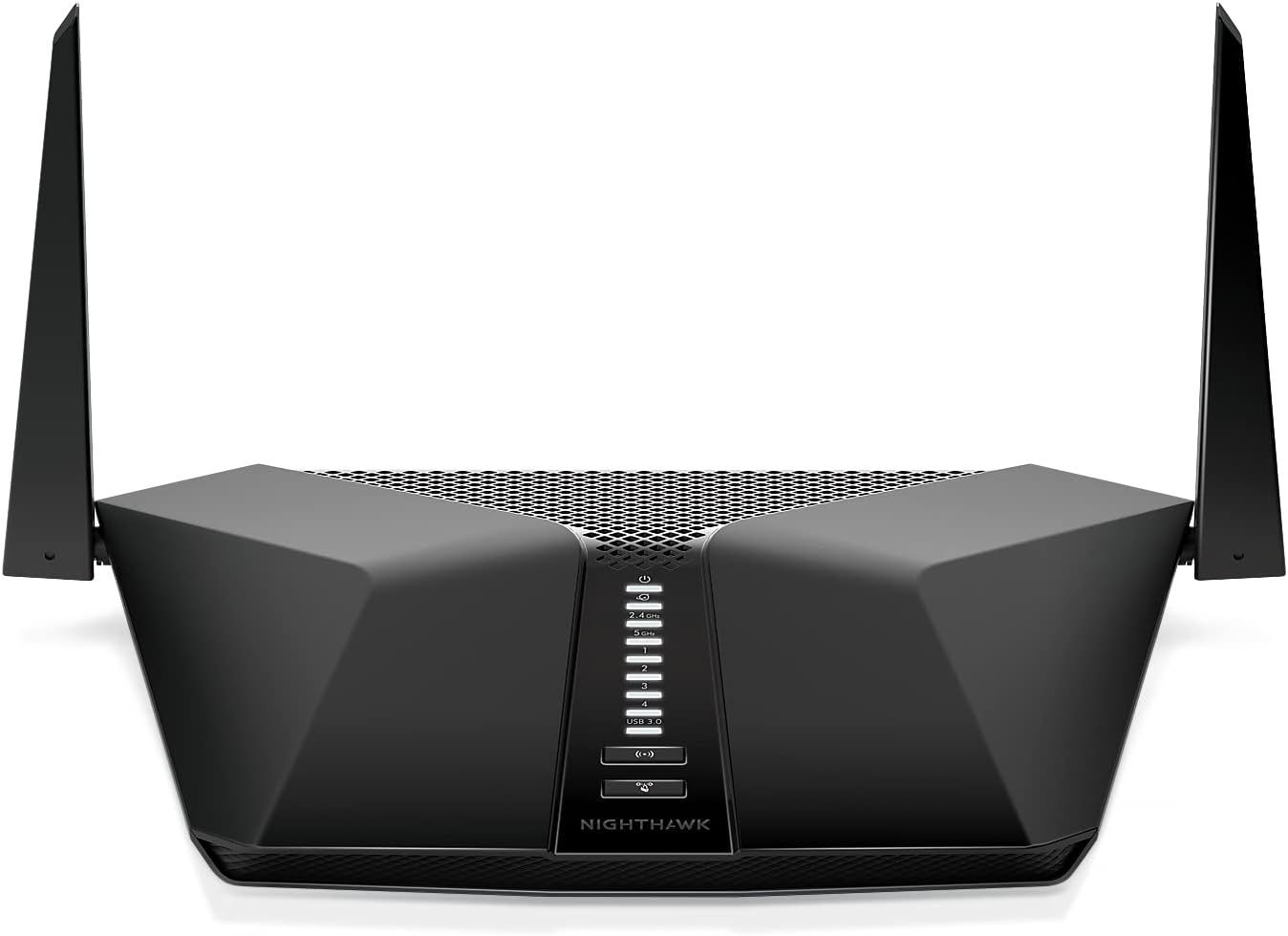
Image 2.1: Front view of the router showing LED indicators for power, internet, Wi-Fi bands, and Ethernet ports.
The front panel displays various LED indicators:
- Power LED: Indicates power status.
- Internet LED: Shows internet connection status.
- 2.4 GHz Wi-Fi LED: Indicates activity on the 2.4 GHz Wi-Fi band.
- 5 GHz Wi-Fi LED: Indicates activity on the 5 GHz Wi-Fi band.
- Ethernet Port LEDs (1-4): Indicate activity on the corresponding wired LAN ports.
- USB 3.0 LED: Indicates activity on the USB 3.0 port.
Rear Panel Features

Image 2.2: Rear view of the router highlighting the WAN port, LAN ports, USB 3.0 port, and power input.
The rear panel provides the following connections:
- Power On/Off Button: To turn the router on or off.
- Power Connector: For connecting the power adapter.
- Internet (WAN) Port: Connects to your modem.
- Ethernet LAN Ports (1-4): For wired connections to computers, game consoles, etc.
- USB 3.0 Port: For connecting USB storage devices.
- Reset Button: To restore factory default settings (use a paperclip).
- LED On/Off Button: To toggle the front panel LEDs.
3. Setup Instructions
Follow these steps to set up your NETGEAR Nighthawk AX4 Wi-Fi 6 Router:
- Position the Router: Place your router in a central location for optimal Wi-Fi coverage. Avoid placing it near large metal objects, concrete walls, or other electronic devices that might cause interference.
- Connect to Modem: Power off your modem. Connect one end of the provided Ethernet cable to the yellow Internet (WAN) port on your RAX40 router and the other end to the Ethernet port on your modem.
- Power On: Connect the power adapter to the router's power connector and plug it into a power outlet. Press the Power On/Off button. Wait for the Power LED to turn solid white.
- Power On Modem: Power on your modem and wait for it to establish an internet connection (this may take a few minutes). The Internet LED on your router should turn solid white.
- Connect to Wi-Fi: On your computer or mobile device, search for the Wi-Fi network name (SSID) printed on the router's label. Connect to this network using the provided Wi-Fi password.
- Install Nighthawk App: Download the NETGEAR Nighthawk app from your mobile device's app store. The app will guide you through the remaining setup steps, including creating a NETGEAR account, customizing Wi-Fi settings, and updating firmware.

Image 3.1: The Nighthawk app provides an intuitive interface for router setup and management.
4. Operating Instructions
Using the Nighthawk App
The NETGEAR Nighthawk app is the primary tool for managing your router. It allows you to:
- View connected devices and network status.
- Change Wi-Fi network names (SSID) and passwords.
- Set up a guest Wi-Fi network.
- Monitor internet speed and data usage.
- Manage parental controls.
- Access security features like NETGEAR Armor.

Image 4.1: The Nighthawk app provides comprehensive control over your router's settings and features.
USB Storage Sharing
Connect a USB storage device to the USB 3.0 port on the rear of the router to share files across your network or create a personal cloud storage accessible from anywhere.
Network Security
The RAX40 supports WPA2/WPA3 wireless security protocols. NETGEAR Armor provides an automatic shield of security for all connected devices. Smart Parental Controls help manage internet access for children.

Image 4.2: NETGEAR Armor offers robust protection against cyber threats for all devices on your network.
5. Maintenance
Firmware Updates
Your router is designed to receive automatic firmware updates to ensure the latest security patches and performance improvements. You can also manually check for and apply updates via the Nighthawk app or the router's web interface.
Factory Reset
If you encounter persistent issues or wish to clear all custom settings, you can perform a factory reset. With the router powered on, use a paperclip to press and hold the Reset button on the rear panel for about 7-10 seconds until the Power LED blinks. The router will restart with default settings.
6. Troubleshooting
- No Internet Connection:
- Ensure your modem is working correctly and its internet indicator is active.
- Check the Ethernet cable connection between the modem and the router's yellow Internet (WAN) port.
- Restart both your modem and router by unplugging them for 30 seconds and then plugging them back in, starting with the modem.
- Weak Wi-Fi Signal or Slow Speeds:
- Relocate the router to a more central position, away from obstructions and interference sources.
- Ensure router antennas are positioned vertically for optimal signal.
- Check for firmware updates.
- Reduce the number of devices connected to the network or consider upgrading your internet plan.
- Cannot Access Router Settings:
- Ensure your device is connected to the router's Wi-Fi network or via an Ethernet cable to a LAN port.
- Try accessing the router's web interface using routerlogin.net or 192.168.1.1.
- If you forgot your password, perform a factory reset (see Maintenance section).
7. Specifications

Image 7.1: Visual representation of the router's dimensions and key technical specifications.
| Feature | Detail |
|---|---|
| Model Name | RAX40-100NAS |
| Wi-Fi Technology | Wi-Fi 6 (802.11ax) |
| Wireless Speed | AX3000 (Up to 3 Gbps) |
| Wi-Fi Coverage | Up to 1,500 sq ft |
| Wi-Fi Bands | Dual-Band (2.4GHz & 5GHz) |
| Ethernet Ports | 1x WAN, 4x Gigabit LAN |
| USB Ports | 1x USB 3.0 |
| Processor | Dual-core processor |
| Memory | 512MB RAM |
| Security | WPA2/WPA3, NETGEAR Armor, Guest Wi-Fi, DoS, Firewall, VPN |
| Dimensions (L x W x H) | 13.3 x 8.1 x 2.2 inches |
| Weight | 1.36 pounds |
8. Warranty Information
NETGEAR products typically come with a limited hardware warranty. For specific details regarding your RAX40 router's warranty period and terms, please refer to the warranty card included in your product packaging or visit the official NETGEAR support website. Keep your proof of purchase for warranty claims.
9. Support
For further assistance, technical support, or to download the latest software and documentation, please visit the official NETGEAR support website.
- Official User Manual (PDF): Download PDF
- NETGEAR Support Website: www.netgear.com/support