
1. Important Safety Information
Please read all safety instructions carefully before using your monitor. Keep this manual for future reference.
- Do not place the monitor on an unstable cart, stand, tripod, bracket, or table.
- Ensure proper ventilation around the monitor. Do not block ventilation openings.
- Use only the power cord and adapter supplied with the monitor.
- Avoid exposing the monitor to rain or moisture to prevent fire or electric shock.
- Do not open the monitor casing. Refer all servicing to qualified service personnel.
- Unplug the monitor from the wall outlet during lightning storms or when unused for long periods.
2. Package Contents
Verify that all items are present in your product package:
- Samsung LC27F396FHNXZA 27-Inch Curved Monitor
- Stand Base
- Stand Neck
- Power Adapter and Power Cable (1.5 m)
- HDMI Cable
- Quick Setup Guide
- Warranty Card
3. Setup
3.1 Assembling the Stand
- Carefully place the monitor face down on a soft, clean cloth to prevent scratches.
- Attach the stand neck to the back of the monitor until it clicks into place.
- Connect the stand base to the stand neck by aligning the tabs and tightening the screw at the bottom of the base.

3.2 Connecting Cables
Ensure the monitor and your computer are powered off before connecting any cables.
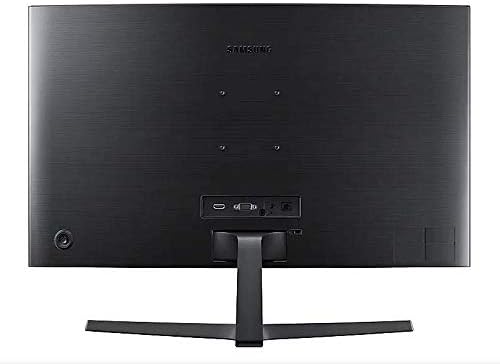
- Power Cable: Connect the power adapter to the monitor's power input, then plug the power cable into the adapter and a wall outlet.
- Video Cable (HDMI or VGA): Connect one end of the HDMI or VGA cable to the corresponding port on your computer's graphics card and the other end to the HDMI or VGA input on the monitor. Ensure cables are tightened securely.
- Audio Cable (Optional): If you wish to use external speakers or headphones, connect a 3.5mm audio cable from your computer's audio output to the monitor's 3.5mm audio input.
3.3 Powering On
After connecting all necessary cables, power on your computer, then press the power button on the monitor. The monitor should automatically detect the input signal.
4. Operating the Monitor
4.1 Basic Functions and OSD Menu
The monitor features a single joystick button located on the back for navigating the On-Screen Display (OSD) menu. Press the joystick to open the OSD menu, then move it up/down/left/right to select and adjust settings.
4.2 Picture Settings
Adjust picture quality settings via the OSD menu:
- Brightness/Contrast: Adjust these to your preferred viewing levels.
- Resolution: The optimal resolution for this monitor is 1920 x 1080 (FHD 1080p).
- Aspect Ratio: Set to 16:9 for widescreen content.
- MagicBright: Select from various preset modes (e.g., Standard, Cinema, Dynamic Contrast) for optimized viewing environments.
- Active Crystal Color: Enhances color reproduction for a more vibrant display.

4.3 AMD FreeSync and Game Mode
This monitor supports AMD FreeSync technology, which synchronizes the screen refresh rate with your graphics card's frame rate to reduce input latency and minimize image tearing and stutter during gaming. Enable FreeSync through the OSD menu for a smoother gaming experience.

4.4 Curved Display Benefits
The 1800R curvature of this monitor is designed to match the natural curve of the human eye, providing a more immersive viewing experience. This curvature helps to reduce peripheral distractions and enhances depth perception, drawing you deeper into your content.

5. Maintenance
5.1 Cleaning the Monitor
- Always unplug the monitor before cleaning.
- Use a soft, lint-free cloth lightly dampened with water or a specialized screen cleaner.
- Do not spray cleaner directly onto the screen.
- Avoid using abrasive cleaners, waxes, or solvents.
5.2 Storage
When storing the monitor for an extended period, ensure it is kept in a cool, dry place, preferably in its original packaging to protect it from dust and physical damage.
6. Troubleshooting
If you encounter issues with your monitor, refer to the following common troubleshooting steps:
| Problem | Possible Solution |
|---|---|
| No Power | Ensure the power cable is securely connected to the monitor, power adapter, and wall outlet. Check if the wall outlet is functioning. |
| No Signal / Blank Screen | Verify that the video cable (HDMI/VGA) is firmly connected to both the monitor and the computer. Try a different video input source on the monitor if available. Ensure the computer is powered on and not in sleep mode. |
| Distorted Image / Incorrect Resolution | Adjust the display resolution on your computer to 1920 x 1080. Check the video cable for damage. |
| Screen Tearing / Stuttering (during gaming) | Ensure AMD FreeSync is enabled in the monitor's OSD menu and your graphics card settings. |
| Monitor does not wake up from sleep | Try unplugging and replugging the monitor's power cable. Check your computer's power management settings. |
7. Specifications
| Feature | Detail |
|---|---|
| Model Number | LC27F396FHNXZA |
| Screen Size | 27 Inches |
| Resolution | 1920 x 1080 (FHD 1080p) |
| Aspect Ratio | 16:9 |
| Screen Curvature | 1800R |
| Panel Type | VA |
| Response Time | 4 Milliseconds |
| Refresh Rate | 60 Hz |
| Connectivity | 1x HDMI, 1x VGA, 1x 3.5mm Audio Out |
| Adaptive Sync Technology | AMD FreeSync |
| Power Consumption | 25 Watts (Typical) |
| Dimensions (with Stand) | 62.28 x 24.26 x 46.61 cm (24.5" x 9.6" x 18.4") |
| Weight (with Stand) | 4.1 kg (9.04 Pounds) |
| Mounting Type | Wall Mountable |
8. Warranty and Support
8.1 Manufacturer's Warranty
This Samsung monitor is covered by a 1 Year Manufacturer's Warranty from the date of purchase. Please retain your proof of purchase for warranty claims. The warranty covers defects in materials and workmanship under normal use.
8.2 Customer Support
For technical assistance, troubleshooting, or warranty service, please contact Samsung Customer Support. You can find contact information on the official Samsung website for your region.
Manufacturer Contact Information: Mississauga, ON L5M 9Z9, CA
For more information, visit the official Samsung Canada Support website.