Introduction
The Snoppa Atom is a compact and powerful 3-axis foldable handheld gimbal stabilizer designed for smartphones. It offers advanced features such as 360° roll axis rotation, wireless charging, object and face tracking, and a built-in microphone interface, providing smooth and stable video footage for various applications.
This manual provides detailed instructions for setting up, operating, maintaining, and troubleshooting your Snoppa Atom gimbal to ensure optimal performance and longevity.
Product Overview
The Snoppa Atom gimbal is engineered for portability and ease of use, featuring a foldable design and a lightweight build. It supports a payload of up to 310g, accommodating a wide range of smartphones.
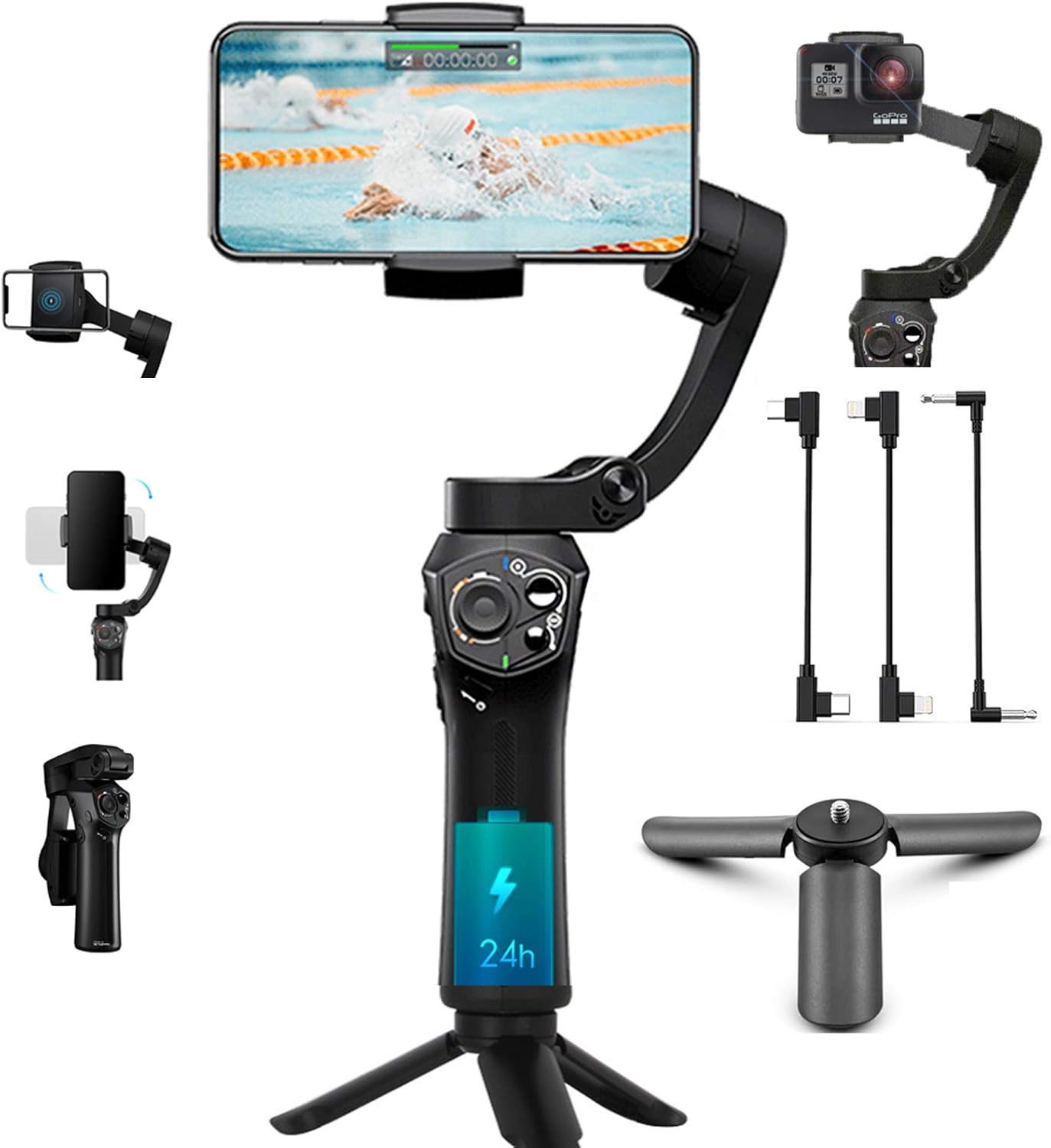

Key Features:
- 3-Axis Stabilization: Effectively reduces shaky footage for smooth, professional-looking videos.
- Foldable & Portable Design: Weighs only 15.5 oz, and folds compactly for easy transport.
- Wireless Charging: Conveniently charge your smartphone while filming.
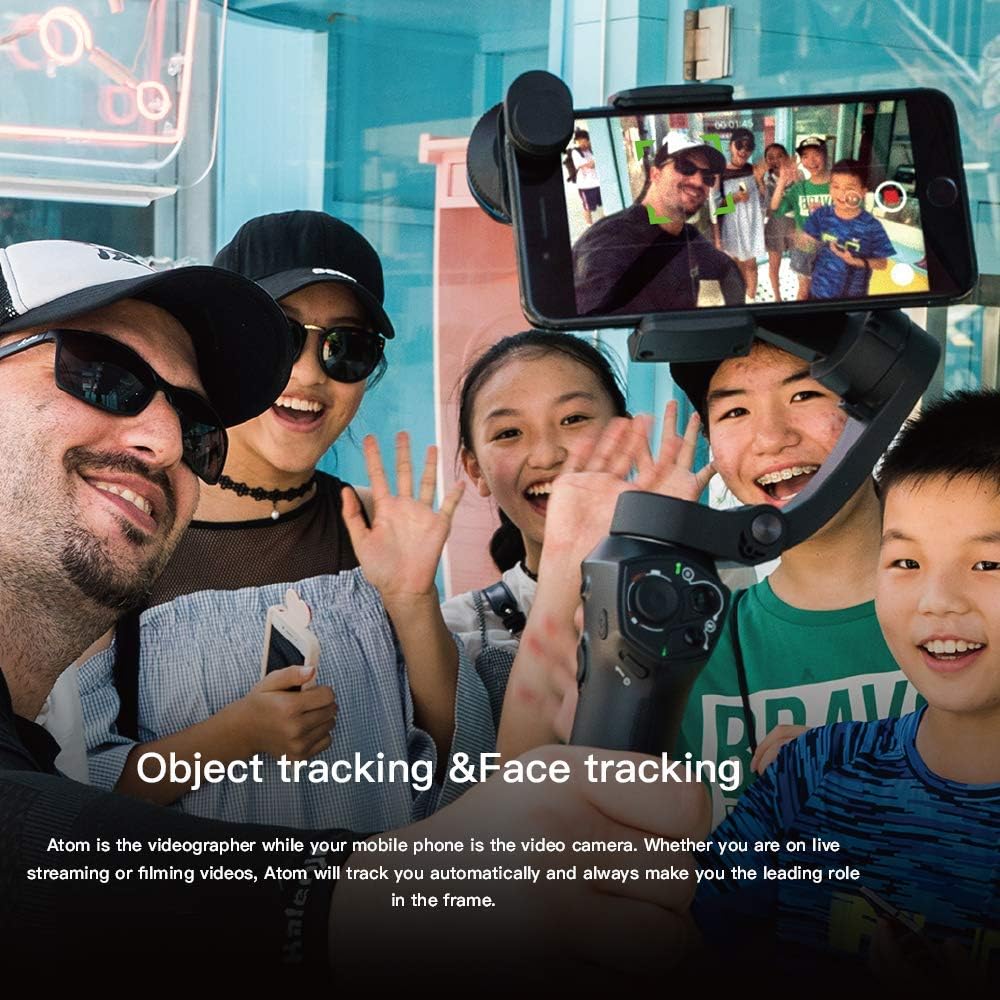
- Object & Face Tracking: Automatically tracks subjects to keep them in frame.
- Built-in Microphone Interface: Supports 3.5mm TRRS microphones for enhanced audio quality.
- Customizable Controls: Multifunctional buttons and a slide button for zoom/focus control.
- Long Battery Life: Up to 24 hours of continuous operation.
Setup Guide
1. Unboxing and Initial Charge
Upon unboxing, ensure all components are present: Snoppa Atom gimbal, tripod, and charging cables. Fully charge the gimbal before first use. Connect the provided USB-C cable to the gimbal's charging port and a power source.
2. Unlocking Motors
Before powering on, it is crucial to unlock all three motors (Pan, Tilt, Roll) of the gimbal. Refer to the markings on the gimbal for the lock/unlock positions. Failure to unlock motors can cause vibration or damage.
3. Mounting Your Smartphone
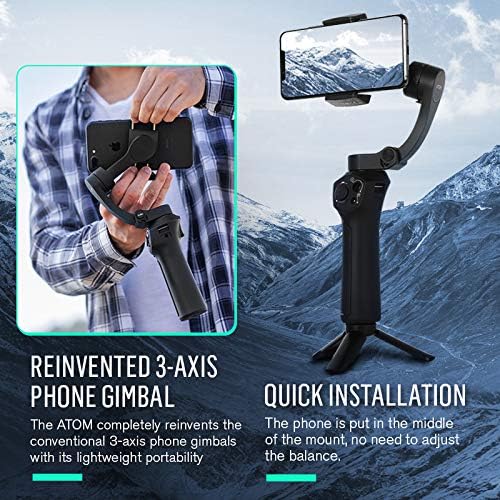
Extend the phone holder and securely place your smartphone in the center. The gimbal is designed for quick installation without manual balancing. Ensure the phone is firmly seated to prevent vibration or accidental dislodgement.
4. App Installation and Connection
Download the official Snoppa App from your device's app store (iOS 8.0+ or Android 5.0+). Open the app and follow the on-screen instructions to connect your gimbal via Bluetooth. The app is essential for accessing advanced features and calibration.
Important Note: Some Android phones may have limited compatibility. Contact Snoppa support if you experience issues.
Operating Instructions
1. Powering On/Off
Press and hold the power button for 3 seconds to power on or off the gimbal. Ensure a smartphone is mounted before powering on to prevent motor vibration.
2. Basic Controls
- Joystick: Controls pan and tilt movements of the smartphone.
- Mode Button: Cycles through different operating modes (e.g., Pan Follow, Lock Mode, POV).
- Trigger Button: (If applicable) Double-tap to re-center the gimbal, triple-tap for 180° rotation.
- Slide Button: Customizable via the Snoppa App for zoom or focus control.
3. Switching Between Portrait/Landscape Mode
The Snoppa Atom allows for a one-key switch between portrait and landscape orientations, ideal for various content creation needs.
4. Advanced Features (via Snoppa App)
- Object Tracking & Face Tracking: Select a subject on screen, and the gimbal will automatically follow it.
- Time-lapse & Motion Time-lapse: Create dynamic time-lapse videos.
- Panorama: Capture wide panoramic shots.
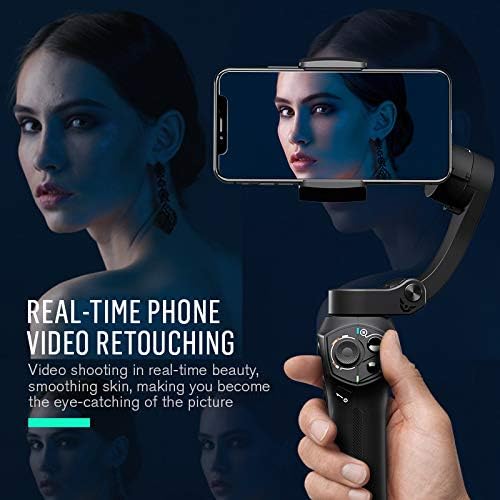
- Real-time Phone Video Retouching: Enhance video quality directly within the app.


5. Wireless Charging
The Atom gimbal features a built-in wireless charging pad. Simply place your compatible smartphone on the pad to initiate charging. This allows for extended shooting sessions without worrying about your phone's battery life.
6. Using External Microphones
Connect a 3.5mm TRRS microphone to the dedicated audio interface on the gimbal for professional-grade audio recording. This is particularly useful for interviews, vlogging, and live streaming.
Maintenance
1. Cleaning
Wipe the gimbal with a soft, dry cloth. Avoid using liquid cleaners or solvents that may damage the surface or internal components.
2. Storage
When not in use, fold the gimbal into its compact form and store it in the provided carrying pouch or a dry, cool place away from direct sunlight and extreme temperatures. Ensure motors are locked during storage.
3. Battery Care
To prolong battery life, charge the gimbal regularly, even if not in frequent use. Avoid fully discharging the battery for extended periods.
Troubleshooting
| Problem | Possible Cause | Solution |
|---|---|---|
| Gimbal vibrates or shakes upon startup. | Motors are locked, or no phone is mounted. | Ensure all motors are unlocked before powering on. Always mount your smartphone before turning on the gimbal. |
| Gimbal does not connect to the app. | Bluetooth is off, app version is outdated, or incorrect gimbal model selected in app. | Ensure Bluetooth is enabled on your phone. Update the Snoppa App to the latest version. Verify you have selected the "Atom" model within the app. |
| Gimbal drifts or does not hold level. | Needs calibration. | Perform a calibration through the Snoppa App. Keep the gimbal still during calibration. |
| Wireless charging not working. | Phone not compatible, phone not positioned correctly, or phone case is too thick. | Ensure your smartphone supports wireless charging. Reposition the phone on the charging pad. Remove thick phone cases if necessary. |
| Short battery life. | Battery not fully charged, or heavy usage. | Ensure the gimbal is fully charged before use. Reduce continuous heavy motor usage if possible. |
Specifications
| Feature | Detail |
|---|---|
| Model | SNOPPA |
| Dimensions | 4.84 x 4.13 x 12.91 inches |
| Item Weight | 1.19 pounds (0.54 kg) |
| Maximum Payload | 11 Ounces (310g) |
| Battery Runtime | Up to 24 hours |
| Compatible Devices | Smartphones (width range: 55-90mm) |
| App Compatibility | iOS 8.0 or later, Android 5.0 or later |
| Connectivity | Bluetooth |
| Microphone Interface | 3.5mm TRRS |
| Wireless Charging | Supported |
Warranty and Support
For warranty information and technical support, please refer to the official Snoppa website or contact their customer service directly. Keep your purchase receipt as proof of purchase for warranty claims.
Manufacturer: SNOPPA
Date First Available: March 4, 2019
For further assistance, visit the Snoppa Store on Amazon.