
Introduction
This manual provides detailed instructions for the installation, operation, and maintenance of your Topvision Top808 8-Camera 1080P Lite DVR Security System. Please read this manual thoroughly before using the product to ensure proper setup and functionality. Keep this manual for future reference.
The Topvision Top808 system includes an 8-channel 1080P Lite DVR and eight 2MP 1080P bullet cameras, designed for both indoor and outdoor surveillance with night vision capabilities.
Package Contents
Verify that all items are present in your package:
- 1x Topvision XDVR-1008 8-Channel 1080P Lite DVR
- 8x Topvision TCB200 2MP 1080P Bullet Cameras (Indoor/Outdoor)
- 8x 18-meter BNC Video/Power Cables
- 1x Power Adapter for DVR
- 1x Power Adapter for Cameras
- 1x 8-way Power Splitter for Cameras
- 1x USB Mouse
- User Manual (this document)
- Mounting Screws and Plugs for Cameras

Image: Overview of the Topvision Top808 security system kit, showing the DVR, eight cameras, cables, power adapters, and a mouse. Icons indicate 2MP resolution, indoor/outdoor use, mobile app compatibility, and night vision.
Setup and Installation
1. Hard Drive Installation (Optional, Not Included)
The DVR requires a 3.5-inch SATA hard drive (up to 8TB, WD Purple recommended) for recording. If you plan to record video, install a hard drive before powering on the DVR.
- Unscrew and remove the top cover of the DVR.
- Connect the SATA data cable and power cable from the DVR to the hard drive.
- Secure the hard drive to the DVR chassis using the provided screws.
- Replace the top cover and secure it with screws.
2. Connecting the DVR

Image: Front and rear views of the Topvision DVR, highlighting BNC video inputs, audio inputs/outputs, HDMI, VGA, LAN, and USB ports.
- Connect Cameras: Attach one end of each 18-meter BNC cable to a camera and the other end to a BNC video input port on the back of the DVR.
- Connect Power to Cameras: Connect the camera power cables to the 8-way power splitter, then connect the power splitter to the camera power adapter. Plug the adapter into a power outlet.
- Connect Monitor: Connect a monitor to the DVR using either an HDMI or VGA cable (cables not included).
- Connect Mouse: Plug the USB mouse into one of the USB ports on the DVR.
- Connect Network (Optional): For remote viewing, connect an Ethernet cable from the DVR's LAN port to your router.
- Power On DVR: Connect the DVR power adapter to the DVR and then to a power outlet. The system will boot up.
3. Camera Placement

Image: Close-up view of multiple Topvision 1080P bullet cameras, emphasizing their 2MP resolution and night vision capabilities for indoor/outdoor use.
- Mount cameras in desired locations, ensuring a clear field of view.
- The cameras are designed for both indoor and outdoor use.
- Adjust the camera angle and focus as needed after installation.
Operating Instructions
1. Initial Setup Wizard
Upon first boot, the DVR will guide you through an initial setup wizard. Follow the on-screen prompts to:
- Set language, date, and time.
- Create an administrator password.
- Configure network settings (DHCP recommended for ease of use).
- Format the hard drive (if installed).
2. Live View
After setup, the DVR will display the live view from all connected cameras on the monitor. You can switch between single-camera view, multi-camera view, and sequence display using the on-screen menu or mouse controls.
3. Recording
The DVR supports continuous recording, scheduled recording, and motion-detection recording. Configure recording settings via the DVR's main menu:
- Go to Main Menu > Record > Record Schedule to set up recording times.
- Go to Main Menu > Alarm > Motion Detect to enable and configure motion detection for specific cameras.
4. Playback
To review recorded footage:
- Go to Main Menu > Playback.
- Select the date and time range, and the cameras you wish to view.
- Use the playback controls (play, pause, fast forward, rewind) to navigate through the footage.
5. Remote Viewing (Mobile App)
To access your security system remotely via a smartphone or tablet:
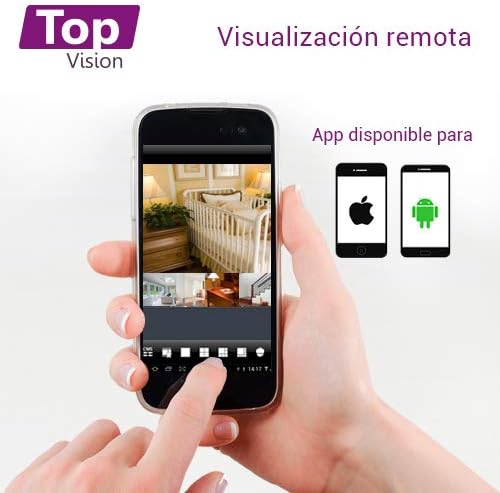
Image: A smartphone screen displaying live camera feeds, illustrating the remote viewing capability of the Topvision security system via a mobile application available for both Android and iOS.
- Ensure the DVR is connected to your network via an Ethernet cable.
- Download a compatible third-party surveillance app (e.g., XMEye, Danale, or similar apps recommended by Topvision support) from your device's app store (Android or iOS).
- Register an account within the app.
- Add your DVR device to the app using its serial number or QR code (found in the DVR's network settings).
- Once added, you can view live feeds, playback recordings, and receive alerts remotely.
Maintenance
- Cleaning: Gently wipe cameras and DVR with a soft, dry cloth. Avoid harsh chemicals.
- Firmware Updates: Periodically check the Topvision website or contact support for available firmware updates to ensure optimal performance and security.
- Hard Drive Health: Monitor the hard drive status through the DVR's menu. Replace if errors are detected.
- Cable Connections: Periodically inspect all cable connections for secure fit and signs of wear or damage.
Troubleshooting
- No Video Signal:
- Check all BNC cable connections between cameras and DVR.
- Ensure cameras are receiving power from the power adapter and splitter.
- Verify the monitor is correctly connected to the DVR via HDMI/VGA and is set to the correct input.
- DVR Not Recording:
- Confirm a hard drive is installed and properly connected.
- Check if the hard drive has been formatted (Main Menu > HDD > HDD Manage).
- Verify recording schedules are configured correctly (Main Menu > Record > Record Schedule).
- Check hard drive status for errors or full capacity.
- Remote Viewing Not Working:
- Ensure the DVR is connected to the internet via an Ethernet cable.
- Check network settings on the DVR (Main Menu > Network) to ensure it has an IP address.
- Verify the mobile app is correctly configured with the DVR's device ID.
- Check your router's firewall settings if connection issues persist.
- Poor Image Quality:
- Clean camera lenses if dirty.
- Ensure sufficient lighting for optimal day vision.
- For night vision, ensure no obstructions are blocking the infrared LEDs.
Specifications
| Component | Specification |
|---|---|
| DVR Model | XDVR-1008 |
| Video Input | 8 Channels (BNC) + 1 IP Channel |
| Video Resolution | 1080P Lite |
| Camera Model | TCB200 |
| Camera Resolution | 2MP (1080P) |
| Lens | 2.8 mm |
| Night Vision | Infrared LEDs |
| Storage | Supports 1x SATA HDD up to 8TB (not included) |
| Video Output | HDMI, VGA (simultaneous) |
| Connectivity | Wired (Ethernet for network) |
| Dimensions (DVR) | 30 x 25 x 7 cm |
| Weight (System) | 5.85 kg |
Warranty Information
Topvision products are covered by a limited warranty. Please refer to the warranty card included with your product or visit the official Topvision website for detailed terms and conditions. Keep your proof of purchase for warranty claims.
Customer Support
For technical assistance, troubleshooting, or product inquiries, please contact Topvision customer support. Refer to the contact information provided in your product packaging or on the official Topvision website.
Online resources such as FAQs and video tutorials may also be available on the Topvision support page.
