1. Introduction
The UGREEN Bluetooth Transmitter 4.2 is designed to wirelessly transmit audio from non-Bluetooth devices, such as televisions, PCs, or game consoles, to Bluetooth-enabled headphones or speakers. This device supports optical (Toslink) audio input and features aptX low latency technology for synchronized audio and video. This manual provides comprehensive instructions for the proper setup, operation, and maintenance of your UGREEN Bluetooth Transmitter.
2. Safety Information
Warning: This product may interfere with other wireless devices. Handle any internal components with caution and follow instructions for proper storage and discharge. Ensure the device is used in a well-ventilated area and avoid exposure to extreme temperatures or moisture.
3. Product Overview
The UGREEN Bluetooth Transmitter features a compact design with essential ports and indicators for easy operation.
- Optical (Toslink) Input: For connecting to audio sources via an optical cable.
- Micro USB Port: For power supply.
- Multi-function Button/LED Indicator: Used for power on/off, pairing, and indicating connection status.
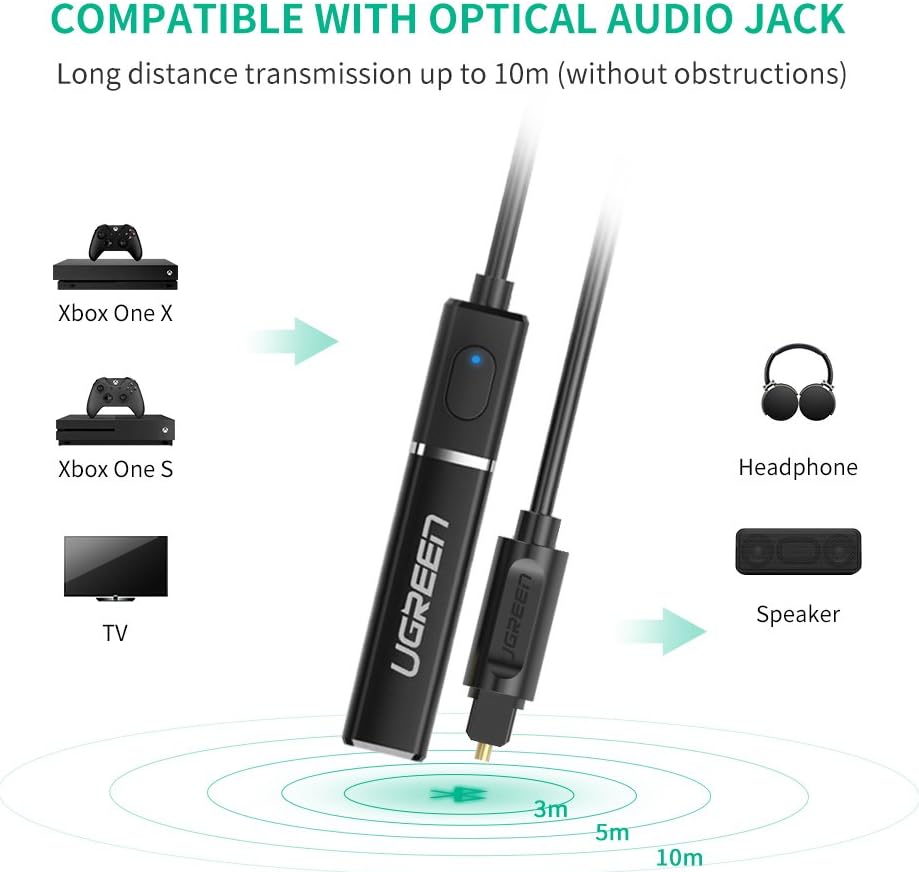
Image: The UGREEN Bluetooth Transmitter connected via optical audio jack, showing compatibility with TV, Xbox One S, Xbox One X, and transmitting to headphones or speakers within a 10m range.
4. Setup
Follow these steps to set up your UGREEN Bluetooth Transmitter:
- Connect to Audio Source: Connect one end of the optical cable to the optical output port of your audio source (e.g., TV, PC) and the other end to the optical input port on the UGREEN Bluetooth Transmitter.
- Power On: Connect the Micro USB cable to the transmitter's Micro USB port and the other end to a USB power adapter (5V/1A recommended) or a USB port on your device (e.g., TV, PC) for power. The LED indicator will light up.
- Prepare Bluetooth Device: Turn on your Bluetooth headphones or speaker and put them into pairing mode. Refer to your device's manual for specific pairing instructions.
- Pair with Transmitter: The transmitter will automatically enter pairing mode when powered on for the first time or if no device is connected. The LED indicator will flash rapidly. If it doesn't, press and hold the multi-function button for a few seconds until the LED flashes rapidly.
- Connection: Once your Bluetooth headphones/speaker are in pairing mode, they should automatically connect to the transmitter. The LED indicator on the transmitter will turn solid blue once connected.

Image: A four-step visual guide showing how to connect the transmitter to a laptop for power and audio, turn on Bluetooth headphones, pair them with the transmitter, and then enjoy wireless music.
5. Operating Instructions
5.1 Basic Operation
- Power On/Off: The device powers on automatically when connected to a power source. To power off, disconnect the power cable.
- Reconnection: The transmitter will automatically attempt to reconnect to the last paired device when powered on.
5.2 Dual Link Support
The UGREEN Bluetooth Transmitter supports connecting to two Bluetooth headphones or speakers simultaneously, allowing two users to enjoy the same audio source wirelessly.
- First, pair the transmitter with the first Bluetooth device as described in the Setup section.
- Once the first device is connected, put the second Bluetooth device into pairing mode.
- Press the multi-function button on the transmitter once to initiate pairing with the second device. The LED will flash rapidly again.
- Once the second device is connected, the LED indicator will remain solid blue.

Image: A couple watching TV with headphones, illustrating the dual link support feature of the UGREEN Bluetooth Transmitter, allowing two Bluetooth speakers or headphones to be paired simultaneously.
5.3 aptX Low Latency
This transmitter features aptX low latency technology, which significantly reduces audio delay, ensuring that sound is synchronized with video. For optimal performance, your receiving Bluetooth device (headphones/speaker) should also support aptX low latency.

Image: A visual representation highlighting 'No Audio Delay' with Qualcomm aptX low latency, promising high-clarity sound without synchronization issues, suitable for CD-level audio quality.
5.4 Gaming Compatibility
The UGREEN Bluetooth Transmitter is compatible with various gaming consoles, including Xbox One, Xbox One S, and Xbox One X, allowing you to enjoy game audio wirelessly through your Bluetooth headphones.

Image: A person playing a video game on an Xbox console connected to a TV, with the UGREEN Bluetooth Transmitter providing wireless audio to their headphones, enhancing the gaming experience.
6. Maintenance
To ensure the longevity and optimal performance of your UGREEN Bluetooth Transmitter, follow these maintenance guidelines:
- Keep the device dry and away from moisture.
- Clean the device with a soft, dry cloth. Do not use liquid cleaners or aerosols.
- Avoid exposing the device to extreme temperatures, direct sunlight, or dusty environments.
- Do not attempt to disassemble or repair the device yourself. This will void the warranty.
7. Troubleshooting
If you encounter issues with your UGREEN Bluetooth Transmitter, refer to the following common problems and solutions:
- No Sound:
- Ensure the transmitter is properly powered and the LED indicator is solid blue.
- Verify that the optical cable is securely connected to both the audio source and the transmitter.
- Check the audio output settings on your TV or PC to ensure optical output is selected and not muted.
- Confirm your Bluetooth headphones/speaker are powered on, paired, and their volume is adjusted.
- Cannot Pair:
- Ensure both the transmitter and your Bluetooth device are in pairing mode (LED flashing rapidly on transmitter).
- Move the devices closer to each other and away from potential interference sources.
- Try restarting both the transmitter and your Bluetooth device.
- If pairing a second device, ensure the first device is already connected before initiating pairing for the second.
- Audio Delay/Poor Quality:
- Ensure your Bluetooth headphones/speaker also support aptX low latency for optimal performance.
- Reduce the distance between the transmitter and your Bluetooth device.
- Minimize obstacles between the devices.
- Check for other wireless devices that might be causing interference.
8. Specifications
| Brand | UGREEN |
| Model Number | 50213 |
| Bluetooth Version | 4.2 |
| Audio Input | Optical (Toslink) |
| Wireless Type | Bluetooth |
| Power Source | Wired Electric (Micro USB) |
| Dimensions | 0.15 x 1.5 x 7 cm |
| Weight | 60 g |
| Special Features | aptX Low Latency, Dual Link Support |
| Compatible Devices | Computers, Televisions, Gaming Consoles (e.g., Xbox One series) |
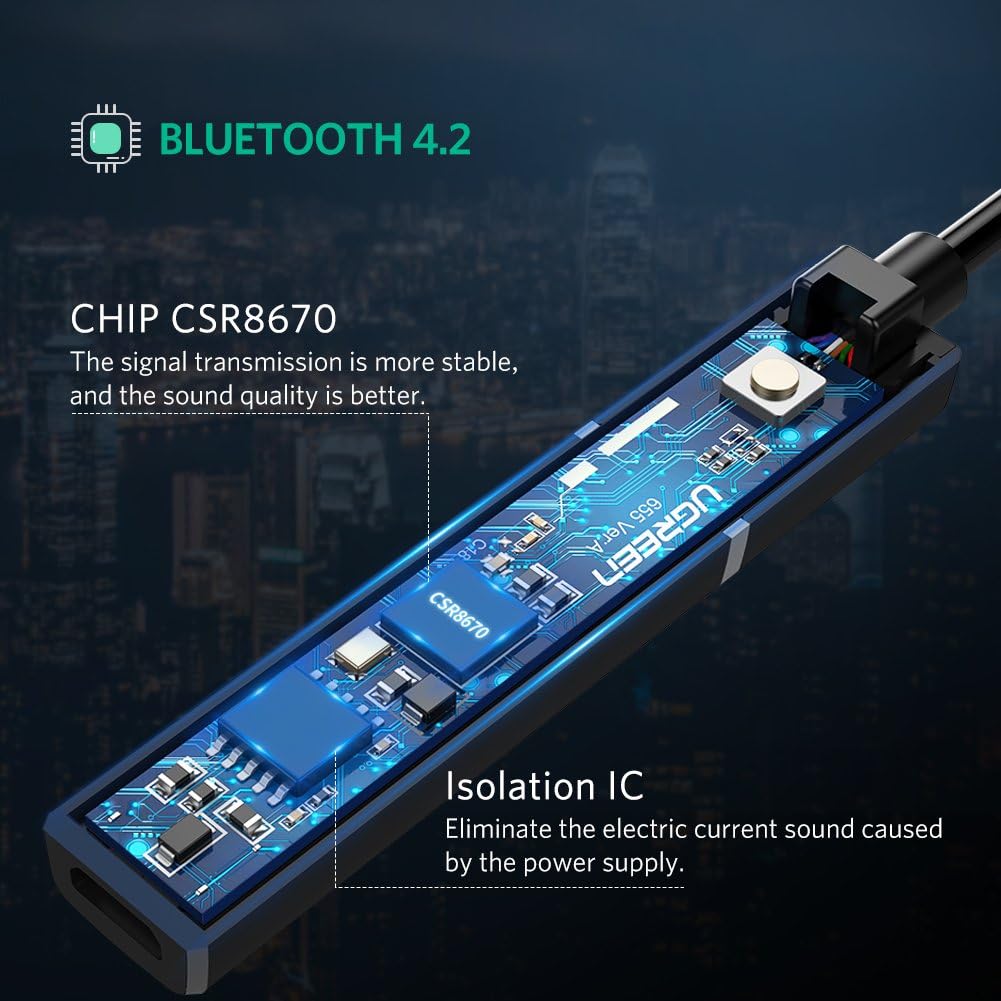
Image: An internal view of the UGREEN Bluetooth 4.2 Transmitter, highlighting the CSR8670 chip for stable signal transmission and improved sound quality, along with an Isolation IC to eliminate power supply noise.
9. Warranty and Support
UGREEN products come with a standard manufacturer's warranty. For detailed warranty information, technical support, or customer service, please visit the official UGREEN website or contact their customer support team directly. Please have your model number (50213) and purchase details available when seeking support.
UGREEN Official Website: www.ugreen.com


