
Introduction
The SINGTRONIC KA-4000Pro is a professional digital console mixing amplifier designed for DJ and KJ applications. It integrates a powerful 4000W (2000W + 2000W) amplifier with advanced features such as HDMI connectivity, Bluetooth, DSP digital sound processing, and USB recording capabilities. This manual provides detailed instructions for the setup, operation, and maintenance of your KA-4000Pro unit.
Key Features
- Power Output: 2000W + 2000W Max Power Output.
- HDMI Functionality: 2 HDMI Inputs, 1 HDMI Output, and HDMI Arc support.
- Digital Sound Processing (DSP): Advanced DSP for enhanced audio control.
- Bluetooth Connectivity: Bluetooth function for sending and receiving audio from smart devices.
- Recording Capability: USB Port for direct recording.
- Audio Inputs: Digital Optical Input, USB Audio Input.
- Anti-Feedback: Built-in Anti-Feedback FBX1 ~ FBX3.
- Individual Controls: Individual Microphone Control by Slider, Individual Headphones, Subwoofer, Center, XLR Balance Output.
- Equalization: 16-channel equalizer.
Product Overview
Familiarize yourself with the physical layout and dimensions of your SINGTRONIC KA-4000Pro amplifier.
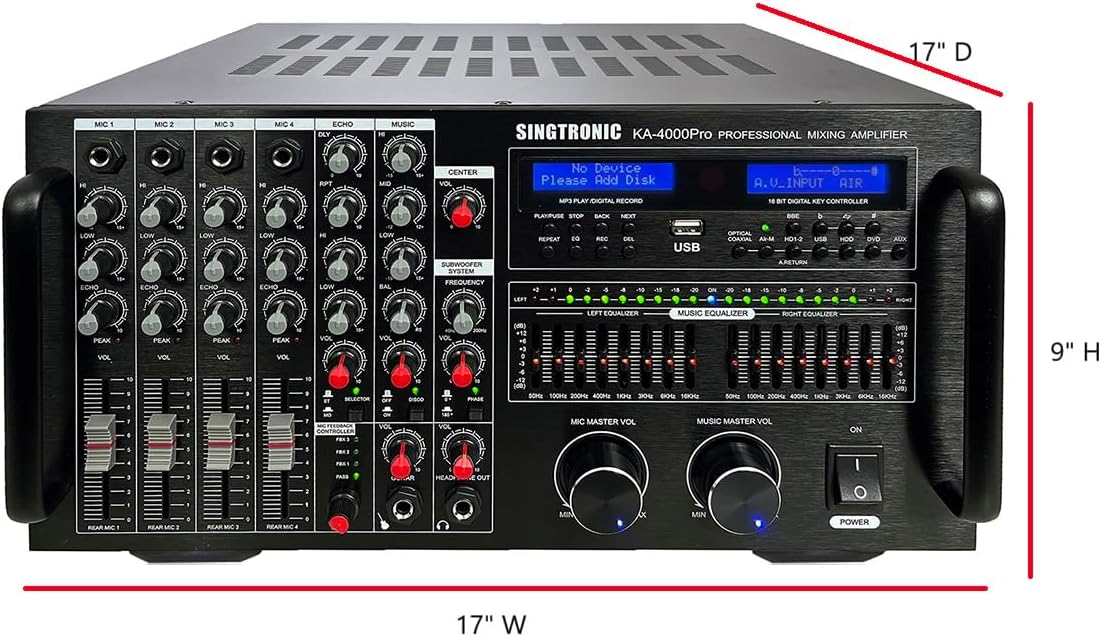
Image: Front view of the SINGTRONIC KA-4000Pro amplifier with dimensions indicated. The unit measures 17 inches in depth, 17 inches in width, and 9 inches in height.

Image: Detailed front panel of the SINGTRONIC KA-4000Pro amplifier, highlighting key features such as slider volume adjust for individual microphones, anti-feedback modes (FBX 1-3), headphone out, subwoofer and center individual volume controls, and the 16-channel equalizer. Also noted are built-in optical input, HDMI-Arc, DSP, BBE, USB sing & recording functions.
Front Panel Features
The front panel provides access to all primary controls and indicators for the KA-4000Pro. Refer to the diagram below for component identification.
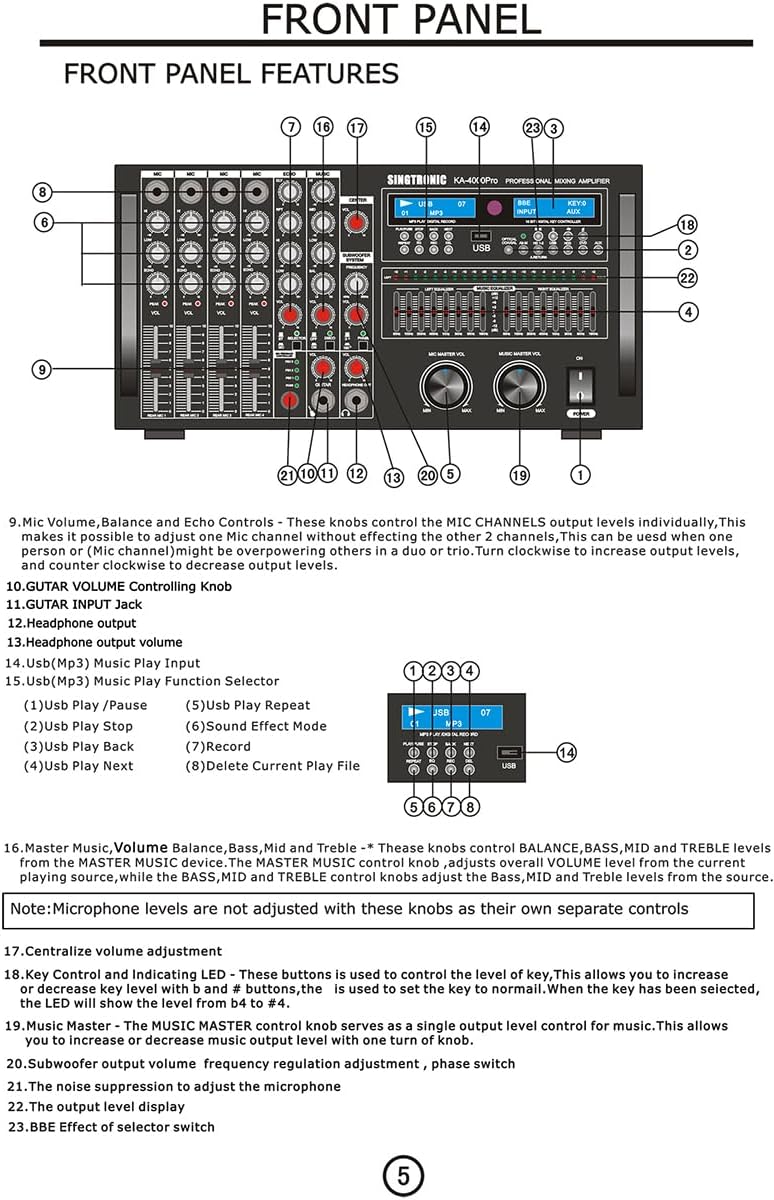
Image: Numbered diagram of the SINGTRONIC KA-4000Pro front panel, illustrating the location of various controls and inputs.
- Mic Volume, Balance and Echo Controls: These knobs control the MIC CHANNELS output individually. This makes it possible to adjust one Mic channel without affecting the other 2 channels. This can be used when one person or (Mic channel) might be overpowering others in a duo or trio. Turn clockwise to increase output levels, and counter-clockwise to decrease output levels.
- GUITAR VOLUME Controlling Knob
- Headphone output volume
- USB(Mp3) Music Play Input
- USB(Mp3) Music Play Function Selector:
- (1) USB Play / Pause
- (2) USB Play Stop
- (3) USB Play Back
- (4) USB Play Next
- (5) USB Play Repeat
- (6) Sound Effect Mode
- (7) Record
- (8) Delete Current Play File
- Music Master Volume, Balance, Bass, Mid and Treble: These knobs control BALANCE, BASS, MID and TREBLE levels from the MASTER MUSIC device. The MASTER MUSIC control knob adjusts overall VOLUME level from the current playing source, while the BASS, MID and TREBLE control knobs adjust the Bass, Mid and Treble levels from the source.
- Key Control and Indicating LED: These buttons are used to control the level of key. This allows you to increase or decrease key level with b and # buttons. The LED is used to set the key to normal. When the key has been selected, the LED will show the level from #4 to #4.
- Music Master: The MUSIC MASTER control knob serves as a single output level control for music. This allows you to increase or decrease music output level with one turn of knob.
- Subwoofer output volume frequency regulation adjustment, phase switch
- The noise suppression to adjust the microphone
- The output level display
- BBE Effect of selector switch
Note: Microphone levels are not adjusted with these knobs as their own separate controls.
Rear Panel Features
The rear panel houses all input and output connections for the KA-4000Pro. Refer to the diagram below for component identification.

Image: Numbered diagram of the SINGTRONIC KA-4000Pro rear panel, illustrating the location of various input and output ports.
- DVD/AUX/BGM Audio In: These set of RCA jacks are for connecting the audio component from A/V device to the KA-4000Pro. Connect the cable from the AUDIO OUT jacks on A/V device to these AUDIO IN jacks. 2. Input level adjustment for dvd/aux/bgm/usb.
- DVD/AUX/BGM Video In: These RCA jack is for connecting the video component form A/V device to the KA-4000Pro to monitors, TFT displays and compatible TV's. Connect the cable(s) form the VIDEO IN jack(s) on the display device(s) to the VIDEO OUT jack(s).
- Video Out: The KA-4000Pro has 1 RCA style VIDEO OUT jack and 1 S-VIDEO jack. These jacks are used to supply video to monitors, TFT displays and compatible TV's. Connect the cable(s) from the VIDEO IN jack(s) on the display device(s) to the VIDEO OUT jack(s).
- Speaker Out: The KA-4000Pro has 2 sets of speaker outputs. These outlets are used to supply the music to the speaker. Connect cable from the speaker "+" and "-" on the speaker to the KA-4000Pro's speaker outlet.
- Fuse: The KA-4000Pro has 20A/115V fuse.
- AC Input: The KA-4000Pro has 1 AC inlet. This inlet is used to supply the power to KA-4000Pro. Connect the power cords from wall AC outlet to the KA-4000Pro's AC inlet.
- Balance Centralize Output
- Balance Subwoofer Output
- Balance Line Output
- Rear Mic1 Input And Mic5 Input Jack
- Line Out: The KA-4000Pro has 2 RCA Line Out. These jacks are used send the mic signal to the amplifier then the KA-4000Pro is used pre mixer. Connect the cord from line out to the other amplifier's Line jacks.
- Subwoofer: The KA-4000Pro has 1 RCA style sub-woofer out jack. This jack are used to supply bass to power sub-woofer. Connect the cable from the sub-woofer in jack on the power sub-woofer to the sub-woofer out jack.
- Mic out: The KA-4000Pro has 2 RCA Mic out. These jacks are used to send the mic signal to the amplifier then the KA-4000Pro is used as pre mixer. Connect cord from line out to the other amplifier's Mic jacks.
- Record output
- Hdmi Input
- Hdmi output
- Optical Input
- Coaxial output
- Centralize Output
Setup and Connections
Follow these steps to properly set up your SINGTRONIC KA-4000Pro amplifier and connect your audio and video sources.
- Power Connection: Connect the provided AC power cord to the AC INPUT on the rear panel of the KA-4000Pro and then to a standard 115V/60Hz wall outlet.
- Speaker Connections: Connect your passive speakers to the SPEAKER SYSTEM (8-16Ω) terminals on the rear panel. Ensure correct polarity (+ to + and - to -) for each speaker (LEFT and RIGHT).
- Subwoofer Connection: If using a powered subwoofer, connect its input to the SUBWOOFER OUT RCA jack on the rear panel.
- Microphone Connections: Connect your microphones to the MIC 1-4 inputs on the front panel or the Rear Mic inputs on the rear panel.
- HDMI Devices: Connect HDMI source devices (e.g., DVD player, game console) to the HDMI 1 or HDMI 2 INPUTs. Connect your display (TV, monitor) to the HDMI OUT.
- Audio/Video Sources (RCA): For non-HDMI A/V devices, connect their audio outputs to the DVD/AUX/BGM AUDIO IN jacks and their video outputs to the DVD/AUX/BGM VIDEO IN jacks. Connect your display's video input to the VIDEO OUT jack.
- Optical/Coaxial Audio: For digital audio sources, connect them to the OPTICAL IN or COAXIAL IN ports.
- USB Devices: Insert a USB drive into the USB port on the front panel for MP3 playback or recording.

Image: Diagram illustrating typical connections for the SINGTRONIC KA-4000Pro, including power, speakers, subwoofer, HDMI devices, and other audio/video sources.
Video: An official product video demonstrating the rear panel connections and features of the Singtronic KA-4000DSP Professional 4000W Mixing Amplifier. This video provides a visual guide to connecting various audio and video components to the amplifier.
Basic Operation
This section outlines the fundamental steps for operating your KA-4000Pro amplifier.
- Power On/Off: Press the POWER button on the front panel to turn the unit on or off.
- Source Selection: Use the input selector buttons (e.g., HDMI, USB, DVD/AUX/BGM) to choose your desired audio/video source.
- Music Volume Adjustment: Adjust the MUSIC MASTER VOL knob to control the overall music volume. Fine-tune bass, mid, and treble using the dedicated knobs.
- Microphone Usage: Connect microphones to the MIC inputs. Adjust individual MIC VOLUME, ECHO, LOW, MID, and HIGH controls for each microphone channel. Use the SLIDER VOLUME ADJUST for individual microphone levels.
- Bluetooth Pairing: Activate Bluetooth on your smart device and search for the KA-4000Pro. Select it to pair and stream audio wirelessly.
- USB Playback/Recording: Insert a USB drive. Use the USB Play Function Selector buttons (Play/Pause, Stop, Next, Previous, Record) to manage media playback or initiate recording.
- Equalizer Adjustment: Utilize the 16-channel equalizer sliders to fine-tune the audio frequency response for both left and right channels.
- Anti-Feedback: Engage the Anti-Feedback FBX1 ~ FBX3 modes as needed to reduce microphone feedback.
Specifications
| Brand | SINGTRONIC |
| Model Number | KA-4000Pro |
| Number of Channels | 8 |
| Product Dimensions (D x W x H) | 17"D x 17"W x 9"H |
| Item Weight | 70 pounds |
| Connectivity Technology | Bluetooth, HDMI, USB |
| Power Source | Corded Electric (AC 115V/60Hz) |
| Output Connector Type | HDMI, RCA, XLR |
| Audio Input | USB, RCA, Optical, Coaxial |
| UPC | 799471977088 |
Troubleshooting
If you encounter issues with your KA-4000Pro, refer to the following common troubleshooting steps:
- No Power: Ensure the power cord is securely connected to both the amplifier and a working wall outlet. Check the fuse on the rear panel and replace if necessary (20A/115V).
- No Sound Output:
- Verify that speakers are correctly connected and speaker wires have proper polarity.
- Check that the correct input source is selected.
- Increase the MASTER MUSIC VOL and individual channel volumes.
- Ensure all cables (HDMI, RCA, Optical) are securely connected.
- No Microphone Sound:
- Ensure microphones are properly connected to the MIC inputs.
- Adjust individual MIC VOLUME controls and the MIC MASTER volume.
- Check if the microphone is switched on and functioning.
- Bluetooth Connection Issues:
- Ensure Bluetooth is enabled on both the amplifier and your smart device.
- Move your device closer to the amplifier to ensure it's within range.
- Try unpairing and re-pairing the device.
- Feedback (Squealing Sound):
- Reduce microphone volume.
- Adjust microphone position relative to speakers.
- Engage the built-in Anti-Feedback (FBX) functions.
Maintenance
Proper maintenance ensures the longevity and optimal performance of your KA-4000Pro amplifier.
- Cleaning: Use a soft, dry cloth to clean the exterior of the unit. Avoid abrasive cleaners or solvents.
- Ventilation: Ensure adequate ventilation around the amplifier. Do not block ventilation openings.
- Storage: When not in use for extended periods, store the unit in a cool, dry place, away from direct sunlight and extreme temperatures.
- Power Off: Always power off the unit and disconnect it from the power outlet before cleaning or performing any maintenance.
Safety Information
Please read and adhere to the following safety precautions to prevent electric shock, fire, or damage to the unit:
- Do not expose this appliance to rain or moisture.
- Do not remove the cover. There are no user-serviceable parts inside. Refer all servicing to qualified service personnel.
- Do not place objects filled with liquids, such as vases, on the apparatus.
- Do not block any ventilation openings. Install in accordance with the manufacturer's instructions.
- Protect the power cord from being walked on or pinched, particularly at plugs, convenience receptacles, and the point where they exit from the apparatus.
- Only use attachments/accessories specified by the manufacturer.
- Unplug this apparatus during lightning storms or when unused for long periods of time.
Warranty and Support
For warranty information or technical support, please contact SINGTRONIC INC. directly. Details regarding specific warranty periods and service procedures are typically provided with your purchase documentation or can be obtained from the manufacturer's official website.
Contact Information: Refer to your purchase invoice or the official SINGTRONIC website for the most current customer support contact details.