1. Introduction
Thank you for choosing the Tucano SCRIVO Bluetooth Keyboard. This keyboard is designed to enhance your tablet experience, offering a comfortable and efficient typing solution. It features a durable ecopelle (faux leather) construction, an integrated stand for optimal viewing, and a magnetic closure for secure portability. Compatible with tablets up to 10.5 inches and iPad Pro 11 inches, it includes a long-lasting lithium battery and an Italian (IT) keyboard layout.
2. Product Overview
The Tucano SCRIVO keyboard combines functionality with a sleek design, providing a protective cover and a full-size keyboard for your tablet.
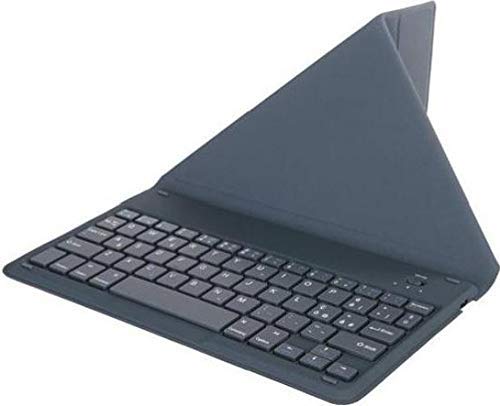
Image Description: The image displays the Tucano SCRIVO Bluetooth Keyboard in its closed, protective cover state. The exterior is a dark-colored ecopelle material, showcasing the magnetic closure and compact design suitable for portability. This view highlights the product's aesthetic and its function as a tablet cover.
- Bluetooth Keyboard: Full-size keyboard with Italian (IT) layout.
- Ecopelle Cover: Durable and protective faux leather exterior.
- Integrated Stand: Allows for comfortable tablet viewing angles.
- Magnetic Closure: Secures the cover when closed.
- Rechargeable Battery: Built-in lithium battery for extended use.
- Charging Port: Typically located on the side or back edge of the keyboard.
- Power Switch: Used to turn the keyboard on or off.
- Bluetooth Pairing Button/Indicator: For initiating pairing and showing connection status.
3. Setup
3.1. Charging the Keyboard
- Locate the charging port on the keyboard (usually a Micro USB or USB-C port).
- Connect the provided charging cable to the keyboard's charging port.
- Connect the other end of the charging cable to a USB power adapter (not included) or a computer's USB port.
- The charging indicator light (if present) will illuminate, typically red, during charging.
- Once fully charged, the indicator light may change color (e.g., green or blue) or turn off. A full charge typically takes 2-3 hours.
Note: It is recommended to fully charge the keyboard before its first use.
3.2. Bluetooth Pairing
- Ensure the keyboard is fully charged.
- Turn on the keyboard by sliding the power switch to the 'ON' position. The power indicator light will briefly illuminate.
- Press and hold the Bluetooth pairing button (often labeled 'Connect' or with a Bluetooth symbol) for 3-5 seconds. The Bluetooth indicator light will start blinking, indicating it is in pairing mode.
- On your tablet (e.g., iPad Pro 11" or other compatible tablet), go to 'Settings' > 'Bluetooth'.
- Ensure Bluetooth is turned 'ON' on your tablet.
- Your tablet will search for available devices. Look for 'Tucano SCRIVO' or a similar name in the list of devices.
- Tap on 'Tucano SCRIVO' to connect. Your tablet may display a pairing code; type this code on the Tucano SCRIVO keyboard and press 'Enter'.
- Once successfully paired, the Bluetooth indicator light on the keyboard will stop blinking and may turn off or remain steadily lit. Your tablet will show 'Connected' next to the keyboard's name.
4. Operating the Keyboard
4.1. Power On/Off
- To turn on: Slide the power switch to 'ON'.
- To turn off: Slide the power switch to 'OFF' when not in use to conserve battery life.
4.2. Using the Integrated Stand
The Tucano SCRIVO cover features an integrated stand. To use it, simply fold the cover into the desired viewing angle. The magnetic properties of the cover will help secure your tablet in position for comfortable typing or media consumption.
4.3. Keyboard Functions
The keyboard features an Italian (IT) layout. Many keys have secondary functions accessible by pressing the 'Fn' key simultaneously with the desired function key (e.g., volume control, media playback, screen brightness, home screen access). Refer to the keycap legends for specific functions.
5. Maintenance
5.1. Cleaning
- Ecopelle Exterior: Wipe gently with a soft, damp cloth. Avoid harsh chemicals or abrasive cleaners.
- Keyboard Keys: Use a soft, dry cloth or a can of compressed air to remove dust and debris from between the keys.
- Ensure the keyboard is turned off and disconnected from any power source before cleaning.
5.2. Storage
When not in use, store the keyboard in a cool, dry place away from direct sunlight and extreme temperatures. Keep it closed to protect the keys and screen.
6. Troubleshooting
- Keyboard not connecting via Bluetooth:
- Ensure the keyboard is charged and turned on.
- Make sure Bluetooth is enabled on your tablet.
- Place the keyboard and tablet within close proximity (within 10 meters).
- Try re-pairing the keyboard by putting it into pairing mode and searching for it on your tablet again.
- Restart your tablet and the keyboard.
- Keys not responding:
- Check the battery level of the keyboard. Recharge if necessary.
- Ensure the keyboard is properly connected via Bluetooth.
- Clean any debris from around the keys.
- Charging issues:
- Verify that the charging cable is securely connected to both the keyboard and the power source.
- Try using a different USB cable or power adapter.
- Ensure the power source is functional.
7. Specifications
| Feature | Description |
|---|---|
| Brand | Tucano |
| Model Name | TAB-SC10-IT-B |
| Connectivity Technology | Bluetooth |
| Compatible Devices | Tablets up to 10.5", iPad Pro 11" |
| Keyboard Description | Ecopelle Bluetooth keyboard with integrated stand and IT layout |
| Recommended Uses | Mobile computing, intensive typing, study, daily use |
| Special Feature | Magnetic closure |
| Style | Modern / Slim |
| Material | Ecopelle (Faux Leather) |
8. Warranty and Support
For warranty information and customer support, please refer to the documentation included with your product at the time of purchase or visit the official Tucano website. You may also contact Tucano customer service directly for assistance with product inquiries, technical support, or warranty claims.


