1. Introduction
The Jumper Ebook X3 is a lightweight and portable laptop designed for everyday computing tasks, offering a balance of performance and portability. It features a vibrant Full HD IPS display, an Intel Celeron processor, and runs on Microsoft Windows 10 Home, making it suitable for browsing, media consumption, and productivity applications.
2. Product Features
- Display: 13.3-inch Full HD (1920 x 1080) IPS screen, providing clear and vibrant visuals for an enhanced viewing experience.
- Processor: Intel Apollo Lake N3350 Quad Core processor, operating at 1.1GHz with burst speeds up to 2.4GHz, ensuring efficient performance for daily tasks.
- Operating System: Pre-installed with Microsoft Windows 10 Home, offering a familiar and user-friendly interface with access to a wide range of applications.
- Memory (RAM): Equipped with 6GB DDR4 RAM for smooth multitasking.
- Storage: 64GB eMMC internal storage, with an independent M.2 SSD expansion slot (22*42mm) for additional storage capacity. Supports up to 128GB TF card expansion.
- Connectivity: Dual-band 2.4G/5G WiFi for faster wireless speeds and Bluetooth for connecting peripherals.
- Ports: Includes 2x USB 3.1 Gen 1 Type-A ports, 1x MicroSD card slot, 1x Audio jack (2-in-1 Headset Mic Interface), and 1x Standard HDMI port for external display connectivity.
- Battery Life: Offers an average battery life of up to 6 hours, ideal for on-the-go use.
- Design: Features a lightweight design with a sandblasting process for an aviation-grade texture, making it highly portable.
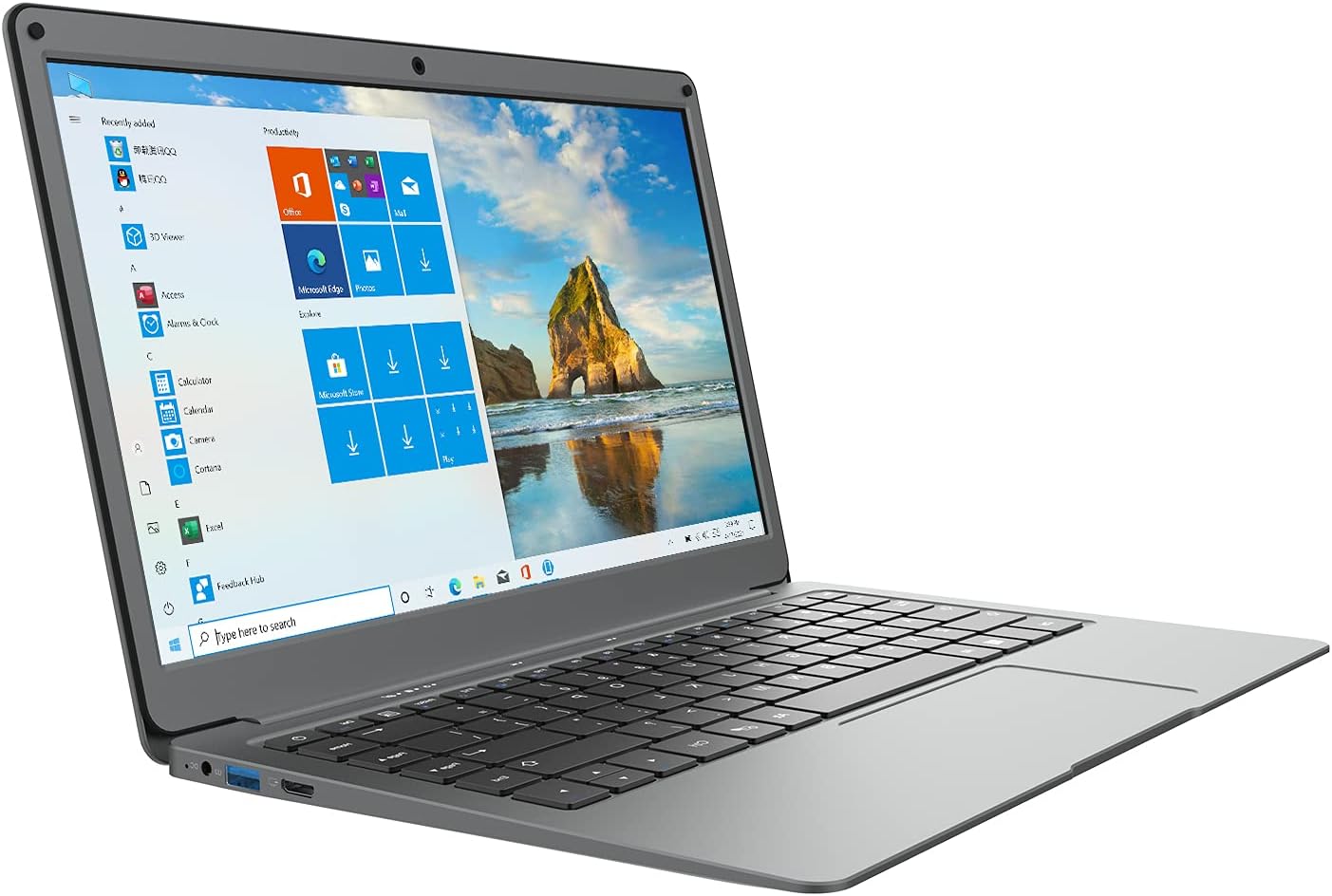
Figure 2.1: The Jumper Ebook X3 laptop with Windows 10 Home operating system.

Figure 2.2: The 13.3-inch Full HD (1920x1080) IPS display provides a clear and immersive visual experience.

Figure 2.3: Overview of available ports including USB 3.1, MicroSD, Audio Jack, and Standard HDMI.

Figure 2.4: The laptop features an independent M.2 SSD expansion slot for additional storage.
3. Setup Guide
- Unboxing: Carefully remove the laptop and all accessories from the packaging. Ensure all components listed in the "What's in the Box" section are present.
- Initial Charge: Before first use, connect the power adapter to the laptop's DC charging interface and plug it into a power outlet. Allow the battery to fully charge. The charging indicator light will typically change color or turn off when fully charged.
- Power On: Press and hold the power button located on the keyboard to turn on the laptop.
- Windows Setup: Follow the on-screen prompts to complete the initial Windows 10 Home setup. This includes selecting your region, language, connecting to a Wi-Fi network, accepting the license agreement, and creating a user account.
- Software Activation: If your model includes a Microsoft Office subscription, follow the instructions provided with the laptop to activate your 1-year Office subscription.
4. Operating Instructions
4.1 Basic Navigation
- Touchpad: Use the integrated touchpad for cursor control. Tap to click, two-finger tap for right-click, and two-finger scroll for vertical scrolling.
- Keyboard: The full-size keyboard allows for comfortable typing. Utilize function keys (Fn) in combination with F-keys for quick access to system controls like volume, brightness, and Wi-Fi.
- Start Menu: Click the Windows icon in the bottom-left corner to access the Start Menu, where you can find applications, settings, and power options.
4.2 Connecting Peripherals
- USB Devices: Connect USB flash drives, external hard drives, or other USB peripherals to the available USB 3.1 ports.
- External Display: Use an HDMI cable to connect the laptop to an external monitor or TV via the Standard HDMI port. Adjust display settings in Windows to extend or duplicate your screen.
- Audio Devices: Plug headphones or external speakers into the 3.5mm audio jack.
- MicroSD Card: Insert a MicroSD card into the dedicated slot for additional storage or transferring files.
4.3 Network Connectivity
- Wi-Fi: Click the Wi-Fi icon in the taskbar, select your desired network, and enter the password to connect. The laptop supports dual-band 2.4G/5G Wi-Fi.
- Bluetooth: Enable Bluetooth in Windows settings to pair with Bluetooth-enabled devices such as headphones, mice, or keyboards.
5. Maintenance and Care
- Cleaning: Use a soft, lint-free cloth to clean the screen and exterior. For stubborn smudges, slightly dampen the cloth with water or a screen-safe cleaner. Avoid harsh chemicals.
- Battery Care: To prolong battery life, avoid fully discharging the battery frequently. It is recommended to keep the laptop charged when possible and perform a full charge/discharge cycle occasionally.
- Storage: Store the laptop in a cool, dry place away from direct sunlight and extreme temperatures.
- Software Updates: Regularly update Windows and drivers to ensure optimal performance and security.
- Physical Protection: While the laptop is designed to be durable, avoid dropping it or exposing it to excessive force. The sandblasting process provides a robust finish.
6. Troubleshooting
| Problem | Possible Cause | Solution |
|---|---|---|
| Laptop does not power on. | Low battery or power adapter issue. | Ensure the power adapter is securely connected and the laptop is charging. Allow it to charge for at least 30 minutes before attempting to power on again. |
| Screen is blank or black. | Sleep mode, display driver issue, or hardware malfunction. | Press any key or move the touchpad/mouse to wake the laptop. If unresponsive, perform a hard reset by holding the power button for 10-15 seconds. Check for updated display drivers. |
| Wi-Fi connection issues. | Incorrect password, router issue, or Wi-Fi adapter problem. | Verify Wi-Fi password. Restart your router and modem. In Windows settings, try disabling and re-enabling the Wi-Fi adapter. |
| Slow performance. | Too many applications running, low storage, or outdated software. | Close unnecessary applications. Check available storage and consider adding an M.2 SSD. Ensure Windows and drivers are up to date. Run a disk cleanup. |
7. Specifications
| Feature | Detail |
|---|---|
| Brand | Jumper |
| Model Name | Ebook X3 |
| Operating System | Windows 10 Home |
| Screen Size | 13.3 Inches |
| Screen Resolution | 1920 x 1080 pixels (Full HD IPS) |
| Processor | Intel Apollo Lake N3350 Quad Core (1.1 GHz, up to 2.4 GHz) |
| RAM | 6 GB DDR4 |
| Hard Drive | 64 GB eMMC |
| Graphics Coprocessor | Intel HD Graphics 500 |
| Wireless Type | Dual Band 5GHz WiFi, Bluetooth |
| Average Battery Life | 6 Hours |
| Item Weight | 2.7 pounds |
| Product Dimensions | 12.4 x 8.1 x 0.71 inches |
8. Warranty and Support
This Jumper Ebook X3 laptop includes a 1-year Microsoft Office subscription. For technical support, warranty claims, or further assistance, please refer to the contact information provided in your product packaging or visit the official Jumper support website. Keep your purchase receipt as proof of purchase for warranty purposes.