
Introduction
This manual provides instructions for the safe and effective use of your T&G TG504 Portable Bluetooth Speaker. Please read it thoroughly before use and retain it for future reference. This speaker is designed for portable audio playback with wireless Bluetooth connectivity and water resistance.
Product Overview
The T&G TG504 is a cylindrical, portable Bluetooth speaker featuring a robust design and a built-in microphone for hands-free calling. It offers high-definition sound with bass boost and multiple connectivity options.
Key Features:
- Portable and Cylindrical Design
- Water Resistant Construction
- Built-in Microphone for Calls
- Bluetooth Wireless Connectivity
- AUX and USB Port for versatile playback
- Bass Boost and High Definition Sound
- Battery Powered for on-the-go use
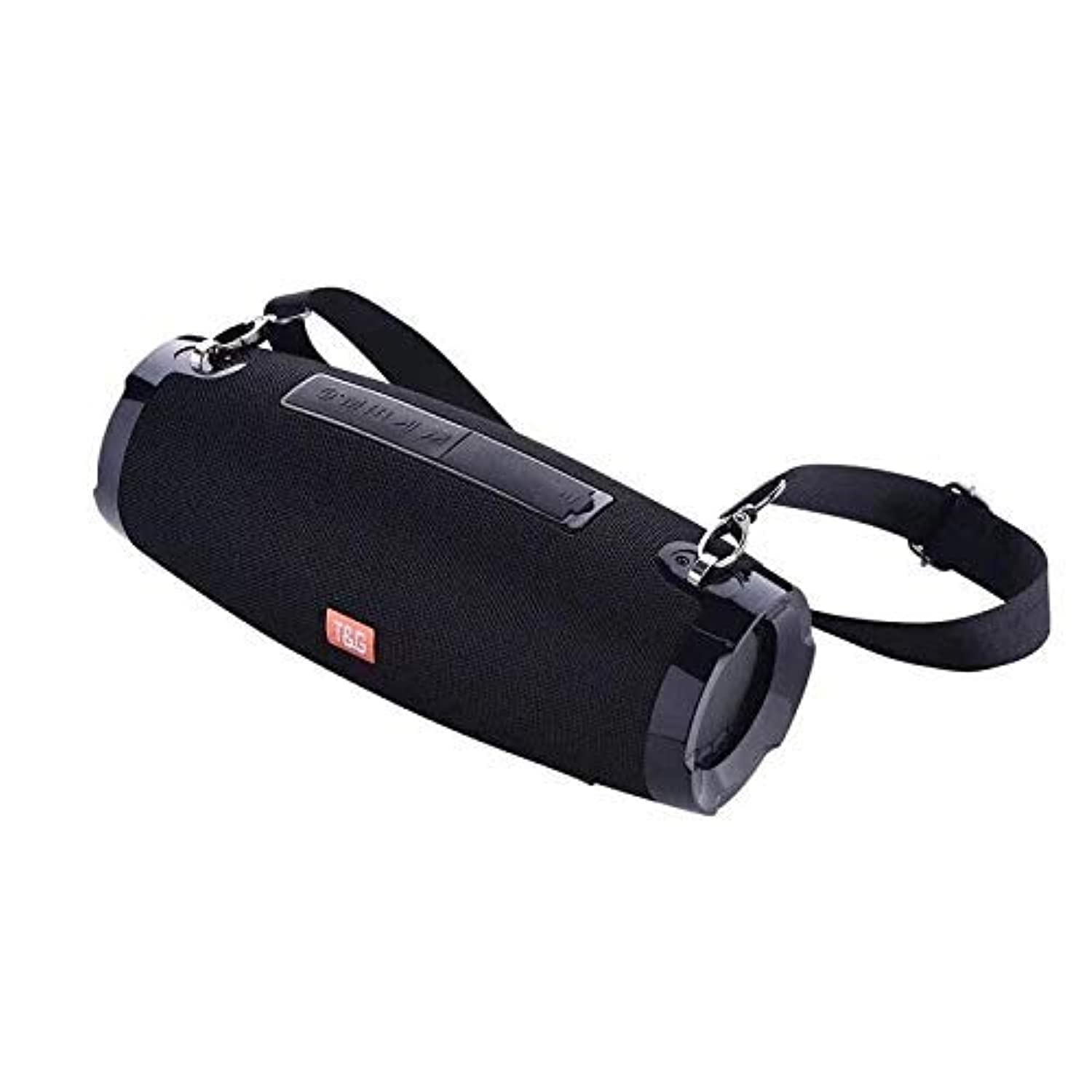
This image shows the T&G TG504 Portable Bluetooth Speaker. It features a black cylindrical design with a mesh grille covering the speaker. The T&G brand logo is visible in orange on the front. The speaker has attachment points on the sides, suggesting portability.
Package Contents
- T&G TG504 Portable Bluetooth Speaker
- AUX Cable
- USB Charging Cable
- User Manual
Controls and Indicators
Familiarize yourself with the speaker's controls and ports for optimal operation.
- Power Button: Press and hold to turn the speaker on or off.
- Play/Pause Button: Press to play or pause audio.
- Volume Up (+): Press to increase volume. Hold to skip to the next track.
- Volume Down (-): Press to decrease volume. Hold to go to the previous track.
- Mode Button (M): Press to switch between Bluetooth, AUX, and USB modes.
- Call Button: Press to answer or end a phone call. Hold to reject a call.
- AUX Port: For wired connection to audio devices.
- USB Port: For playing music from a USB drive or charging other devices (if supported).
- Charging Port: For connecting the USB charging cable.
- LED Indicator: Shows power status, charging status, and Bluetooth pairing status.
Setup
1. Charging the Speaker
- Connect the small end of the USB charging cable to the speaker's charging port.
- Connect the large end of the USB charging cable to a USB power adapter (not included) or a computer's USB port.
- The LED indicator will show charging status (e.g., red while charging, off when fully charged).
- Allow approximately 3-4 hours for a full charge before first use.
2. Powering On/Off
- To power on, press and hold the Power button until the LED indicator lights up and you hear an audible prompt.
- To power off, press and hold the Power button again until the LED indicator turns off and you hear an audible prompt.
3. Bluetooth Pairing
- Ensure the speaker is powered on and in Bluetooth pairing mode (LED indicator will typically flash blue). If not, press the Mode button to switch to Bluetooth mode.
- On your mobile device (smartphone, tablet, laptop), enable Bluetooth.
- Search for available Bluetooth devices. The speaker will appear as "TG504" or similar.
- Select "TG504" to connect. Once paired, the LED indicator will turn solid blue, and you will hear a confirmation sound.
- The speaker will automatically reconnect to the last paired device when powered on, if the device is within range and Bluetooth is enabled.
4. Connecting via AUX
- Connect one end of the provided AUX cable to the speaker's AUX port.
- Connect the other end of the AUX cable to the headphone jack of your audio device.
- The speaker will automatically switch to AUX mode, or you may need to press the Mode button to select AUX.
Operating Instructions
Playing Music
- Bluetooth Mode: Once paired, start playing music on your connected device. Audio will stream through the speaker.
- AUX Mode: Start playing music on your connected audio device.
- USB Mode: Insert a USB flash drive with MP3 files into the USB port. The speaker will automatically detect and play music. Press the Mode button to switch to USB mode if needed.
- Use the Play/Pause button on the speaker or your device to control playback.
Adjusting Volume
- Press the Volume Up (+) button to increase the volume.
- Press the Volume Down (-) button to decrease the volume.
- Volume can also be adjusted from your connected device.
Handling Calls (Bluetooth Mode)
- Answer Call: When a call comes in, press the Call button once to answer.
- End Call: During a call, press the Call button once to end the call.
- Reject Call: When a call comes in, press and hold the Call button to reject it.
- Redial Last Number: In standby mode, double-press the Call button to redial the last number.
Voice Control
The speaker supports voice control. Depending on your connected device, you may be able to activate your device's voice assistant (e.g., Siri, Google Assistant) by pressing and holding the Play/Pause button (or a dedicated voice button if available) for a few seconds.
Maintenance
Cleaning
- Wipe the speaker with a soft, dry cloth.
- Do not use abrasive cleaners, alcohol, or chemical solvents.
Storage
- Store the speaker in a cool, dry place away from direct sunlight and extreme temperatures.
- If storing for an extended period, charge the battery periodically to maintain its lifespan.
Water Resistance Care
- Ensure all port covers are securely closed before exposing the speaker to water.
- Do not submerge the speaker in water. Water resistance protects against splashes and light rain, not full immersion.
- After exposure to water, wipe the speaker dry before charging or opening port covers.
Troubleshooting
If you encounter issues with your speaker, refer to the following table for common problems and solutions.
| Problem | Possible Cause | Solution |
|---|---|---|
| Speaker does not turn on | Low battery; Power button not pressed correctly | Charge the speaker; Press and hold the Power button for 3-5 seconds. |
| Cannot pair via Bluetooth | Speaker not in pairing mode; Device Bluetooth off; Speaker too far from device | Ensure speaker LED is flashing blue; Turn on Bluetooth on your device; Move speaker closer to device (within 10 meters). |
| No sound | Volume too low; Incorrect mode selected; Device not playing audio | Increase speaker and device volume; Press Mode button to select correct input; Ensure audio is playing on your device. |
| Sound distortion | Volume too high; Low battery; Interference | Reduce volume; Charge the speaker; Move away from other wireless devices. |
| Microphone not working | Not in call mode; Microphone blocked | Ensure you are on a call; Check for obstructions around the microphone. |
Specifications
| Model Name | TG504 |
| Brand | T&G |
| Color | Black |
| Shape | Cylindrical |
| Item Weight | 735 grams (approx. 1 kg / 2.2 pounds) |
| Max Speaker Output Power | 10 watts |
| Connectivity Technology | Bluetooth, Auxiliary (AUX) |
| Wireless Communication Technology | Bluetooth |
| Water Resistant | Yes |
| Power Source | Battery Powered |
| Control Method | Voice |
| Audio Output Mode | Surround |
| Mounting Type | Tabletop |
| Compatible Devices | Tablet, Laptop, Smartphone |
| Special Features | Bass Boost, High Definition Sound, Water Resistant, USB Port |
| Included Components | AUX cable |
Safety Information
- Do not expose the speaker to extreme temperatures, direct sunlight, or high humidity.
- Avoid dropping or subjecting the speaker to strong impacts.
- Keep the speaker away from children and pets.
- Do not attempt to disassemble, repair, or modify the speaker yourself. This will void the warranty and may cause damage or injury.
- Use only the specified charging cable and a compatible power adapter.
- Do not use the speaker near water sources if port covers are not securely closed.
- Prolonged listening at high volume levels may cause hearing damage.
Warranty and Support
Specific warranty details are not provided in the product information. For warranty claims or technical support, please refer to the retailer or manufacturer's official website where you purchased the product. Keep your proof of purchase for any warranty-related inquiries.


