
ELECABLE 8541670340
ELECABLE USB 3.0 to VGA Adapter Cable (6.5FT) Instruction Manual
Model: 8541670340
1. Introduction
This manual provides instructions for the ELECABLE USB 3.0 to VGA Adapter Cable, a device designed to connect USB-enabled computers (laptops, desktops) to VGA-enabled displays (monitors, projectors, TVs). It enables a cost-effective dual-monitor or extended display setup, supporting Full HD 1080P resolution.

Image 1.1: The ELECABLE USB 3.0 to VGA Adapter Cable, featuring a black cable with a gold-plated USB 3.0 connector and a VGA connector.
2. Key Features
- USB to VGA Connectivity: Connects USB-enabled devices (laptops, desktops) to VGA-enabled displays (monitors, projectors, TVs) for dual-monitor or extended display options.
- High Resolution Support: Delivers Full HD 1080P (1920x1080) resolution at 60Hz refresh rate when connected to a USB 3.0 port.
- Built-in Driver: Features a built-in driver for convenient initial installation.
- Premium Quality: Constructed with a high-performance chip and high-purity copper core for stable data transmission and durability.
- One-Way Design: Functions exclusively from USB to VGA displays; it cannot be used as a VGA-to-USB converter.
3. Compatibility
- Operating Systems: Compatible with Windows 11, Windows 10, Windows 8.1, Windows 8, and Windows 7.
- Incompatible Systems: Not compatible with macOS (12) Monterey or later, ChromeOS, Linux, or any device that does not support driver installation.
- USB Versions: Supports USB 3.0 for optimal 1080P resolution. When connected to a USB 2.0 port, the maximum resolution supported is 800x600.
4. Setup
4.1 Driver Installation
For first-time use, driver installation is required. The driver is built into the adapter, or you can download the latest version from the manufacturer's website.
- Connect the USB end of the adapter cable to your computer.
- Locate the built-in driver on the adapter (it may appear as a flash drive) or download the appropriate driver for your operating system from the provided link.
- Double-click the driver file to begin the installation process.
- Follow the on-screen instructions to complete the installation.
- Reboot your computer after the installation is complete.
4.2 Important Notes for Driver Installation
- If using a company computer, ensure you have administrator rights or contact your IT specialist for assistance with driver installation.
- If driver installation fails, temporarily disable real-time antivirus protection and attempt installation again.
- Uninstall any other USB graphics drivers (e.g., SMSC, DisplayLink) before installing this driver, as they may conflict.
- Some laptops may require additional power to support an external display. If experiencing issues, connect your laptop's power adapter.

Image 4.1: Diagram illustrating the driver download process from a laptop, connection via USB 3.0 to the VGA adapter, and output to an HDTV, monitor (showing 1920x1080 resolution), or projector.
4.3 Connecting the Adapter
- Ensure your computer is powered on and the driver is installed.
- Connect the USB 3.0 end of the adapter cable to an available USB 3.0 port on your laptop or desktop computer.
- Connect the VGA end of the adapter cable to the VGA input port on your external monitor, projector, or TV.
- Power on your external display. Your computer should automatically detect the new display.
5. Operating
Once connected and the driver is installed, you can configure your display settings to utilize the external monitor in various modes.
5.1 Display Modes
The adapter supports two primary display modes:
- Mirror Mode: Duplicates your computer's screen onto the external display. Both screens will show the same content.
- Extend Mode: Extends your desktop across both screens, allowing you to have different content displayed on each. This is ideal for multitasking.
To switch between modes or adjust display settings, right-click on your desktop (Windows) and select 'Display settings' or 'Screen resolution'.

Image 5.1: Visual representation of the adapter supporting multiple expansion modes. The top image shows 'Mirror Mode' where a laptop screen is duplicated on a larger external monitor. The bottom image shows 'Extend Mode' where the laptop screen and external monitor display different content, expanding the workspace.
5.2 Resolution and Performance
For optimal performance and Full HD 1080P (1920x1080@60Hz) resolution, ensure the adapter is connected to a USB 3.0 port on your computer. If connected to a USB 2.0 port, the resolution will be limited to 800x600.

Image 5.2: A laptop displaying a soccer match, with the same content mirrored onto a larger external television, highlighting the support for 1080P 60Hz resolution via USB 3.0.
Video 5.3: An official product video demonstrating the ELECABLE USB-VGA Adapter in use, showcasing its functionality and ease of connection.
6. Maintenance
To ensure the longevity and optimal performance of your ELECABLE USB 3.0 to VGA Adapter Cable, follow these maintenance guidelines:
- Cleaning: Gently wipe the cable and connectors with a soft, dry cloth to remove dust and debris. Avoid using liquid cleaners.
- Storage: Store the cable in a cool, dry place away from direct sunlight and extreme temperatures. Avoid tightly coiling or bending the cable, especially near the connectors.
- Handling: Always grasp the connectors when plugging or unplugging the cable. Avoid pulling on the cable itself, as this can damage internal wiring.
- Protection: Keep the cable away from pets and young children to prevent accidental damage.

Image 6.1: A cross-section diagram illustrating the internal components of the high-quality cable, including tin-plated copper wire core, PVC insulation, aluminum foil shielding, and a woven outer layer, designed for anti-interference and low impedance.
7. Troubleshooting
If you encounter issues with your ELECABLE USB 3.0 to VGA Adapter Cable, refer to the following common troubleshooting steps:
- No Display or Flickering Screen:
- Ensure the driver is correctly installed and your computer has been rebooted.
- Check all cable connections to ensure they are secure.
- Verify that the adapter is connected to a USB 3.0 port for optimal performance. USB 2.0 ports will result in lower resolution (800x600).
- If using a laptop, ensure it is connected to its power adapter to provide sufficient power for the external display.
- Uninstall any other USB graphics drivers that may be conflicting with the ELECABLE driver.
- Incorrect or Low Resolution:
- Confirm connection to a USB 3.0 port.
- Adjust display settings in your operating system (e.g., Windows Display Settings) to select the desired resolution.
- Not Working on macOS:
- This adapter is not compatible with macOS (12) Monterey or later, ChromeOS, or Linux. Please check your operating system version.
- Driver Installation Failure:
- Temporarily disable your antivirus software during driver installation.
- Ensure you have administrator privileges on your computer.
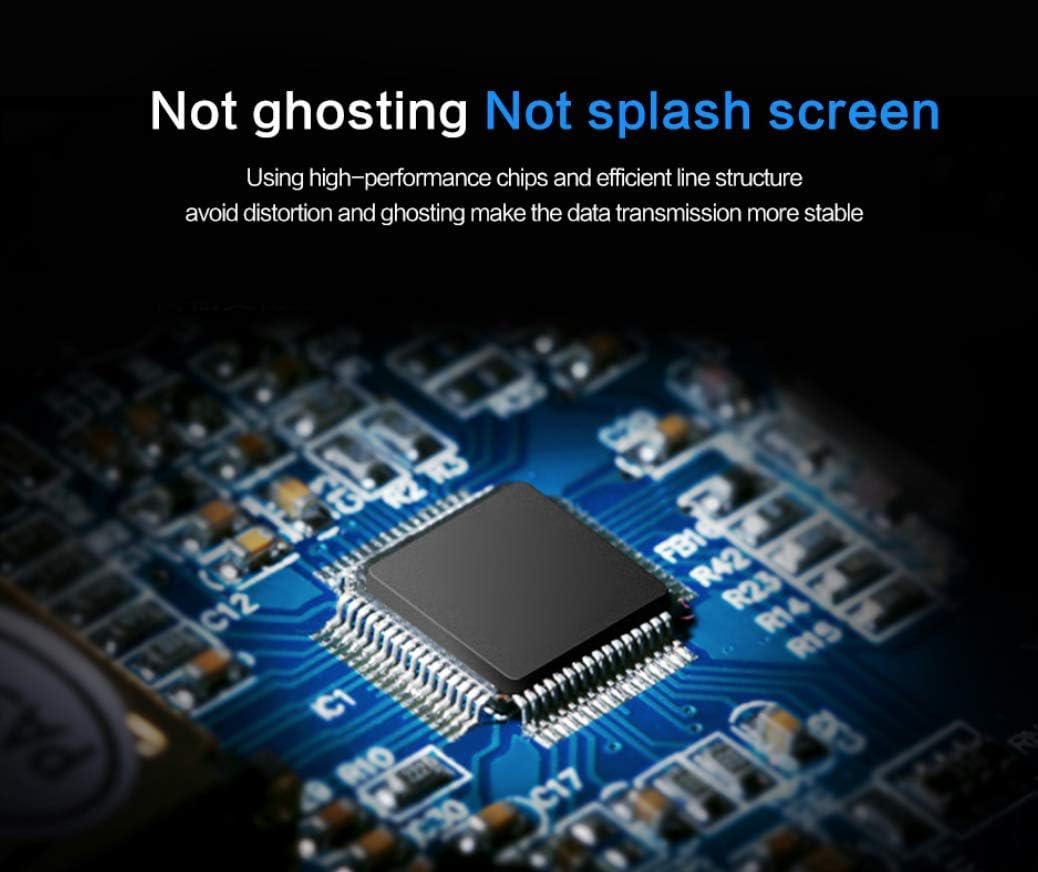
Image 7.1: A close-up view of the high-performance chip integrated into the adapter, designed to prevent issues like ghosting and screen splashing, ensuring stable data transmission.
8. Specifications
| Brand | ELECABLE |
| Model Number | 8541670340 |
| Connector Type | USB 3.0 to VGA |
| Max Resolution (USB 3.0) | 1920x1080@60Hz (1080P) |
| Max Resolution (USB 2.0) | 800x600 |
| Cable Length | 6.5FT |
| Color | Black |
| Compatible Hardware Platform | PC, Laptop |
| Item Weight | 3.52 ounces |
| Product Dimensions | 0.5 x 3 x 5 inches |
9. Warranty and Support
For warranty information or technical support regarding your ELECABLE USB 3.0 to VGA Adapter Cable, please refer to the product packaging or contact ELECABLE customer service directly. Contact details can typically be found on the manufacturer's official website or through your point of purchase.
Ask a question about this manual
Ask about setup, troubleshooting, compatibility, parts, safety, or missing instructions. Manuals+ will review the question and use this page’s manual context to help answer it.