
1. Product Overview
The Epson DS-870 is a high-performance document scanner designed for busy workgroup environments. It offers fast, reliable document scanning with advanced features to streamline your workflow.

Front view of the Epson DS-870 Document Scanner with documents in the input tray and output tray.
Key features include:
- Fast scan speeds up to 65 pages per minute (ppm) / 130 images per minute (ipm) with single-pass duplex scanning.
- High-volume 100-page Automatic Document Feeder (ADF).
- Peak daily duty cycle of up to 10,000 sheets.
- Integrated TWAIN and ISIS drivers for broad software compatibility.
- Color LCD display and intuitive buttons for easy job navigation.
2. Unpacking and Contents
Carefully unpack the scanner and verify that all components are present. Retain the packaging for future transport or service needs.

Image showing the Epson DS-870 scanner and its included accessories: a Start Here poster, AC adapter with power cable, and a SuperSpeed USB 3.0 cable.
The box should contain:
- Epson DS-870 Document Scanner
- Start Here poster
- SuperSpeed USB 3.0 cable
- AC adapter with power cable
3. Hardware Setup
3.1 Connecting the Power
- Connect the AC adapter to the power input port on the back of the scanner.
- Plug the power cable into the AC adapter.
- Plug the other end of the power cable into a standard electrical outlet.
3.2 Connecting to a Computer
- Ensure the scanner is powered off.
- Connect one end of the SuperSpeed USB 3.0 cable to the USB port on the scanner.
- Connect the other end of the USB cable to an available USB port on your computer.

Side view of the scanner with the Automatic Document Feeder (ADF) open, ready for document loading.
4. Software Installation
To operate the Epson DS-870, you must install the necessary drivers and software on your computer. The scanner is compatible with both Windows and Mac operating systems.
4.1 Driver Installation
The scanner includes TWAIN and ISIS drivers, which ensure seamless integration with most document management systems. Refer to the 'Start Here' poster or Epson's official support website for the latest driver downloads and installation instructions.
4.2 Epson Document Capture Software
The included Epson Document Capture software allows you to manage your scanned documents, create searchable PDFs, and scan directly to various online storage accounts such as Evernote, SharePoint, and Google Drive.

The Epson DS-870 scanner shown alongside a computer monitor displaying the Epson Document Capture software interface.
5. Operating the Scanner
5.1 Loading Documents
The Automatic Document Feeder (ADF) can hold up to 100 pages. Adjust the paper guides to fit the width of your documents.

Top-down view of the Epson DS-870 scanner with documents loaded into the Automatic Document Feeder (ADF).
The scanner supports versatile paper handling, including mixed stacks of business and ID cards, single sheets, long documents, and folded pages up to 11" x 17" (a carrier sheet is required for folded oversized pages, sold separately).
5.2 Basic Scanning Process
- Load your documents into the ADF.
- Power on the scanner using the power button.
- Use the color LCD display and navigation buttons to select a scan job or mode.
- Press the 'Scan' button to initiate the scanning process.
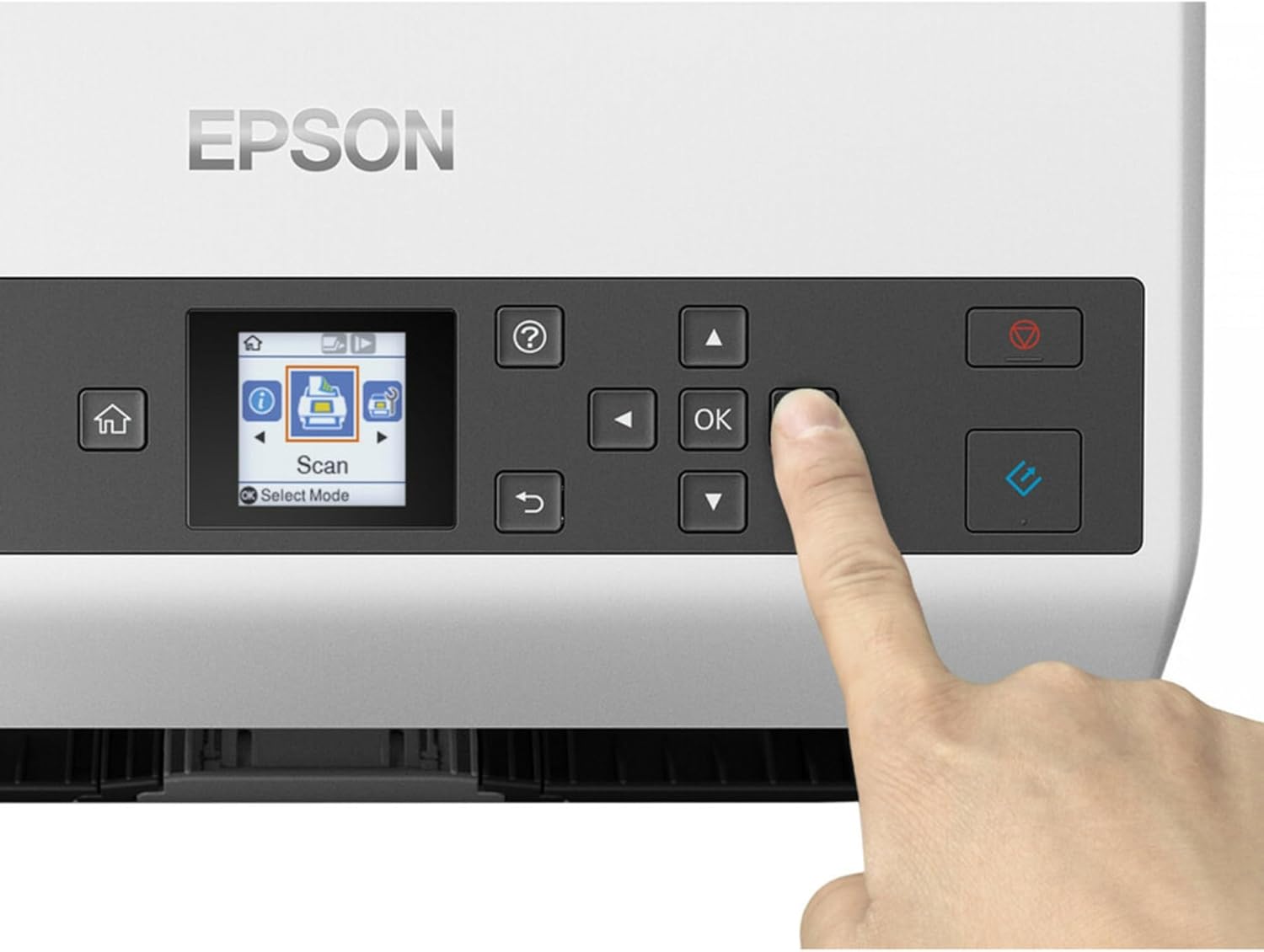
Close-up view of the scanner's control panel, highlighting the LCD screen and navigation buttons.
5.3 Advanced Paper Feed Technology
The DS-870 incorporates advanced paper feed technology to ensure reliable scanning:
- Slow Speed Mode: Use this mode for scanning delicate or fragile documents to prevent damage.
- Double-feed Detection: This feature helps prevent multiple pages from being scanned as one, ensuring all documents are captured correctly.
- Paper Protection: Designed to stop the scanning process if a paper jam or misfeed is detected, protecting your original documents.
6. Maintenance
Regular maintenance ensures optimal performance and longevity of your scanner.
6.1 Cleaning the Scanner
Periodically clean the scanner's rollers and glass surfaces to prevent dust and debris from affecting scan quality. Refer to the detailed cleaning instructions in the full user guide available on the Epson support website.
- Always power off and unplug the scanner before cleaning.
- Use a soft, lint-free cloth dampened with water or a mild, non-abrasive cleaner.
- Avoid spraying liquids directly onto the scanner components.
7. Troubleshooting
This section addresses common issues you might encounter with your Epson DS-870 scanner.
7.1 Scanner Not Responding
- Check Power: Ensure the power cable is securely connected to both the scanner and the electrical outlet. Verify the power indicator light is on.
- USB Connection: Confirm the USB cable is firmly connected to both the scanner and your computer. Try a different USB port or cable if necessary.
- Restart Devices: Power off the scanner and restart your computer. Then, power on the scanner and try again.
7.2 Paper Jams or Misfeeds
- Clear Path: Open the scanner covers and carefully remove any jammed paper. Ensure no small pieces of paper remain.
- Load Correctly: Make sure documents are loaded straight and the paper guides are adjusted snugly against the edges of the paper.
- Check Document Condition: Avoid scanning wrinkled, torn, or stapled documents.
- Clean Rollers: Dirty rollers can cause misfeeds. Refer to the maintenance section for cleaning instructions.
7.3 Poor Scan Quality
- Clean Scanner: Dust or smudges on the scanner glass or rollers can degrade image quality. Clean these components as described in the maintenance section.
- Adjust Settings: In the scanning software, adjust settings such as resolution, brightness, and contrast to optimize scan quality for your specific document type.
- Document Condition: Ensure original documents are clean and free from marks that could be picked up during scanning.
7.4 Software Compatibility
The Epson DS-870 is compatible with Windows and Mac operating systems. Ensure you have the latest drivers and software installed for your specific OS version. Visit the Epson support website for updates.
8. Technical Specifications
| Specification | Detail |
|---|---|
| Model Name | DS-870 |
| Scanner Type | Document |
| Connectivity Technology | USB |
| Optical Resolution | 600 dpi |
| Item Weight | 7.9 pounds |
| Product Dimensions | 8.3 x 11.6 x 8.5 inches |
| Wattage | 30 watts |
| Color Depth | 30 bpp |
| Standard Sheet Capacity | 100 |
| Optical Sensor Technology | CCD |
| Color | White |
9. Warranty and Support
The Epson DS-870 Document Scanner comes with an industry-leading 3-year limited warranty. This warranty includes an Advance Exchange program featuring free Next-Business-Day shipping for eligible replacements.
For further assistance, technical support, or to register your product, please visit the official Epson support website or contact their customer service.


