
Mocute 053
Contents
Mocute 053 Bluetooth Gamepad User Manual
Model: 053
1. Introduction
This manual provides detailed instructions for the operation, setup, and maintenance of your Mocute 053 Bluetooth Gamepad. Please read this manual thoroughly before using the device to ensure proper functionality and to avoid damage.
The Mocute 053 is a versatile Bluetooth gamepad designed for use with Android and iPhone mobile devices, offering an enhanced gaming experience. It features a built-in phone bracket and a long-lasting rechargeable battery.
2. Package Contents
- Mocute 053 Bluetooth Gamepad
- USB Charging Cable
- User Manual (this document)
3. Product Overview
Familiarize yourself with the various components and controls of your Mocute 053 Gamepad.

Figure 3.1: Front View of Mocute 053 Gamepad. This image displays the front of the Mocute 053 Bluetooth Gamepad, highlighting the dual analog sticks with red accents, the D-pad on the left, and the A/B/X/Y action buttons on the right. Also visible are the SELECT, START, and power buttons, along with LED indicators.

Figure 3.2: Top View of Mocute 053 Gamepad. This image shows the top surface of the gamepad, providing a clear view of the button layout, including the SELECT, START, and power buttons, as well as the two analog sticks and the D-pad. The "MOCUTE Discovery & Innovation" branding is prominently displayed.
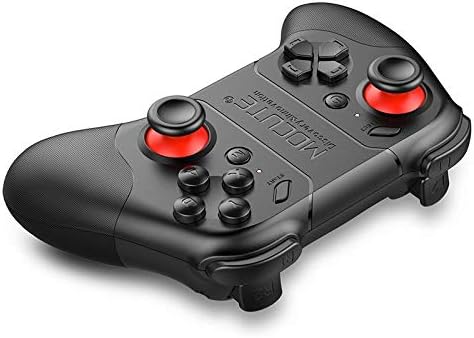
Figure 3.3: Angled View of Mocute 053 Gamepad. This image presents the gamepad from an angled perspective, showcasing its ergonomic design and the placement of the shoulder buttons (L1, R1, L2, R2) on the top edge. The integrated phone holder mechanism is also visible.
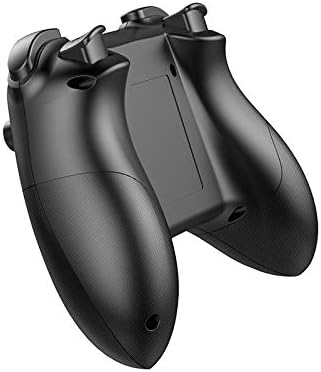
Figure 3.4: Back View of Mocute 053 Gamepad. This image shows the rear of the gamepad, highlighting the textured grips for comfortable handling and the battery compartment cover. The overall ergonomic shape designed for extended gaming sessions is evident.
Button Layout:
- Left Analog Stick: For movement and camera control.
- D-Pad: Directional input (Up, Down, Left, Right).
- SELECT Button: Function varies by game/mode.
- Power Button: Turns the gamepad on/off.
- Right Analog Stick: For camera control or specific game actions.
- A/B/X/Y Buttons: Action buttons, typically for jumping, attacking, interacting.
- START Button: Function varies by game/mode, often for pausing or menu access.
- L1/R1 Buttons: Shoulder buttons.
- L2/R2 Triggers: Analog triggers for precise input.
- Phone Holder: Integrated bracket for securing your mobile device.
4. Setup and Connection
4.1. Charging the Gamepad
Before first use, ensure the gamepad is fully charged. Connect the supplied USB charging cable to the gamepad's charging port and the other end to a USB power source (e.g., computer USB port, USB wall adapter). The charging indicator light will show the charging status and turn off when fully charged.
The gamepad has a 400 mAh lithium rechargeable battery, providing up to 40 hours of operation on a full charge.
4.2. Bluetooth Pairing
- Power On: Press and hold the Power button on the gamepad until the indicator light starts flashing, indicating it is in pairing mode.
- Enable Bluetooth: On your mobile device (Android or iPhone), go to your device's settings and enable Bluetooth.
- Search for Devices: In the Bluetooth settings, search for available devices.
- Select Gamepad: Locate and select "Mocute 053" or a similar name from the list of available devices.
- Confirm Pairing: Once selected, your device will attempt to pair with the gamepad. The gamepad's indicator light will become solid when successfully paired.
- Secure Phone: Extend the integrated phone holder and securely place your mobile device within it.
If pairing fails, turn off the gamepad and your device's Bluetooth, then repeat the steps.
5. Operating Instructions
5.1. Game Modes
The Mocute 053 supports various operating modes for compatibility with different games and platforms. Specific button combinations are often used to switch modes upon powering on. Refer to the gamepad's quick start guide (if included separately) or online resources for detailed mode switching instructions, as these can vary.
- Standard Gamepad Mode: For most Android and iOS games that support external controllers.
- Mouse Mode: Allows the analog stick to control a mouse cursor on Android devices.
- iCade Mode: For specific iOS games that support the iCade protocol.
5.2. In-Game Use
Once connected, the gamepad should be recognized by compatible games. Button functions will typically map to standard controller layouts. Some games may require you to enable gamepad support in their settings or customize button mappings.
- Use the Left Analog Stick or D-Pad for character movement.
- Use the Right Analog Stick for camera control or aiming.
- Press A/B/X/Y buttons for actions like jumping, attacking, or interacting.
- Utilize L1/R1 and L2/R2 for specific in-game functions (e.g., shooting, aiming, item usage).
- The START and SELECT buttons often serve as pause, menu, or map access buttons.
5.3. Power Off
To turn off the gamepad, press and hold the Power button until the indicator light turns off. The gamepad will also automatically power off after a period of inactivity to conserve battery life.
6. Maintenance and Care
- Cleaning: Use a soft, dry cloth to clean the gamepad. Do not use abrasive cleaners or solvents.
- Storage: Store the gamepad in a cool, dry place away from direct sunlight and extreme temperatures.
- Battery Care: To prolong battery life, avoid fully discharging the battery frequently. Charge the gamepad regularly, even if not in use for extended periods.
- Avoid Drops: Do not drop or subject the gamepad to strong impacts, as this can damage internal components.
7. Troubleshooting
| Problem | Possible Cause | Solution |
|---|---|---|
| Gamepad does not turn on. | Low battery. | Charge the gamepad for at least 30 minutes. |
| Cannot pair with mobile device. | Bluetooth not enabled; gamepad not in pairing mode; interference. | Ensure Bluetooth is on. Put gamepad in pairing mode. Restart both devices. Move closer to the device. |
| Gamepad connects but doesn't work in game. | Game does not support controllers; incorrect gamepad mode. | Check game settings for controller support. Try switching gamepad modes (refer to specific instructions for mode switching). |
| Buttons are unresponsive or delayed. | Low battery; Bluetooth interference; firmware issue. | Charge the gamepad. Reduce distance to device. Check for firmware updates (if available from manufacturer). |
8. Specifications
- Model: Mocute 053
- Connectivity: Bluetooth
- Compatibility: Android and iPhone mobile systems
- Battery: 400 mAh Lithium Rechargeable Battery
- Operating Time: Up to 40 hours (approx.)
- Dimensions: 6.4 x 20.6 x 13.2 cm (Product Dimensions from JSON)
- Weight: 200 g (Product Dimensions from JSON)
- Accessory Type: Smart Phone Gaming Controller
9. Warranty and Support
For warranty information and technical support, please refer to the documentation provided with your purchase or contact Mocute customer service through their official website or authorized retailers. Keep your proof of purchase for warranty claims.
This product is designed for optimal performance when used as directed. Any unauthorized modifications or misuse may void the warranty.
Documents and downloads
Ask a question about this manual
Ask about setup, troubleshooting, compatibility, parts, safety, or missing instructions. Manuals+ will review the question and use this page’s manual context to help answer it.