
Satechi ST-ABTCMM
Contents
Satechi M1 Wireless Bluetooth Mouse User Manual
Model: ST-ABTCMM
1. Introduction
Thank you for choosing the Satechi M1 Wireless Bluetooth Mouse. This compact and portable mouse is designed for seamless connectivity and precise control across a wide range of Bluetooth-enabled devices. Featuring Bluetooth 5.0 technology, a high-precision optical sensor, and a convenient USB-C rechargeable battery, the M1 mouse enhances your productivity and provides a comfortable user experience. This manual will guide you through the setup, operation, and maintenance of your new device.
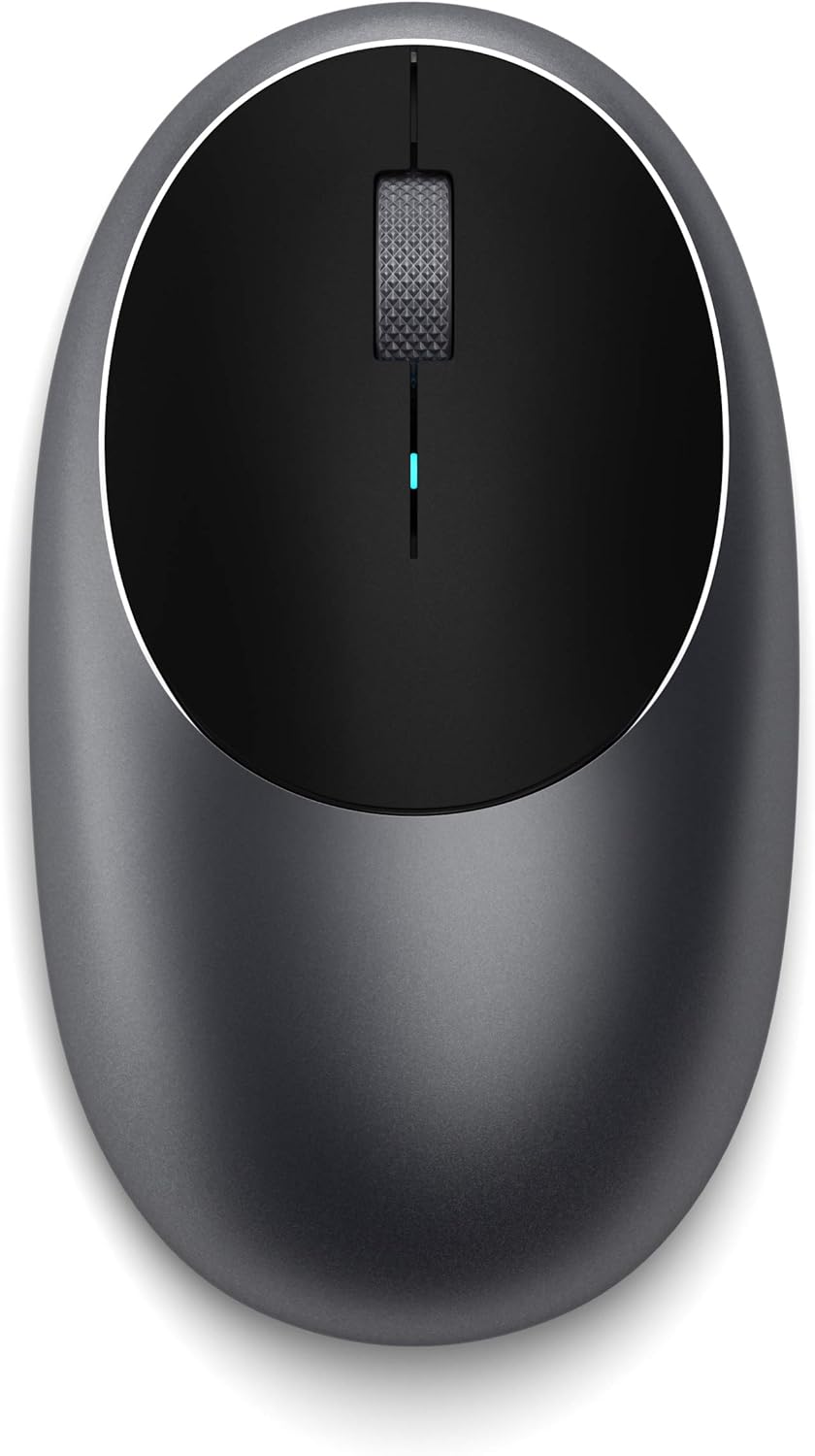
Image: Top view of the Satechi M1 Wireless Bluetooth Mouse in Space Gray.
2. Setup
2.1 Charging the Mouse
Before initial use, fully charge your Satechi M1 mouse. Connect the included USB-C to USB charging cable to the USB-C port on the front of the mouse and to a powered USB port (e.g., computer, wall adapter). The LED indicator will show charging status and turn off when fully charged. A full charge provides up to 45 days of use, depending on usage.

Image: The Satechi M1 Mouse highlighting its USB-C charging port and indicating up to 45 days of battery life.
2.2 Pairing with Your Device
- Turn on the mouse by sliding the power switch on the bottom to the 'ON' position.
- Press and hold the Bluetooth pairing button on the bottom of the mouse until the LED indicator on top starts blinking, indicating it's in pairing mode.
- On your computer or device, navigate to Bluetooth settings.
- Select 'Satechi M1 Mouse' from the list of available devices to complete the pairing process. The LED will turn solid when connected.

Image: The Satechi M1 Mouse demonstrating its Bluetooth 5.0 wireless connectivity with a laptop.
2.3 Compatibility
The Satechi M1 Wireless Bluetooth Mouse is designed for broad compatibility with modern operating systems and devices. It supports Mac, iOS devices running iOS 13+, Windows, Android, and Chrome OS.

Image: Visual representation of the Satechi M1 Mouse's compatibility with Mac Desktop, MacBook, Windows, and Chromebook devices.

Image: Visual representation of the Satechi M1 Mouse's compatibility with iPad, iPhone, Microsoft Surface, Android Tablets, and Android Phones.
Note: Due to using older Bluetooth versions (2.1), this mouse is not recommended for use with 2011 and earlier Mac devices.
3. Operating Your Satechi M1 Mouse
3.1 Basic Functions
- Left Click: Primary selection and activation.
- Right Click: Access contextual menus.
- Scroll Wheel: Scroll vertically through documents and web pages.
3.2 Tracking and Precision
The Satechi M1 mouse is equipped with a high-precision optical sensor, offering up to 1200 DPI (Dots Per Inch) resolution. This ensures accurate tracking and smooth cursor movement across various surfaces, enhancing your productivity and navigation experience.

Image: The Satechi M1 Mouse on a surface, illustrating its fast and precise tracking capabilities with up to 1200 DPI.

Image: The Satechi M1 Mouse demonstrating its compact and portable design, fitting easily into a laptop bag.
4. Maintenance
4.1 Cleaning
To maintain optimal performance and appearance, regularly clean your Satechi M1 mouse. Use a soft, lint-free cloth to wipe the surface. For stubborn dirt, slightly dampen the cloth with water or a mild, non-abrasive cleaner. Avoid using harsh chemicals or abrasive materials, as these can damage the finish.
4.2 Battery Care
The Satechi M1 mouse features a built-in lithium-ion battery. To prolong battery life, avoid fully discharging the mouse frequently. Charge it when the battery indicator suggests low power. Store the mouse in a cool, dry place when not in use for extended periods.
5. Troubleshooting
If you encounter issues with your Satechi M1 Wireless Bluetooth Mouse, please refer to the table below for common problems and their solutions.
| Issue | Solution |
|---|---|
| Mouse not connecting/pairing | Ensure the mouse is powered on and fully charged. Turn off and on your device's Bluetooth. Remove the mouse from your device's Bluetooth list and re-pair it. Move closer to your device to reduce interference. |
| Cursor lagging or skipping | Ensure the mouse is fully charged. Clean the optical sensor on the bottom of the mouse. Use the mouse on a clean, non-reflective surface or a mouse pad. Check for other wireless devices causing interference. |
| Mouse not charging | Verify that the USB-C cable is securely connected to both the mouse and the power source. Try a different USB-C cable or a different USB port/charger. Ensure the power source is active. |
| Buttons or scroll wheel unresponsive | Restart the mouse and your connected device. Ensure the mouse is fully charged. If the issue persists, contact Satechi customer support. |
6. Technical Specifications
- Model Number: ST-ABTCMM
- Product Dimensions: 4.45 x 2.33 x 1.15 inches
- Item Weight: 2.87 ounces
- Batteries: 1 Lithium Polymer battery (included)
- Connectivity Technology: Bluetooth 5.0
- Movement Detection Technology: Optical
- DPI Resolution: Up to 1200 DPI
- Wireless Range: Up to 32 ft
7. Warranty and Support
Satechi products are covered by a 2-year limited warranty against defects in materials and workmanship under normal use. This warranty covers manufacturing defects and does not cover damage caused by misuse, accidents, or unauthorized modifications.
For customer support, troubleshooting assistance, or warranty claims, please visit the official Satechi website or refer to the contact information provided with your product packaging. You can also find additional resources and a downloadable PDF user guide here.
Ask a question about this manual
Ask about setup, troubleshooting, compatibility, parts, safety, or missing instructions. Manuals+ will review the question and use this page’s manual context to help answer it.