
Logitech G 920-009103
Contents
Logitech G915 LIGHTSPEED RGB Mechanical Gaming Keyboard User Manual
Model: 920-009103 | Brand: Logitech G
Introduction
The Logitech G915 LIGHTSPEED RGB Mechanical Gaming Keyboard is a high-performance wireless keyboard designed for gaming and productivity. It features low-profile GL mechanical switches, LIGHTSYNC RGB lighting, and advanced LIGHTSPEED wireless technology for a responsive and customizable experience.
What's in the Box
- G915 Lightspeed Wireless RGB Mechanical Gaming Keyboard
- LIGHTSPEED USB Receiver
- USB Extender
- Micro-USB Cable
- User Documentation
Setup
Initial Connection
The G915 keyboard offers dual connectivity options: LIGHTSPEED wireless and Bluetooth.
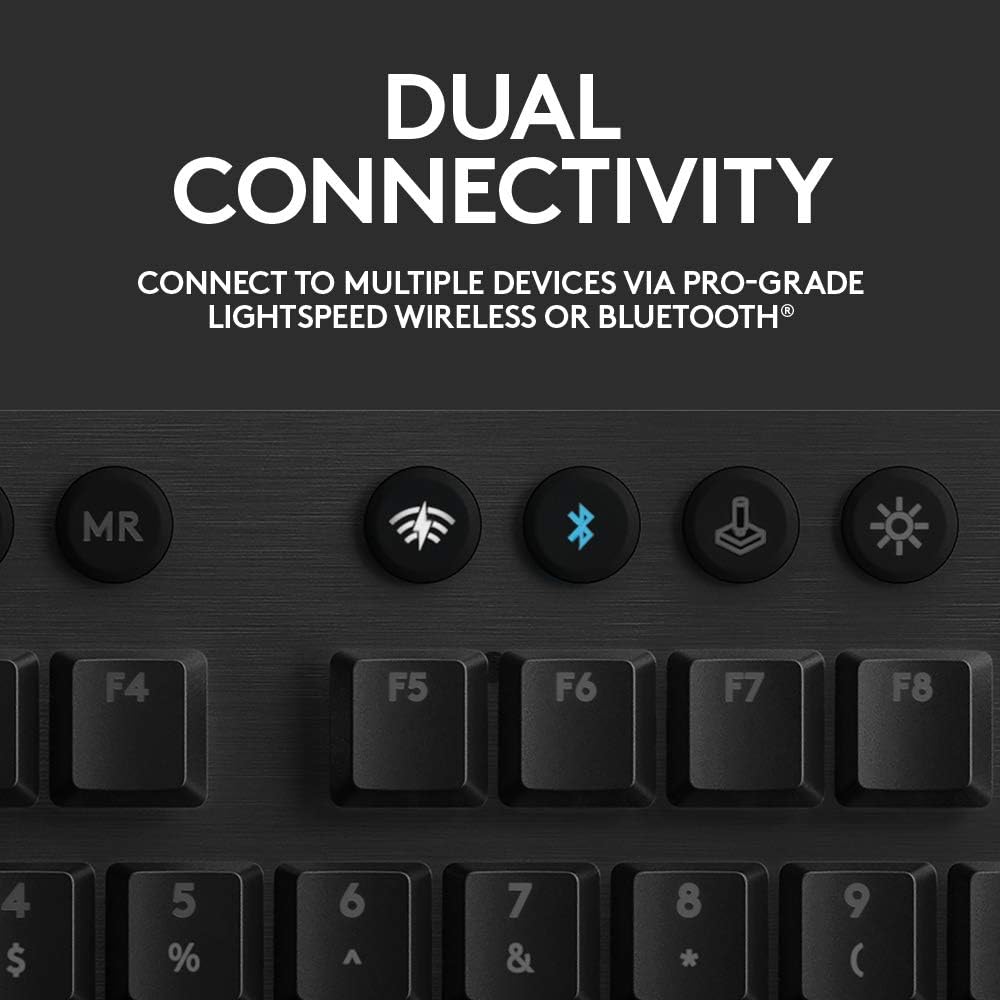
Image: The Logitech G915 keyboard highlighting its dual connectivity features, LIGHTSPEED and Bluetooth.
LIGHTSPEED Wireless Connection
- Plug the LIGHTSPEED USB receiver into an available USB port on your computer.
- Turn on the keyboard using the power switch located on the top edge.
- Press the LIGHTSPEED connection button (indicated by a lightning bolt icon) on the keyboard. The indicator light above the button will turn solid blue when connected.
Bluetooth Connection
- Turn on the keyboard using the power switch.
- Press and hold the Bluetooth connection button (indicated by a Bluetooth icon) on the keyboard until the indicator light above it starts blinking blue rapidly. This indicates pairing mode.
- On your device (computer, tablet, or phone), go to Bluetooth settings and select "G915" from the list of available devices to pair.
- The indicator light will turn solid blue when successfully paired.
Charging the Keyboard
The G915 keyboard provides approximately 30 hours of gaming on a single full charge. A low battery warning will appear at 15% charge via the keyboard battery LED and a pop-up notification in the Logitech G HUB software. The keyboard fully recharges in about 3 hours.
- Connect the micro-USB cable to the keyboard's charging port and the other end to a USB power source (e.g., computer USB port, USB wall adapter).
- The battery indicator light will show charging status.
Operating the Keyboard
Key Features Overview

Image: An annotated diagram of the Logitech G915 keyboard, pointing out its programmable G-keys, media controls, and other key features.
LIGHTSYNC RGB Lighting
LIGHTSYNC technology allows for customizable RGB lighting across the keyboard, synchronizing with content or personalized through the Logitech G HUB software. You can personalize each key or create custom animations from approximately 16.8 million colors.

Image: A detailed view of the Logitech G915 keyboard's keys illuminated with various RGB colors, demonstrating the LIGHTSYNC feature.
Programmable G-Keys
The keyboard features five dedicated G-keys (G1-G5) on the left side that can be programmed with custom macros and commands. These can be configured per game or application profile using the Logitech G HUB software.
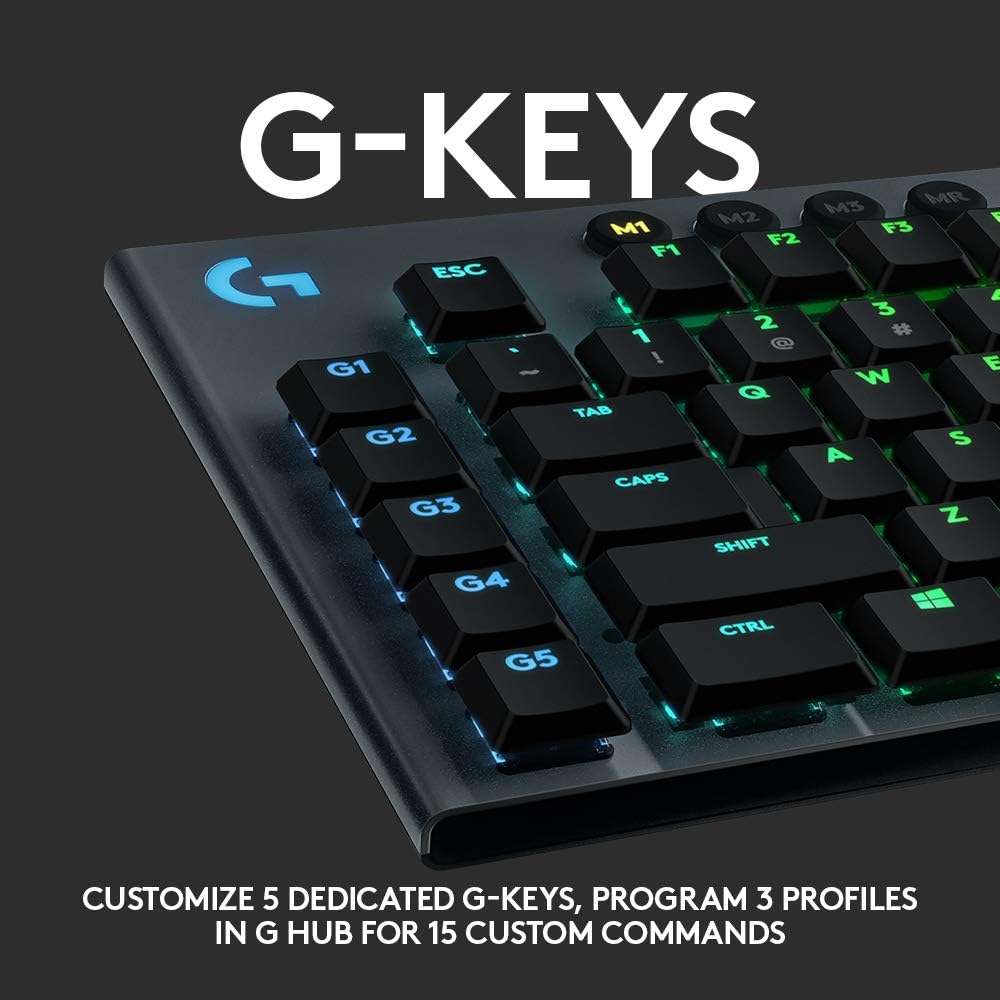
Image: A close-up shot of the programmable G-keys (G1-G5) on the Logitech G915 keyboard, highlighting their customizable nature.
Dedicated Media Controls
Convenient media controls, including a precision-engineered edgeless volume wheel, allow for quick control over video, audio, and streaming content. Buttons are available for play, pause, skip, and mute functions.
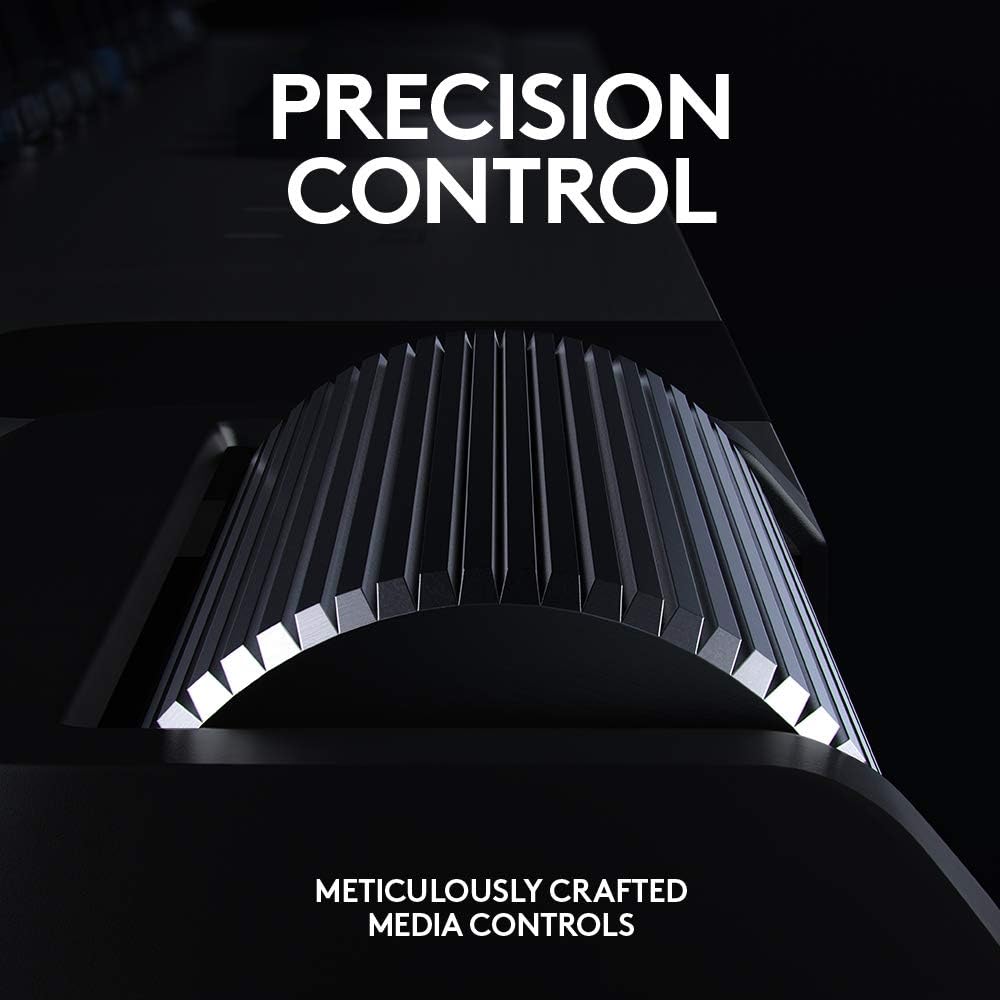
Image: A detailed view of the meticulously crafted volume wheel on the Logitech G915 keyboard, emphasizing its precision control.
Game Mode Button
The Game Mode button (joystick icon) disables the Windows key to prevent accidental interruptions during gameplay. Additional keys can be disabled via the G HUB software.
Low-Profile Mechanical Switches
The G915 utilizes low-profile GL mechanical switches, offering the speed, accuracy, and performance of traditional mechanical switches at half the height. This model features GL Clicky switches, known for their distinctive sound and tactile feedback.

Image: An exploded view diagram illustrating the internal components of the low-profile mechanical switches used in the Logitech G915 keyboard, available in clicky, tactile, and linear variations.
Maintenance
Cleaning the Keyboard
To maintain optimal performance and appearance, regularly clean your G915 keyboard.
- Dust Removal: Use compressed air to remove dust and debris from between the keycaps.
- Surface Cleaning: Wipe the surface of the keyboard with a soft, lint-free cloth slightly dampened with water or a mild cleaning solution. Avoid harsh chemicals or abrasive materials.
- Keycap Cleaning: For stubborn grime, keycaps can be carefully removed (refer to Logitech G support for proper removal techniques to avoid damage) and cleaned with isopropyl alcohol (99%) and a soft brush. Ensure keycaps are completely dry before reattaching.
Battery Care
- Avoid fully discharging the battery frequently.
- Store the keyboard in a cool, dry place when not in use for extended periods.
Troubleshooting
| Problem | Possible Cause | Solution |
|---|---|---|
| Keyboard not connecting (LIGHTSPEED) | Receiver not properly plugged in; keyboard not in LIGHTSPEED mode; low battery. | Ensure receiver is securely plugged in. Press LIGHTSPEED button on keyboard. Charge keyboard. Try a different USB port. |
| Keyboard not connecting (Bluetooth) | Keyboard not in pairing mode; device Bluetooth off; interference. | Press and hold Bluetooth button until blinking. Ensure device Bluetooth is on. Move closer to device. Re-pair the keyboard. |
| Keys double-typing or not registering | Debris under keycap; switch malfunction. | Clean under keycaps with compressed air. If problem persists, contact support. |
| RGB lighting not working or inconsistent | Software issue; low battery; lighting disabled. | Ensure Logitech G HUB software is running and updated. Charge keyboard. Check lighting settings in G HUB. |
| Poor wireless range or lag | Interference from other wireless devices; distance from receiver. | Move receiver closer to keyboard (use USB extender if needed). Reduce interference from other 2.4GHz devices. |
Official Product Video
Video: An official 60-second overview of the Logitech G915 LIGHTSPEED Wireless Gaming Keyboard, showcasing its features and design.
Specifications
| Feature | Detail |
|---|---|
| Brand | Logitech G |
| Model Number | 920-009103 |
| Connectivity Technology | LIGHTSPEED Wireless, Bluetooth |
| Switch Type | Low Profile GL Clicky Mechanical |
| RGB Lighting | LIGHTSYNC RGB (approx. 16.8M colors) |
| Battery Life | Up to 30 hours (with full charge) |
| Charging Time | Approx. 3 hours |
| Dimensions (LxWxH) | 20.4 x 8 x 1.8 inches |
| Item Weight | 1 pound |
| Compatible Devices | ChromeOS, PC, Windows, Mac OS, iOS, Android |
Warranty and Support
For warranty information and technical support, please refer to the official Logitech G website or the user documentation included with your product. You can also visit the Logitech G Store on Amazon for additional resources.
A PDF version of the user manual is also available for download: User Manual (PDF).
Ask a question about this manual
Ask about setup, troubleshooting, compatibility, parts, safety, or missing instructions. Manuals+ will review the question and use this page’s manual context to help answer it.