
MaxWest Nitro55R
Maxwest Nitro55R Smartphone User Manual
Model: Nitro55R | Brand: MaxWest
1. Introduction
Welcome to the user manual for your new Maxwest Nitro55R smartphone. This device is designed to provide a seamless mobile experience with its Quad Core processor, 4G LTE connectivity, and Android 8.1 Oreo operating system. Featuring a vibrant 5.5-inch FW+IPS screen and dual cameras (8MP rear, 5MP front), the Nitro55R is equipped for everyday communication, entertainment, and productivity. This manual will guide you through the setup, operation, maintenance, and troubleshooting of your device to ensure optimal performance.
2. Package Contents
Please check the box for the following items:
- Maxwest Nitro55R Smartphone
- Battery
- Charger Adapter
- USB Cable
- Protective Case
- Screen Protector (pre-applied or included separately)
- User Manual (this document)
If any items are missing or damaged, please contact your retailer or MaxWest customer support.
3. Device Overview
Familiarize yourself with the physical components and layout of your Maxwest Nitro55R smartphone.

This image displays the Maxwest Nitro55R smartphone from both the front and back. The front shows the 5.5-inch display with typical Android navigation buttons and app icons. The rear highlights the silver finish and the single camera lens with an LED flash, along with the Maxwest logo.
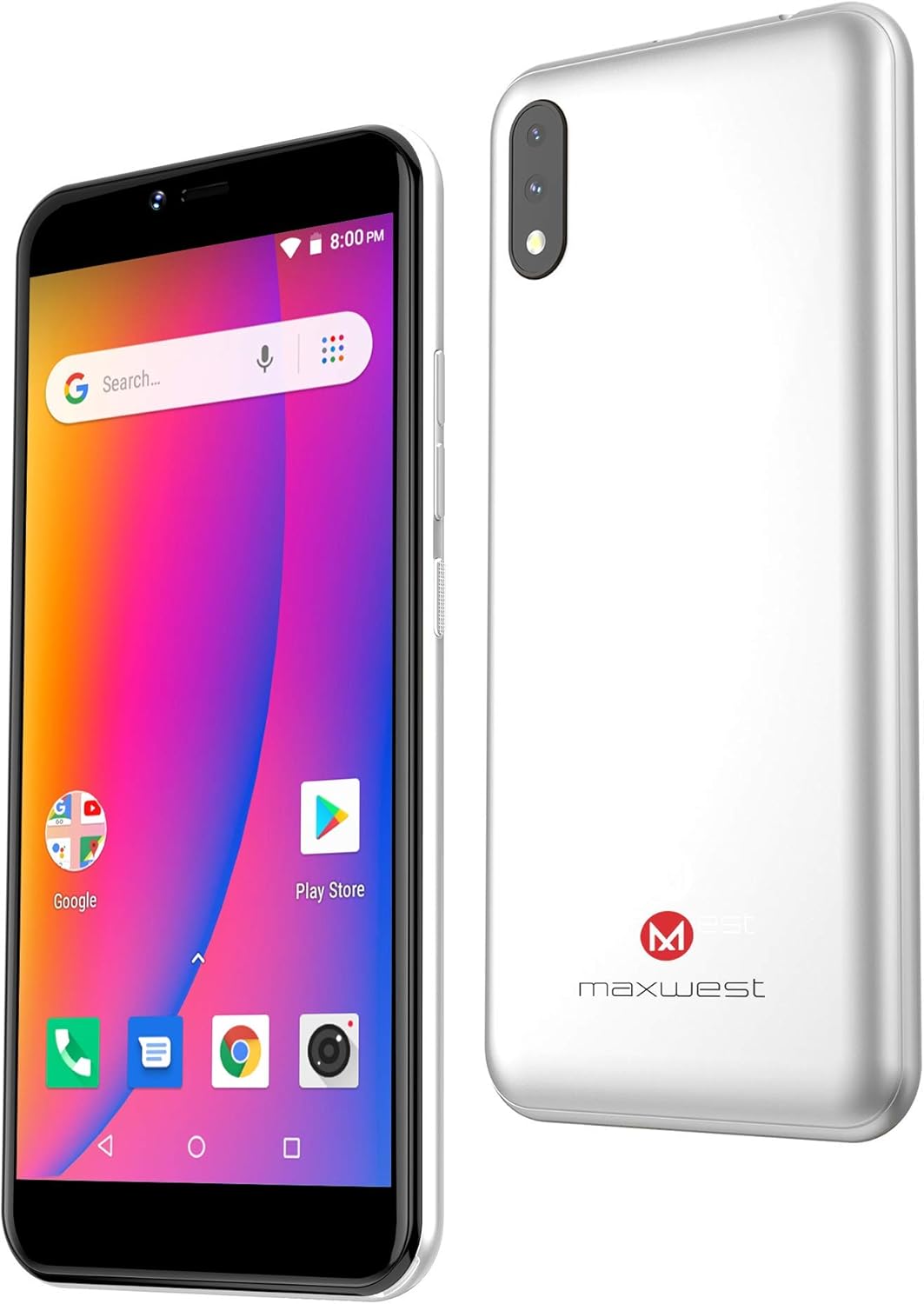
An angled perspective of the Maxwest Nitro55R, illustrating its sleek design and the placement of the power and volume buttons on the side. The front display is active, and the silver back panel is visible.
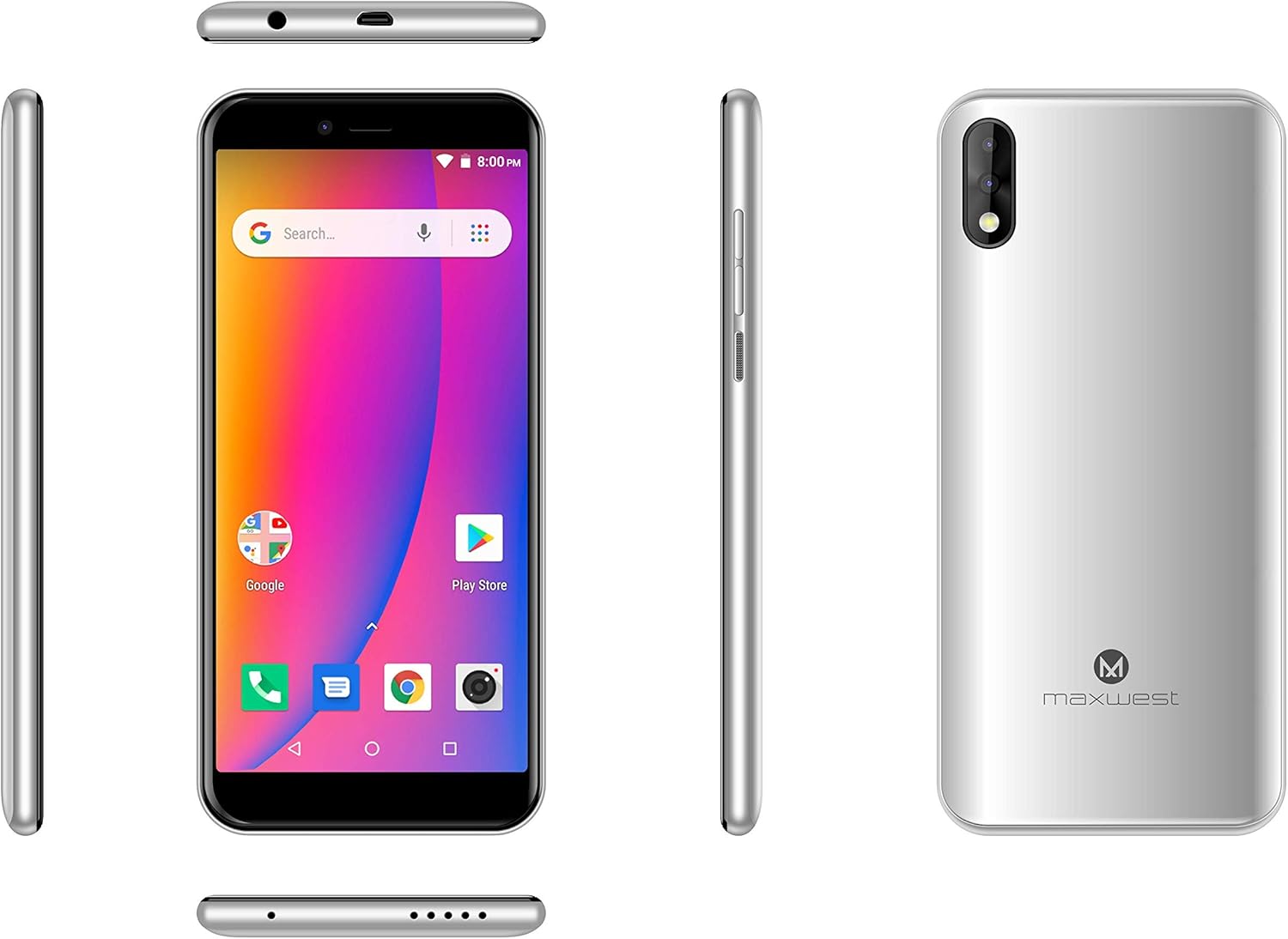
This composite image provides a comprehensive view of the Maxwest Nitro55R from all angles: front, back, top, bottom, and both sides. It highlights the placement of the charging port, headphone jack, speaker grille, and physical buttons, offering a complete understanding of the device's layout.
Key Components:
- Front Camera: 5MP for selfies and video calls.
- Display: 5.5-inch FW+IPS touchscreen.
- Volume Buttons: Adjust media and call volume.
- Power Button: Turn on/off, lock/unlock screen.
- Rear Camera: 8MP main camera with LED flash.
- Speaker: For audio output.
- Micro-USB Port: For charging and data transfer.
- Headphone Jack: 3.5mm port for audio accessories.
- SIM/SD Card Slot: For inserting SIM cards and a microSD card.
4. Setup
4.1 Inserting SIM Card(s) and MicroSD Card
- Locate the SIM/SD card tray on the side of your phone.
- Use the provided SIM ejector tool (if applicable) to open the tray.
- Carefully place your Nano SIM card(s) and/or MicroSD card into the designated slots on the tray, ensuring correct orientation.
- Gently push the tray back into the phone until it clicks into place.
4.2 Charging the Battery
- Connect the USB cable to the charger adapter.
- Plug the small end of the USB cable into the Micro-USB port at the bottom of your phone.
- Plug the charger adapter into a power outlet.
- Allow the phone to charge fully before initial use. The battery indicator on the screen will show charging status.
4.3 Initial Power On and Setup
- Press and hold the Power button until the Maxwest logo appears.
- Follow the on-screen prompts to complete the initial setup, which includes selecting your language, connecting to Wi-Fi, setting up your Google account, and configuring security options.
5. Operating Instructions
5.1 Basic Navigation
- Touchscreen: Tap to select, swipe to scroll, pinch to zoom.
- Home Button: Returns to the home screen.
- Back Button: Returns to the previous screen.
- Recent Apps Button: Displays recently opened applications for quick switching.
5.2 Making and Receiving Calls
- Open the Phone app.
- Dial the number or select a contact from your address book.
- Tap the call icon to initiate the call.
- To answer an incoming call, swipe up or tap the 'Answer' button. To decline, swipe down or tap 'Decline'.
5.3 Sending and Receiving Messages
- Open the Messages app.
- Tap the 'New Message' icon.
- Enter the recipient's number or select from contacts.
- Type your message in the text field and tap 'Send'.
5.4 Connecting to Wi-Fi
- Go to Settings > Network & Internet > Wi-Fi.
- Toggle Wi-Fi ON.
- Select your desired Wi-Fi network from the list.
- Enter the password if prompted and tap 'Connect'.
5.5 Using the Camera
- Open the Camera app from your home screen or app drawer.
- Frame your shot using the screen as a viewfinder.
- Tap the shutter button to take a photo.
- Switch between front and rear cameras using the camera switch icon.
5.6 Downloading Applications
- Open the Google Play Store app.
- Browse or search for apps.
- Tap on an app to view its details.
- Tap 'Install' to download and install the app.
6. Maintenance
6.1 Cleaning Your Device
- Use a soft, lint-free cloth to wipe the screen and body of the phone.
- Avoid using harsh chemicals, abrasive cleaners, or aerosol sprays.
- Do not expose the phone to excessive moisture.
6.2 Battery Care
- Avoid extreme temperatures, as they can affect battery life.
- Use only the original or certified compatible charger.
- Do not leave the phone charging for extended periods after it's fully charged.
6.3 Software Updates
Periodically check for software updates to ensure your phone has the latest features, security patches, and performance improvements. Go to Settings > System > System update.
6.4 Data Backup
Regularly back up your important data (photos, contacts, messages) to a cloud service (like Google Drive) or a computer to prevent data loss.
7. Troubleshooting
If you encounter issues with your Maxwest Nitro55R, try the following solutions before seeking professional assistance.
| Problem | Possible Solution |
|---|---|
| Phone does not turn on | Ensure the battery is charged. Connect the charger and wait a few minutes before attempting to power on. |
| No network signal | Check if the SIM card is properly inserted. Try restarting the phone. Verify your network settings and ensure you are in an area with network coverage. |
| Wi-Fi connection issues | Restart your Wi-Fi router. Forget the network on your phone and reconnect. Ensure you have entered the correct password. |
| Apps are crashing or freezing | Close and reopen the app. Clear the app's cache (Settings > Apps & notifications > [App Name] > Storage & cache). Restart your phone. |
| Battery drains quickly | Reduce screen brightness. Close unused apps running in the background. Turn off Wi-Fi, Bluetooth, and GPS when not in use. |
| Phone is slow or unresponsive | Clear unnecessary files and apps to free up storage. Restart the phone. Consider a factory reset as a last resort (back up data first). |
8. Specifications
Detailed technical specifications for the Maxwest Nitro55R smartphone:
| Feature | Specification |
|---|---|
| Model Name | Nitro55R |
| Operating System | Android 8.1 Oreo |
| Processor | Quad Core (ARM Snapdragon) |
| RAM | 1 GB |
| Internal Storage | 8 GB |
| Expandable Storage | Yes (MicroSD, capacity not specified) |
| Screen Size | 5.5 Inches |
| Display Technology | FW+IPS LCD |
| Rear Camera | 8 MP |
| Front Camera | 5 MP |
| Cellular Technology | 4G (GSM 850/900/1800/1900, WCDMA 850/1700/1900) |
| Connectivity | Wi-Fi, Bluetooth (version not specified) |
| Battery Cell Composition | Lithium Ion |
| Dimensions | 15.62 x 7.62 x 2.54 cm |
| Item Model Number | Nitro5.5 |
| ASIN | B07NWZZ4R5 |
| Date First Available | March 5, 2019 |
9. Warranty and Support
Your Maxwest Nitro55R smartphone comes with a standard manufacturer's warranty. Please refer to the warranty card included in your package for specific terms and conditions, including warranty period and coverage details. For technical support, service, or further inquiries, please visit the official MaxWest website or contact their customer service department using the contact information provided with your product documentation.
Related documentsNitro55R


Ask a question about this manual
Ask about setup, troubleshooting, compatibility, parts, safety, or missing instructions. Manuals+ will review the question and use this page’s manual context to help answer it.