1. Product Overview
The Toshiba S300 10TB Surveillance Internal Hard Drive is engineered for continuous, 24/7 operation in video surveillance systems. This drive is designed to provide reliable storage for high-volume data streams from multiple cameras, ensuring critical footage is captured and retained.
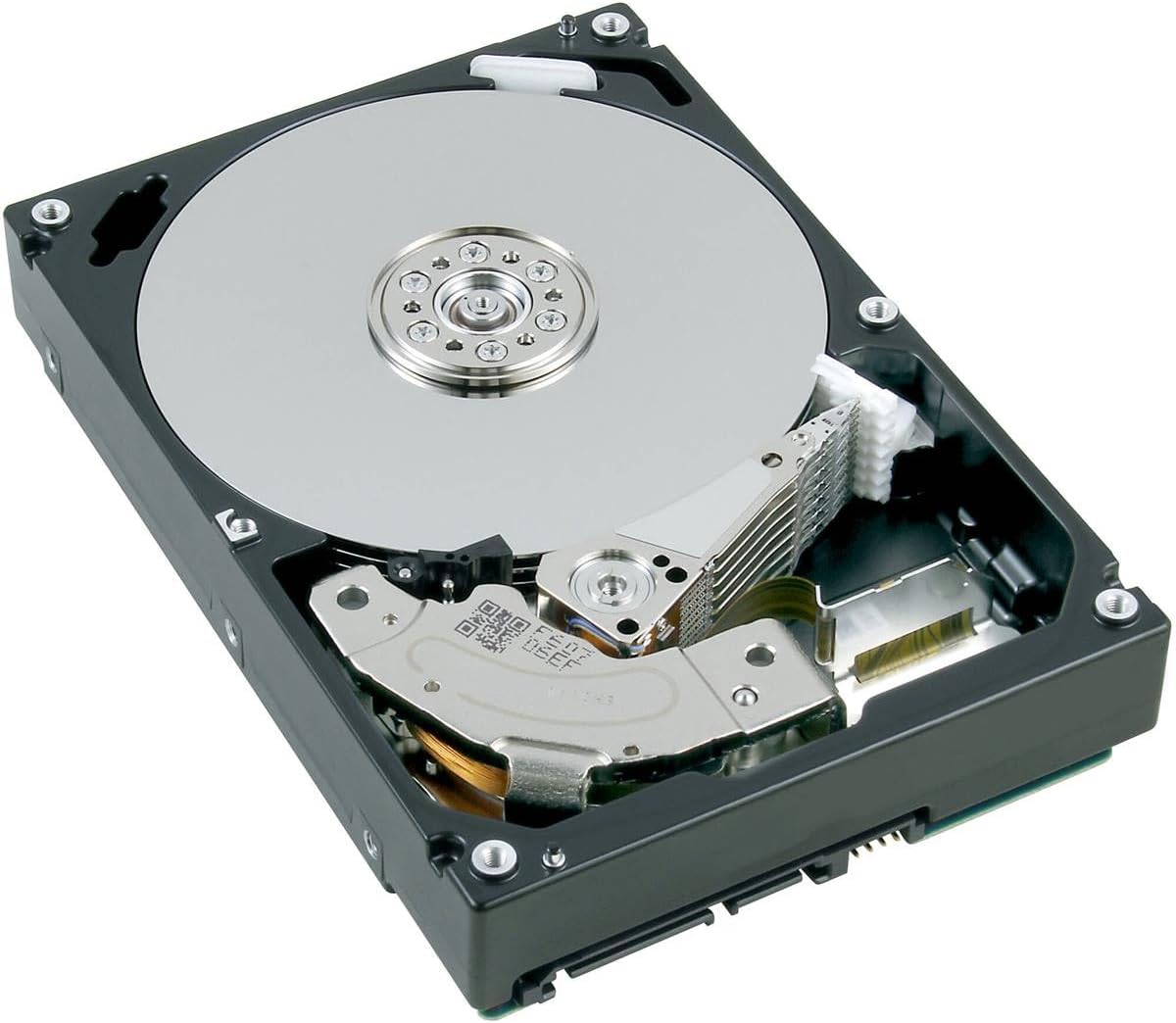
Image: Front view of the Toshiba S300 10TB Surveillance Internal Hard Drive, showing its standard 3.5-inch form factor and SATA interface.
Key Features:
- Designed for 24/7 surveillance and video recording security systems.
- Scalable up to 64 HD video cameras, supporting extensive surveillance setups.
- Supports a robust workload rating of up to 180 TB/Year, indicating high endurance for continuous writing.
- Built-in Rotational Vibration (RV) sensors help maintain performance and durability in multi-drive environments.
- Features a 256MB cache for improved data handling efficiency.
- Utilizes CMR (Conventional Magnetic Recording) technology for consistent performance.
2. Setup and Installation
This section provides general guidelines for installing the Toshiba S300 internal hard drive. Specific steps may vary depending on your surveillance system or computer chassis.
Physical Installation:
- Preparation: Ensure your system is powered off and disconnected from the main power supply. Wear an anti-static wrist strap to prevent electrostatic discharge (ESD) damage.
- Mounting: Secure the hard drive into an available 3.5-inch drive bay within your surveillance recorder or computer case using appropriate screws. Ensure it is firmly seated to prevent vibration.
- Connect Cables:
- Connect a SATA data cable from the hard drive to an available SATA port on your system's motherboard or DVR/NVR.
- Connect a SATA power cable from your system's power supply unit (PSU) to the hard drive's power connector.
- Secure and Close: Once cables are connected, ensure they are not obstructing airflow. Close your system's chassis.

Image: Internal view of the Toshiba S300 hard drive, illustrating the platter and read/write heads. This view is for informational purposes and the drive should not be opened by the user.
System Recognition and Formatting:
- Power On: Reconnect power and power on your system.
- BIOS/UEFI Check: Access your system's BIOS/UEFI settings to confirm the hard drive is detected.
- Operating System/DVR/NVR Setup:
- For PC systems: Open Disk Management (Windows) or Disk Utility (macOS) to initialize and format the drive.
- For DVR/NVR systems: Refer to your surveillance system's manual for instructions on adding and formatting new storage devices. Most systems will guide you through the process automatically upon detection.
3. Operating Principles
The Toshiba S300 Surveillance Hard Drive is specifically optimized for the demanding requirements of video surveillance applications. Understanding its operating principles helps in maximizing its lifespan and performance.
- 24/7 Operation: Designed for continuous, non-stop recording, unlike standard desktop drives. This ensures reliable data capture without interruption.
- High Workload Rating: With a workload rating of 180 TB/Year, the S300 can handle significantly more data writes than conventional drives, crucial for constant video streams.
- Rotational Vibration (RV) Sensors: In multi-drive surveillance systems, vibrations from adjacent drives can affect performance and reliability. The S300's built-in RV sensors detect and compensate for these vibrations, maintaining consistent performance and data integrity.
- Stream Optimization: Firmware is optimized for smooth, continuous video recording from multiple high-definition cameras, minimizing dropped frames and ensuring high-quality footage.
- Low Power Consumption: Engineered for efficiency to reduce operational costs in always-on surveillance environments.
4. Maintenance
While the Toshiba S300 is designed for robust 24/7 operation, proper system maintenance contributes to its longevity and reliable performance.
- System Cooling: Ensure adequate airflow within your surveillance system or PC case. Overheating can degrade hard drive performance and lifespan. Regularly clean dust from fans and vents.
- Stable Power Supply: Use a reliable power supply unit (PSU) and consider a UPS (Uninterruptible Power Supply) to protect against power fluctuations and sudden outages, which can damage the drive.
- Physical Environment: Keep the system in a stable environment, free from excessive vibrations, extreme temperatures, and humidity.
- Firmware Updates: Periodically check the Toshiba support website for any available firmware updates for your S300 drive. Firmware updates can improve performance, stability, and compatibility.
- Data Backup: Although designed for reliability, no storage device is infallible. Implement a regular data backup strategy for critical surveillance footage, if applicable and supported by your system.
- System Health Monitoring: Utilize your surveillance system's or operating system's tools to monitor the hard drive's health (e.g., S.M.A.R.T. data).
5. Troubleshooting
This section addresses common issues you might encounter with your Toshiba S300 hard drive and provides basic troubleshooting steps.
Issue: Drive Not Detected
- Check Cables: Ensure both the SATA data cable and SATA power cable are securely connected to the drive and the motherboard/PSU. Try different cables if available.
- Check SATA Port: Try connecting the drive to a different SATA port on your motherboard or DVR/NVR.
- BIOS/UEFI Settings: Verify that the SATA port the drive is connected to is enabled in your system's BIOS/UEFI settings.
- Power Supply: Ensure your power supply unit (PSU) has sufficient wattage and available power connectors for all components.
- Driver/Firmware: For PC systems, ensure your motherboard's SATA controller drivers are up to date. For DVR/NVR, ensure its firmware is current.
Issue: Poor Performance or Dropped Frames
- System Resources: Ensure your surveillance system or PC has adequate CPU, RAM, and network bandwidth to handle the number of cameras and recording quality.
- Drive Health: Check the drive's S.M.A.R.T. status using diagnostic tools. A failing drive can exhibit performance issues.
- Vibration: Ensure the drive is securely mounted and that the system environment is free from excessive vibrations. The S300 has RV sensors, but extreme vibration can still impact performance.
- Overheating: Check system temperatures. Overheating can cause throttling and performance degradation.
Issue: Data Corruption or Loss
- Power Stability: Ensure a stable power supply. Use a UPS if power fluctuations are common.
- Proper Shutdown: Always shut down your system properly. Avoid sudden power cuts.
- System Integrity: Run disk checks (e.g., CHKDSK on Windows) to identify and repair file system errors.
- Backup: Regularly back up critical data to prevent permanent loss.
If these steps do not resolve the issue, contact Toshiba customer support or a qualified technician.
6. Specifications
Detailed technical specifications for the Toshiba S300 10TB Surveillance Internal Hard Drive (Model: HDWT31AUZSVAR).
| Feature | Specification |
|---|---|
| Model Number | HDWT31AUZSVAR |
| Capacity | 10 TB |
| Form Factor | 3.5-inch |
| Interface | SATA 6 Gb/s |
| Rotational Speed | 7200 RPM |
| Cache Buffer Size | 256 MB |
| Workload Rating | Up to 180 TB/Year |
| Max. HD Cameras Supported | Up to 64 |
| Dimensions (LxWxH) | 5.79 x 4 x 1.03 inches (147 x 101.6 x 26.1 mm) |
| Weight | 1.8 pounds (0.82 kg) |
| Operating Temperature | 0°C to 70°C (32°F to 158°F) (Typical for internal HDDs) |
| Storage Temperature | -40°C to 70°C (-40°F to 158°F) (Typical for internal HDDs) |
| Features | Rotational Vibration (RV) Sensors, 24/7 Operation, CMR Technology |
7. Warranty and Support
The Toshiba S300 10TB Surveillance Internal Hard Drive comes with a limited warranty to protect against manufacturing defects.
Warranty Information:
- This product includes a Toshiba 3-year limited warranty.
- For detailed terms and conditions of the warranty, please refer to the warranty statement included with your product packaging or visit the official Toshiba storage product website.
- Proof of purchase is typically required for warranty claims.
Customer Support:
For technical assistance, troubleshooting beyond this manual, or warranty claims, please contact Toshiba customer support.
- Online Support: Visit the official Toshiba storage product support website for FAQs, drivers, firmware updates, and contact information.
- Contact Information: Specific phone numbers or email addresses for support may vary by region. Please check the Toshiba website for the most current contact details relevant to your location.
- When contacting support, have your product model number (HDWT31AUZSVAR) and serial number ready.
You can find more information and support resources on the Official TOSHIBA Store on Amazon.


