
Introduction
This manual provides comprehensive instructions for setting up, operating, and maintaining your blurams 1080p Dome Security Camera. Designed for indoor surveillance, this camera offers 360° coverage, smart alerts, two-way audio, and flexible storage options to ensure peace of mind and enhanced security for your home or office.
What's in the Box
- blurams 1080p Dome Security Camera
- Power Adapter
- USB Cable
- Mounting Accessories (screws, wall anchors, mounting plate)

Image: The complete package contents of the blurams 1080p Dome Security Camera, showing the camera unit, power supply, USB cable, and mounting kit.
Product Overview
The blurams 1080p Dome Security Camera is equipped with advanced features for comprehensive home monitoring.
Key Features:
- 360° Coverage Monitoring: 118° FOV, 355° horizontal range, and 90° vertical range for complete area coverage. 1080p resolution with night vision provides clear videos day and night.
- Two-Way Audio: Allows real-time communication with family members or pets through the camera.
- Smart Instant Alerts: Automatically records 10-15 second alert videos to cloud (accessible for 24 hours) upon motion or sound detection (e.g., baby crying, smoke alarming, glass breaking). Customizable activity zones and auto-cruise mode are available. Privacy masking mode ensures no recording without your permission.
- Multi-Camera Viewing: Monitor up to 4 IP cameras simultaneously via the blurams App or official web portal. Share camera access with family members. (Works with 2.4 GHz Wi-Fi networks only, does not support 5GHz Wi-Fi).
- Cloud & Local Storage: Includes a one-month free cloud trial service with free rolling 7-day storage on the cloud. Local storage supports up to a 128GB SD card (not included).
- Smart Integration: Works seamlessly with Amazon Alexa, Google Assistant, and IFTTT for voice control and smart home automation.

Image: The blurams 1080p Dome Security Camera, a compact white device with a spherical top housing the lens.

Image: The camera mounted on a ceiling, illustrating its remote pan/tilt feature for 360-degree coverage with 118° FOV, 355° horizontal, and 90° vertical range.

Image: The camera positioned in front of a sleeping baby, demonstrating its enhanced night vision capabilities for clear monitoring in low-light conditions.
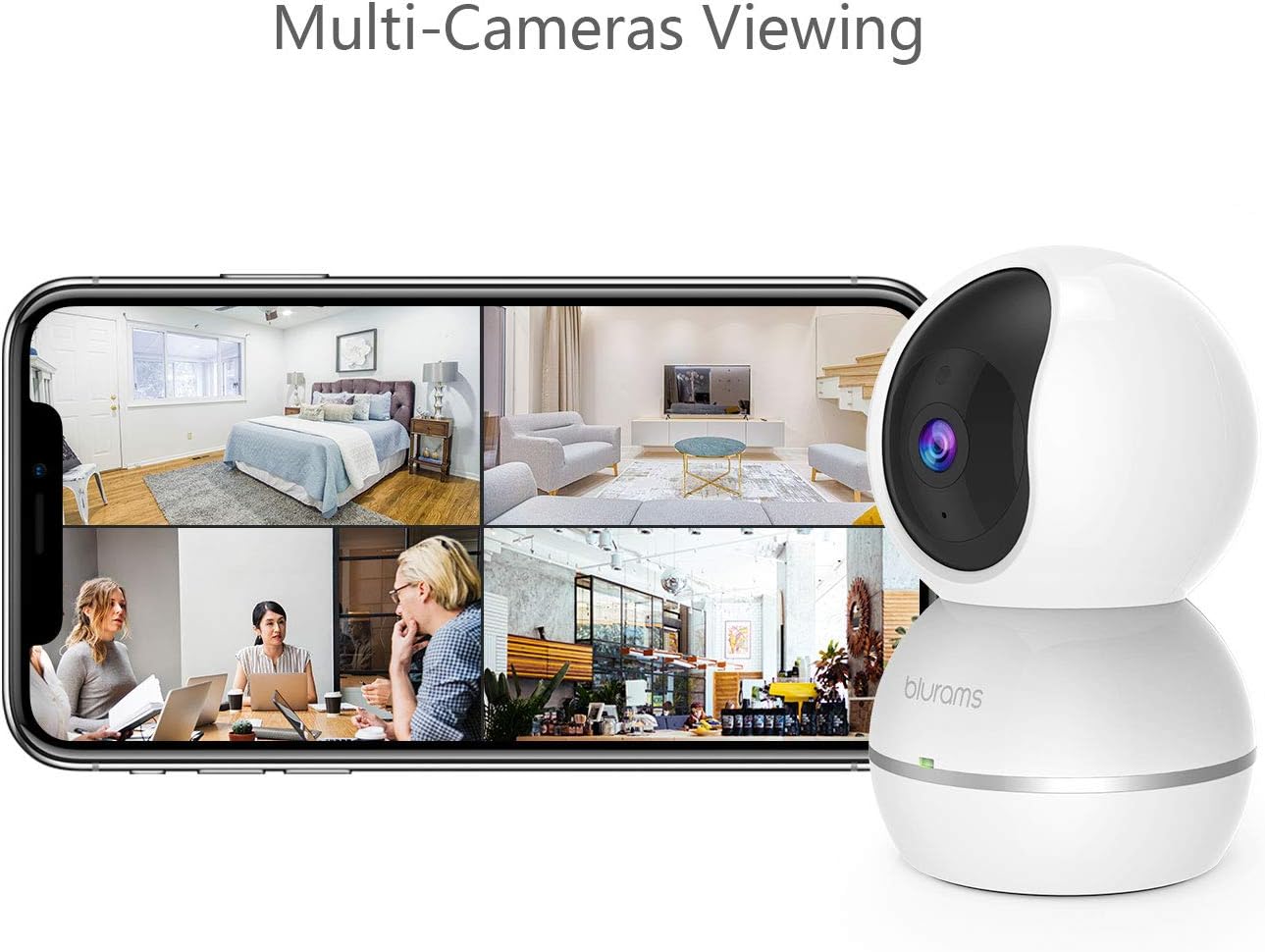
Image: A smartphone screen showing multiple live feeds from different blurams cameras, illustrating the multi-camera viewing feature.

Image: A diagram depicting the blurams camera connected to a cloud server, highlighting the optional cloud storage feature with no fees for rolling 24 hours or one month free for rolling 7-days.

Image: A smartphone displaying motion and sound detection alerts from the blurams camera, indicating real-time notifications for detected events.
Setup
- Power On: Connect the camera to a power source using the provided USB cable and power adapter. The camera will power on automatically.
- Download App: Download the "blurams" app from the App Store (iOS) or Google Play Store (Android).
- Create Account: Open the app and create a new account or log in if you already have one.
- Add Device: Follow the in-app instructions to add your new blurams camera. Ensure your smartphone is connected to a 2.4 GHz Wi-Fi network.
- Pairing: The app will guide you through the pairing process, which typically involves scanning a QR code displayed on your phone with the camera.
- Placement: Position the camera in your desired indoor location. The camera can be placed on a flat surface or mounted to a wall or ceiling using the included mounting accessories.

Video: This video demonstrates the setup and basic operation of the blurams dome security camera, including day and night vision capabilities and remote control features.
Operating Instructions
Remote Pan/Tilt/Zoom (PTZ)
Use the blurams app to remotely control the camera's pan (horizontal), tilt (vertical), and digital zoom functions. This allows for 360° coverage of your monitored area.
Two-Way Audio
To use the two-way audio feature, open the live view in the blurams app and tap the microphone icon. You can then speak through your phone, and your voice will be projected through the camera's speaker.
Motion and Sound Detection
The camera is equipped with intelligent motion and sound detection. When an event is detected, the camera will automatically record a short video clip and send an alert notification to your smartphone.
- Activity Zones: Customize specific areas within the camera's view for motion detection to reduce false alarms.
- Auto-Cruise Mode: Enable this mode for the camera to automatically scan predefined areas.
- Privacy Mode: Activate privacy mode to temporarily disable recording and live viewing for enhanced privacy.
Storage Options
Your blurams camera supports both cloud storage and local storage via a microSD card (up to 128GB, not included).
- Cloud Storage: Alert videos are automatically uploaded to the cloud and are accessible for 24 hours without a subscription. Optional paid plans offer extended storage.
- Local Storage: Insert a microSD card into the camera's designated slot for continuous recording or event-triggered recording.
Multi-Camera Viewing
The blurams app allows you to view live feeds from multiple cameras simultaneously, providing a comprehensive overview of different locations.
Maintenance
- Cleaning: Gently wipe the camera lens and body with a soft, dry cloth. Avoid using harsh chemicals or abrasive materials.
- Firmware Updates: Regularly check the blurams app for available firmware updates to ensure optimal performance and security.
- Power Cycle: If the camera experiences issues, try unplugging it from the power source for a few seconds and then plugging it back in.
Troubleshooting
| Issue | Possible Solution |
|---|---|
| Camera offline | Check Wi-Fi connection, ensure camera is powered on, restart camera and router. |
| Poor video quality | Check network speed, ensure lens is clean, adjust camera resolution settings in the app. |
| No alerts received | Verify motion/sound detection settings are enabled, check app notification permissions, adjust activity zones. |
| Two-way audio not working | Check microphone and speaker settings in the app, ensure volume is up on both ends. |
| Cannot connect to Wi-Fi | Ensure you are using a 2.4 GHz network (5GHz is not supported), verify Wi-Fi password, move camera closer to router during setup. |
For further assistance, refer to the official blurams user manual PDF or contact blurams customer support.
Specifications
| Feature | Detail |
|---|---|
| Model | S15F Snowman |
| Video Capture Resolution | 1080p |
| Connectivity Technology | Wireless (Wi-Fi 2.4 GHz) |
| Power Source | AC/DC |
| Dimensions (L x W x H) | 2.76 x 2.76 x 4.33 inches |
| Item Weight | 7.7 ounces |
| Field of View (FOV) | 118° |
| Pan Range | 355° Horizontal |
| Tilt Range | 90° Vertical |
| Storage | Cloud Storage, Local (up to 128GB MicroSD) |
| Compatible Devices | Amazon Alexa, Google Assistant, IFTTT |
| Alert Type | Audio and Motion |
| Night Vision | Yes |
| Two-Way Audio | Yes |
Warranty and Support
For detailed warranty information, please refer to the official blurams user manual available as a PDF document or visit the blurams Brand Store.
You can also find additional support and FAQs on the blurams website or through the blurams app.
User Manual (PDF): Download Here