
Swann SRNVR-88580H-US
Swann 4K 8-Channel Security Camera System NVR Recorder User Manual
Model: SRNVR-88580H-US
Introduction
This manual provides comprehensive instructions for setting up, operating, and maintaining your Swann 4K 8-Channel Security Camera System NVR Recorder (Model: SRNVR-88580H-US). This system is designed to provide robust 24/7 continuous recording and remote viewing capabilities for your security needs. Please read this manual thoroughly before installation and use to ensure proper functionality and safety.

Image: The Swann 4K 8-Channel NVR Recorder, showcasing its compact design and integrated 2TB hard drive.
What's in the Box
Upon unboxing your Swann NVR system, please verify that all the following components are included:
- 8 Channel Security System: 4K Ultra HD NVR-8580 with 2TB HDD (Plain Box Packaging / Cameras Sold Separately)
- Power Adapter
- HDMI Cable
- Ethernet Cable
- USB Mouse
- Theft Deterrent Stickers

Image: A visual representation of the items included in the Swann NVR package, such as the NVR unit, 2TB hard drive, mouse, power adapter, network cable, theft deterrent stickers, and HDMI cable.
Setup Guide
Before permanent installation, it is recommended to set up and test the system to ensure all components are functioning correctly.
1. Connecting Cameras to the NVR
The NVR supports up to 8 PoE (Power over Ethernet) cameras. Use Ethernet cables to connect your Swann IP cameras to the PoE ports on the back of the NVR. This single cable provides both power and data transmission.

Image: The rear panel of the Swann NVR, showing the various ports including Power Input, Audio Out, VGA, HDMI, USB, WAN, and multiple Camera PoE Ports.
2. Network Connection
Connect the NVR to your network for remote viewing and software updates. Use the provided Ethernet cable to connect the NVR's WAN port to a spare port on your router or Wi-Fi access point. The NVR can operate independently without constant internet access for local recording, but internet is required for remote access features.

Image: A diagram illustrating the NVR's network connectivity, showing how it can function with or without an internet connection for local operations, but requires it for remote access.
3. Display Connection
Connect the NVR to a high-definition TV or monitor using the HDMI cable for local viewing and system configuration. Plug one end into the NVR's HDMI port and the other into an available HDMI input on your display.
4. Mouse and Power Connection
Connect the supplied USB mouse to one of the USB ports on the NVR. Finally, connect the power adapter to the NVR's power input and then plug the power cable into a wall outlet. The system will power on automatically.
Operating Your System
Initial Setup Wizard
Upon first power-on, the NVR will display a "Startup Wizard" on your connected display. Follow the on-screen prompts to select your language, set up date/time, and configure basic network settings. It is crucial to set a strong password for your NVR during this process to protect your system from unauthorized access.
Live View and Recording
Once configured, the NVR will display live feeds from all connected cameras. The system is set for 24/7 continuous recording to the built-in 2TB HDD. You can view multiple camera feeds simultaneously on your display.
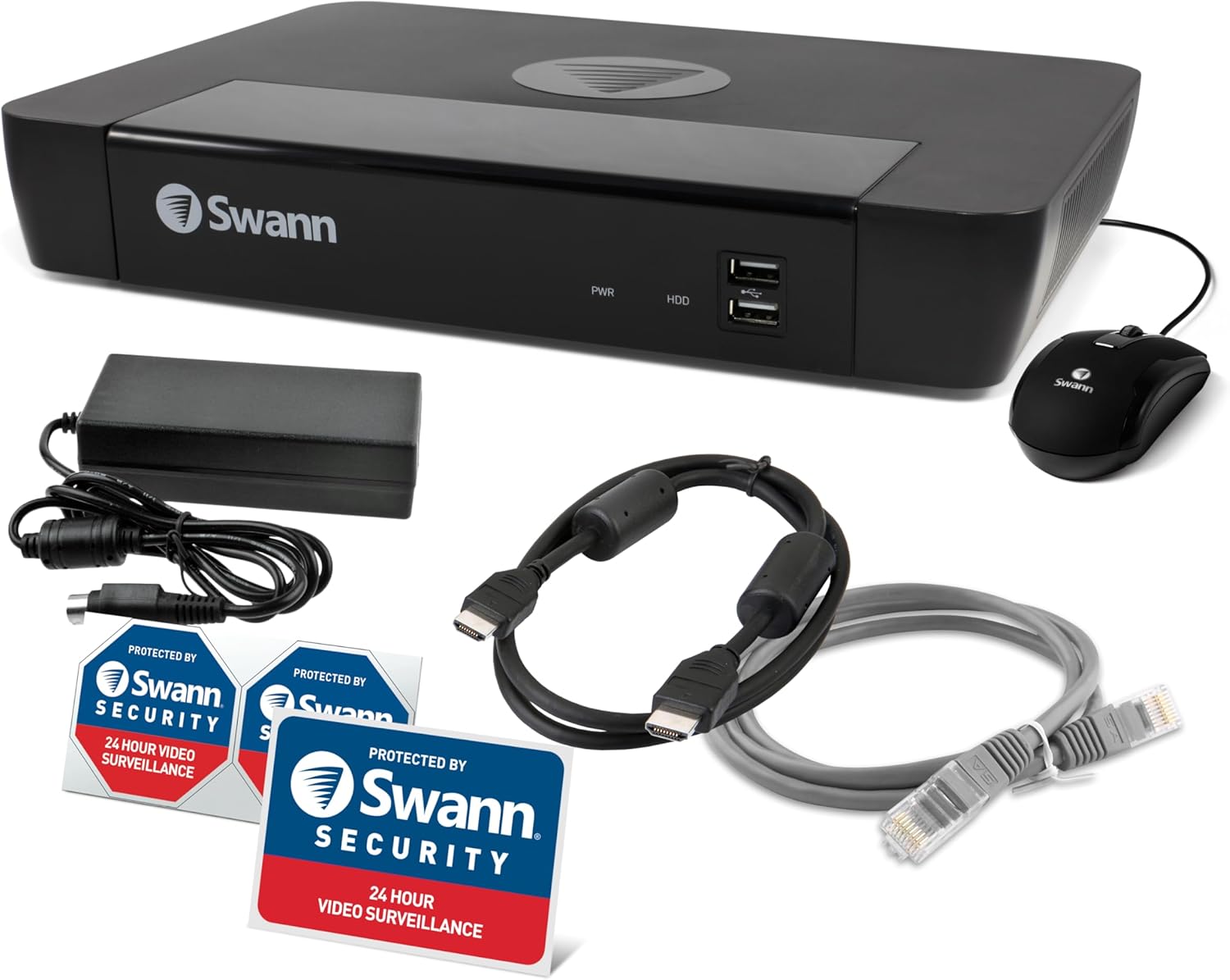
Image: A television screen displaying a multi-view grid of live camera feeds from various locations, demonstrating the 24/7 monitoring capability.
Remote Access with Swann App
For remote viewing and management, download the free Swann Security App on your iOS or Android mobile device, or the client software for Windows/Mac. The app allows you to view live feeds, playback recorded footage, and receive alerts from anywhere with an internet connection.


Image: Screenshots of the Swann Security App interface on various devices (smartphone, tablet, laptop, desktop), demonstrating its multi-platform accessibility for remote monitoring.
Advanced Features
The NVR supports advanced features when paired with compatible Swann IP cameras, including human/vehicle detection, auto-tracking, two-way talk, and motion-triggered spotlights. Refer to your camera's specific manual for detailed configuration of these features.

Image: Various Swann PoE cameras, including bullet and dome types, illustrating their compatibility and seamless integration with the NVR system for comprehensive coverage.
Maintenance
- Regular Cleaning: Gently wipe the NVR and camera surfaces with a soft, dry cloth. Avoid using liquid cleaners or aerosols.
- Firmware Updates: Periodically check for firmware updates via the Swann Security App or Swann's official website. Keeping your firmware updated ensures optimal performance and security.
- Hard Drive Management: The 2TB HDD provides ample storage. The NVR automatically overwrites the oldest footage when the drive is full. For extended storage, an additional HDD can be added (up to 6TB total).
- Cable Inspection: Regularly inspect all cables for any signs of wear or damage. Replace damaged cables immediately to prevent system malfunctions.
Troubleshooting
| Problem | Possible Cause | Solution |
|---|---|---|
| No video output on display | Incorrect HDMI/VGA connection; Display input not selected correctly; NVR not powered on. | Ensure HDMI/VGA cable is securely connected. Select the correct input source on your TV/monitor. Verify NVR power adapter is plugged in and power light is on. |
| "Video Loss" on screen for a camera | Loose or damaged Ethernet cable; Camera not powered; Camera malfunction. | Check the Ethernet cable connection at both the camera and NVR. Ensure the camera is receiving power (PoE). Try connecting the camera to a different NVR port. |
| Cannot access NVR remotely via app | NVR not connected to the internet; Incorrect network settings; Firewall blocking connection. | Verify NVR's WAN port is connected to your router. Check network settings in NVR menu. Ensure your router's firewall is not blocking the NVR's connection. |
| System is slow or unresponsive | Overheating; Full hard drive; Outdated firmware. | Ensure NVR has adequate ventilation. The NVR manages hard drive space automatically, but consider adding an external HDD for more storage. Check for and apply firmware updates. |
Specifications
- Model Number: SRNVR-88580H-US
- Brand: Swann
- Product Dimensions: 12.2"L x 9.25"W x 2"H (30.99 cm L x 23.50 cm W x 5.08 cm H)
- Item Weight: 5.39 pounds (2.44 kg)
- Memory Storage Capacity: 2000 GB (2TB) built-in HDD, expandable up to 6TB
- Connectivity Technology: HDMI, Ethernet (PoE)
- Compatible Devices: Swann PoE 12MP/4K/5MP/4MP HD Cameras, Smartphone, Tablet
- Recording: 24/7 Continuous Recording
- Channels: 8-Channel
Warranty and Support
Swann products typically come with a limited warranty. For detailed warranty information, product registration, and technical support, please visit the official Swann website or contact their customer service. Keep your proof of purchase for warranty claims.
Online Support: www.swann.com/us/support
Swann Store: Visit the Swann Store on Amazon
Related documentsSRNVR-88580H-US


Ask a question about this manual
Ask about setup, troubleshooting, compatibility, parts, safety, or missing instructions. Manuals+ will review the question and use this page’s manual context to help answer it.