1. Introduction
The UGREEN M.2 NVMe SSD Enclosure (Model 60354) is designed to convert an M.2 NVMe Solid State Drive into a portable external storage device. This enclosure supports high-speed data transfer, offering a convenient solution for data backup, storage expansion, and file transfer. Please read this manual carefully to ensure proper installation and operation.
2. Product Overview
2.1 Key Features
- Compatibility: Specifically designed for M-Key and M+B Key M.2 NVMe PCIe SSDs.
- High-Speed Data Transfer: Supports USB 3.1 Gen 2 with up to 10Gbps data transfer rate, enhanced by UASP and TRIM protocols.
- Capacity: Supports M.2 NVMe SSDs up to 2TB.
- Stable Performance: Integrated ASM2362 chipset ensures reliable and stable data transmission.
- Plug & Play: Driver-free installation for Windows, Mac OS, and Linux operating systems.
- Tool-Free Design: Allows for quick and easy SSD installation without the need for tools.
- Compact & Portable: Slim aluminum alloy casing for efficient heat dissipation and easy portability.
2.2 Package Contents
- 1 x UGREEN M.2 NVMe SSD Enclosure (Model 60354)
- 1 x USB-C to USB-C Cable
- 1 x User Manual

Image: UGREEN M.2 NVMe SSD Enclosure with its accompanying USB-C cable.

Image: Compatibility diagram illustrating support for M.2 NVMe SSDs and non-support for M.2 SATA SSDs.
3. Setup and Installation
The UGREEN M.2 NVMe SSD Enclosure features a tool-free design for easy installation.
- Slide to Open: Gently slide the back cover of the enclosure to open it.
- Insert SSD: Insert your M.2 NVMe SSD into the slot, ensuring the M-Key or M+B Key aligns correctly.
- Secure SSD: Fix the SSD in place using the provided rubber fastener.
- Close Cover: Slide the cover back onto the enclosure until it clicks securely into place.

Image: Step-by-step guide for tool-free SSD installation.
4. Operating Instructions
After installing the SSD, connect the enclosure to your computer using the provided USB-C cable.
- Connection: Use the USB-C to USB-C cable for optimal performance. Connect one end to the enclosure and the other to a compatible USB-C port on your computer.
- Driver-Free: The enclosure is plug-and-play and does not require additional drivers for Windows, Mac OS, or Linux.
- Accessing Data: Once connected, the SSD will appear as an external drive in your operating system's file explorer or disk management utility. You may need to initialize and format a new SSD before use.
- S.M.A.R.T. Support: The enclosure supports S.M.A.R.T. (Self-Monitoring, Analysis and Reporting Technology) for monitoring the health of your SSD.

Image: Enclosure connected to a laptop, demonstrating 10Gbps speed.
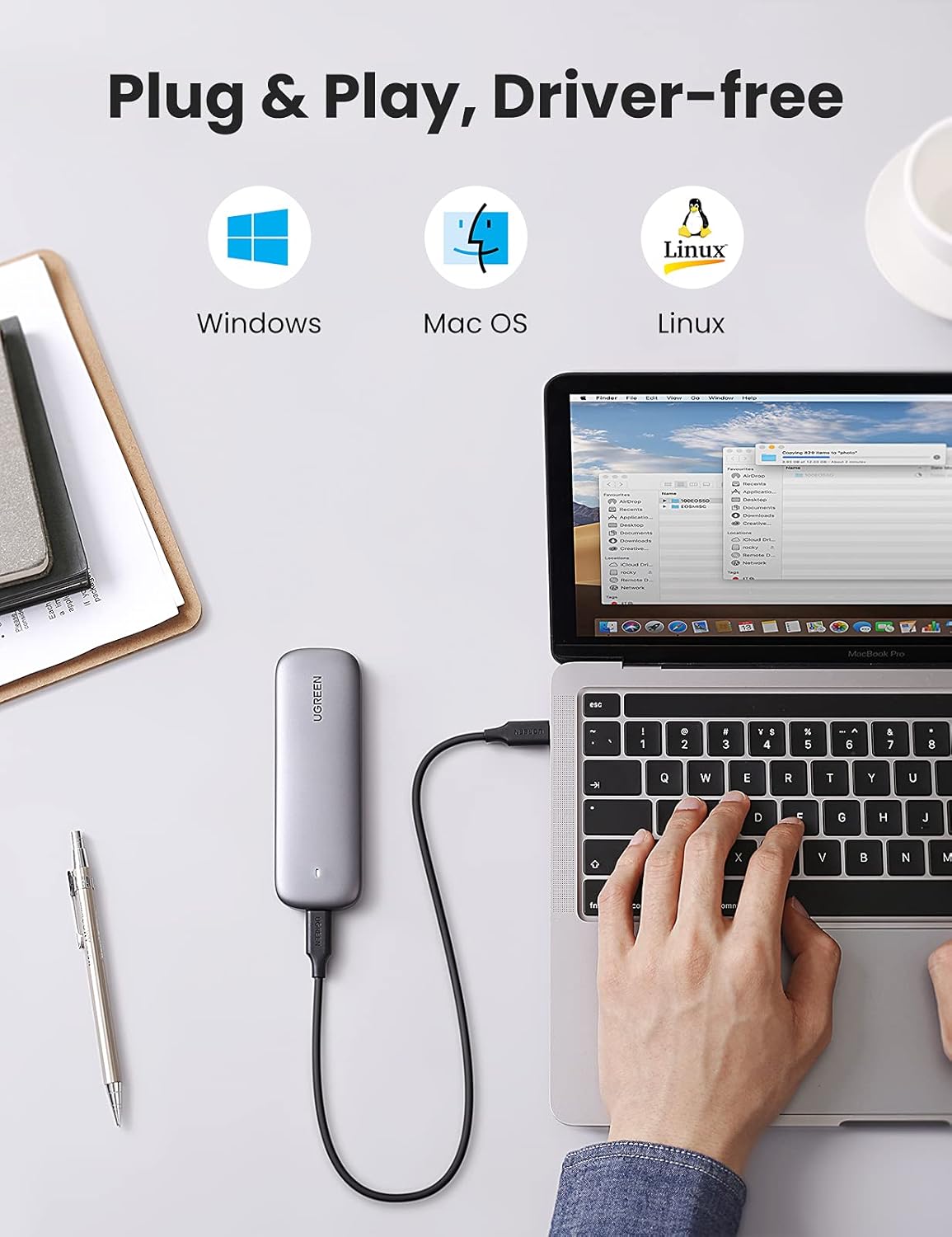
Image: Enclosure demonstrating compatibility with Windows, Mac OS, and Linux.
5. Maintenance
- Cleaning: Use a soft, dry cloth to clean the exterior of the enclosure. Avoid liquid cleaners.
- Storage: Store the enclosure in a cool, dry place away from direct sunlight and extreme temperatures.
- Heat Dissipation: The aluminum casing is designed to dissipate heat. During prolonged heavy use, the enclosure may become warm, which is normal. Ensure adequate airflow around the device.
- Safe Removal: Always safely eject the drive from your operating system before disconnecting the enclosure to prevent data corruption.
6. Troubleshooting
- Device Not Recognized:
- Ensure the M.2 NVMe SSD is correctly installed and secured within the enclosure.
- Try connecting the enclosure to a different USB port on your computer.
- Verify that the SSD is an M.2 NVMe type and not an M.2 SATA SSD, as SATA SSDs are not supported.
- For new SSDs, check Disk Management (Windows) or Disk Utility (Mac) to ensure the drive is initialized and formatted.
- Random Disconnections:
- Ensure the USB cable is securely connected at both ends.
- If using a USB-A to USB-C cable (not included) with a USB-A port, ensure the USB-A port can supply sufficient power. A powered USB hub may resolve issues with power-sensitive ports.
- On Windows, navigate to Control Panel > Power Options > Change plan settings > Change advanced power settings > USB settings > USB selective suspend setting and set it to Disabled.
- Slow Data Transfer Speeds:
- Ensure you are connected to a USB 3.1 Gen 2 (10Gbps) compatible port on your computer. Older USB 2.0 or 3.0 ports will result in lower speeds.
- Verify that the USB cable used supports 10Gbps data transfer.
- Performance can vary based on the SSD's speed, the computer's hardware, and the operating system.
7. Specifications
| Brand | UGREEN |
| Model | 60354 |
| Compatible SSDs | M-Key M.2 NVMe PCIe SSD, M+B Key M.2 NVMe PCIe SSD |
| Incompatible SSDs | M.2 SATA SSD (B Key, M+B Key NGFF/SATA) |
| Max Capacity | 2 TB |
| Data Transfer Rate | Up to 10 Gigabits Per Second (USB 3.1 Gen 2) |
| Hardware Interface | USB Type-C |
| Enclosure Material | Aluminum |
| Color | Grey |
| Product Dimensions (L x W x H) | 4.92" x 1.61" x 0.55" (125mm x 41mm x 14mm) |
| Supported OS | Windows, Mac OS, Linux |
8. Warranty and Support
UGREEN products come with a standard manufacturer's warranty. For specific warranty terms, technical support, or customer service inquiries, please refer to the warranty card included with your product or visit the official UGREEN website. You can also contact UGREEN customer support directly through their website or the retailer where you purchased the product.


