
1. Setup and Installation
This section provides instructions for correctly installing your iPad Air (3rd Generation) 10.5-inch 2019 into the MoKo Smart Case.
1.1 Installing Your iPad
- Gently align your iPad with the flexible TPU back cover of the case.
- Press the iPad firmly into the case, ensuring all edges are securely seated within the protective frame. The flexible material allows for easy installation while providing a snug fit.
- Verify that all ports, buttons, and the camera cutout align precisely with the case openings.

Image: Installation of the iPad into the flexible TPU back cover, highlighting the built-in Apple Pencil holder.
1.2 Apple Pencil Placement
- The case features a dedicated built-in holder for your Apple Pencil.
- Insert your Apple Pencil into the designated slot on the side of the case. It should fit snugly to prevent accidental dislodgement.
- To remove the Apple Pencil, gently push it from the bottom cutout or pull it from the top.
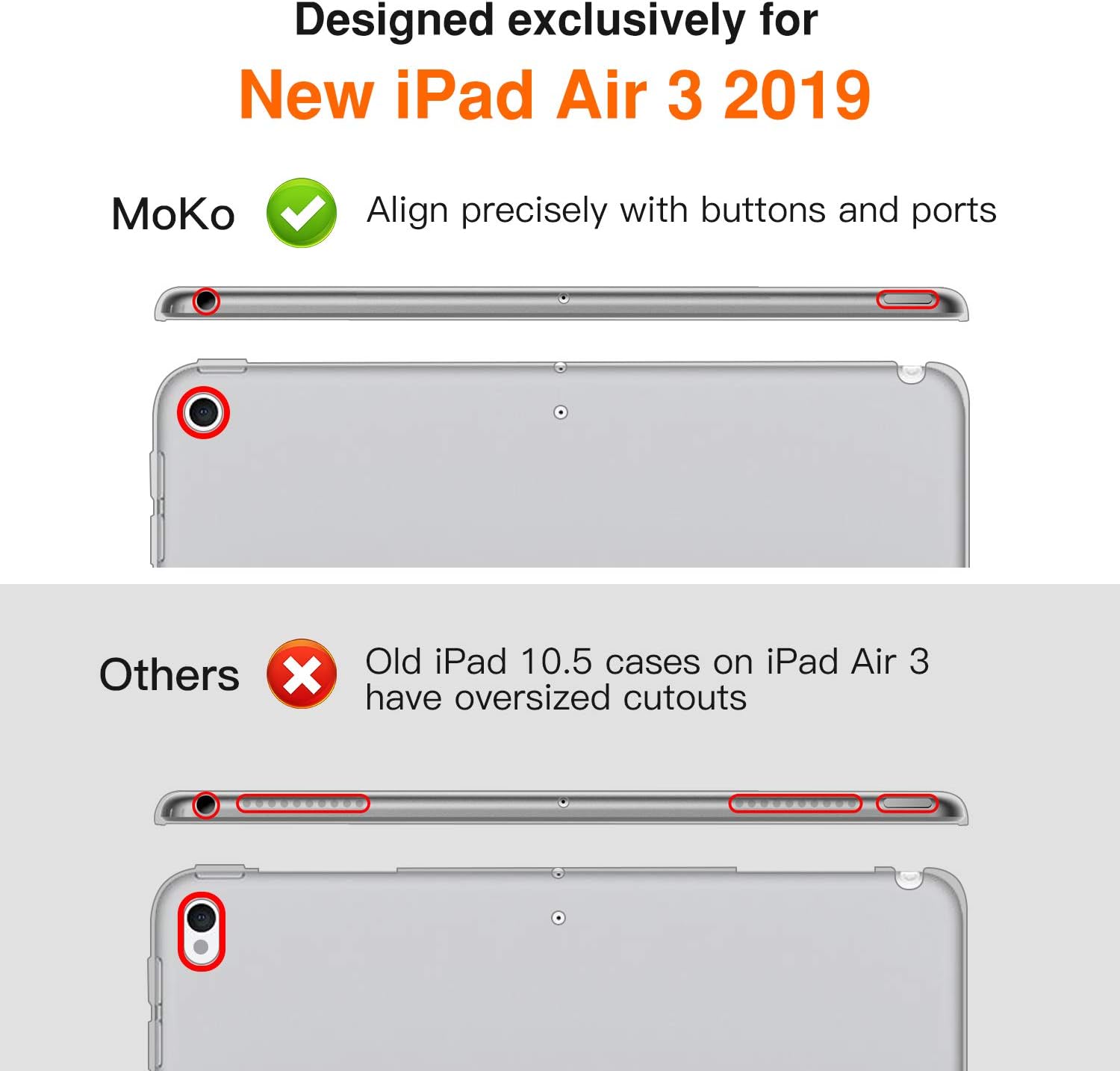
Image: Illustration demonstrating the precise alignment of the MoKo case with iPad buttons and ports, contrasting with generic cases.
2. Operating Instructions
Understand the key functionalities of your MoKo Smart Case to enhance your iPad experience.
2.1 Auto Wake/Sleep Function
- The smart cover automatically wakes your iPad when opened and puts it to sleep when closed.
- Ensure the cover is fully closed for the sleep function to activate.

Image: Visual representation of the automatic wake and sleep feature when opening and closing the case cover.
2.2 Trifold Stand Functionality
- The front cover can be folded into a trifold stand, offering two distinct angles for viewing and typing.
- For Viewing Mode: Fold the cover into a triangular stand to prop up your iPad for watching videos or making video calls.
- For Typing Mode: Fold the cover into a lower angle stand, ideal for comfortable typing or drawing.

Image: The trifold stand supporting the iPad in both viewing and typing orientations.
2.3 Product Features Video
Video: An overview demonstrating the installation, auto wake/sleep, Apple Pencil holder, and trifold stand features of the MoKo case for iPad Air (3rd Gen) 10.5-inch 2019.
3. Maintenance
Proper care ensures the longevity and appearance of your MoKo Smart Case.
3.1 Cleaning Instructions
- For the PU leather exterior, wipe gently with a soft, damp cloth. Avoid harsh chemicals or abrasive cleaners.
- For the microfiber interior, use a dry, lint-free cloth to remove dust and smudges. If necessary, lightly dampen the cloth with water.
- Ensure the case is completely dry before reinserting your iPad.

Image: Detailed view of the case materials, including the scratch-resistant microfiber lining, flexible TPU backcover for easy installation, and wear-resistant PU leather exterior.
4. Troubleshooting
Common issues and their solutions.
4.1 iPad Not Fitting Correctly
- Issue: The iPad does not seem to fit or the cutouts are misaligned.
- Solution: Ensure you have the correct model of iPad. This case is specifically designed for the iPad Air (3rd Generation) 10.5-inch 2019 (Models A2152, A2123, A2153, A2154). It is not compatible with other iPad models. Re-check the installation steps to ensure the iPad is fully seated.
4.2 Auto Wake/Sleep Not Functioning
- Issue: The iPad does not wake or sleep automatically when the cover is opened or closed.
- Solution: Ensure the cover is fully closed and making proper contact with the screen. Check your iPad settings to confirm that 'Lock/Unlock' is enabled under 'Display & Brightness' (or similar setting depending on iPadOS version).
4.3 Apple Pencil Holder Too Snug
- Issue: The Apple Pencil is difficult to insert or remove from the holder.
- Solution: The holder is designed to be snug to secure the pencil. Ensure you are using an Apple Pencil (1st Generation) or a compatible stylus of similar dimensions. Avoid forcing the pencil if it has an additional sleeve or grip, as this may prevent it from fitting.
5. Specifications
| Feature | Detail |
|---|---|
| Product Dimensions | 10.39 x 7.95 x 0.63 inches |
| Item Weight | 10.6 ounces |
| Compatible Devices | iPad Air (3rd Generation) 10.5-inch 2019 (Models A2152, A2123, A2153, A2154) |
| Form Factor | Case |
| Shell Type | Hard (with flexible TPU back) |
| Material | Faux Leather, Microfiber, TPU |
6. Warranty and Support
For any quality problems or further assistance, please contact MoKo customer support. Refer to your purchase documentation for specific warranty details and contact information.