
Maxcio 748323795417
Maxcio WiFi Roller Shutter Switch User Manual
Model: 748323795417
1. Introduction
The Maxcio WiFi Roller Shutter Switch is a smart device designed to control your electric roller shutters, curtains, or garage doors via touch, a mobile application, or voice commands. It offers convenience and automation for your home or office environment. This manual provides detailed instructions for installation, operation, and troubleshooting to ensure optimal performance and safety.

Image 1.1: Maxcio WiFi Roller Shutter Switch (2-pack)
This product is compatible with Amazon Alexa and Google Home, allowing for seamless integration into your smart home ecosystem. Its crystal touch panel provides a modern aesthetic and responsive manual control.
2. Safety Information
Please read all safety warnings and instructions carefully before installation and operation. Failure to follow these instructions may result in electric shock, fire, or serious injury.
- Electrical Installation: Installation should only be performed by a qualified electrician or a person with a thorough understanding of electrical systems.
- Power Off: Always ensure the main power supply is turned off at the circuit breaker before performing any wiring or maintenance.
- Neutral Wire Required: This device requires a neutral wire for proper operation. Verify your existing wiring includes a neutral wire before installation.
- Indoor Use Only: This product is designed for indoor use in dry locations. Do not expose to water or excessive humidity.
- Load Capacity: Do not exceed the maximum power rating of 2400W (10A).
- Children Safety: Keep out of reach of children.
3. Product Overview
The Maxcio WiFi Roller Shutter Switch features a sleek design with a responsive touch panel and smart connectivity options.
3.1. Components
- Maxcio WiFi Roller Shutter Switch unit
- Mounting screws
- User Manual (this document)
3.2. Key Features
- Remote APP Control: Control your roller shutters from anywhere using the free Maxcio or Smart Life app.
- Voice Control: Compatible with Amazon Alexa and Google Home for hands-free operation.
- Timing Function: Set schedules for automatic opening and closing of your shutters.
- Crystal Touch Panel: Manual control with a modern, responsive glass touch interface.
- High Security: Constructed from flame-retardant ABS material for enhanced safety.

Image 3.1: Crystal Touch Panel for manual control.
4. Setup and Installation
Follow these steps for safe and correct installation of your Maxcio WiFi Roller Shutter Switch.
4.1. Wiring Diagram
Before starting, ensure the main power supply is OFF at the circuit breaker.

Image 4.1: Step-by-step installation and wiring guide.
- Turn off the power at the main circuit breaker.
- Remove your old switch from the wall box.
- Connect the wires to the Maxcio switch according to the diagram:
- L (Live): Connect the live wire from your power supply.
- N (Neutral): Connect the neutral wire from your power supply.
- L1 (Up): Connect the wire for opening/raising the shutter.
- L3 (Down): Connect the wire for closing/lowering the shutter.
- Ground: Connect the ground wire (if present).
- Mount the switch into the wall box using the provided screws.
- Attach the glass panel to the switch unit.
- Restore power at the circuit breaker.
4.2. App Download and Pairing
The Maxcio switch works with the free "Maxcio" or "Smart Life" app.
- Download the "Maxcio" or "Smart Life" app from the Google Play Store or Apple App Store.
- Register or log in to your account.
- Ensure your smartphone is connected to a 2.4 GHz Wi-Fi network. The switch does not support 5 GHz Wi-Fi.
- In the app, tap "Add Device" or the "+" icon.
- Follow the in-app instructions to put the switch into pairing mode (usually by pressing and holding a button on the switch until an indicator light blinks rapidly).
- Confirm the indicator light is blinking rapidly in the app and proceed with pairing.
- Once successfully added, you can rename the device and assign it to a room.
5. Operating Instructions
Control your roller shutters using various methods.
5.1. Manual Control
The touch panel allows for direct control:
- Up Arrow (↑): Press to open/raise the shutter.
- Double Line (‖): Press to pause the shutter at its current position.
- Down Arrow (↓): Press to close/lower the shutter.

Image 5.1: Manual control via touch panel.
5.2. Remote APP Control
Once paired, you can control the switch from anywhere using the Maxcio or Smart Life app:
- Open the app and select your shutter switch.
- Use the virtual buttons (Open, Pause, Close) to control the shutter.
- The app also allows you to view the current status (Open, Paused, Closed).

Image 5.2: Remote control via smartphone app.
5.3. Voice Control (Alexa & Google Home)
Integrate your switch with voice assistants for convenient control:
- For Alexa: Enable the "Maxcio" skill in the Alexa app. Link your Maxcio/Smart Life account. Discover devices.
- For Google Home: Link the "Maxcio" or "Smart Life" service in the Google Home app.
- Once linked, you can use voice commands such as:
- "Alexa, open the [Shutter Name]."
- "Hey Google, close the [Shutter Name]."
- "Alexa, pause the [Shutter Name]."

Image 5.3: Voice control compatibility with Amazon Alexa and Google Home.
5.4. Timing Function
Set schedules for automated operation:
- In the Maxcio/Smart Life app, select your shutter switch.
- Navigate to the "Timer" or "Schedule" section.
- Set desired times for opening and closing the shutters (e.g., open at sunrise, close at sunset).
- You can also set countdown timers for temporary operations.
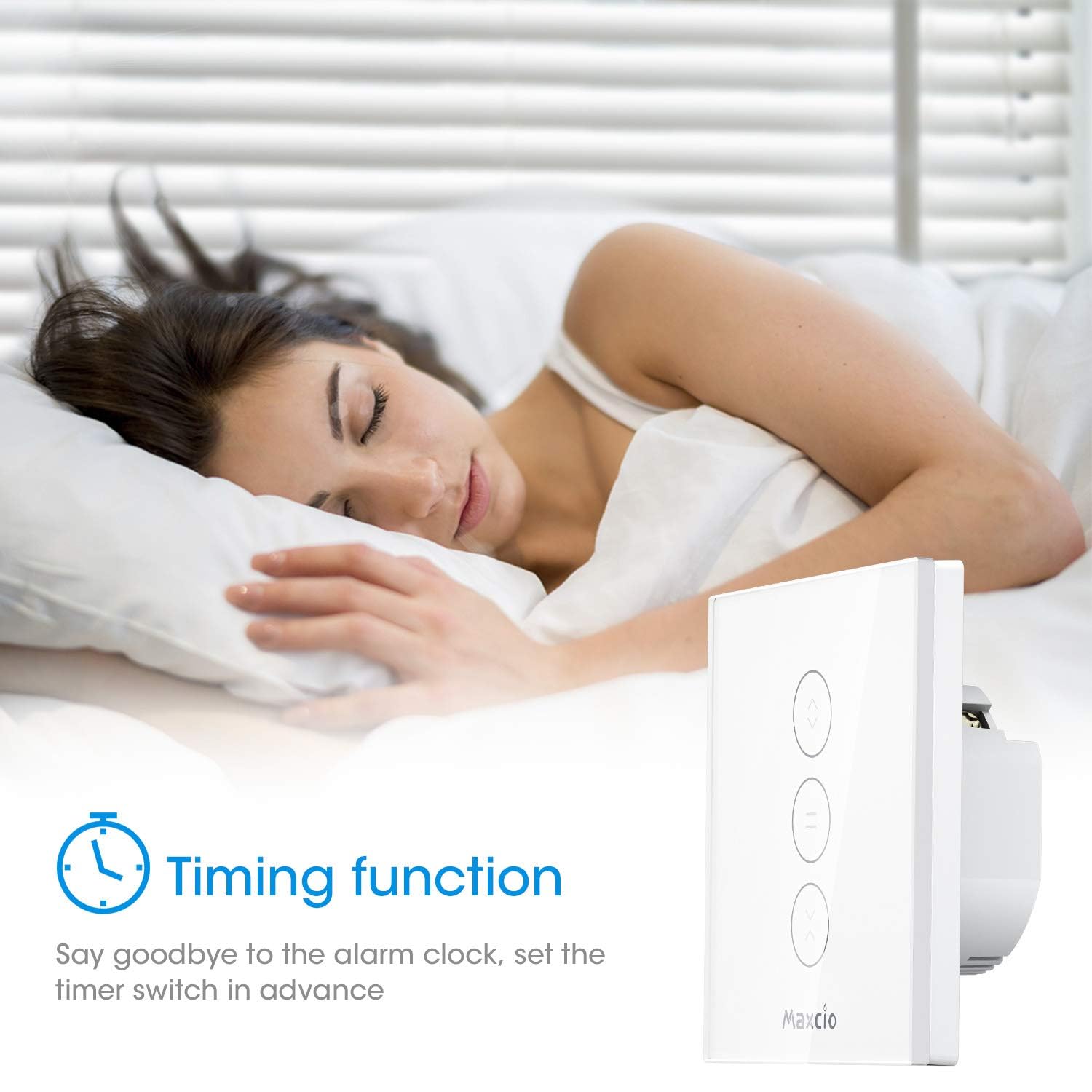
Image 5.4: Utilize the timing function for automated schedules.
6. Maintenance
To ensure the longevity and proper functioning of your Maxcio WiFi Roller Shutter Switch, follow these maintenance guidelines:
- Cleaning: Wipe the glass panel with a soft, dry cloth. Do not use abrasive cleaners or solvents, as they may damage the surface.
- Power Cycle: If the switch becomes unresponsive, try turning off the power at the circuit breaker for 10 seconds, then turning it back on.
- Firmware Updates: Periodically check the Maxcio/Smart Life app for available firmware updates to ensure optimal performance and security.
7. Troubleshooting
If you encounter issues with your Maxcio WiFi Roller Shutter Switch, refer to the following common problems and solutions:
| Problem | Possible Cause | Solution |
|---|---|---|
| Switch not responding to touch. | No power; loose wiring; internal fault. | Check circuit breaker. Verify wiring connections. Power cycle the switch. If issue persists, contact support. |
| Cannot connect to Wi-Fi. | Incorrect Wi-Fi band (5GHz); weak signal; incorrect password; pairing mode not active. | Ensure your phone is on a 2.4 GHz Wi-Fi network. Move closer to the router. Re-enter Wi-Fi password carefully. Ensure switch is in rapid blinking pairing mode. |
| App control not working. | No internet connection; switch offline; app glitch. | Check your internet connection. Verify the switch is online in the app. Restart the app or your phone. |
| Voice control not working. | Skill not enabled; device not discovered; incorrect command. | Ensure Maxcio/Smart Life skill is enabled and linked in Alexa/Google Home app. Redo device discovery. Use correct voice commands. |
| Shutter moves in wrong direction. | L1 and L3 wires are swapped. | Turn off power. Swap the L1 and L3 wires on the switch. Restore power. |
If the problem persists after trying these solutions, please contact Maxcio customer support.
8. Specifications
| Attribute | Value |
|---|---|
| Brand | Maxcio |
| Model Number | 748323795417 |
| Dimensions (L x W x H) | 4.8 x 10.2 x 11.3 cm |
| Weight | 390 grams |
| Operating Mode | ON-NONE-OFF |
| Current Rating | 10 A |
| Operating Voltage | 240 Volts |
| Contact Type | Normally Closed |
| Connector Type | Screw |
| Switch Type | Touch Switch |
| Material | Acrylonitrile Butadiene Styrene (ABS) |

Image 8.1: Product dimensions.
9. Warranty and Support
Maxcio is committed to providing high-quality products and customer satisfaction. If you have any questions, require technical assistance, or need a manual in French, please contact the seller directly via email. Your feedback is valuable to us.
For warranty information, please refer to the terms and conditions provided at the time of purchase or contact Maxcio customer service.
Ask a question about this manual
Ask about setup, troubleshooting, compatibility, parts, safety, or missing instructions. Manuals+ will review the question and use this page’s manual context to help answer it.