
1. Introduction
This manual provides essential information for the installation, operation, and maintenance of your GIGABYTE GeForce GTX 1660 Ti Windforce OC 6G graphics card. Please read this manual thoroughly before installation and retain it for future reference.
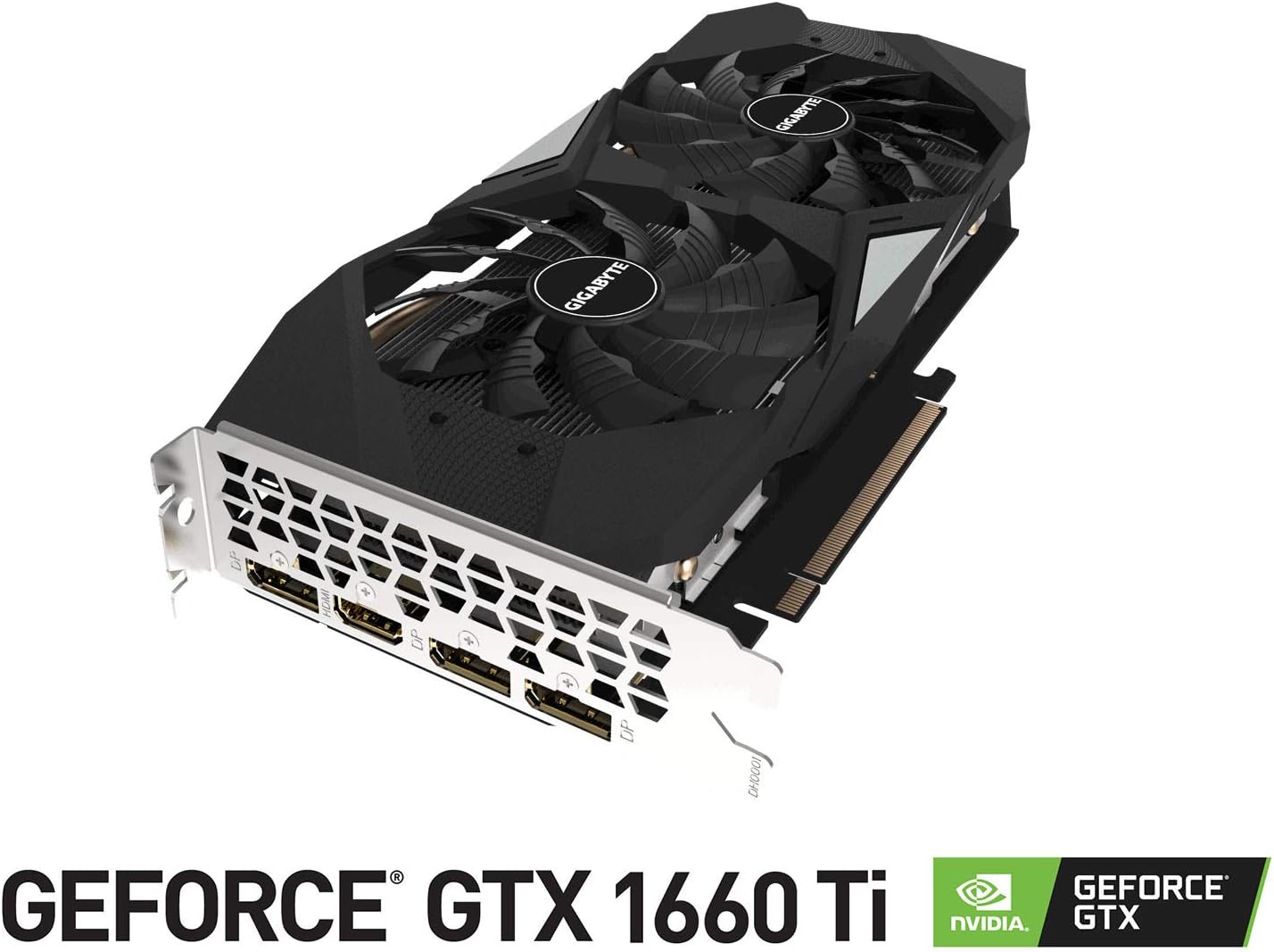
The GIGABYTE GeForce GTX 1660 Ti Windforce OC 6G is designed for enhanced graphics performance, featuring:
- Powered by GeForce GTX 1660 Ti integrated with 6GB GDDR6
- Windforce 2x cooling system with alternate spinning fans
- Intuitive controls with AORUS engine
- 6GB 192-bit GDDR6 memory interface
- Multiple display outputs: 1 x HDMI, 3 x DisplayPort
- PCI Express 3.0 x16 interface
2. What's in the Box
Verify that all items are present in the package:
- GIGABYTE GeForce GTX 1660 Ti Windforce OC 6G Graphics Card
- User Manual
3. Specifications
| Feature | Specification |
|---|---|
| Graphics Processing Unit | NVIDIA GeForce GTX 1660 Ti |
| Video Memory | 6 GB GDDR6 |
| Memory Speed | 12000 MHz |
| Memory Interface | 192-bit |
| Max Screen Resolution | 7680x4320 |
| Output Ports | 1 x HDMI 2.0B, 3 x DisplayPort 1.4 |
| Bus Standard | PCI Express 3.0 x16 |
| Cooling System | WINDFORCE 2X with alternate spinning fans |
| Dimensions (LxWxH) | 10.43 x 4.76 x 1.57 inches |
| Item Weight | 15.9 ounces |
4. Setup and Installation
Before proceeding with the installation, ensure your system meets the minimum requirements and that your power supply unit (PSU) has sufficient wattage and the necessary PCIe power connectors.
4.1 Pre-installation Checks
- Power Off: Turn off your computer and unplug the power cord from the wall outlet.
- Open Case: Remove the side panel of your computer case.
- Static Discharge: Ground yourself by touching a metal part of your computer chassis to discharge any static electricity.
- Clearance: Ensure there is enough physical space in your case for the graphics card.
4.2 Physical Installation
- Locate an available PCI Express 3.0 x16 slot on your motherboard.
- Remove any expansion slot covers that correspond to the graphics card's size (typically two slots).
- Carefully align the graphics card with the PCIe slot and press down firmly until it is securely seated. A click may be heard.
- Secure the graphics card to the case with screws.
- Connect the appropriate PCIe power cable(s) from your power supply to the graphics card. This model typically requires an 8-pin connector.
- Replace the computer case side panel.
4.3 Driver Installation
- Connect your monitor to one of the graphics card's output ports (HDMI or DisplayPort).
- Power on your computer.
- Once the operating system loads, download the latest drivers from the official GIGABYTE or NVIDIA website.
- Follow the on-screen instructions to complete the driver installation.
- Restart your computer to apply the changes.
5. Operating the Graphics Card
Once installed and drivers are updated, your GIGABYTE GeForce GTX 1660 Ti is ready for use. It will automatically handle graphics processing for applications and games. For optimal performance, ensure your operating system and game titles are up-to-date.
You can use NVIDIA's control panel or GIGABYTE's AORUS Engine software to monitor performance, adjust fan curves, and customize settings for specific applications or games.
6. Maintenance
Proper maintenance ensures the longevity and optimal performance of your graphics card.
- Dust Cleaning: Regularly clean dust from the fans and heatsink using compressed air. Ensure the computer is powered off and unplugged before cleaning.
- Driver Updates: Keep your graphics drivers updated to benefit from performance improvements and bug fixes.
- Temperature Monitoring: Use monitoring software to keep an eye on the GPU temperature, especially during heavy loads. Ensure adequate airflow within your PC case.
- Physical Inspection: Periodically check for any loose cables or connections.
7. Troubleshooting
If you encounter issues with your graphics card, try the following troubleshooting steps:
- No Display: Ensure the monitor cable is securely connected to the graphics card and the monitor is powered on. Verify the graphics card is fully seated in the PCIe slot and power cables are connected.
- Driver Issues: Reinstall the latest drivers from the official GIGABYTE or NVIDIA website. Try using Display Driver Uninstaller (DDU) to completely remove old drivers before installing new ones.
- Overheating: Check for proper airflow in your PC case. Clean dust from the graphics card fans and heatsink. Ensure fan speeds are adequate using monitoring software.
- Performance Problems: Ensure your game or application settings are not excessively high for the card's capabilities. Check for background applications consuming resources.
- System Instability: If your system crashes or freezes, ensure your power supply unit (PSU) is sufficient for the graphics card and other components. Check for any conflicts with other hardware.
8. Product Images



9. Product Videos
10. Warranty and Support
GIGABYTE products are covered by a limited warranty. For detailed warranty terms and conditions, please refer to the official GIGABYTE website or the warranty card included with your product. Keep your proof of purchase for warranty claims.
For technical support, driver downloads, and further assistance, visit the official GIGABYTE support page. You can also find FAQs and community forums for common issues and solutions.


