
1. Introduction
This manual provides instructions for the Konica Minolta bizhub C224e, a color multifunction device designed for copying, printing, and scanning. It operates at 22 pages per minute (ppm) for both color and black/white output. The device includes two universal paper trays, a cabinet, and an automatic document feeder (ADF) to enhance document handling efficiency.
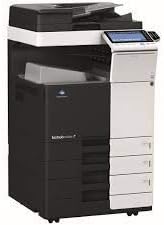
Image 1.1: The Konica Minolta bizhub C224e multifunction device, featuring a black and white chassis with multiple paper trays and an integrated control panel.
2. What's in the Box
Verify that all components are present upon unpacking:
- Konica Minolta bizhub C224e Printer Unit
- Paper Trays (Quantity: 3)
- Automatic Document Feeder (ADF)
- Power Cable
- Setup Guide
3. Setup
3.1 Unpacking
- Carefully remove the device from its packaging.
- Remove all protective materials, tapes, and packing inserts.
- Retain packaging for future transport or service.
3.2 Placement
Place the device on a stable, level surface capable of supporting its weight. Ensure adequate ventilation around the unit and avoid direct sunlight or areas with extreme temperature fluctuations.
3.3 Power Connection
- Connect the power cable to the device's power input.
- Plug the other end of the power cable into a grounded electrical outlet.
- Press the power button to turn on the device.
3.4 Network Connection
Connect an Ethernet cable from the device's Ethernet port to your network router or switch. The device supports Ethernet connectivity for network printing and scanning functions.
3.5 Initial Configuration
Follow the on-screen prompts on the device's control panel to complete the initial setup, including language selection, date/time settings, and network configuration.
4. Operating Instructions
4.1 Basic Copying
- Place the original document face-up in the Automatic Document Feeder (ADF) or face-down on the scanner glass.
- Select the 'Copy' function from the control panel.
- Adjust settings such as quantity, color mode, and paper tray if necessary.
- Press the 'Start' button to begin copying.
4.2 Printing from a Computer
- Ensure the device drivers are installed on your computer.
- Open the document or image you wish to print.
- Select 'Print' from the application's menu.
- Choose the Konica Minolta bizhub C224e from the list of available printers.
- Adjust print settings as required and click 'Print'.
4.3 Scanning Documents
- Place the document in the ADF or on the scanner glass.
- Select the 'Scan' function on the control panel.
- Choose the destination (e.g., email, network folder, USB) and scan settings (e.g., resolution, file format).
- Press the 'Start' button to initiate the scan.
4.4 Using the Automatic Document Feeder (ADF)
The ADF allows for continuous scanning or copying of multiple pages. Load documents face-up into the ADF tray. The device will automatically feed each page for processing. Ensure documents are free of staples or clips to prevent jams.
4.5 Duplex Printing/Copying
The bizhub C224e supports automatic duplex (two-sided) printing and copying. This feature can be enabled through the print driver settings on your computer or directly from the device's control panel when performing copy operations.
5. Maintenance
5.1 Cleaning the Exterior
Wipe the exterior of the device with a soft, damp, lint-free cloth. Avoid using abrasive cleaners or solvents. Regularly clean the scanner glass with a glass cleaner and a soft cloth to ensure clear scans and copies.
5.2 Replacing Toner Cartridges
- When a toner cartridge is low or empty, a message will appear on the control panel.
- Open the front cover of the device.
- Carefully remove the empty toner cartridge by pulling it towards you.
- Unpack the new toner cartridge and shake it gently to distribute the toner.
- Insert the new cartridge into the corresponding slot until it clicks into place.
- Close the front cover.
5.3 Clearing Paper Jams
If a paper jam occurs, the control panel will display an error message indicating the location of the jam. Follow the on-screen instructions or refer to the internal diagrams to locate and carefully remove the jammed paper. Always pull paper in the direction of the paper path to avoid tearing.
6. Troubleshooting
This section addresses common issues you may encounter with the Konica Minolta bizhub C224e.
| Issue | Solution |
|---|---|
| Device does not power on. | Ensure the power cable is securely connected to both the device and a working electrical outlet. Check the power button. |
| Paper jams frequently. | Verify that paper is loaded correctly and is not creased or damaged. Ensure the correct paper type is selected in settings. Clean paper feed rollers if necessary. |
| Print quality is poor (streaks, faded prints). | Check toner levels and replace cartridges if low. Perform a print head cleaning or calibration from the device's maintenance menu. Clean the scanner glass. |
| Cannot print from computer. | Verify network connection. Ensure printer drivers are installed and updated. Check if the printer is selected as the default printer. Restart both the printer and computer. |
| Scanned images are blurry or distorted. | Clean the scanner glass and ADF rollers. Ensure documents are placed correctly and flat. Check scan resolution settings. |
7. Technical Specifications
Key specifications for the Konica Minolta bizhub C224e:
| Feature | Value |
|---|---|
| Model Name | Bizhub C224e |
| Printing Technology | Laser |
| Printer Output | Color |
| Max Input Sheet Capacity | 3650 |
| Maximum Color Print Resolution | 1800 x 600 dpi |
| Maximum Black and White Print Resolution | 600 dpi |
| Max Copy Resolution Color | 1800 x 600 dpi |
| Max Copy Resolution Black-White | 1800 dpi |
| Sheet Size | 297 millimeters |
| Maximum Media Size | A3 |
| Duplex Printing | Automatic |
| Hardware Interface | Ethernet |
| Connectivity Technology | Ethernet |
| Ink Color | CMYK |
| Number of Trays | 3 |
| Total USB Ports | 1 |
| Special Feature | Auto Document Feeder |
| Scanner Type | Automatic Document Feeder |
| Print Media | Paper (plain) |
| UPC | 647213855753 |
8. Warranty and Support
8.1 Warranty Information
This Konica Minolta bizhub C224e device is covered by a 90 days limited warranty. Please refer to your purchase documentation for specific terms and conditions regarding warranty claims and service.
8.2 Customer Support
For technical assistance, troubleshooting beyond this manual, or warranty service, please contact your authorized Konica Minolta dealer or the vendor from whom the product was purchased. Have your model number and serial number ready when contacting support.