
1. Introduction
The DELUX KM06 is a high-performance mechanical gaming keyboard designed for durability and responsiveness. It features Outemu Blue mechanical switches, a 104-key English layout, 12 multimedia keys, N-key rollover, and customizable rainbow LED backlighting. This manual provides instructions for setting up, operating, maintaining, and troubleshooting your keyboard.
2. Package Contents
- DELUX KM06 Gaming Mechanical Keyboard
- User Manual
3. Setup
3.1 Connecting the Keyboard
- Locate an available USB port on your computer.
- Plug the USB connector of the DELUX KM06 keyboard into the USB port.
- Your operating system will automatically detect and install the necessary drivers. No additional software installation is typically required for basic functionality.
3.2 Initial Use
Once connected, the keyboard is ready for immediate use. The default rainbow LED backlight will activate upon connection.
4. Operating Instructions
4.1 Key Features
The KM06 keyboard features 104 standard keys and 12 multimedia keys, along with N-key rollover for precise input during gaming.
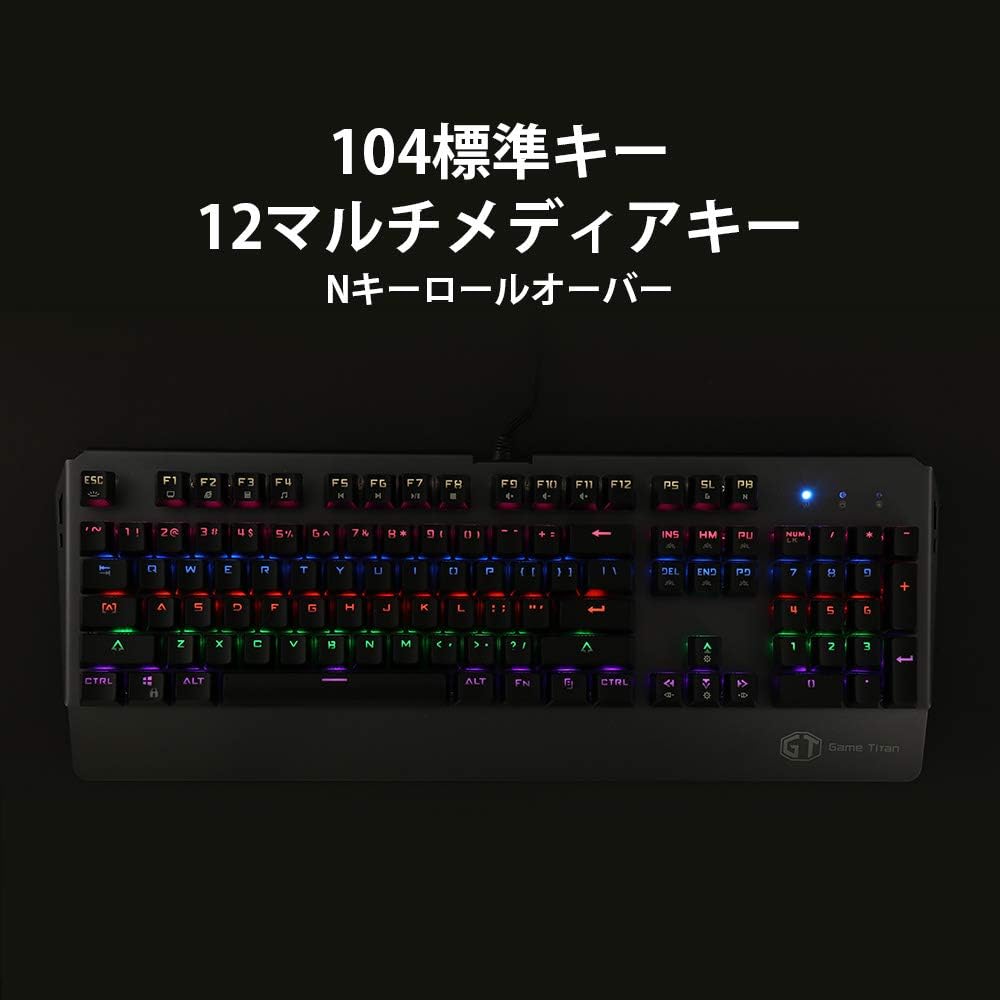
Image: Full view of the DELUX KM06 mechanical keyboard, illustrating the 104-key English layout and the placement of multimedia keys.
4.2 Multimedia Keys (Fn Combinations)
Access multimedia functions by pressing the Fn key simultaneously with the corresponding F-keys (F1-F12).
- Fn + F1: My Computer
- Fn + F2: Search
- Fn + F3: Calculator
- Fn + F4: Media Player
- Fn + F5: Previous Track
- Fn + F6: Next Track
- Fn + F7: Play/Pause
- Fn + F8: Stop
- Fn + F9: Mute
- Fn + F10: Volume Down
- Fn + F11: Volume Up
- Fn + F12: Lock Keyboard
4.3 N-Key Rollover
The KM06 supports N-key rollover, meaning every key press is registered independently, regardless of how many keys are pressed simultaneously. This prevents ghosting and ensures accurate input, especially during fast-paced gaming.
4.4 Backlight Control
The keyboard features rainbow LED backlighting with various effects. Use the following key combinations to control the backlight:
- Fn + INS: Cycle through backlight modes.
- Fn + ↑: Increase backlight brightness.
- Fn + ↓: Decrease backlight brightness.
- Fn + ←: Decrease backlight speed.
- Fn + →: Increase backlight speed.

Image: Side view of the DELUX KM06 keyboard, highlighting the ergonomic key tilt designed for comfortable typing and the vibrant rainbow backlighting.
4.5 Programmable Keys
The DELUX KM06 supports key programming via dedicated software. Please refer to the official DELUX website for the latest software download and detailed instructions on creating custom macros and key assignments.
5. Maintenance
5.1 Cleaning the Keyboard
- Disconnect the keyboard from your computer before cleaning.
- Use a soft, damp cloth to wipe the surface of the keyboard. Avoid harsh chemicals or abrasive materials.
- For cleaning between keycaps, use compressed air to remove dust and debris.
- Keycaps can be carefully removed for deeper cleaning using a keycap puller (not included).

Image: Close-up view of the DELUX KM06 keyboard with several keycaps removed, revealing the Outemu Blue mechanical switches underneath. This illustrates the switch type and construction.
5.2 General Care
- Avoid spilling liquids on the keyboard.
- Do not expose the keyboard to extreme temperatures or direct sunlight.
- Handle the USB cable carefully to prevent damage.
6. Troubleshooting
6.1 Keyboard Not Responding
- Ensure the USB cable is securely plugged into both the keyboard and the computer.
- Try plugging the keyboard into a different USB port on your computer.
- Restart your computer.
- Test the keyboard on another computer to determine if the issue is with the keyboard or the computer.
6.2 Backlight Not Working or Incorrect
- Ensure the keyboard is properly connected and receiving power.
- Use the Fn + ↑ combination to increase brightness.
- Cycle through backlight modes using Fn + INS.
- If using custom software, ensure settings are correctly applied.
6.3 Keys Not Registering or Double-Typing
- Clean the affected key(s) as described in the Maintenance section. Debris under the keycap can interfere with switch operation.
- Ensure no software conflicts are present (e.g., other keyboard drivers or macro programs).
7. Specifications
| Brand | DELUX |
| Model Name | KM06 |
| Connectivity Technology | USB |
| Keyboard Description | Mechanical |
| Special Feature | Backlit |
| Color | Black |
| Switch Type | Tactile (Outemu Blue) |
| Hand Orientation | Ambidextrous |
| Number of Buttons | 104 |
| Product Dimensions | 50.2 x 21.8 x 5.2 cm |
| Item Weight | 1.28 Kilograms |

Image: Close-up view of the DELUX KM06 keyboard, highlighting its durable aluminum alloy frame construction.
8. Warranty and Support
For warranty information and technical support, please refer to the documentation provided with your purchase or visit the official DELUX website. Keep your proof of purchase for warranty claims.


