
1. Introduction
Thank you for purchasing the Infocus 24-inch 720p LED TV, model IM24ED800. This manual provides essential information for setting up, operating, and maintaining your television. Please read this manual thoroughly before using the product and retain it for future reference.
Safety Information
- Do not expose the TV to rain or moisture.
- Do not block ventilation openings.
- Ensure proper power supply voltage.
- Protect the power cord from being walked on or pinched.
- Refer all servicing to qualified service personnel.
- Keep the TV away from direct sunlight, heat sources, and strong magnetic fields.
2. Package Contents
Please check the box for the following items:
- Infocus 24-inch 720p LED TV (IM24ED800)
- Remote Control (with batteries, if included)
- Power Cord
- TV Stand (2 pieces)
- Screws for TV Stand
- User Manual (this document)
3. Setup
3.1 Attaching the TV Stand
To attach the stand to your Infocus TV:
- Carefully place the TV screen-down on a soft, clean surface to prevent scratches.
- Align each stand piece with the corresponding slots on the bottom of the TV.
- Secure each stand piece using the provided screws. Ensure they are tightened firmly.
- Carefully lift the TV and place it on a stable, level surface.
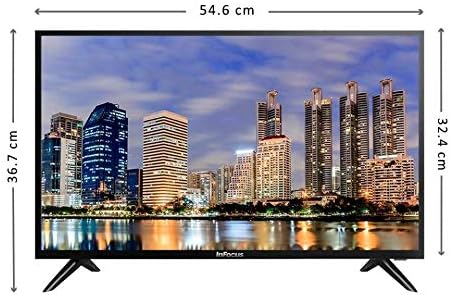
Image: Front view of the Infocus 24-inch LED TV with dimensions indicated. The TV measures approximately 54.6 cm in width and 36.7 cm in height with the stand.
3.2 Connecting Devices
Your Infocus TV features multiple input ports for connecting external devices.

Image: Rear view of the Infocus 24-inch LED TV, highlighting the location of various input ports including HDMI and USB.
- HDMI Connections: Connect Blu-ray players, game consoles, or cable/satellite boxes to the HDMI ports. The TV has 2 HDMI inputs.
- USB Connections: Connect USB flash drives for media playback to the USB ports. The TV has 2 USB inputs.
- Antenna/Cable: Connect an antenna or cable TV signal to the RF input (if available, not explicitly listed but standard for TVs).
- Power: Connect the power cord to the TV's power input and then to a wall outlet.
3.3 Initial Power On
After connecting all necessary cables:
- Ensure the power cord is securely plugged into both the TV and a power outlet.
- Press the Power button on the remote control or on the TV itself.
- Follow the on-screen instructions for initial setup, which may include language selection, time zone, and channel scanning.
4. Operating Your TV
4.1 Remote Control Overview
The remote control allows you to access all TV functions. While specific button layouts may vary, common functions include:
- Power: Turns the TV on or off.
- Input/Source: Selects the input source (HDMI 1, HDMI 2, USB, TV).
- Volume Up/Down: Adjusts the sound level.
- Channel Up/Down: Changes TV channels.
- Mute: Silences the TV audio.
- Menu: Opens the main menu for settings adjustments.
- Navigation Buttons (Up/Down/Left/Right/OK): Used to navigate menus and confirm selections.
- Exit/Back: Returns to the previous screen or exits the menu.
4.2 Basic Functions
- Changing Input Source: Press the Input or Source button on your remote control. Use the navigation buttons to select the desired input (e.g., HDMI 1, USB) and press OK.
- Adjusting Volume: Use the Volume Up (+) or Volume Down (-) buttons.
- Changing Channels: Use the Channel Up (CH+) or Channel Down (CH-) buttons.
4.3 USB Media Playback
To play media files from a USB flash drive:
- Insert a USB flash drive into one of the TV's USB ports.
- Press the Input or Source button on your remote control and select USB.
- The TV's media browser should appear. Navigate through your files (photos, music, videos) using the remote control.
- Select a file and press OK to play it.
5. Maintenance
5.1 Cleaning the Screen
- Turn off the TV and unplug the power cord before cleaning.
- Use a soft, lint-free cloth (e.g., microfiber cloth) to gently wipe the screen.
- For stubborn marks, lightly dampen the cloth with water or a specialized screen cleaner. Never spray cleaner directly onto the screen.
- Avoid using abrasive cleaners, alcohol, benzene, or thinners, as these can damage the screen.
5.2 General Care
- Keep the TV in a well-ventilated area.
- Avoid placing heavy objects on top of the TV.
- Unplug the TV during lightning storms or when it will be unused for extended periods.
6. Troubleshooting
If you encounter issues with your TV, refer to the following common problems and solutions:
| Problem | Possible Cause | Solution |
|---|---|---|
| No power | Power cord not connected; power outlet issue | Ensure power cord is securely plugged in. Test the outlet with another device. |
| No picture, but sound is present | Incorrect input source selected; loose video cable | Press the Input/Source button to select the correct input. Check video cable connections. |
| No sound, but picture is present | Volume muted or too low; audio cable issue | Press the Mute button or increase volume. Check audio cable connections. |
| Remote control not working | Batteries depleted; obstruction; remote sensor blocked | Replace batteries. Remove any obstructions between the remote and TV. Ensure the TV's remote sensor is clear. |
| "No Signal" message | Incorrect input source; device not powered on; cable issue | Verify the correct input source is selected. Ensure the connected device is powered on. Check all cable connections. |
7. Specifications
The following are the technical specifications for the Infocus 24-inch 720p LED TV model IM24ED800:
| Feature | Detail |
|---|---|
| Model Number | IM24ED800 |
| Screen Size | 24 inches (61 cm) |
| Display Technology | LED |
| Resolution | 1366 x 768 (720p HD) |
| Refresh Rate | 60 Hz |
| HDMI Inputs | 2 |
| USB Inputs | 2 |
| Connectivity | HDMI, USB |
| Mounting Type | Table Stand |
| Package Dimensions | 60.8 x 37.8 x 12 cm |
| Package Weight | 5 kg |
8. Warranty and Support
This Infocus TV is sold as a renewed product, which typically comes with a limited warranty provided by the seller or refurbisher. Please refer to your purchase documentation or contact your retailer for specific warranty terms and conditions.
For technical support or service inquiries, please contact the customer support channel provided by your retailer or the Infocus support website.


